
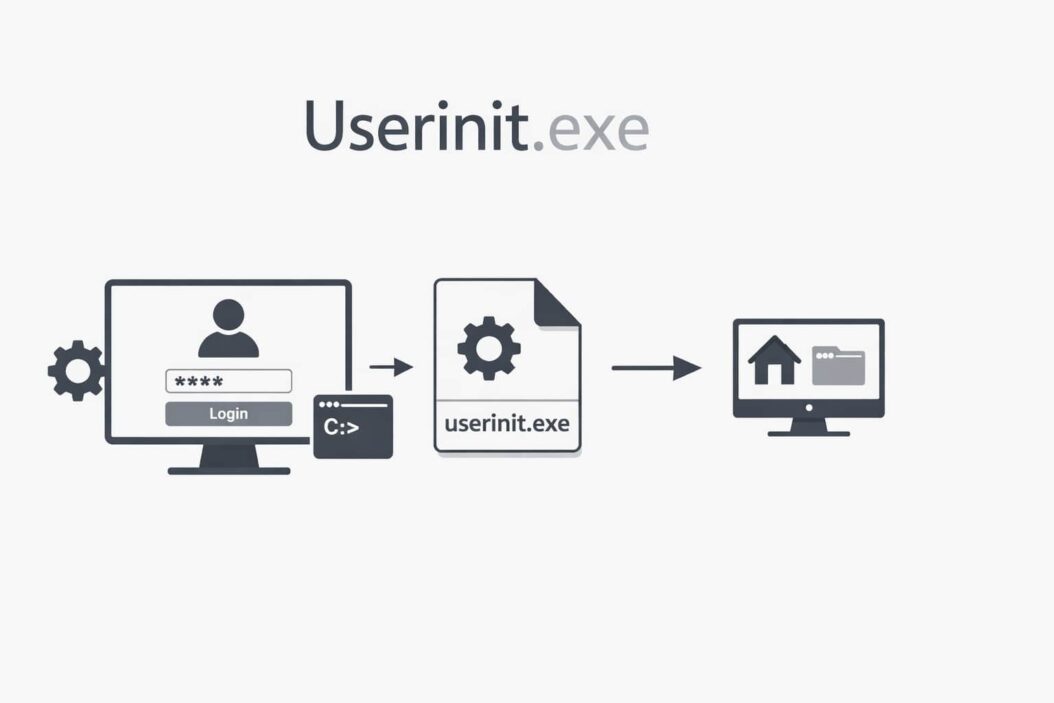
Userinit.exe is a critical Windows system file that launches your user profile and desktop environment every time you log in. Without it, Windows cannot properly load your personal settings, desktop icons, or essential system services. This file runs once during startup and then closes, making it easy to overlook until something goes wrong.
If you’re reading this, you probably noticed userinit.exe in Task Manager, received an error message, or suspect something malicious is hiding under this name. This guide will explain exactly what this file does, where it should be located, and how to fix problems when they arise.
What Is Userinit.exe and What Does It Do?
Userinit.exe is a legitimate Windows executable file that runs during the login process. Microsoft designed it to initialize your user environment after you enter your password.
Here’s what happens when userinit.exe runs:
- It activates your user profile settings
- It loads the Windows shell (usually explorer.exe)
- It applies login scripts defined by your system administrator
- It sets up network connections
- It restarts any programs that were running when you last shut down (if configured)
- It closes itself after completing these tasks
The process typically runs for just a few seconds. Once it finishes loading your desktop environment, it terminates. This is normal behavior. You should not see userinit.exe running continuously in Task Manager.
Where Userinit.exe Should Be Located
*The legitimate userinit.exe file is always located in C:\Windows\System32*
This is the only correct location for this file. The exact path looks like this:
C:\Windows\System32\userinit.exe
File properties for the legitimate version:
| Property | Expected Value |
|---|---|
| Location | C:\Windows\System32\ |
| File Size | Approximately 26-30 KB (varies by Windows version) |
| Digital Signature | Microsoft Windows |
| Description | Userinit Logon Application |
| Product Name | Microsoft Windows Operating System |
Any userinit.exe file found in a different location is suspicious and likely malware.
How to Check If Your Userinit.exe Is Legitimate
Many viruses and trojans disguise themselves as userinit.exe to avoid detection. Here’s how to verify your file is genuine.
Step 1: Check the file location
Press Ctrl + Shift + Esc to open Task Manager. If you see userinit.exe running (rare, but possible during login), right-click it and select “Open file location.” The folder should be C:\Windows\System32. If it opens anywhere else, you likely have malware.
Step 2: Verify the digital signature
Navigate to C:\Windows\System32\ and find userinit.exe. Right-click the file and select Properties. Click the Digital Signatures tab. You should see Microsoft Windows Publisher listed. Click Details, then View Certificate. The certificate should be issued to Microsoft Windows and issued by Microsoft Code Signing PCA.
Step 3: Scan with multiple tools
Even files in the correct location can be infected or replaced. Run these scans:
- Windows Defender full scan
- Malwarebytes (free version works fine)
- An online scanner like VirusTotal where you can upload the file directly
Step 4: Check system startup entries
Press Windows Key + R, type msconfig, and press Enter. Go to the Startup tab (or open Task Manager > Startup tab on Windows 10/11). Look for any suspicious entries that reference userinit.exe. The legitimate file does not need a startup entry because Windows calls it automatically during login.
Common Userinit.exe Errors and How to Fix Them
Error: “Userinit.exe Application Error”
This error typically appears during login and suggests the file is corrupted or missing.
Solution 1: Run System File Checker
Open Command Prompt as Administrator. Type:
sfc /scannow
Press Enter. This command scans all Windows system files and repairs corrupted ones. The process takes 10-20 minutes. Restart your computer when complete.
Solution 2: Use DISM to repair Windows image
If SFC doesn’t fix the problem, run these commands in Command Prompt (Admin):
DISM /Online /Cleanup-Image /CheckHealth
DISM /Online /Cleanup-Image /RestoreHealth
These commands repair the underlying Windows installation files that SFC relies on.
Solution 3: Restore from backup
If you have a system restore point from before the error started, use it. Type “create a restore point” in the Windows search bar, click System Restore, and choose a restore point. This won’t affect your personal files but will undo recent system changes.
Error: “Windows Cannot Find Userinit.exe”
This critical error prevents Windows from loading your desktop. You’ll usually see a black screen or error message after entering your password.
Solution: Use Windows Recovery Environment
You’ll need to boot into Windows Recovery Environment since you can’t access your desktop normally.
- Force shut down your computer three times during boot to trigger Recovery Mode
- Select Troubleshoot > Advanced Options > Command Prompt
- Type these commands one at a time:
cd C:\Windows\System32\
dir userinit.exe
If the file is missing, you need to copy it from the Windows installation media or another working computer running the same Windows version. Place the copied userinit.exe in C:\Windows\System32.
If you’re not comfortable with command line recovery, consider reaching out to Microsoft Support or a local technician. According to Microsoft’s documentation on system files, modifying system directories requires careful attention to avoid further problems.
Userinit.exe Running Constantly or Using High CPU
The legitimate userinit.exe runs briefly during login and then closes. If it’s running continuously or consuming significant CPU or memory resources, you likely have malware.
Solution: Remove the malware
- Boot into Safe Mode with Networking (restart, press F8 repeatedly, select Safe Mode)
- Download and run Malwarebytes
- Perform a full system scan
- Remove all detected threats
- Run Windows Defender full scan as well
- Check your startup programs and remove suspicious entries
After removing malware, run the SFC and DISM commands mentioned earlier to ensure no system files were damaged.
Registry Keys Related to Userinit.exe
Windows uses specific registry keys to call userinit.exe during login. Malware often modifies these keys to maintain persistence.
The correct registry entry is:
Path: HKEY_LOCAL_MACHINE\SOFTWARE\Microsoft\Windows NT\CurrentVersion\Winlogon
Value Name: Userinit
Value Data: C:\Windows\system32\userinit.exe,
Notice the comma at the end. This is intentional. The comma tells Windows that other programs might follow in the sequence.
How to check your registry:
Press Windows Key + R, type regedit, and press Enter. Navigate to the path above. Look at the Userinit value. If it points to any other location or includes additional executables, your system may be compromised.
Warning: Only edit the registry if you understand what you’re doing. Incorrect changes can prevent Windows from booting. Always export the registry key as a backup before making changes (right-click the Winlogon folder and choose Export).
Malware That Disguises Itself as Userinit.exe
Several types of malware specifically target or impersonate userinit.exe:
Common variants include:
- Trojan.Userinit: Modifies the registry to load malicious code
- W32.Spybot.Worm: Creates a fake userinit.exe in other folders
- Backdoor.Hupigon: Replaces the legitimate file with an infected version
- Generic trojans that add themselves to the userinit registry value
Red flags that indicate malware:
- Userinit.exe located outside C:\Windows\System32\
- Multiple userinit.exe processes running simultaneously
- The file size is significantly different (legitimate file is 26-30 KB)
- High network activity from userinit.exe
- No digital signature or a signature from an unknown publisher
- Your antivirus software flags the file
If you find malware, don’t just delete the suspicious file. Run complete malware scans with updated tools. Malware that targets system files often installs additional components throughout your system.
How to Prevent Userinit.exe Problems
Most userinit.exe issues stem from malware infections or system corruption. Prevention is simpler than repair.
Keep Windows updated
Enable automatic updates. Microsoft patches security vulnerabilities that malware exploits. Go to Settings > Update & Security > Windows Update and install all available updates.
Use reliable antivirus software
Windows Defender provides solid protection if you keep it updated. Run weekly scans. Consider adding Malwarebytes for periodic second-opinion scans.
Avoid suspicious downloads
Most malware enters your system through:
- Cracked software and key generators
- Email attachments from unknown senders
- Fake software updates from pop-up ads
- Torrents and peer-to-peer file sharing
Download software only from official websites. Never disable your antivirus to install a program.
Create regular backups
Back up your important files to an external drive or cloud service. If malware damages your system files, you can restore from a clean backup without losing data.
Use a standard user account
Don’t use an administrator account for daily activities. Standard accounts limit malware’s ability to modify system files like userinit.exe. Create a separate admin account for installing software and updates.
Userinit.exe vs Explorer.exe: Understanding the Difference
People often confuse userinit.exe and explorer.exe because they both relate to your desktop environment.
Key differences:
| Feature | Userinit.exe | Explorer.exe |
|---|---|---|
| Purpose | Initializes user login | Provides Windows shell and desktop |
| When it runs | Once at login | Continuously while Windows is running |
| Visible in Task Manager | Briefly or not at all | Always visible |
| Can you end the process? | Usually already closed | Yes, but desktop disappears |
| File location | C:\Windows\System32\ | C:\Windows\ |
The relationship between them:
Userinit.exe starts first and launches explorer.exe as one of its tasks. Think of userinit.exe as the starter that turns on your car, while explorer.exe is the engine that keeps running.
If explorer.exe crashes, your taskbar and desktop icons disappear, but you can restart it from Task Manager (File > Run new task > type “explorer.exe”). If userinit.exe has problems, Windows can’t properly start your session in the first place.
Advanced Troubleshooting: Editing the Registry Safely
If malware modified your userinit registry entry, you may need to fix it manually. This is advanced troubleshooting. Proceed carefully.
Before editing:
Create a system restore point. Type “create a restore point” in Windows search, click “Create,” and give it a descriptive name like “Before userinit registry fix.”
Steps to fix the registry:
- Press Windows Key + R
- Type
regeditand press Enter - Navigate to
HKEY_LOCAL_MACHINE\SOFTWARE\Microsoft\Windows NT\CurrentVersion\Winlogon - Right-click the Winlogon folder and select Export (save this as a backup)
- Find the Userinit value in the right pane
- Double-click it to edit
- Change the value data to exactly:
C:\Windows\system32\userinit.exe, - Click OK
- Close Registry Editor
- Restart your computer
If Windows won’t boot after this change, restart in Safe Mode and restore the exported registry backup by double-clicking it.
When to Seek Professional Help
Some userinit.exe problems require expert assistance. Consider professional help if:
- You’ve tried all solutions here and still see errors
- You’re uncomfortable using Command Prompt or Registry Editor
- Multiple system files are corrupted or missing
- Your antivirus software won’t install or keeps getting disabled
- You need to preserve important data before attempting repairs
A qualified technician can perform advanced recovery procedures, including clean Windows reinstalls while preserving your files.
Summary
Userinit.exe is a critical Windows component that loads your user environment during login. The legitimate file sits in C:\Windows\System32, runs briefly, and then closes. Problems usually indicate either system file corruption or malware infection.
For corruption issues, System File Checker and DISM repair tools often resolve the problem. For malware, boot into Safe Mode, run multiple antivirus scans, and verify your registry entries. Prevention through regular updates, careful browsing habits, and reliable antivirus software stops most problems before they start.
Check your userinit.exe file location and digital signature today. If everything looks correct, you’re fine. If something seems off, address it immediately before the problem worsens.
Frequently Asked Questions
Is it safe to delete userinit.exe?
No. Never delete userinit.exe from C:\Windows\System32. This is a critical system file required for Windows to load your user profile and desktop. Deleting it will prevent you from logging into Windows. If you suspect the file is infected, scan it with antivirus software first. If confirmed malicious, remove the infection through proper malware removal tools, which will restore the legitimate file.
Why does userinit.exe run at startup?
Windows automatically calls userinit.exe during the login process to initialize your user environment. You don’t need to add it to your startup programs. The operating system launches it through registry entries in the Winlogon key. If you see userinit.exe listed in your startup programs, that’s abnormal and may indicate malware.
Can userinit.exe be a virus?
The legitimate userinit.exe is not a virus. However, malware often disguises itself using this name because it’s a recognized system file. Check the file location (must be C:\Windows\System32) and digital signature (must be signed by Microsoft). If either is wrong, you likely have malware. Run full system scans with updated antivirus software.
How much memory should userinit.exe use?
Userinit.exe typically uses 1-4 MB of memory during the brief time it runs at login. It should not appear in Task Manager during normal computer use because it closes after loading your desktop. If you see it consuming significant CPU or memory resources continuously, your system is either infected with malware or has a serious configuration problem.
What happens if userinit.exe is missing or corrupted?
If userinit.exe is missing or corrupted, Windows cannot properly load your user profile. You’ll typically see a black screen after login, error messages about missing files, or your desktop won’t load correctly. Fix this by running System File Checker (sfc /scannow) in Command Prompt as Administrator. For severe cases, boot into Windows Recovery Environment and use DISM tools or restore from a system image backup.

- How to Uninstall Apps from the Start Menu in Windows 11/10 (2026 Guide) - April 2, 2026
- How to Fix Overscan on Windows 11/10: Stop Your Screen Getting Cut Off (2026) - April 1, 2026
- How to Disable Lock Screen on Windows 11/10 in 2026 - April 1, 2026