
If you’ve opened Windows Task Manager and noticed a process called smss.exe running on your computer, you might be wondering what it does and whether it’s safe. This article explains everything you need to know about smss.exe, including its purpose, how to verify it’s legitimate, and what to do if something seems wrong.
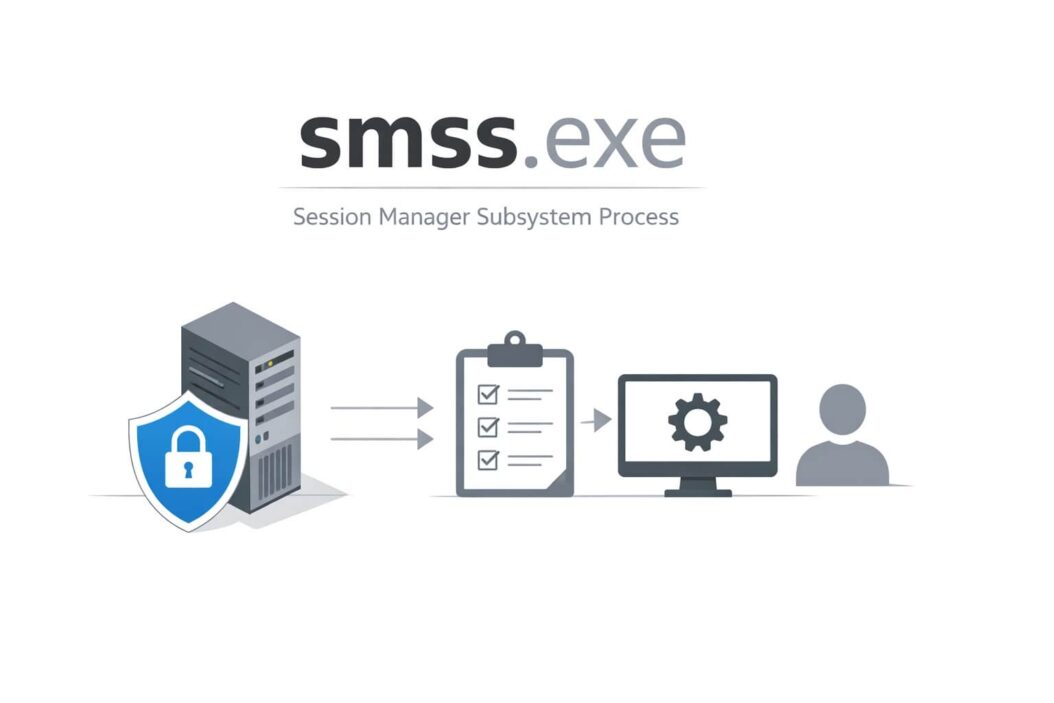
smss.exe is the Session Manager Subsystem, a critical Windows system process that starts your user session each time you boot your computer. It’s essential for Windows to function properly and should always be running.
smss.exe: The Session Manager Subsystem
The Session Manager Subsystem (smss.exe) is one of the first processes Windows launches during startup. Think of it as the conductor of an orchestra, coordinating other essential processes before your desktop appears.
What Does smss.exe Actually Do?
When you turn on your computer, smss.exe performs several critical tasks:
During Startup:
- Loads essential system variables and registry settings
- Starts the Windows subsystem (csrss.exe)
- Launches the Windows Logon Manager (winlogon.exe)
- Creates virtual memory (pagefile.sys) if needed
- Sets up session environments for user logins
After completing these tasks, smss.exe continues running but uses minimal resources. It remains active to manage session creation when new users log in or when you switch between user accounts.
Technical Details About the Process
Here’s what you should know about the legitimate smss.exe:
| Property | Legitimate Value |
|---|---|
| File Location | C:\Windows\System32\smss.exe |
| Parent Process | System (PID 4) or none |
| Number of Instances | Usually 1 (brief additional instances during session creation) |
| CPU Usage | Near 0% (after startup) |
| Memory Usage | 1-4 MB typically |
| Digital Signature | Microsoft Windows Publisher |
The process runs with SYSTEM level privileges because it needs deep access to start other core Windows components.
Is smss.exe Safe or a Virus?
This is the most common question people ask. The legitimate smss.exe file is completely safe and necessary for Windows to work. However, malware creators sometimes disguise viruses with similar names to hide in plain sight.
How to Verify Your smss.exe Is Legitimate
Follow these steps to check if your smss.exe is genuine:
Step 1: Check the File Location
- Open Task Manager (press Ctrl + Shift + Esc)
- Click the “Details” tab
- Find smss.exe in the list
- Right-click it and select “Open file location”
- The folder should be C:\Windows\System32
If the file is located anywhere else, it’s likely malware.
Step 2: Verify the Digital Signature
- In the file location window, right-click smss.exe
- Select “Properties”
- Click the “Digital Signatures” tab
- Look for “Microsoft Windows” as the signer
- Click “Details” and then “View Certificate”
- Verify the certificate is valid and issued to Microsoft
Step 3: Check Resource Usage Legitimate smss.exe uses almost no CPU after Windows finishes starting up. If you see constant high CPU usage (above 5%) or memory usage above 20 MB, investigate further.
Warning Signs of Malware
Be suspicious if you notice:
- Multiple smss.exe processes running simultaneously for extended periods
- The file located outside C:\Windows\System32
- High or constant CPU usage
- No digital signature or a signature from an unknown publisher
- Misspelled variations like “sms.exe,” “smss.exe,” or “smss32.exe”
- The process starts after Windows is already running
According to Microsoft’s security documentation at https://docs.microsoft.com/en-us/windows/security/, legitimate system processes should always be digitally signed and located in protected system folders.
Common smss.exe Issues and Solutions
Issue 1: High CPU Usage
If smss.exe is consuming significant CPU resources, try these solutions:
Solution A: Wait for Startup to Complete During the first few minutes after booting, smss.exe may use more resources while initializing sessions. Wait 5 minutes and check again.
Solution B: Update Windows Outdated Windows versions can cause system process issues.
- Open Settings (press Windows + I)
- Go to “Windows Update”
- Click “Check for updates”
- Install any available updates
- Restart your computer
Solution C: Run System File Checker Corrupted system files can cause smss.exe to malfunction.
- Open Command Prompt as administrator (search “cmd,” right-click, select “Run as administrator”)
- Type:
sfc /scannow - Press Enter and wait (this takes 15-30 minutes)
- Restart after completion
Issue 2: smss.exe Keeps Crashing
When smss.exe crashes, Windows usually displays a blue screen because this process is essential. If you’re experiencing repeated crashes:
Check Your Hard Drive
- Open Command Prompt as administrator
- Type:
chkdsk C: /f /r - Press Enter
- Restart when prompted (the scan runs during boot)
Test Your RAM Faulty memory can cause system process crashes.
- Type “Windows Memory Diagnostic” in the Start menu search
- Click “Restart now and check for problems”
- Wait for the test to complete
- Review results after Windows restarts
Restore System Files
- Open Command Prompt as administrator
- Type:
DISM /Online /Cleanup-Image /RestoreHealth - Wait for the process to complete (may take 20-40 minutes)
- Run
sfc /scannowafterward - Restart your computer
Issue 3: Unable to End smss.exe Process
You should never need to end smss.exe. If you try, Windows will either prevent it or may become unstable. The process is protected because ending it could crash your system.
If you believe smss.exe is malware and want to remove it:
- Boot into Safe Mode (hold Shift while clicking Restart, then navigate to Troubleshoot > Advanced Options > Startup Settings > Restart > press 4 or F4)
- Run a full antivirus scan using Windows Defender or your preferred security software
- Remove any detected threats
- Restart normally
How smss.exe Relates to Other Windows Processes
Understanding how smss.exe fits into the Windows startup sequence helps you recognize normal behavior.
The Windows Boot Process Chain
Boot Sequence:
- BIOS/UEFI loads first
- Bootmgr.exe (Boot Manager) starts
- Ntoskrnl.exe (Windows kernel) loads
- smss.exe launches (first user-mode process)
- csrss.exe (Client/Server Runtime) starts from smss.exe
- wininit.exe and winlogon.exe start
- services.exe launches all Windows services
- lsass.exe handles authentication
smss.exe is the bridge between the kernel starting and your user session beginning. It’s sometimes called the “session 0 process” because it manages session creation.
Related Processes You Might See
These processes work alongside smss.exe:
| Process | Purpose | Relationship to smss.exe |
|---|---|---|
| csrss.exe | Client Server Runtime Subsystem | Child process started by smss.exe |
| winlogon.exe | Windows Logon Manager | Started by smss.exe |
| wininit.exe | Windows Initialization | Coordinates with smss.exe |
| services.exe | Service Control Manager | Started after smss.exe completes initial tasks |
All these processes should show “smss.exe” as their parent process when you check in Process Explorer (a more detailed alternative to Task Manager from https://docs.microsoft.com/en-us/sysinternals/downloads/process-explorer).
Advanced Troubleshooting for smss.exe Problems
Using Event Viewer to Diagnose Issues
Windows logs all system process activity, including smss.exe errors.
- Press Windows + X and select “Event Viewer”
- Navigate to “Windows Logs” > “System”
- Look for errors or warnings mentioning smss.exe
- Note the error codes and timestamps
- Search Microsoft’s support site for specific error codes
Common error codes related to smss.exe:
- 0xC000012D: Bad image file, system file corruption
- 0xC0000135: Missing dependency file
- 0xC0000142: Initialization failure
Registry Locations for smss.exe Configuration
Warning: Only edit the registry if you’re comfortable with advanced troubleshooting. Incorrect changes can prevent Windows from starting.
smss.exe reads its configuration from:
- HKEY_LOCAL_MACHINE\SYSTEM\CurrentControlSet\Control\Session Manager
- HKEY_LOCAL_MACHINE\SYSTEM\CurrentControlSet\Control\Session Manager\SubSystems
These keys control:
- Which subsystems to load
- Memory management settings
- Session environment variables
- Pagefile configuration
Never delete these keys. If you suspect corruption, use System Restore to revert to a working configuration.
Creating a Clean Boot Environment
Sometimes third-party software interferes with system processes. A clean boot helps identify conflicts.
- Press Windows + R
- Type
msconfigand press Enter - Go to the “Services” tab
- Check “Hide all Microsoft services”
- Click “Disable all”
- Go to the “Startup” tab
- Click “Open Task Manager”
- Disable all startup items
- Restart your computer
If smss.exe behaves normally in clean boot, a third-party program is causing the issue. Re-enable services and startup items one by one to identify the culprit.
Protecting Your System from smss.exe Malware
Best Practices for Prevention
Keep Windows Updated Microsoft regularly patches security vulnerabilities that malware exploits. Enable automatic updates or check weekly for new patches.
Use Reliable Antivirus Software Windows Defender provides solid protection, but consider additional layers:
- Enable real-time protection
- Schedule weekly full system scans
- Keep virus definitions updated
- Use anti-malware tools like Malwarebytes for additional scanning
Practice Safe Computing Habits Most malware infections come from user actions:
- Don’t download files from untrusted websites
- Avoid opening email attachments from unknown senders
- Don’t click suspicious links
- Use standard user accounts for daily tasks (not administrator accounts)
- Keep all software updated, not just Windows
What to Do If You Detect Malware
If you’ve confirmed your smss.exe is fake:
Immediate Steps:
- Disconnect from the internet (unplug Ethernet or disable Wi-Fi)
- Don’t attempt to use online banking or enter passwords
- Boot into Safe Mode with Networking
- Run full scans with multiple tools (Windows Defender, Malwarebytes, and a secondary scanner)
- Remove all detected threats
- Change all passwords from a different, clean device
- Monitor bank accounts for suspicious activity
For Persistent Infections:
- Use specialized removal tools like Microsoft Safety Scanner
- Consider a complete Windows reinstall if malware can’t be removed
- Backup important files first (but scan them before restoring)
- Consult professional computer repair services for severe infections
Performance Impact of smss.exe
Normal Resource Usage
A healthy smss.exe process has minimal impact:
CPU Usage: 0-1% most of the time (brief spikes during session creation)
Memory Usage: 1-4 MB typically (this is very small)
Disk Activity: Minimal except during startup
Network Activity: None (smss.exe doesn’t communicate over networks)
If you see higher usage consistently, investigate for malware or system corruption.
When Multiple Instances Are Normal
You might briefly see 2-3 smss.exe processes during:
- User account switching
- Remote Desktop connections
- Fast user switching
- Session 0 isolation operations
These additional instances should disappear within seconds. Permanent multiple instances indicate a problem.
Understanding smss.exe Error Messages
Common Error Dialogs
“smss.exe has stopped working” This critical error usually causes a blue screen. Causes include:
- Corrupted system files
- Failing hardware (RAM or hard drive)
- Driver conflicts
- Malware damage
“Windows cannot find smss.exe” This error prevents Windows from starting. Solutions:
- Use Windows Recovery Environment
- Run Startup Repair
- Restore from a system backup
- Reinstall Windows as a last resort
“smss.exe is not a valid Win32 application” This indicates file corruption or malware replacement:
- Boot into Safe Mode
- Run system file checker
- Replace the file from Windows installation media if necessary
Blue Screen Errors Related to smss.exe
If you see blue screens mentioning smss.exe:
STOP Error 0x0000006B: PROCESS1_INITIALIZATION_FAILED
- Boot device issue or registry corruption
- Run chkdsk and sfc commands
- Check hard drive health with manufacturer tools
STOP Error 0xC000026C: STATUS_DLL_INIT_FAILED
- Critical DLL failed to load
- Boot into Safe Mode
- Use System Restore to previous working state
Document the exact error code and search Microsoft’s support knowledge base for specific solutions.
Conclusion
The smss.exe process is a fundamental Windows component that manages your user sessions and coordinates the startup of essential system processes. Under normal circumstances, it runs quietly in the background using minimal resources and requires no user interaction.
Key Takeaways:
- smss.exe is legitimate and necessary for Windows to function
- The real file is always located in C:\Windows\System32
- It should use almost no CPU after startup and only 1-4 MB of memory
- Multiple instances lasting more than a few seconds indicate problems
- Malware sometimes disguises itself with similar names
- Verify legitimacy by checking file location and digital signature
If you’re experiencing issues with smss.exe, start with the basic troubleshooting steps: verify the file is genuine, update Windows, and run system file checker. Most problems stem from system file corruption or malware, both of which can be resolved with the methods outlined in this guide.
Remember that you should never manually end or delete smss.exe. This process is protected by Windows because it’s critical to system stability. If you suspect malware, use proper antivirus tools and safe mode rather than trying to forcefully remove the process.
By understanding what smss.exe does and how to recognize when something is wrong, you can maintain a healthy Windows system and quickly identify potential security threats.
Frequently Asked Questions
Can I Disable smss.exe?
No, you cannot and should not disable smss.exe. This process is essential for Windows to function. Disabling it would prevent Windows from starting properly. There is no legitimate reason to disable this process, and Windows protects it from being ended or disabled. If smss.exe is causing problems, the solution is to fix the underlying issue, not to disable the process.
Why Does smss.exe Run at Startup?
smss.exe runs at startup because it’s responsible for creating your user session. It’s one of the first processes Windows launches after the kernel loads. Without smss.exe, Windows cannot initialize the subsystems needed for you to log in and use your computer. This process starts other critical components like csrss.exe and winlogon.exe, which are necessary for the Windows environment to function.
How Much RAM Should smss.exe Use?
smss.exe typically uses between 1 and 4 MB of RAM. This is a very small amount compared to other processes. If you see smss.exe using significantly more memory (above 20-30 MB), it could indicate a problem such as malware disguised as smss.exe or system corruption. Check the file location and digital signature to verify it’s the legitimate Windows process.
What Happens If I End smss.exe in Task Manager?
Windows will prevent you from ending smss.exe through Task Manager under normal circumstances because it’s a critical system process. If you somehow manage to force it to end, Windows will likely crash immediately with a blue screen or become extremely unstable. You should never attempt to end this process. If you believe the process is malware, boot into Safe Mode and run antivirus scans instead.
Is smss.exe a Virus or Malware?
The legitimate smss.exe file is not a virus or malware. It’s an official Windows system process. However, some malware disguises itself using the same name or similar names to avoid detection. To determine if your smss.exe is legitimate, check that it’s located in C:\Windows\System32, has a valid Microsoft digital signature, and uses minimal system resources. Any smss.exe file located elsewhere or without proper signing is likely malware and should be removed using antivirus software.
