
If you’ve opened Task Manager and spotted spoolsv.exe running on your Windows computer, you’re probably wondering what it does and whether it’s safe. This process is legitimate and essential for printing, but it can sometimes cause high CPU usage, memory leaks, or errors that disrupt your work.
This article explains everything about spoolsv.exe: its purpose, why it sometimes malfunctions, and how to fix common issues. You’ll learn when to worry about this process and when to leave it alone.
What Is Spoolsv.exe?
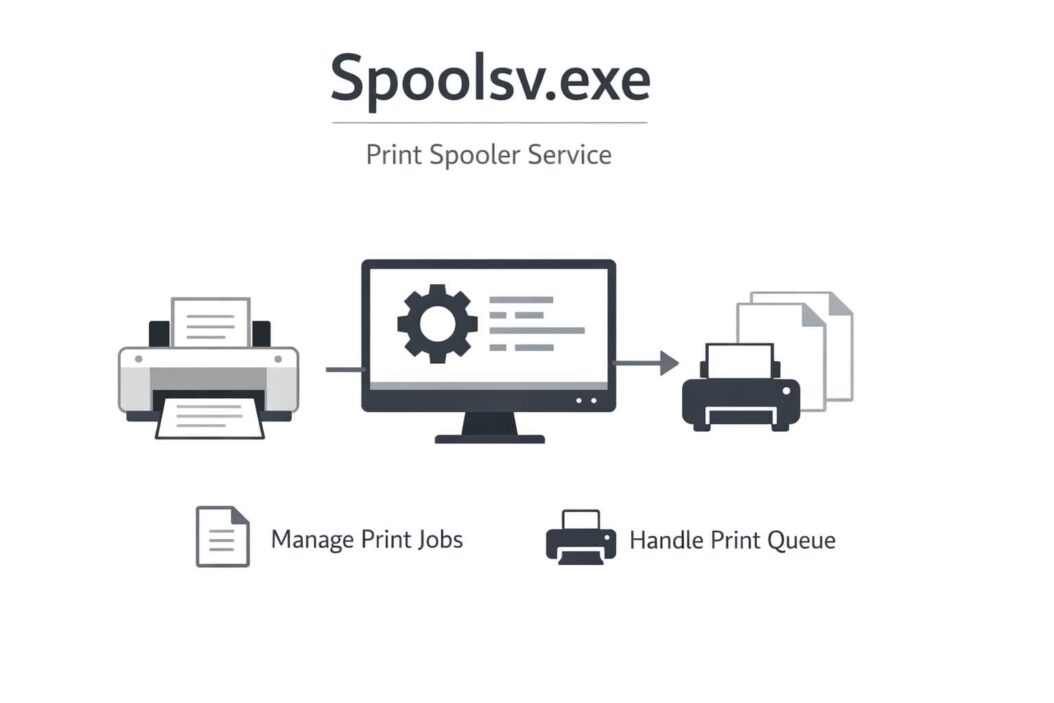
Spoolsv.exe is the Windows Print Spooler service. It manages all print jobs sent from your computer to connected printers, whether they’re physical devices or virtual PDF printers.
When you click “Print” in any application, Windows doesn’t send data directly to your printer. Instead, spoolsv.exe temporarily stores the print job in a queue, converts it to a format your printer understands, and sends it when the printer is ready.
Location: C:\Windows\System32\spoolsv.exe
This process runs automatically when Windows starts. It’s a core system component developed by Microsoft.
What the Print Spooler Does
The spooler performs several tasks:
Queuing print jobs: It holds documents waiting to be printed so you can continue working without waiting for printing to finish.
Managing printer drivers: It loads and communicates with printer drivers to translate your documents into printable data.
Handling multiple printers: If you have several printers connected, the spooler routes jobs to the correct device.
Enabling network printing: It allows other computers on your network to use shared printers connected to your machine.
Without spoolsv.exe, you cannot print anything on Windows. The service is critical for normal operation.
Is Spoolsv.exe Safe or a Virus?
The legitimate spoolsv.exe file from Microsoft is completely safe. However, malware sometimes disguises itself using this name to avoid detection.
How to Verify It’s Legitimate
Check these indicators to confirm you’re dealing with the real file:
File location matters: Right-click spoolsv.exe in Task Manager, select “Open file location.” The real file lives in C:\Windows\System32. If it’s anywhere else, you likely have malware.
Publisher verification: In Task Manager, right-click the process and choose “Properties.” The Digital Signatures tab should show Microsoft Windows as the signer.
Resource usage: The legitimate spooler uses minimal resources when idle. If it constantly consumes 50% or more CPU with no printing activity, investigate further.
Signs of Malware
Watch for these red flags:
- Multiple spoolsv.exe processes running simultaneously
- File located in
C:\Users,C:\Temp, or other non-system folders - Extremely high CPU or memory usage when no printing occurs
- Your antivirus flags the file
- The process restarts immediately after you stop it, even with no printers installed
If you suspect malware, scan your system with Windows Security or reputable third-party antivirus software.
Common Spoolsv.exe Problems and Solutions
The Print Spooler service can malfunction for various reasons. Here are the most frequent issues and their fixes.
Problem 1: High CPU Usage
Spoolsv.exe sometimes consumes excessive CPU resources, slowing down your entire system.
Common causes:
- Corrupted print jobs stuck in the queue
- Outdated or incompatible printer drivers
- Too many printers installed, especially network printers
- Windows updates causing conflicts
Solution steps:
- Open Services by pressing
Win + R, typingservices.msc, and pressing Enter - Find “Print Spooler” in the list
- Right-click it and select “Stop”
- Open File Explorer and navigate to
C:\Windows\System32\spool\PRINTERS - Delete all files in this folder (these are stuck print jobs)
- Return to Services, right-click Print Spooler, and select “Start”
This clears the print queue and often resolves CPU issues immediately.
Problem 2: Print Spooler Keeps Stopping
The service crashes repeatedly, preventing you from printing.
Why this happens:
Corrupted system files, bad printer drivers, or conflicts with third-party software cause the spooler to crash.
Fix method:
Step 1: Update or reinstall printer drivers
- Open Settings > Devices > Printers & scanners
- Select your printer and click “Remove device”
- Restart your computer
- Reinstall the printer with drivers from the manufacturer’s website
Step 2: Run System File Checker
- Open Command Prompt as administrator
- Type
sfc /scannowand press Enter - Wait for the scan to complete (this takes 15-30 minutes)
- Restart your computer
Step 3: Check for conflicting software
Some applications interfere with the Print Spooler. Common culprits include security software and printer management utilities. Temporarily disable these to test.
Problem 3: Error 1068 or 1069
These errors appear when trying to start the Print Spooler service.
Error 1068 means a dependency service isn’t running. The Print Spooler requires the Remote Procedure Call (RPC) service.
Fix for Error 1068:
- Open Services (
services.msc) - Find “Remote Procedure Call (RPC)”
- Ensure it’s running and set to “Automatic”
- If stopped, right-click and select “Start”
- Now start the Print Spooler service
Error 1069 indicates incorrect login credentials for the service.
Fix for Error 1069:
- Open Services
- Right-click “Print Spooler” and select “Properties”
- Click the “Log On” tab
- Select “Local System account”
- Check “Allow service to interact with desktop”
- Click “Apply” then “OK”
- Restart the service
Problem 4: Cannot Delete Print Jobs
Print jobs remain stuck in the queue, and the “Cancel” button doesn’t work.
Quick solution:
- Stop the Print Spooler service (as described earlier)
- Delete files from
C:\Windows\System32\spool\PRINTERS - Restart the Print Spooler service
If this doesn’t work, use Command Prompt:
net stop spooler
del /Q /F /S "%systemroot%\System32\spool\PRINTERS\*.*"
net start spooler
Run these commands as administrator.
Problem 5: Memory Leak
Spoolsv.exe gradually consumes more RAM until your system slows down significantly.
Common trigger: Network printers that frequently go offline or printer drivers with memory management bugs.
Solution:
- Update all printer drivers to the latest versions
- Remove unused or rarely used printers
- For network printers, use direct IP connection instead of auto-discovery
- Consider reinstalling Windows updates, as some updates fix spooler memory leaks
You can also restart the Print Spooler service daily using Task Scheduler as a temporary workaround.
How to Disable the Print Spooler Service
If you don’t use printers or need to troubleshoot, you can safely disable spoolsv.exe.
When to disable:
- You never print documents
- Troubleshooting to identify if the spooler causes system issues
- Security hardening on servers without printing needs
Disabling steps:
- Open Services (
Win + R, then typeservices.msc) - Locate “Print Spooler”
- Right-click and select “Properties”
- Change “Startup type” to “Disabled”
- Click “Stop” if the service is running
- Click “Apply” then “OK”
The spoolsv.exe process will no longer run. You cannot print until you re-enable it.
To re-enable: Follow the same steps but change “Startup type” to “Automatic” and click “Start.”
Advanced Troubleshooting Techniques
If basic fixes don’t resolve your spoolsv.exe problems, try these advanced methods.
Rebuild the Print Spooler
Completely resetting the spooler can fix persistent issues.
- Stop the Print Spooler service
- Navigate to
C:\Windows\System32\spool - Rename the “PRINTERS” folder to “PRINTERS.old”
- Create a new folder named “PRINTERS” in the same location
- Start the Print Spooler service
Windows recreates the necessary files automatically.
Check for Windows Updates
Microsoft regularly releases updates that fix Print Spooler bugs and security vulnerabilities.
- Open Settings > Update & Security > Windows Update
- Click “Check for updates”
- Install all available updates
- Restart your computer
Several critical Print Spooler vulnerabilities were patched in 2021 and beyond. Staying updated protects your system.
Use Print Management Console
Windows includes a built-in tool for managing printers and the spooler.
- Press
Win + Rand typeprintmanagement.msc - Expand “Print Servers” in the left panel
- Click on your computer name
- View all printers, drivers, and print jobs
- Right-click items to manage or troubleshoot them
This console provides detailed information that helps diagnose complex printing issues.
Registry Fix for Stubborn Problems
If the Print Spooler service won’t start, a registry setting might be corrupted.
Warning: Editing the registry incorrectly can damage Windows. Create a system restore point first.
- Press
Win + R, typeregedit, and press Enter - Navigate to:
HKEY_LOCAL_MACHINE\SYSTEM\CurrentControlSet\Services\Spooler - Verify these values:
DisplayName: Print SpoolerImagePath:%SystemRoot%\System32\spoolsv.exeStart: 2 (for Automatic)
- If values are incorrect, right-click, select “Modify,” and fix them
- Close Registry Editor and restart your computer
Print Spooler Security Considerations
The Print Spooler has been a target for security vulnerabilities, most notably the “PrintNightmare” exploit discovered in 2021.
What PrintNightmare Means for You
This vulnerability allowed attackers to execute code remotely and gain system privileges through the Print Spooler. Microsoft released patches, but unpatched systems remain vulnerable.
Protection steps:
- Keep Windows fully updated
- Disable the Print Spooler on servers and computers that don’t need printing
- Restrict printer driver installation to administrators only
- Enable Protected Print Mode if available in your Windows version
Securing the Print Spooler
For systems that must run the spooler, apply these hardening measures:
Restrict driver installation:
- Open Registry Editor
- Navigate to:
HKEY_LOCAL_MACHINE\SOFTWARE\Policies\Microsoft\Windows NT\Printers\PointAndPrint - Create DWORD values:
RestrictDriverInstallationToAdministratorsset to 1 - Restart the Print Spooler service
Limit network printer connections:
Only connect to printers on trusted networks. Avoid adding printers from unknown or public networks.
Monitor spooler activity:
Check Event Viewer regularly for unusual Print Spooler events that might indicate exploitation attempts.
When to Contact Support
Most spoolsv.exe issues resolve with the fixes in this article. Contact professional support if:
- The spooler crashes immediately after every restart despite clean drivers
- Your antivirus repeatedly detects threats related to spoolsv.exe
- Print Spooler errors coincide with blue screen crashes
- You cannot complete the troubleshooting steps due to permission errors
- The problem started immediately after a Windows update and no fix works
Your computer manufacturer or Microsoft support can provide specialized assistance.
Print Spooler Across Windows Versions
| Windows Version | Spooler Features | Common Issues | Notes |
|---|---|---|---|
| Windows 10 | Full functionality, cloud printing support | PrintNightmare vulnerability, driver conflicts | Most stable with latest updates |
| Windows 11 | Enhanced security, Protected Print Mode | Fewer issues, improved driver management | Recommended for new systems |
| Windows Server | Network printing, shared queue management | Memory leaks with many concurrent jobs | Requires careful configuration |
| Windows 7/8 | Basic printing functions | Limited security, outdated driver support | Upgrade recommended |
Summary and Key Takeaways
Spoolsv.exe is Windows’ Print Spooler service, essential for printing documents. The legitimate file is safe and runs from C:\Windows\System32.
Main points to remember:
The spooler manages print jobs, queues documents, and communicates with printer drivers. High CPU usage, crashes, or stuck print jobs are common problems you can usually fix by clearing the print queue, updating drivers, or restarting the service. Check the file location and digital signature to verify you’re not dealing with malware. You can safely disable the Print Spooler if you don’t print documents. Keep Windows updated to protect against security vulnerabilities like PrintNightmare.
Most spoolsv.exe problems stem from corrupted print jobs or outdated drivers rather than malware. Simple troubleshooting resolves 90% of issues within minutes.
Frequently Asked Questions
Can I end the spoolsv.exe process in Task Manager?
Yes, but this stops all printing until you restart it. Ending the process is safe and can fix temporary issues. The service will restart automatically when you print something or when you manually start it in Services.
Why does spoolsv.exe run when I’m not printing?
The Print Spooler runs constantly to be ready when you need to print. It also monitors connected printers and manages network printing. Even with no active print jobs, it uses minimal resources and is normal behavior.
Does spoolsv.exe need internet access?
No, the basic Print Spooler doesn’t require internet. However, some cloud printing features or driver updates might need connectivity. If your firewall blocks spoolsv.exe, local printing will still work fine.
How much RAM should spoolsv.exe use?
Normal usage is 10-50 MB of RAM. If you see 200+ MB and climbing, you likely have a memory leak. This indicates corrupted drivers or stuck print jobs that need clearing.
Will disabling spoolsv.exe speed up my computer?
Only if the spooler is malfunctioning and using excessive resources. On a healthy system, disabling it provides no noticeable performance benefit. You’ll lose all printing capability, which outweighs minor resource savings.
