
Windows Biometric Service, known by its system name WbioSrvc, is a core Windows component that manages all your biometric hardware. This includes fingerprint readers, facial recognition cameras, and iris scanners. When this service works properly, you unlock your device with a quick finger tap or face scan. When it fails, you’re stuck typing passwords.
This guide explains what WbioSrvc does, why it matters, and how to fix problems when things go wrong.
What Is Windows Biometric Service (WbioSrvc)?
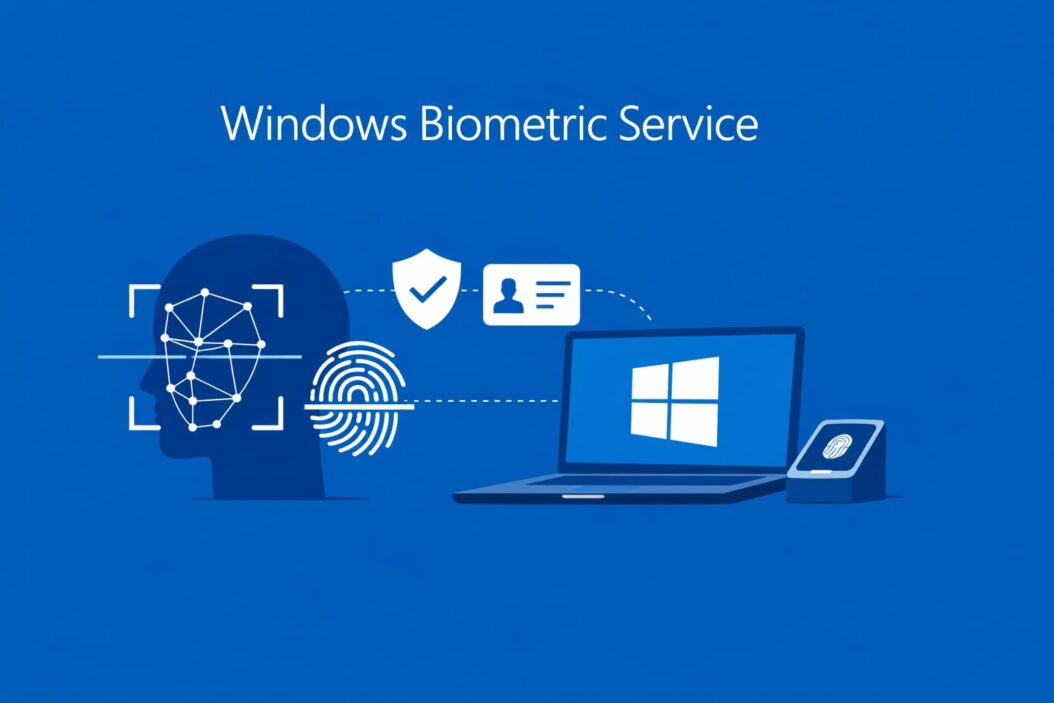
WbioSrvc is a Windows system service that runs in the background. It acts as a bridge between your biometric hardware (fingerprint readers, cameras) and Windows Hello, the built-in authentication system.
Key functions include:
- Processing fingerprint scans and facial recognition data
- Storing biometric templates securely in encrypted form
- Managing permissions for apps that request biometric authentication
- Coordinating with device drivers to ensure hardware works correctly
The service typically runs automatically when you start Windows. It only becomes active when you actually use biometric features. The rest of the time, it sits idle, consuming minimal system resources.
Why WbioSrvc Matters for Your Device Security
Modern Windows devices rely heavily on biometric authentication. Your fingerprint or face becomes your password. WbioSrvc makes this possible.
Security benefits:
- Your biometric data never leaves your device (it stays encrypted locally)
- Faster login compared to typing complex passwords
- Harder for others to access your device (they need your actual finger or face)
- Integrated with Windows Hello for Business in enterprise environments
When WbioSrvc stops working, you lose access to these convenient security features. You fall back to PINs or passwords, which people often make weaker because they’re tired of typing.
Common WbioSrvc Problems and Their Symptoms
Problems with Windows Biometric Service show up in predictable ways. Here are the most common issues:
Fingerprint Reader Not Working
Your laptop’s fingerprint sensor stops responding. Windows doesn’t recognize your finger, even though it worked yesterday. The sensor might light up but nothing happens.
Facial Recognition Fails Repeatedly
Windows Hello face recognition keeps saying it can’t recognize you. The camera works fine in other apps, but authentication fails every time.
Service Won’t Start
You check Services and see WbioSrvc stuck on “Stopped” status. When you try to start it manually, you get an error message.
High CPU or Memory Usage
Task Manager shows WbioSrvc consuming unusual amounts of CPU or RAM. Your computer runs slower whenever biometric features are active.
Error Messages
Common error codes include:
- “Windows Biometric Service is unavailable”
- “We couldn’t find a camera compatible with Windows Hello Face”
- “Something went wrong. Try setting up your fingerprint again”
How to Check if WbioSrvc Is Running
Before troubleshooting, verify the service status.
Step 1: Press Windows + R to open Run dialog
Step 2: Type services.msc and press Enter
Step 3: Scroll down to “Windows Biometric Service”
Step 4: Check the Status column. It should say “Running”
Step 5: Check the Startup Type column. It should say “Manual” or “Automatic”
If the status shows “Stopped” and you use biometric features, you have a problem to fix.
Fixing Windows Biometric Service: Step-by-Step Solutions
Solution 1: Restart the Service
The simplest fix works surprisingly often.
Steps:
- Open Services (press Windows + R, type
services.msc) - Find “Windows Biometric Service”
- Right-click and select “Restart”
- If it’s stopped, right-click and select “Start”
- Test your fingerprint or face recognition
If you get an error when starting, the service might be disabled or have dependency issues.
Solution 2: Set Correct Startup Type
Sometimes Windows sets WbioSrvc to disabled, preventing it from running.
Steps:
- Open Services
- Double-click “Windows Biometric Service”
- In the Startup type dropdown, select “Automatic”
- Click “Apply”
- Click “Start” if the service isn’t running
- Click “OK”
- Restart your computer
After reboot, check if biometric authentication works.
Solution 3: Update Biometric Drivers
Outdated or corrupted drivers cause most WbioSrvc failures.
Steps:
- Press Windows + X and select “Device Manager”
- Expand “Biometric devices”
- Right-click your fingerprint reader or sensor
- Select “Update driver”
- Choose “Search automatically for drivers”
- Let Windows find and install updates
- Restart your computer
If Windows says you have the best driver, try the manufacturer’s website. Dell, HP, Lenovo, and others provide specific driver downloads for their biometric hardware.
Solution 4: Reinstall Biometric Drivers
When updates don’t work, a clean reinstall might help.
Steps:
- Open Device Manager
- Expand “Biometric devices”
- Right-click each biometric device
- Select “Uninstall device”
- Check “Delete the driver software” if that option appears
- Click “Uninstall”
- Restart your computer
- Windows will automatically reinstall drivers on startup
Test biometric features after the restart.
Solution 5: Run Windows Troubleshooter
Windows includes a built-in troubleshooter for hardware problems.
Steps:
- Press Windows + I to open Settings
- Go to “System” then “Troubleshoot”
- Click “Other troubleshooters”
- Find and run “Hardware and Devices”
- Follow on-screen instructions
- Apply any fixes the troubleshooter suggests
This automated tool catches common configuration issues.
Solution 6: Check Windows Hello Settings
Your biometric setup might be corrupted in Windows Hello.
Steps:
- Open Settings (Windows + I)
- Go to “Accounts” then “Sign-in options”
- Under “Ways to sign in,” find “Fingerprint recognition” or “Facial recognition“
- Click “Remove”
- Restart your computer
- Go back to Sign-in options
- Click “Set up” to reconfigure biometric authentication
- Follow the setup wizard
This creates fresh biometric templates and often resolves recognition problems.
Solution 7: Run System File Checker
Corrupted Windows system files can break WbioSrvc.
Steps:
- Press Windows + X and select “Terminal (Admin)” or “Command Prompt (Admin)”
- Type
sfc /scannowand press Enter - Wait for the scan to complete (this takes 15-30 minutes)
- If errors are found and fixed, restart your computer
- Test biometric features
For deeper issues, also run DISM:
- In the same admin terminal, type:
DISM /Online /Cleanup-Image /RestoreHealth - Press Enter and wait (this can take 20-40 minutes)
- Restart after completion
These commands repair Windows core files that WbioSrvc depends on.
Solution 8: Check for Windows Updates
Microsoft regularly fixes biometric service bugs through Windows updates.
Steps:
- Open Settings (Windows + I)
- Go to “Windows Update”
- Click “Check for updates”
- Install all available updates
- Restart when prompted
Security and driver updates often include WbioSrvc improvements.
WbioSrvc Service Dependencies
Windows Biometric Service doesn’t work alone. It depends on other services running correctly.
Critical dependencies:
| Dependency Service | Purpose | Impact if Stopped |
|---|---|---|
| Remote Procedure Call (RPC) | Enables communication between services | WbioSrvc won’t start |
| Cryptographic Services | Handles encryption for biometric data | Authentication fails |
| Windows Driver Foundation | Manages device drivers | Hardware not recognized |
| Base Filtering Engine | Security filtering for network traffic | Some authentication scenarios fail |
If WbioSrvc won’t start, check these dependent services in Services.msc. They all need to be running.
To check dependencies:
- Open Services
- Double-click “Windows Biometric Service”
- Click the “Dependencies” tab
- Note all services listed under “This service depends on”
- Verify each one is running
When to Disable WbioSrvc (and Why You Might)
Some users intentionally disable Windows Biometric Service for specific reasons.
Valid reasons to disable:
- You never use fingerprint or facial recognition features
- Your device doesn’t have biometric hardware
- Corporate security policy requires password-only authentication
- You’re troubleshooting conflicts with third-party security software
How to safely disable:
- Open Services
- Double-click “Windows Biometric Service”
- Set Startup type to “Disabled”
- Click “Stop” if currently running
- Click “Apply” then “OK”
Important warning: Disabling WbioSrvc breaks all Windows Hello biometric features. You’ll need to use passwords or PINs exclusively. Only disable if you’re certain you don’t need biometric authentication.
Advanced Troubleshooting: Registry and Group Policy
When standard solutions fail, advanced users can try registry and policy changes.
Check Group Policy Settings
Group Policy might be blocking biometric services, especially on work computers.
Steps:
- Press Windows + R
- Type
gpedit.mscand press Enter (this only works on Pro and Enterprise editions) - Navigate to: Computer Configuration > Administrative Templates > Windows Components > Biometrics
- Check if any policies are set to “Disabled”
- Change problematic policies to “Not Configured”
- Restart your computer
Common problematic policies:
- “Allow the use of biometrics”
- “Allow users to log on using biometrics”
Registry Verification
Registry corruption can prevent WbioSrvc from functioning. Only attempt this if comfortable editing the registry.
Warning: Editing the registry incorrectly can damage Windows. Back up the registry first.
Steps:
- Press Windows + R
- Type
regeditand press Enter - Navigate to:
HKEY_LOCAL_MACHINE\SYSTEM\CurrentControlSet\Services\WbioSrvc - Verify these values:
- Start should be 3 (Manual) or 2 (Automatic)
- Type should be 20
- ErrorControl should be 1
- If values differ, right-click, select “Modify,” and correct them
- Close Registry Editor
- Restart your computer
WbioSrvc and Privacy: What Data Gets Collected
Biometric data is sensitive. Here’s what WbioSrvc actually stores and how Microsoft protects it.
What gets stored:
- Mathematical representations of your fingerprints or face (not actual images)
- Templates created through complex algorithms
- Encrypted data that only your device can decrypt
What doesn’t get stored:
- Raw fingerprint images
- Photographs of your face
- Any biometric data sent to Microsoft servers
Microsoft’s privacy documentation at https://privacy.microsoft.com confirms that Windows Hello stores all biometric information locally on your device. The data is encrypted using TPM (Trusted Platform Module) hardware when available.
Privacy best practices:
- Use Windows Hello with a strong PIN as backup
- Enable BitLocker to encrypt your entire drive
- Remove old biometric data when selling or giving away a device
- Check Settings > Privacy > Camera/Biometrics to review app permissions
Performance Impact: How Much Resources Does WbioSrvc Use
Under normal conditions, Windows Biometric Service is lightweight.
Typical resource usage:
| State | CPU Usage | Memory Usage |
|---|---|---|
| Idle | 0% | 5-10 MB |
| Active (during authentication) | 2-5% | 15-25 MB |
| Problem state | 15-50%+ | 100+ MB |
If Task Manager shows WbioSrvc using high resources constantly, you likely have a driver problem or corrupted service.
To monitor resource usage:
- Open Task Manager (Ctrl + Shift + Esc)
- Click “More details” if in simplified view
- Go to the “Details” tab
- Find “WbioSrvc.exe” in the list
- Watch CPU and Memory columns
High usage during authentication is normal. High usage while idle indicates a problem requiring the troubleshooting steps covered earlier.
Windows Biometric Service in Enterprise Environments
Businesses use WbioSrvc differently than home users. Understanding enterprise considerations helps IT administrators manage biometric authentication across multiple devices.
Windows Hello for Business
Enterprise deployments use Windows Hello for Business, which builds on WbioSrvc but adds:
- Integration with Active Directory or Azure AD
- Certificate-based authentication
- Multi-factor authentication requirements
- Centralized management through Group Policy or Intune
Microsoft’s documentation at https://docs.microsoft.com provides detailed deployment guides for IT professionals.
Group Policy Management
Administrators control WbioSrvc behavior through policies:
- Force enable or disable biometric authentication
- Require specific biometric types (fingerprint only, face only, or both)
- Set quality thresholds for biometric enrollment
- Log biometric authentication attempts for auditing
These policies override user preferences and ensure consistent security standards.
Troubleshooting in Managed Environments
If WbioSrvc fails on a work computer:
- Check with IT before making changes (Group Policy might intentionally restrict biometrics)
- Verify your account has permission to use Windows Hello
- Ensure the device is properly joined to the domain
- Confirm IT hasn’t pushed policies that disable biometric features
Don’t attempt advanced troubleshooting on managed devices without IT approval.
Alternatives When WbioSrvc Fails Permanently
Sometimes WbioSrvc or biometric hardware fails beyond repair. You have alternatives.
PIN Authentication
Windows Hello PIN provides similar convenience without biometric hardware. It’s device-specific and encrypted.
To set up:
- Go to Settings > Accounts > Sign-in options
- Select “PIN (Windows Hello)”
- Click “Set up”
- Enter your current password
- Create a PIN (minimum 4 digits, letters and symbols allowed)
PINs are more secure than passwords because they only work on the specific device where created.
Physical Security Keys
USB security keys like YubiKey provide hardware-based authentication.
Advantages:
- Works even if WbioSrvc is broken
- Extremely difficult to compromise
- Can be used across multiple devices
- Supports multiple accounts and services
Setup:
- Purchase a FIDO2-compatible security key
- Go to Settings > Accounts > Sign-in options
- Select “Security Key”
- Follow setup wizard
- Register the key with your account
Password Managers
If all Windows Hello features fail, use a password manager to handle complex passwords efficiently.
Recommended approach:
- Use a strong, unique password for Windows
- Store it in a password manager like Bitwarden or 1Password
- Enable auto-type features for quick access
- Continue using password manager for all other accounts
This maintains security without relying on WbioSrvc.
Preventing Future WbioSrvc Problems
Proactive maintenance prevents most issues.
Regular maintenance tasks:
- Keep Windows updated: Install updates monthly to get bug fixes and security patches
- Update drivers quarterly: Check manufacturer websites for biometric driver updates every few months
- Clean sensors regularly: Fingerprint readers work better when clean (use microfiber cloth, no liquids)
- Monitor service status: Occasionally check Services.msc to ensure WbioSrvc is configured correctly
- Test authentication weekly: Use biometric features regularly to catch problems early
Warning signs to watch for:
- Biometric authentication gets slower over time
- Recognition accuracy decreases
- Occasional authentication failures increase in frequency
- WbioSrvc appears in Task Manager with elevated resource usage
Address these warning signs immediately using the troubleshooting steps earlier in this guide.
WbioSrvc Across Windows Versions
Windows Biometric Service behavior varies slightly by Windows version.
Windows 10:
- WbioSrvc introduced as core service
- Basic fingerprint and face recognition
- Frequent updates improved stability
- Some older hardware had compatibility issues
Windows 11:
- Enhanced security through TPM 2.0 requirements
- Improved facial recognition accuracy
- Better driver support for modern hardware
- More granular privacy controls
- Stricter hardware requirements (some older devices unsupported)
Upgrade considerations:
If upgrading from Windows 10 to Windows 11, expect to reconfigure Windows Hello. Biometric templates don’t always transfer perfectly. Plan to reenroll fingerprints and faces after major upgrades.
Error Codes Related to WbioSrvc
Specific error codes help diagnose problems.
Common errors and meanings:
| Error Code | Description | Likely Cause |
|---|---|---|
| 0x80070032 | Service not available | WbioSrvc is stopped or disabled |
| 0x8009800d | Biometric data not recognized | Corrupted templates, need reenrollment |
| 0x80280013 | No compatible sensor | Driver issues or hardware failure |
| 0x8028000f | Service busy or frozen | Restart WbioSrvc immediately |
When you encounter these errors:
- Note the exact error code
- Check if WbioSrvc is running
- Try the restart solution first
- If persistent, search Microsoft support forums for the specific error code
- Consider driver reinstallation for hardware-related errors
Summary
Windows Biometric Service (WbioSrvc) is essential for fingerprint and facial recognition on Windows devices. When it works, you get convenient, secure authentication. When it fails, you fall back to traditional passwords.
Most important takeaways:
- WbioSrvc manages all biometric hardware and Windows Hello features
- Common problems include service not starting, recognition failures, and driver issues
- Solutions range from simple service restarts to driver reinstalls and Windows updates
- Your biometric data stays encrypted on your local device only
- Regular maintenance and updates prevent most problems
- Alternatives exist if WbioSrvc fails permanently (PINs, security keys, password managers)
Start with the simplest solutions first (restart service, update drivers). Move to advanced troubleshooting only when basic fixes fail. Most WbioSrvc problems resolve quickly with the right approach.
For persistent issues that resist all troubleshooting, consider hardware failure. Contact your device manufacturer if your fingerprint reader or camera might be physically damaged.
Frequently Asked Questions
Can I completely uninstall Windows Biometric Service?
No, you cannot uninstall WbioSrvc as it’s a core Windows component. You can disable it through Services, but the files remain on your system. Attempting manual deletion causes Windows instability. If you don’t use biometric features, simply disable the service instead of trying to remove it.
Does disabling WbioSrvc improve computer performance?
No. WbioSrvc uses minimal resources when idle (around 5-10 MB of RAM). Disabling it provides no meaningful performance improvement on modern computers. The only benefit is avoiding rare situations where a malfunctioning service consumes excessive resources, which you should fix rather than disable permanently.
Why does my fingerprint work sometimes but not others?
Inconsistent recognition usually comes from dirty sensors, dry skin, or poor finger placement. Clean the sensor with a dry microfiber cloth. Make sure your finger is clean and dry. Place your entire fingerprint firmly on the sensor, not just the tip. If problems persist after cleaning, reenroll your fingerprints with multiple angles during setup.
Is Windows Hello biometric data stored in the cloud?
No. All Windows Hello biometric data stays encrypted on your local device. Microsoft never uploads fingerprints or facial recognition templates to cloud servers. The data is protected by TPM hardware encryption when available. This local-only storage is a key security feature that prevents remote breaches of your biometric information.
What should I do if WbioSrvc won’t start even after trying all solutions?
If all troubleshooting fails, you likely have corrupted Windows system files or hardware failure. First, run System File Checker and DISM repair commands as described earlier. If that doesn’t help, perform an in-place Windows upgrade (reinstall Windows while keeping files). As a last resort, contact your device manufacturer for hardware diagnostics, as the biometric sensor itself might be defective.
