
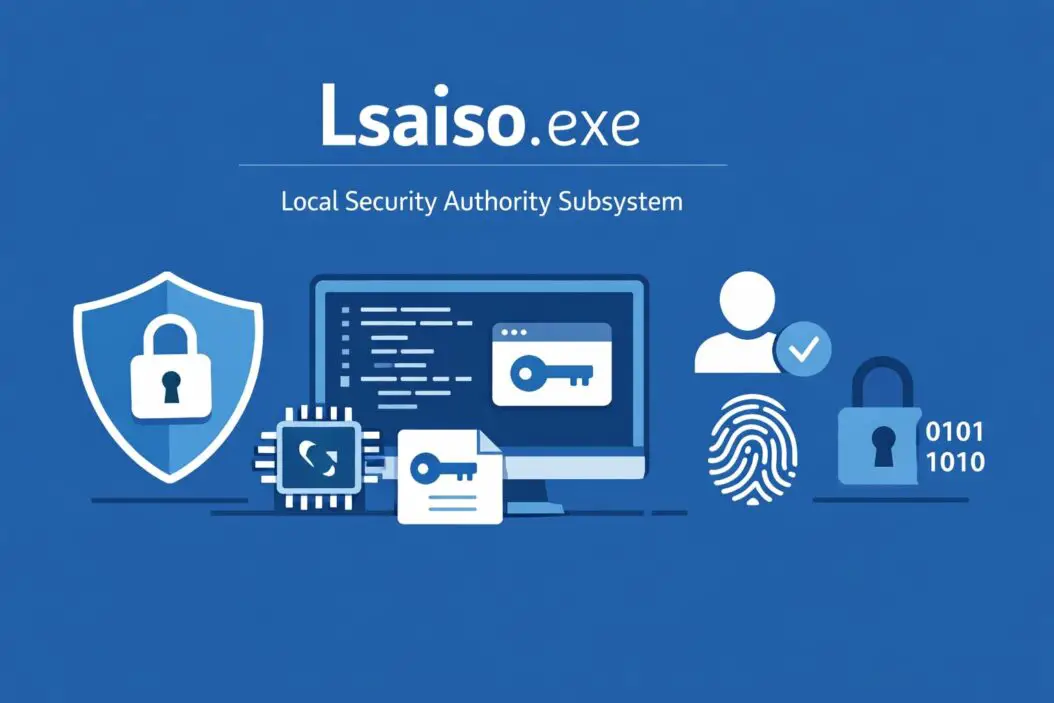
lsaiso.exe is a legitimate Windows system process that runs on your computer as part of Windows security features. This executable file belongs to the Local Security Authority Isolated (LSA Isolated) process, which protects your login credentials and sensitive authentication data from attackers.
If you’ve spotted lsaiso.exe running in Task Manager and wondered whether it’s safe or malicious, you’re in the right place. This guide explains exactly what this process does, why it uses system resources, and how to identify if something’s wrong.
What Is lsaiso.exe?
The lsaiso.exe file stands for Local Security Authority Isolated executable. Microsoft introduced this process as part of Credential Guard, a security feature that isolates sensitive authentication processes from the rest of Windows.
Here’s what makes it important:
Primary function: It protects your login credentials, password hashes, and authentication tokens by running them in a virtualized, isolated environment separate from the main operating system.
Security layer: Even if malware infects your Windows installation, it cannot easily access the protected credentials inside the lsaiso.exe process because it runs with virtualization-based security.
Part of Windows: This is not third-party software. Microsoft built it directly into Windows 10 Enterprise, Windows 10 Education, Windows 11, and Windows Server 2016 and later versions.
The process runs continuously in the background when Credential Guard is enabled on your system.
Why lsaiso.exe Runs on Your Computer
Not every Windows computer runs lsaiso.exe. You’ll only see this process if your system meets specific requirements and has certain security features enabled.
System Requirements
Your computer needs these components for lsaiso.exe to function:
- Windows version: Windows 10 Enterprise, Education, or Pro (version 1607 or later), Windows 11, or Windows Server 2016+
- UEFI firmware: Your motherboard must support UEFI 2.3.1 or higher with Secure Boot
- Virtualization support: Your CPU must support virtualization extensions (Intel VT-x or AMD-V) and SLAT (Second Level Address Translation)
- TPM: Trusted Platform Module 2.0 or higher recommended
When It Activates
The lsaiso.exe process activates when:
- Your organization enables Credential Guard through group policy
- You manually enable virtualization-based security features
- Windows Defender System Guard is running
- Device Guard policies are in place
Many personal Windows installations won’t have this process running because these enterprise security features aren’t enabled by default on home computers.
Is lsaiso.exe Safe or Dangerous?
The legitimate lsaiso.exe file is completely safe. It’s a Microsoft-signed Windows component that enhances your computer’s security.
How to Verify It’s Legitimate
Follow these steps to confirm you’re dealing with the real lsaiso.exe:
Check the file location: Right-click lsaiso.exe in Task Manager, select “Open file location.” The legitimate file lives in C:\Windows\System32\ only.
Verify the digital signature:
- Navigate to C:\Windows\System32
- Find lsaiso.exe
- Right-click and select Properties
- Click the Digital Signatures tab
- Confirm Microsoft Windows is listed as the signer
Review resource usage: The real lsaiso.exe typically uses minimal CPU (less than 1%) and moderate memory (usually 20-60 MB). Excessive resource consumption might indicate problems.
Signs of Malware Impersonation
Malware sometimes disguises itself using similar names. Watch for these red flags:
- File located anywhere other than C:\Windows\System32
- No valid digital signature from Microsoft
- Unusual spelling like “Isaiso.exe” or “lsalso.exe”
- Extremely high CPU or memory usage constantly
- Multiple instances running simultaneously
- Your antivirus flags the file
If you see any of these warning signs, scan your system immediately with updated antivirus software and Microsoft Defender.
Common Issues with lsaiso.exe
While lsaiso.exe is legitimate, users sometimes encounter problems with this process.
High Memory Usage
Some users report lsaiso.exe consuming 100 MB or more of RAM. This happens because:
The process maintains isolated memory space for credential protection. The memory usage increases based on how many authentication operations occur and how many credentials need protection.
Solution: This is usually normal behavior. If memory usage exceeds 200 MB consistently, restart your computer. The process should return to normal levels.
CPU Spikes
Occasional CPU usage spikes are normal during login, authentication, or when applications request credential verification.
When to worry: If lsaiso.exe constantly uses 25% or more CPU for extended periods, this indicates either a system misconfiguration or potential malware.
Troubleshooting steps:
- Run Windows Update to ensure all security patches are installed
- Scan with Windows Defender: Open Windows Security > Virus & threat protection > Scan options > Full scan
- Check Event Viewer for related errors: Press Win+X > Event Viewer > Windows Logs > System
- Consider temporarily disabling Credential Guard to test if the issue persists
Process Won’t Start
If lsaiso.exe fails to start or shows errors:
Check virtualization: Open Task Manager > Performance tab > CPU. Verify “Virtualization: Enabled” appears at the bottom.
Verify TPM: Press Win+R, type tpm.msc, press Enter. Confirm TPM is ready for use.
Review group policies: Your organization’s IT policies might conflict with Credential Guard settings.
How to Disable lsaiso.exe
Disabling lsaiso.exe means turning off Credential Guard. Only do this if absolutely necessary, as it reduces your system’s security protection.
Method 1: Group Policy Editor
Works on Windows Pro, Enterprise, and Education editions:
- Press Win+R
- Type
gpedit.mscand press Enter - Navigate to Computer Configuration > Administrative Templates > System > Device Guard
- Double-click “Turn On Virtualization Based Security”
- Select “Disabled”
- Click OK
- Restart your computer
Method 2: Registry Editor
For Windows Home edition or if Group Policy isn’t available:
- Press Win+R
- Type
regeditand press Enter - Navigate to
HKEY_LOCAL_MACHINE\SYSTEM\CurrentControlSet\Control\DeviceGuard - Find “EnableVirtualizationBasedSecurity”
- Double-click and change the value to 0
- Restart your computer
Warning: Modifying the registry incorrectly can cause system instability. Create a system restore point before making changes.
Method 3: Command Prompt
Run as administrator:
- Press Win+X and select “Terminal (Admin)” or “Command Prompt (Admin)”
- Type this command:
mountvol X: /s - Then type:
cd X:\EFI\Microsoft\Boot - Finally type:
bcdedit /set {bootmgr} disablecredentialguard true - Restart your computer
After disabling, lsaiso.exe will no longer appear in Task Manager.
Performance Impact of lsaiso.exe
Understanding how lsaiso.exe affects your system helps you make informed decisions.
| Resource | Typical Usage | Impact Level |
|---|---|---|
| CPU | 0-2% (idle) | Minimal |
| Memory | 20-80 MB | Low |
| Disk | Negligible | Minimal |
| Startup Time | +2-5 seconds | Low |
| Gaming Performance | None | None |
Real-world impact: For most users, lsaiso.exe runs silently without noticeable performance degradation. The security benefits far outweigh the minimal resource consumption.
Gaming consideration: Credential Guard and lsaiso.exe don’t interfere with games or applications. Some older anti-cheat systems had compatibility issues, but these have been largely resolved since 2024.
Advanced Troubleshooting
When standard solutions don’t work, try these advanced approaches.
Using Event Viewer for Diagnosis
Event Viewer provides detailed information about lsaiso.exe problems:
- Open Event Viewer (Win+X > Event Viewer)
- Navigate to Windows Logs > System
- Filter current log for Source: “LSA” or “Device Guard”
- Look for errors or warnings timestamped when issues occur
- Research specific error codes online or contact Microsoft support
Checking Hypervisor Status
Lsaiso.exe requires Windows Hypervisor Platform:
- Open Command Prompt as administrator
- Type
systeminfoand press Enter - Scroll to “Hyper-V Requirements”
- Verify all requirements show “Yes”
- If any show “No,” your hardware doesn’t support the feature
Reinstalling Security Features
If lsaiso.exe is corrupted:
- Open Command Prompt as administrator
- Run System File Checker:
sfc /scannow - Wait for completion (this takes 15-30 minutes)
- Run DISM tool:
DISM /Online /Cleanup-Image /RestoreHealth - Restart your computer
These commands repair corrupted Windows system files, including lsaiso.exe.
Comparing lsaiso.exe to Related Processes
Windows has several security-related processes. Here’s how lsaiso.exe fits in:
lsass.exe: The Local Security Authority Subsystem Service handles user logins and authentication. Lsaiso.exe is the isolated, protected version that works alongside lsass.exe when Credential Guard is active.
csrss.exe: The Client Server Runtime Process manages console windows and threads. Unrelated to lsaiso.exe but often confused due to similar system-level operation.
vmmem: The virtual machine memory process appears when virtualization runs. When lsaiso.exe is active, vmmem may show increased usage because Credential Guard uses virtualization.
Understanding the relationship: Think of lsass.exe as the main authentication service and lsaiso.exe as its bodyguard. The bodyguard (lsaiso.exe) keeps the valuable credentials in a separate, protected room (isolated virtual environment) where attackers can’t easily reach them.
Best Practices for Managing lsaiso.exe
Follow these guidelines to maintain optimal security and performance:
Leave it running: Unless you have a specific compatibility issue, keep Credential Guard and lsaiso.exe enabled. The security benefits are substantial.
Monitor regularly: Check Task Manager occasionally to verify normal resource usage. Sudden changes might indicate problems.
Keep Windows updated: Microsoft continually improves Credential Guard and related security features. Install updates promptly.
Use compatible antivirus: Ensure your security software works correctly with virtualization-based security. Most major antivirus programs (Windows Defender, Norton, Bitdefender, Kaspersky) fully support these features in 2026.
Document your configuration: If you disable Credential Guard for testing, note your original settings so you can restore them.
Combine with other security: Use lsaiso.exe alongside Windows Hello, BitLocker, and regular security updates for comprehensive protection.
The CISA Cybersecurity Best Practices provide additional guidance on securing Windows systems.
When to Contact Support
Reach out to technical support if:
- Lsaiso.exe consistently uses more than 30% CPU
- Memory usage exceeds 500 MB
- Your computer crashes with errors mentioning lsaiso.exe or Credential Guard
- You cannot disable the process using documented methods
- Antivirus software repeatedly flags lsaiso.exe as suspicious despite verification
- Work applications fail specifically due to Credential Guard conflicts
For enterprise users: Contact your IT department first. They manage security policies and can adjust Credential Guard settings centrally.
For home users: Use Windows built-in “Get Help” app or visit Microsoft community forums. Provide specific error messages and Event Viewer logs for faster resolution.
Conclusion
The lsaiso.exe process is a legitimate and valuable Windows security component that protects your credentials from sophisticated attacks. It runs as part of Credential Guard on enterprise and education editions of Windows, using virtualization to isolate sensitive authentication data.
For most users, this process runs quietly in the background with minimal performance impact. You should leave it enabled unless you encounter specific compatibility problems with older software or hardware limitations prevent proper operation.
If you see lsaiso.exe in Task Manager consuming normal resources (under 2% CPU, under 100 MB RAM) and located in C:\Windows\System32 with a valid Microsoft signature, everything is working correctly. This process actively protects your computer from credential theft attacks that bypass traditional security measures.
When troubleshooting issues, always verify you’re dealing with the legitimate file before disabling security features. The small performance cost of running lsaiso.exe is worthwhile compared to the protection it provides against modern cybersecurity threats.
Frequently Asked Questions
Can I safely delete lsaiso.exe?
No, you should never delete lsaiso.exe. It’s a protected Windows system file, and removing it will cause system instability or prevent Windows from starting. If you want to stop the process from running, disable Credential Guard through Group Policy or Registry Editor instead.
Why does lsaiso.exe run on startup?
Lsaiso.exe launches automatically at startup when Credential Guard is enabled because it must protect your credentials from the moment Windows begins loading. This early start prevents malware from intercepting credentials during the boot process.
Does lsaiso.exe slow down my computer?
For modern computers (2018 or newer), lsaiso.exe has negligible performance impact. Older systems with limited RAM (4 GB or less) might experience slight slowdowns, but the security benefits typically justify this minimal cost.
Is lsaiso.exe the same as lsass.exe?
No, they’re different but related. Lsass.exe is the main authentication process that runs on all Windows systems. Lsaiso.exe is the isolated, virtualized version that only runs when Credential Guard is active, providing additional protection for lsass.exe functions.
Will disabling lsaiso.exe improve gaming performance?
Disabling lsaiso.exe rarely improves gaming performance in 2026. Modern games and anti-cheat systems work correctly with Credential Guard enabled. Only disable it if you’re troubleshooting a specific compatibility issue confirmed by the game developer.

- How to Uninstall Apps from the Start Menu in Windows 11/10 (2026 Guide) - April 2, 2026
- How to Fix Overscan on Windows 11/10: Stop Your Screen Getting Cut Off (2026) - April 1, 2026
- How to Disable Lock Screen on Windows 11/10 in 2026 - April 1, 2026