
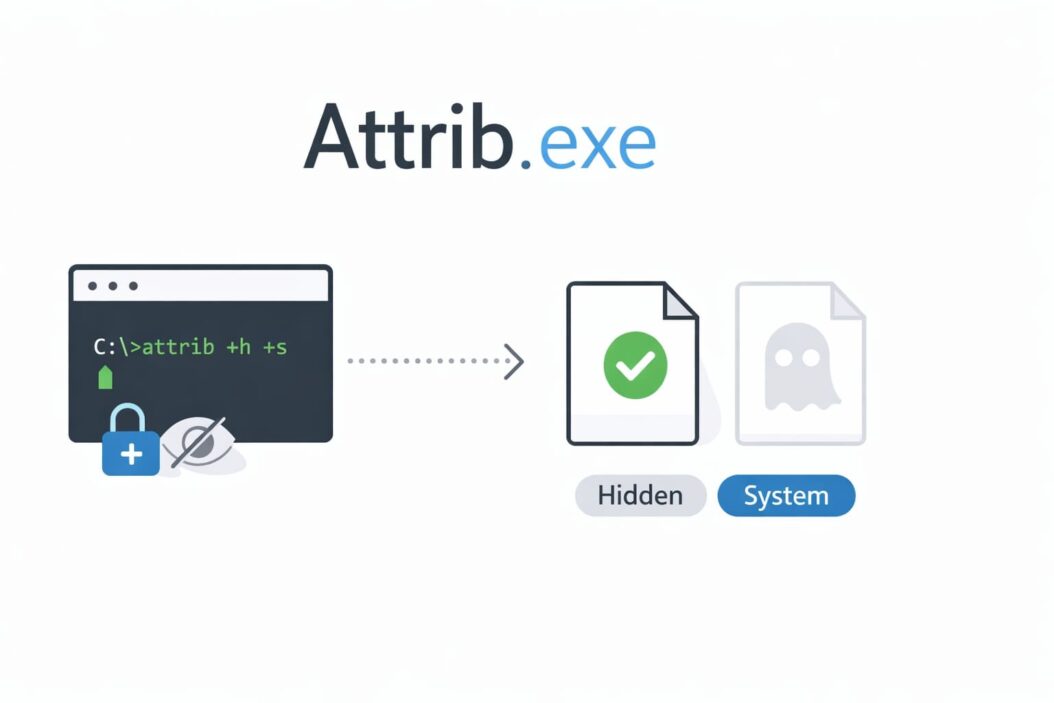
Attrib.exe is a Windows command-line tool that lets you view and change file or folder attributes like read-only, hidden, system, and archive settings. If you’ve ever needed to unhide a folder, remove read-only protection, or troubleshoot file access issues, attrib.exe is the utility that gets the job done.
This article explains exactly what attrib.exe does, how to use it properly, when you need it, and how to spot potential security risks. You’ll learn the syntax, see real examples, and understand how to solve common file attribute problems.
What Exactly Is Attrib.exe?
Attrib.exe is a legitimate Windows system file located in the C:\Windows\System32 folder. It’s been part of Windows since the earliest versions and serves one clear purpose: managing file attributes.
File attributes are special flags that control how Windows treats a file:
- Read-only (R): Prevents accidental modification or deletion
- Hidden (H): Makes files invisible in File Explorer unless you enable “Show hidden files”
- System (S): Marks files as critical Windows components
- Archive (A): Signals the file has changed since the last backup
Unlike right-clicking a file and adjusting properties through the GUI, attrib.exe gives you command-line control. This matters when you need to batch-process multiple files, script attribute changes, or fix problems that the graphical interface can’t handle.
Why You Might Need Attrib.exe
Most Windows users never directly use attrib.exe because File Explorer handles basic attribute changes. But specific situations require this tool:
Removing virus-applied attributes: Malware often hides your files and creates fake shortcuts. Attrib.exe can restore visibility to hidden folders on USB drives or external storage.
Fixing stubborn read-only files: Sometimes files get locked with read-only attributes that won’t clear through normal methods. The command line forces the change.
Bulk attribute changes: Changing attributes for hundreds of files manually wastes time. Attrib.exe processes entire directories in seconds.
System administration tasks: IT professionals use attrib.exe in scripts to standardize file properties across networks or prepare systems for deployment.
Recovering access to your own files: If folders suddenly become inaccessible or invisible after a system glitch or improper shutdown, attrib.exe restores access.
Basic Attrib.exe Syntax and Commands
The attrib command follows a simple pattern:
attrib [+attribute | -attribute] [drive:][path][filename] [/S] [/D]
Adding or removing attributes:
- Use
+to add an attribute - Use
-to remove an attribute
Attribute codes:
R= Read-onlyH= HiddenS= SystemA= Archive
Common switches:
/S= Apply to matching files in the current folder and all subfolders/D= Include folders in the operation
Viewing Current Attributes
To see what attributes a file has, open Command Prompt and type:
attrib filename.txt
Windows displays output like this:
A H C:\Users\YourName\Documents\filename.txt
This means the file has Archive and Hidden attributes set.
Practical Examples You Can Use Right Now
Example 1: Unhide a Folder
Your USB drive was infected with malware that hid all your folders. To make them visible again:
- Open Command Prompt as administrator (search “cmd”, right-click, select “Run as administrator”)
- Navigate to your USB drive:
E:(replace E with your drive letter) - Run this command:
attrib -h -s /s /d
This removes hidden (h) and system (s) attributes from all files and folders on the drive.
Example 2: Remove Read-Only from Multiple Files
You copied files from a CD and now can’t edit them because they’re read-only:
attrib -r C:\MyFolder\*.* /s
This removes the read-only attribute from all files in MyFolder and its subfolders.
Example 3: Hide a Private Folder
To hide a folder named “Private” on your desktop:
attrib +h C:\Users\YourName\Desktop\Private
The folder disappears from view unless someone enables “Show hidden files” in File Explorer settings.
Example 4: Make a File Read-Only
To protect an important document from accidental changes:
attrib +r C:\Documents\ImportantFile.docx
Now the file can’t be modified or deleted without removing the attribute first.
Security Concerns: When Attrib.exe Becomes Dangerous
Attrib.exe itself is not malware. However, malicious programs frequently abuse it because it’s a legitimate Windows tool that security software won’t block.
Common malware tactics using attrib.exe:
USB worm attacks: Viruses hide your real folders using attrib +h +s commands, then create fake shortcut files that look like your folders. Clicking these shortcuts infects other computers.
Ransomware preparation: Some ransomware variants use attrib.exe to mark files before encryption, making recovery harder.
Persistence mechanisms: Malware might set system and hidden attributes on malicious files to prevent easy detection and removal.
How to Tell If Attrib.exe Is Legitimate
Check these three things:
File location: The real attrib.exe always lives in C:\Windows\System32. If you find attrib.exe anywhere else, it’s likely malicious.
Digital signature: Right-click attrib.exe, select Properties, go to the Digital Signatures tab. It should be signed by Microsoft Corporation.
File size: The legitimate attrib.exe is typically around 16-20 KB. Files significantly larger might be malware disguised with the same name.
Troubleshooting Common Attrib.exe Errors
“Access Denied” Error
Problem: You try to change attributes but get an access denied message.
Solution: Run Command Prompt as administrator. Regular user accounts lack permission to modify system or hidden attributes on certain files.
“Not Resetting System File” Message
Problem: Windows refuses to remove system attributes from certain files.
Solution: This is intentional protection for critical Windows files. Don’t force-remove system attributes from files you didn’t create unless you’re absolutely certain what you’re doing.
Changes Don’t Persist After Restart
Problem: You remove hidden attributes but files become hidden again after reboot.
Solution: Active malware is likely reapplying attributes. Boot into Safe Mode, run a full antivirus scan with an updated security tool, then remove attributes again.
Syntax Error Messages
Problem: The command returns “invalid parameter” or similar errors.
Solution: Check your syntax carefully. Common mistakes include forgetting the forward slash before switches (/s instead of s) or using incorrect attribute letters.
Advanced Attrib.exe Techniques
Using Wildcards for Pattern Matching
Process multiple files matching a pattern:
attrib -r *.docx
This removes read-only from all Word documents in the current folder.
Combining Multiple Attribute Changes
Add and remove different attributes in one command:
attrib +r -h filename.txt
This makes the file read-only and removes hidden status simultaneously.
Creating Batch Scripts
For repetitive tasks, save commands in a .bat file:
@echo off
cd /d E:\
attrib -h -s /s /d
echo Attributes reset successfully
pause
Double-clicking this batch file runs all commands automatically.
Attrib.exe vs File Explorer Properties
| Feature | Attrib.exe | File Explorer |
|---|---|---|
| Batch operations | Yes, unlimited files | Limited selection |
| System attribute control | Full control | No access |
| Scripting capability | Full support | None |
| Subfolder recursion | Built-in with /s | Manual per folder |
| User-friendliness | Requires command knowledge | Point and click |
| Speed for bulk tasks | Very fast | Slow |
| Undo capability | None (be careful) | Sometimes available |
For single files or simple tasks, File Explorer works fine. For complex operations, malware cleanup, or automation, attrib.exe is the better tool.
Alternative Tools and Methods
While attrib.exe is the traditional solution, other options exist:
PowerShell: Modern Windows versions include PowerShell commands for attribute management. The Set-ItemProperty cmdlet offers more flexibility and better error handling.
Get-ChildItem -Path C:\MyFolder -Recurse | Set-ItemProperty -Name IsReadOnly -Value $false
Third-party file managers: Tools like Total Commander or Directory Opus provide graphical interfaces for batch attribute changes without learning command syntax.
Attribute Changer: A free shell extension that adds attribute options to your right-click context menu, combining GUI convenience with batch capabilities. You can learn more about file attribute management at Microsoft’s official documentation.
Best Practices for Using Attrib.exe Safely
Always work on copies first: Before running attrib commands on important files, test on duplicates to ensure your syntax works correctly.
Document your changes: Keep notes about what attributes you modified. This helps if you need to reverse changes or troubleshoot problems later.
Never modify system files casually: Files marked with system attributes usually have that flag for good reason. Changing them can cause Windows instability.
Scan for malware first: If you’re using attrib.exe to fix hidden files caused by a virus, run antivirus software before attempting recovery. Otherwise malware might just rehide everything.
Use the /D switch carefully: Including folders in operations with /d can have widespread effects. Double-check your target path before pressing Enter.
Create restore points: Before making significant attribute changes to system areas, create a Windows restore point so you can roll back if problems occur.
Real-World Scenarios Where Attrib.exe Saves Time
Scenario 1: USB Drive Recovery
Your coworker’s USB drive was infected at a public computer. All folders appear gone, replaced by shortcuts. You boot into Safe Mode, run antivirus software to clean the infection, then use:
attrib -h -s /s /d E:\
All original folders reappear instantly. The entire recovery takes five minutes instead of hours of manual work.
Scenario 2: Corporate File Migration
Your IT team needs to prepare 50,000 files for migration to a new server. The old system marked everything read-only, which will cause import failures. A single command clears all read-only flags:
attrib -r \\OldServer\Share\*.* /s
The task completes in minutes versus days of manual processing.
Scenario 3: Personal Privacy on Shared Computers
You share a family computer but want to keep certain folders private without encrypting or password-protecting them (which might cause suspicion or arguments). Using attrib +h makes your folders invisible to casual viewing while maintaining easy personal access through command line or by enabling hidden file view when needed.
File Attribute Combinations
Different attribute combinations serve different purposes:
R + H + S: Ultra-protected files that are hidden, read-only, and marked as system files. Windows treats these very carefully. Only change these attributes if you created the file and know exactly what you’re doing.
A only: Standard files that have been modified since the last backup. This is the default state for most user documents.
H only: Files hidden from normal view but not protected. Easy to unhide through File Explorer options.
R only: Files protected from accidental changes but still visible. Common for reference documents or templates.
The History and Evolution of Attrib.exe
Attrib.exe dates back to MS-DOS, where command-line tools were the only way to interact with computers. The command syntax has remained remarkably consistent for over 40 years, which explains why it still works the same way in Windows 11 as it did in DOS 3.0.
This stability is both a strength and weakness. The tool is reliable and predictable, with countless scripts written over decades that still function perfectly. However, the interface shows its age compared to modern PowerShell alternatives that offer better error messages, object-oriented output, and more intuitive syntax.
Microsoft continues including attrib.exe in every Windows version for backward compatibility. Legacy batch scripts and system administration tools rely on it, and removing it would break too many existing workflows.
For learning more about Windows command-line tools and system administration, the Windows Command Reference provides comprehensive documentation.
Summary
Attrib.exe is a powerful Windows command-line utility for viewing and changing file attributes. While most users never need direct access to it, understanding attrib.exe proves valuable for malware recovery, bulk file operations, and system administration tasks.
The tool itself is completely safe when used properly. Security concerns arise only when malware abuses attrib.exe to hide files or when users accidentally modify critical system files.
Key points to remember:
- Attrib.exe changes read-only, hidden, system, and archive attributes
- The legitimate file lives only in C:\Windows\System32
- Use + to add attributes and – to remove them
- The /s switch processes subfolders recursively
- Always run Command Prompt as administrator for full functionality
- Test commands on copies before applying to important files
- Malware often hides your folders using attrib commands
For most single-file tasks, File Explorer’s Properties dialog offers easier access. For batch operations, malware recovery, or automation, attrib.exe remains the fastest and most reliable solution.
Frequently Asked Questions
Is attrib.exe a virus or malware?
No, attrib.exe is a legitimate Windows system file. However, viruses frequently abuse this tool to hide files or make malicious files harder to detect. Always verify the file location (should be in System32) and check the digital signature to confirm it’s the real Microsoft version.
How do I unhide all files on my USB drive after a virus infection?
Open Command Prompt as administrator, navigate to your USB drive letter (like E:), and run attrib -h -s /s /d to remove hidden and system attributes from all files and folders. Make sure you’ve already cleaned the virus with antivirus software before doing this.
Can I undo changes made with attrib.exe?
Attrib.exe doesn’t have an undo function. If you remove attributes accidentally, you must manually reapply them using the opposite command (use + instead of -). This is why testing on copies first is crucial for important files.
Why does attrib.exe say “Access Denied” when I try to change attributes?
You need administrator privileges to modify many file attributes, especially system and hidden flags. Right-click Command Prompt and select “Run as administrator” before running attrib commands. Some protected Windows system files may still deny changes to prevent operating system damage.
What’s the difference between attrib.exe and PowerShell for changing file attributes?
Attrib.exe is the older DOS-based tool with simpler syntax but less flexibility. PowerShell offers more powerful commands like Get-ChildItem and Set-ItemProperty with better error handling and filtering options. For basic tasks, attrib.exe is faster to type. For complex operations or scripts requiring conditional logic, PowerShell is superior.
