
Your computer won’t start. You see error messages about missing files or damaged boot sectors. You’re staring at a black screen wondering if your data is gone forever.
This is where bootrec.exe comes in.
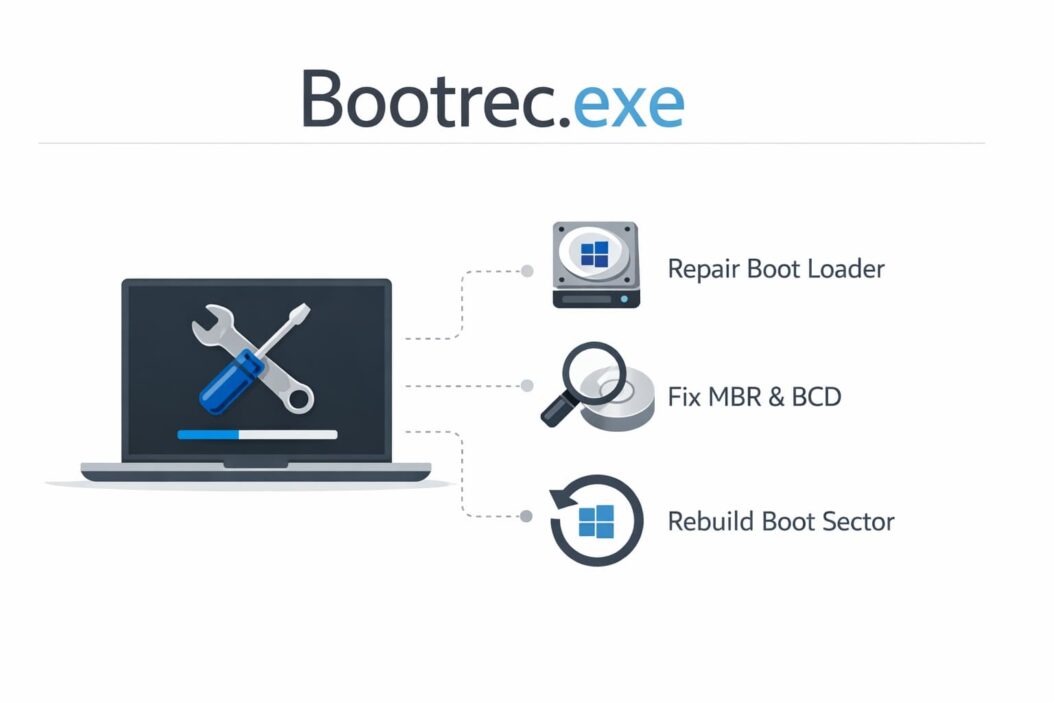
Bootrec.exe is a Windows command-line tool that repairs boot configuration data, master boot records, and partition boot sectors. It fixes the most common startup problems that prevent Windows from loading properly.
This guide shows you exactly how to use bootrec.exe to recover your system. No technical jargon. Just clear steps that work.
What Is Bootrec.exe and Why You Need It
Bootrec.exe stands for Boot Recovery. It’s a Microsoft utility built into the Windows Recovery Environment (WinRE). This tool repairs the critical files and data structures that Windows needs to start up.
Think of it like this: your computer follows a specific sequence to boot Windows. If any step in that sequence breaks, the whole process stops. Bootrec.exe fixes those broken steps.
Common problems bootrec.exe solves:
- “BOOTMGR is missing” errors
- “The Boot Configuration Data file is missing” messages
- Black screens during startup
- Endless restart loops
- “Operating system not found” errors
- Boot partition corruption after updates
The tool works on Windows 7, Windows 8, Windows 10, and Windows 11. It’s completely free because it’s part of Windows itself.
When Your Computer Needs Bootrec.exe
You’ll know you need bootrec.exe when Windows refuses to start normally. Here are the exact scenarios where this tool helps:
After installing a second operating system. When you dual boot Linux or another Windows version, the boot loader sometimes gets overwritten. Bootrec.exe restores Windows boot priority.
Following a failed Windows update. Updates occasionally corrupt boot files. Your computer starts updating, then crashes. After restart, nothing works. This is a classic bootrec.exe situation.
Power failures during system operations. If your computer loses power while writing to the system partition, boot data can become corrupted or incomplete.
Virus or malware damage. Some malicious software specifically targets boot sectors to prevent removal. After cleaning the infection, you need bootrec.exe to repair the damage.
Hard drive errors in the system partition. Bad sectors on your drive can corrupt boot files. Physical drive problems combined with boot issues require both hardware fixes and bootrec.exe repairs.
How to Access Bootrec.exe
You cannot run bootrec.exe from within Windows. You must boot into the Windows Recovery Environment first.
Method 1: Using a Windows Installation USB or DVD
This is the most reliable method. You need a Windows installation media that matches your Windows version.
Step 1: Insert your Windows installation USB or DVD into your computer.
Step 2: Restart your computer and press the boot menu key. This is usually F12, F11, F9, or ESC. The exact key appears briefly on screen during startup. Some Dell computers use F12. HP often uses F9. Check your manufacturer’s documentation if unsure.
Step 3: Select your USB drive or DVD from the boot menu.
Step 4: When you see the Windows Setup screen, click “Next” then select “Repair your computer” at the bottom left.
Step 5: Choose “Troubleshoot” followed by “Advanced options” then “Command Prompt.”
You’re now ready to run bootrec.exe commands.
Method 2: Accessing Recovery Environment from Login Screen
If Windows partially loads, you can access recovery tools without installation media.
Step 1: At the Windows login screen, hold Shift and click the power icon, then select Restart.
Step 2: Your computer reboots into the recovery menu.
Step 3: Select “Troubleshoot,” then “Advanced options,” then “Command Prompt.”
This method only works if Windows loads enough to show the login screen.
Method 3: Automatic Recovery Mode
If Windows fails to start three times in a row, it automatically enters recovery mode. Just force restart your computer three times during the Windows logo screen.
After the third restart, Windows boots into Automatic Repair. From there, click “Advanced options” then “Command Prompt.”
The Four Essential Bootrec.exe Commands
Bootrec.exe has four main commands. Each fixes different boot problems. You’ll often need to run multiple commands in sequence.
Command 1: /FixMbr
What it does: Writes a new master boot record to the system partition without overwriting the existing partition table.
When to use it: When you suspect MBR corruption from viruses, power failures, or installing other operating systems.
How to run it:
bootrec /fixmbr
The operation completes in seconds. You’ll see “The operation completed successfully” if it works.
This command is safe. It doesn’t delete data or modify partitions. It only rewrites the tiny code section that starts the boot process.
Command 2: /FixBoot
What it does: Writes a new boot sector to the system partition compatible with Windows.
When to use it: After dual booting, when you get “BOOTMGR is missing” errors, or when Windows can’t find the boot partition.
How to run it:
bootrec /fixboot
You might see “Access is denied” on some systems, especially with UEFI boot mode and GPT partitions. This requires additional steps covered later in the troubleshooting section.
The boot sector is separate from the master boot record. /FixMbr handles the MBR. /FixBoot handles the boot sector. Many boot problems require both commands.
Command 3: /ScanOs
What it does: Scans all disks for Windows installations not currently in the boot configuration data.
When to use it: To identify if Windows exists on your drive before rebuilding boot data. This is diagnostic, not a repair.
How to run it:
bootrec /scanos
The scan takes 30 seconds to several minutes depending on drive size. You’ll see a list of detected Windows installations with their drive locations.
If this command finds zero Windows installations, your problem is more serious than boot configuration. You might have drive failure or severely corrupted system files.
Command 4: /RebuildBcd
What it does: Scans for Windows installations and rebuilds the Boot Configuration Data store. This is the most powerful bootrec.exe command.
When to use it: When BCD is corrupted, missing, or contains incorrect entries. This fixes most boot configuration problems.
How to run it:
bootrec /rebuildbcd
The command scans your drives, shows detected Windows installations, then asks if you want to add each one to the boot list. Press “Y” for yes, then Enter.
Important: If /RebuildBcd finds zero Windows installations, the command fails. You need to manually recreate the BCD store first, explained in the advanced troubleshooting section.
Step by Step: Using Bootrec.exe to Fix Your Computer
Here’s the complete process for typical boot problems. Follow these steps in order.
Step 1: Boot into the Command Prompt using one of the access methods described earlier.
Step 2: Type the following command and press Enter:
bootrec /fixmbr
Wait for the success message.
Step 3: Type the next command:
bootrec /fixboot
Again, wait for confirmation.
Step 4: Now scan for Windows:
bootrec /scanos
Check that your Windows installation appears in the results.
Step 5: Rebuild the boot configuration:
bootrec /rebuildbcd
Press Y when asked to add installations to the boot list.
Step 6: Type exit and press Enter to close the Command Prompt.
Step 7: Restart your computer normally. Remove any installation media.
Your system should now boot into Windows successfully.
Advanced Troubleshooting: When Basic Commands Fail
Sometimes the standard bootrec.exe commands don’t work. Here’s how to handle the most common complications.
Fixing “Access Is Denied” Errors with /FixBoot
Modern UEFI systems with GPT partitions sometimes refuse the /fixboot command. The solution requires formatting the boot partition and reassigning a drive letter.
Step 1: In the Command Prompt, type:
diskpart
Step 2: List all volumes:
list volume
Step 3: Identify your boot partition. It’s usually 100MB to 500MB and labeled “System Reserved” or has a FAT32 file system. Note its volume number.
Step 4: Select that volume (replace # with your volume number):
select volume #
Step 5: Format it:
format fs=fat32 quick
Step 6: Assign a drive letter:
assign letter=Z
Step 7: Exit diskpart:
exit
Step 8: Now try /fixboot again:
bootrec /fixboot
This should succeed now.
Manually Recreating the BCD Store
When /rebuildbcd finds no Windows installations even though Windows is definitely on your drive, you need to manually create a new BCD store.
Step 1: Use diskpart to identify your boot partition as described above. Note its drive letter (we’ll use Z: in this example).
Step 2: Back up the old BCD if it exists:
attrib c:\boot\bcd -h -r -s
ren c:\boot\bcd bcd.old
Step 3: Create a new BCD store:
bcdboot c:\windows /s Z: /f ALL
Replace c:\windows with your actual Windows installation path if different. Replace Z: with your boot partition letter.
Step 4: Now run:
bootrec /rebuildbcd
This should now detect and add your Windows installation.
Handling Multiple Windows Installations
If you have multiple Windows versions or accidentally created duplicate boot entries, you need to clean up the BCD store.
Step 1: View current boot entries:
bcdedit
Step 2: Identify unwanted entries by their identifier (a long string of numbers and letters).
Step 3: Delete specific entries:
bcdedit /delete {identifier}
Replace {identifier} with the actual identifier from step 1, including the curly braces.
Be extremely careful. Deleting the wrong entry makes your computer unbootable. Only delete entries you’re certain are duplicates or incorrect.
Bootrec.exe vs Other Recovery Tools
Windows includes several recovery tools. Understanding when to use each one saves time.
Bootrec.exe repairs boot infrastructure. Use it for boot errors, missing bootmgr, BCD corruption, or MBR problems.
System Restore rolls back Windows to an earlier state. Use it for recent software problems, driver issues, or system instability. It doesn’t fix boot sector problems.
SFC (System File Checker) repairs corrupted Windows system files. Run sfc /scannow if Windows boots but behaves strangely. This doesn’t help with boot failures.
CHKDSK checks and repairs file system errors. Use it for disk corruption. Run chkdsk C: /f /r in recovery mode. Do this before bootrec.exe if you suspect drive problems.
Startup Repair is the automatic tool. It runs diagnostic tests and attempts automatic fixes. Try this first. If it fails, use manual bootrec.exe commands for better control.
Here’s a decision table:
| Problem | First Tool to Try | If That Fails |
|---|---|---|
| BOOTMGR missing | bootrec /fixmbr, /fixboot | Manually recreate BCD |
| BCD corruption | bootrec /rebuildbcd | Manual BCD recreation |
| Bad sectors suspected | CHKDSK /f /r | Then run bootrec.exe |
| Recent software issue | System Restore | Clean Windows install |
| Windows loads but crashes | SFC /scannow | System Restore |
The Microsoft documentation on recovery tools provides additional context for these utilities.
Protecting Against Future Boot Problems
Prevention beats recovery. These practices minimize boot issues.
Keep regular system image backups. Windows includes built-in backup tools. Create full system images monthly and before major updates. Store backups on external drives.
Enable System Protection. This creates restore points automatically. Go to System Properties > System Protection > Configure. Allocate at least 10GB for restore points.
Update carefully. Don’t interrupt Windows updates. Ensure your laptop is plugged in. Don’t force shutdown during “Working on updates” screens.
Use a quality UPS for desktop computers. Uninterruptible power supplies prevent corruption from power outages. They cost $50 to $150 and protect against sudden shutdowns.
Check drive health regularly. Use built-in Windows tools or third-party software to monitor drive SMART data. Replace drives showing warning signs before they fail.
Avoid dual booting unless necessary. Multiple operating systems increase boot complexity. If you must dual boot, install Windows first, then other operating systems.
Create Windows installation media now. Don’t wait until you need it. Download the Media Creation Tool from Microsoft and create a bootable USB drive. Update it annually.
When Bootrec.exe Cannot Help
Bootrec.exe is powerful but not universal. Some problems require different solutions.
Physical drive failure. If your hard drive or SSD has mechanical failures, clicking sounds, or isn’t detected in BIOS, bootrec.exe cannot help. You need professional data recovery or drive replacement.
Severe file system corruption. When the entire partition structure is destroyed, boot tools can’t access the drive properly. You’ll need partition recovery software or clean installation.
Missing Windows files. If system files are deleted rather than just boot data being corrupted, bootrec.exe repairs the boot process but Windows still won’t load. You’ll need Windows repair installation or recovery using installation media.
BIOS/UEFI configuration problems. Sometimes the computer boot order is wrong or secure boot settings conflict with your setup. Check BIOS settings before assuming boot file corruption.
Motherboard or hardware failure. Boot problems can indicate failing motherboards, RAM, or other hardware. If bootrec.exe completes successfully but problems persist, test your hardware.
The Windows Recovery Environment documentation explains the full scope of recovery tools available when bootrec.exe isn’t sufficient.
Summary
Bootrec.exe is your primary tool for fixing Windows boot problems. It repairs master boot records, boot sectors, and boot configuration data that Windows needs to start.
The four main commands work together:
bootrec /fixmbr writes a new master boot record.
bootrec /fixboot creates a new boot sector.
bootrec /scanos scans for Windows installations.
bootrec /rebuildbcd rebuilds boot configuration data.
Run these commands in sequence from the Windows Recovery Environment Command Prompt. Most boot problems resolve with these four commands.
For stubborn issues, manually recreate the BCD store using diskpart and bcdboot. Format the boot partition if you encounter access denied errors.
Always maintain current backups and Windows installation media. Prevention through regular maintenance and careful updating reduces the need for emergency boot repairs.
Boot problems feel catastrophic but are usually fixable. Bootrec.exe gives you the control to repair your system without losing data or reinstalling Windows.
Frequently Asked Questions
Does bootrec.exe delete my files?
No. Bootrec.exe only modifies boot configuration data and boot sectors. Your personal files, programs, and documents remain untouched. The tool repairs how Windows starts, not the Windows installation itself or your data partitions.
Can I use bootrec.exe on Windows 11?
Yes. Bootrec.exe works identically on Windows 7, 8, 10, and 11. The commands and procedures are the same across all versions. The only difference is how you access the recovery environment, which varies slightly between Windows versions.
What if bootrec.exe says it completed successfully but Windows still won’t boot?
This indicates a problem beyond boot configuration. Run CHKDSK to check for drive errors. Use System File Checker (sfc /scannow) to repair corrupted Windows files. If those fail, attempt a Windows repair installation using installation media. Your boot configuration is fixed, but other Windows components need repair.
How long does bootrec /rebuildbcd take?
Usually 30 seconds to 3 minutes depending on your drive size and speed. The command scans all partitions looking for Windows installations. SSDs complete faster than traditional hard drives. If it runs longer than 10 minutes, the command likely encountered problems scanning damaged sectors.
Will bootrec.exe work if I cannot access the Command Prompt?
No. You must boot into the Windows Recovery Environment to run bootrec.exe. If your computer won’t boot at all and you cannot access recovery options, you need Windows installation media (USB or DVD) to boot into recovery mode. Create installation media on another working computer if necessary.
