
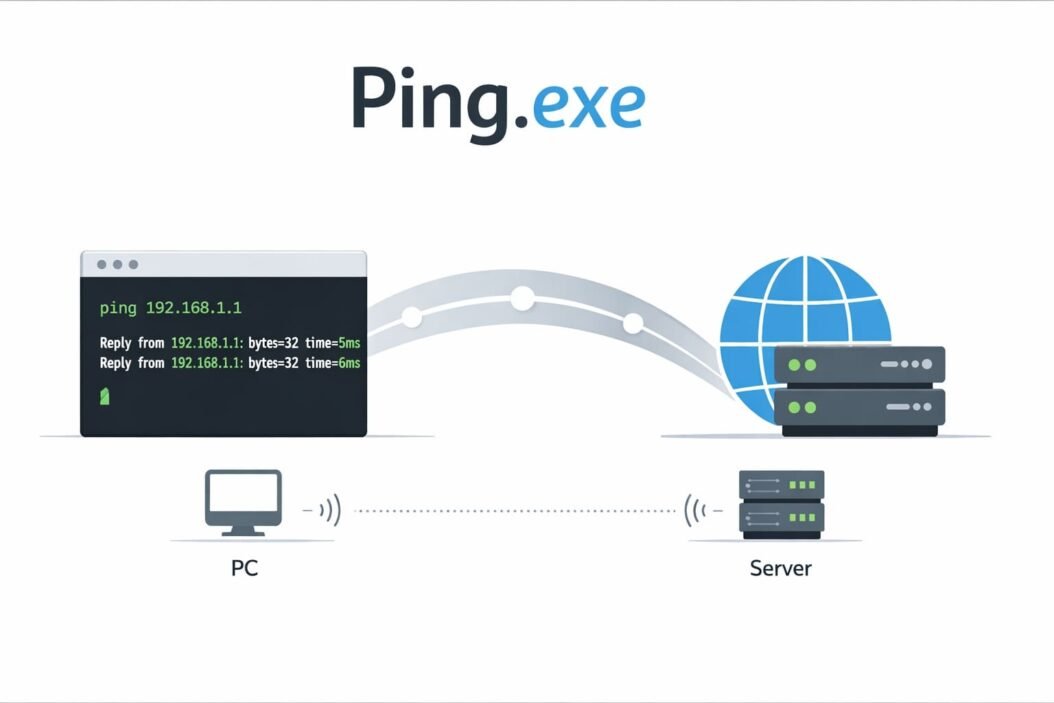
Ping.exe is a command-line network diagnostic tool built into Windows that tests connectivity between your computer and another device on a network. It sends data packets to a target IP address or hostname and measures how long they take to return, helping you identify network problems quickly.
If your internet feels slow, websites won’t load, or you can’t connect to a server, ping.exe gives you immediate answers about where the problem lies.
What Ping.exe Actually Does
When you run ping.exe, it performs a simple but powerful test. The tool sends Internet Control Message Protocol (ICMP) echo request packets to a destination and waits for echo reply packets to come back.
Think of it like shouting in a canyon and listening for the echo. If you hear the echo quickly, the canyon wall is close and sound travels well. If the echo takes forever or never comes back, something is blocking the sound or the wall is too far away.
Ping.exe measures four critical things:
- Response time: How long each packet takes to travel to the destination and back (measured in milliseconds)
- Packet loss: Whether any packets fail to return
- Time to live (TTL): How many network hops the packet can make before expiring
- Connection success: Whether the destination is reachable at all
Where to Find Ping.exe on Your Computer
Ping.exe lives in your Windows system folder at C:\Windows\System32\ping.exe. You don’t need to navigate there to use it, though.
Windows automatically recognizes the ping command from any Command Prompt or PowerShell window because System32 is in your system’s PATH variable.
To access ping.exe:
- Press
Windows + Rto open the Run dialog - Type
cmdand press Enter - Type
pingfollowed by your target address
You can also search for “Command Prompt” in the Start menu and open it from there.
Basic Ping Commands That Solve Real Problems
Testing Internet Connection
ping 8.8.8.8
This pings Google’s public DNS server. If this works but websites don’t load, your DNS might be the problem, not your internet connection.
Checking if a Website is Down
ping google.com
If the ping succeeds, the website’s server is online. If your browser still can’t reach it, the issue is likely with your browser, firewall, or DNS settings.
Testing Local Network Connection
ping 192.168.1.1
This typically pings your router. If this fails, your computer isn’t properly connected to your local network.
Continuous Ping Monitoring
ping -t google.com
The -t flag makes ping run continuously until you stop it with Ctrl + C. This helps monitor connection stability over time.
Understanding Ping Results
When you run a ping command, you’ll see output that looks like this:
Reply from 8.8.8.8: bytes=32 time=14ms TTL=118
Reply from 8.8.8.8: bytes=32 time=13ms TTL=118
Reply from 8.8.8.8: bytes=32 time=15ms TTL=118
Reply from 8.8.8.8: bytes=32 time=14ms TTL=118
What Each Part Means
Reply from: Shows the IP address that responded. This confirms the destination received your request.
Bytes: The size of the packet returned. Default is 32 bytes in Windows.
Time: Round trip time in milliseconds. Lower is better:
- Under 20ms: Excellent
- 20-50ms: Good for most activities
- 50-100ms: Acceptable but may notice lag in gaming
- 100-200ms: Noticeable delay
- Over 200ms: Poor connection quality
TTL (Time to Live): Starts at a high number (often 128 or 255) and decreases by one at each network router. This prevents packets from circulating forever if there’s a routing loop.
Statistics Summary
After ping completes (or you stop it), you’ll see statistics:
Packets: Sent = 4, Received = 4, Lost = 0 (0% loss)
Approximate round trip times in milliseconds:
Minimum = 13ms, Maximum = 15ms, Average = 14ms
0% packet loss means perfect connection stability. Any packet loss indicates network problems. Even 1-2% loss can cause issues with video calls or gaming.
Essential Ping.exe Command Options
Control Number of Packets
ping -n 10 google.com
Sends exactly 10 packets instead of the default 4. Use higher numbers to test connection stability over time.
Change Packet Size
ping -l 1000 google.com
Sends larger packets (1000 bytes instead of 32). This tests whether your network handles larger data transfers well. Some network issues only appear with bigger packets.
Set Timeout Value
ping -w 5000 google.com
Waits 5000 milliseconds (5 seconds) for each reply before giving up. Useful when testing slow or distant connections.
Don’t Fragment Packets
ping -f -l 1472 google.com
Tests the maximum transmission unit (MTU) of your network path. If you see “Packet needs to be fragmented but DF set,” reduce the packet size until it succeeds. This helps identify MTU-related connection problems.
Specify Source Address
ping -S 192.168.1.100 google.com
Forces ping to use a specific network interface when your computer has multiple network connections. Helpful for testing which connection path works better.
Trace Route Option
ping -r 9 google.com
Records the route for the first 9 hops. Shows which routers your packets pass through.
Common Ping Error Messages and Solutions
“Request Timed Out”
Your computer sent packets but received no response within the timeout period.
Possible causes:
- Target device is offline or unreachable
- Firewall blocking ICMP packets
- Network congestion
- Wrong IP address
Solutions:
- Verify the IP address or hostname is correct
- Check if the target device is powered on
- Try pinging your router first to isolate where the problem occurs
- Temporarily disable firewall to test if it’s blocking packets
“Destination Host Unreachable”
Your computer or a router along the path cannot find a route to the destination.
Possible causes:
- No network connection
- Wrong subnet mask
- Router configuration problems
- Network cable unplugged
Solutions:
- Check physical network connections
- Run
ipconfigto verify your network settings - Restart your router
- Check if other devices on your network can reach the destination
“General Failure”
A network adapter or system problem prevents ping from working.
Possible causes:
- Network adapter disabled or malfunctioning
- Corrupted network drivers
- TCP/IP stack problems
Solutions:
- Open Device Manager and check network adapter status
- Update network drivers
- Run
netsh winsock resetandnetsh int ip resetto reset TCP/IP - Restart your computer
“Ping Request Could Not Find Host”
DNS cannot resolve the hostname to an IP address.
Possible causes:
- DNS server problems
- Typo in hostname
- DNS cache corruption
Solutions:
- Try ping with the IP address directly instead of hostname
- Run
ipconfig /flushdnsto clear DNS cache - Change DNS servers to 8.8.8.8 and 8.8.4.4 (Google DNS)
- Check spelling of the hostname
“TTL Expired in Transit”
The packet took too many hops and expired before reaching the destination.
Possible causes:
- Routing loop
- Destination too far away (very rare)
- Network misconfiguration
Solutions:
- This usually indicates a problem with network routing
- Contact your network administrator
- Try again later in case it’s temporary routing confusion
Practical Troubleshooting Workflows
Diagnosing Internet Connection Problems
Follow this step-by-step approach to pinpoint exactly where your connection fails:
Step 1: Ping your loopback address
ping 127.0.0.1
This tests if TCP/IP is working on your computer. If this fails, your network stack has serious problems.
Step 2: Ping your own IP address
ping 192.168.1.50
Replace with your actual IP (find it with ipconfig). This tests your network adapter.
Step 3: Ping your default gateway (router)
ping 192.168.1.1
This tests your local network connection. Find your gateway with ipconfig and look for “Default Gateway.”
Step 4: Ping a public DNS server
ping 8.8.8.8
This tests your internet connection. If Steps 1-3 work but this fails, your router can’t reach the internet.
Step 5: Ping a domain name
ping google.com
This tests DNS resolution. If Step 4 works but this fails, you have DNS problems.
This five-step process tells you exactly where the problem is. Each successful ping narrows down the issue.
Testing Connection Stability
Run a continuous ping for several minutes:
ping -t google.com > ping_results.txt
This saves results to a text file. Let it run for 5-10 minutes, then press Ctrl + C. Open ping_results.txt and look for:
- Time spikes (sudden increases in response time)
- Request timeouts (lost packets)
- Patterns (problems at specific times)
Consistent packet loss or high response times indicate connection quality issues your ISP should investigate.
Finding Network Bottlenecks
Use increasing packet sizes to identify where problems occur:
ping -l 500 -n 20 google.com
ping -l 1000 -n 20 google.com
ping -l 1400 -n 20 google.com
If smaller packets work fine but larger ones fail or show packet loss, you have MTU problems or network equipment struggling with throughput.
Ping.exe Limitations and Alternatives
What Ping Cannot Do
Ping tests only basic connectivity. It cannot:
- Test actual bandwidth or download speed
- Verify application-specific connection problems
- Check if specific ports are open
- Test UDP connections (ping uses ICMP)
- Measure jitter accurately (use specialized tools for VoIP testing)
When Ping Results Mislead You
ICMP deprioritization: Many routers and servers give ICMP packets lower priority than actual traffic. Your ping might show 100ms response times while actual web browsing works fine at 20ms.
ICMP blocking: Some networks block ICMP for security. A failed ping doesn’t always mean the destination is unreachable; it might just be ignoring ping requests.
Asymmetric routing: Packets might take different paths in each direction, so ping times don’t tell the whole story.
Better Tools for Specific Problems
Traceroute (tracert): Shows each hop between you and the destination
tracert google.com
PathPing: Combines ping and traceroute, showing packet loss at each hop
pathping google.com
Test-NetConnection (PowerShell): Tests specific TCP ports
Test-NetConnection google.com -Port 443
For more comprehensive network diagnostics, Microsoft’s Network Troubleshooting Guide offers advanced techniques beyond basic ping testing.
Advanced Ping Techniques for IT Professionals
Batch Testing Multiple Hosts
Create a text file named hosts.txt with one hostname or IP per line:
google.com
8.8.8.8
192.168.1.1
cloudflare.com
Then run this batch script:
for /f %i in (hosts.txt) do @ping -n 1 %i
This quickly pings all hosts once, perfect for checking multiple servers.
Automated Connection Monitoring
Create a batch file that continuously monitors connection quality:
@echo off
:loop
ping -n 1 8.8.8.8 | find "Reply" >> ping_log.txt
if errorlevel 1 (
    echo %date% %time% - Connection Lost >> ping_log.txt
)
timeout /t 10 /nobreak > nul
goto loop
This creates a log file showing exactly when connection problems occur, useful for documenting intermittent issues for your ISP.
IPv6 Ping Testing
Use ping -6 to specifically test IPv6 connectivity:
ping -6 ipv6.google.com
Or test your IPv6 loopback:
ping -6 ::1
As networks transition to IPv6, testing both protocols helps identify dual-stack configuration problems.
Security Considerations
Why Some Organizations Block Ping
Network administrators often disable ICMP echo requests because:
- Ping can be used for network reconnaissance
- Ping floods can be part of DDoS attacks
- Revealing response times gives attackers information about network infrastructure
Many servers accept ICMP internally but block it from external networks.
Ping is Not a Security Risk on Your Computer
Running ping.exe from your computer poses no security risk. It only sends harmless test packets. Antivirus software never flags ping.exe as malicious because it’s a legitimate Windows system tool.
However, be careful with:
- Batch scripts from unknown sources that use ping
- Extremely high continuous ping rates that might stress networks
- Pinging IP addresses you don’t own without permission (can violate network policies)
Ping Statistics and Performance Benchmarks
| Connection Type | Expected Ping Time | Acceptable Maximum |
|---|---|---|
| Local Network (LAN) | 1-2ms | 5ms |
| Cable Internet | 10-20ms | 50ms |
| DSL Internet | 20-40ms | 80ms |
| 4G/LTE Mobile | 30-50ms | 100ms |
| 5G Mobile | 10-30ms | 60ms |
| Satellite Internet | 500-700ms | 800ms |
| Cross-Country | 60-100ms | 150ms |
| International | 150-300ms | 400ms |
These are rough guidelines. Actual times vary by provider, distance, and network conditions.
Packet Loss Tolerance by Application
| Application | Maximum Acceptable Loss | Ideal Loss |
|---|---|---|
| Web Browsing | 5% | 0% |
| Video Streaming | 3% | 0-1% |
| Video Conferencing | 1% | 0% |
| Online Gaming | 0.5% | 0% |
| VoIP Calls | 1% | 0% |
| File Downloads | 10% | 0% |
Any consistent packet loss indicates problems worth investigating.
Comparison: Ping.exe vs Other Diagnostic Tools
Ping vs Traceroute
Ping tests if a destination is reachable and measures response time. It doesn’t show the path packets take.
Traceroute shows every router hop between you and the destination, revealing exactly where delays or failures occur.
Use ping for quick connectivity checks. Use traceroute when ping shows problems and you need to identify which network segment is causing them.
Ping vs Test-NetConnection
Test-NetConnection is PowerShell’s modern alternative offering more features:
- Tests specific TCP/UDP ports (ping cannot)
- Performs traceroute automatically
- Provides detailed output objects for scripting
However, ping.exe is:
- Faster to type and run
- Works on older Windows versions
- Available in Command Prompt without PowerShell
- More universally understood across platforms
For simple connectivity testing, ping remains the quickest choice.
Performance Impact of Using Ping
Ping.exe uses minimal system resources. Each ICMP packet is tiny (32 bytes by default), and sending four packets uses less bandwidth than loading a single small image on a webpage.
Running continuous ping (ping -t) for monitoring also has negligible impact unless you:
- Ping dozens of hosts simultaneously
- Use extremely large packet sizes (
-l 65500) - Send packets with zero delay between them
For normal troubleshooting, you can run ping without worrying about affecting your computer’s performance or network capacity.
Legal and Ethical Considerations
When Ping is Permitted
You can freely ping:
- Your own devices and network
- Public DNS servers (8.8.8.8, 1.1.1.1, etc.)
- Websites and services you have permission to access
- Network equipment you administer
When to Avoid Ping
Don’t ping:
- Government or military networks without authorization
- Networks that explicitly forbid network scanning in their terms of service
- Servers at extremely high rates (could be considered a DoS attack)
- Infrastructure you don’t have permission to test
For network security research and penetration testing, platforms like HackerOne provide legal frameworks and authorized targets for security testing.
Standard troubleshooting (pinging Google, your ISP, or commercial websites a few times) falls well within normal, acceptable use.
Conclusion
Ping.exe remains the fastest, simplest way to test network connectivity on Windows. Whether you’re troubleshooting why a website won’t load, testing your internet connection quality, or diagnosing network problems, ping gives you immediate answers.
The tool’s strength lies in its simplicity. Four basic steps (ping localhost, your IP, your gateway, and an external host) identify 90% of network problems within seconds. Adding command-line options like -t for continuous monitoring or -l for larger packets expands its diagnostic power without complexity.
Remember these key takeaways:
Response times under 50ms work well for most activities. Packet loss above 1% needs investigation. If ping succeeds but your application fails, the problem isn’t basic connectivity.
Master ping.exe and you’ll resolve network problems faster than most people can explain what’s wrong with their connection.
Frequently Asked Questions
What does ping stand for?
Ping doesn’t stand for anything as an acronym. The name comes from sonar terminology, where submarines send sound pulses (pings) and listen for echoes to detect objects. The network tool works the same way, sending packets and waiting for responses.
Is 20ms ping good for gaming?
Yes, 20ms is excellent for gaming. Most competitive games feel responsive with anything under 50ms. At 20ms, you won’t experience any lag-related disadvantages. Problems typically start appearing above 80-100ms depending on the game type.
Why does ping work but I can’t browse websites?
This usually means your DNS isn’t working properly. Ping to an IP address (like 8.8.8.8) succeeds because it doesn’t need DNS. When you try browsing websites by name, your computer can’t translate names like “google.com” into IP addresses. Try running ipconfig /flushdns or changing your DNS servers to 8.8.8.8 and 8.8.4.4.
Can I ping from my phone?
Android and iPhone don’t include ping in their standard interfaces. Android users can install terminal emulator apps or network tools from the Play Store that include ping functionality. iPhone users need apps like Network Ping Lite. Alternatively, both platforms have network utility apps with graphical interfaces for ping testing.
Does using ping consume my data allowance?
Barely. A single ping packet is 32 bytes plus about 28 bytes of IP headers, totaling roughly 60 bytes per request. Sending four default pings uses about 240 bytes total (less than 1KB). Even running continuous ping for an hour uses less data than viewing a single social media post. Your data allowance is not affected by normal ping usage.

- How to Check Samsung Warranty in 2026: Complete Step-by-Step Guide - April 3, 2026
- How to Access Computer Configuration Settings in Windows 11/10 - April 3, 2026
- How to Check ASUS Warranty Status in 2026 (Step-by-Step) - April 3, 2026