
You double-click a file called setup.exe and wonder: is this safe? What does it actually do? This executable file is one of the most common ways software gets installed on Windows computers, but it can also be a security risk if you don’t know what you’re dealing with.
This guide explains everything you need to know about setup.exe files, from what they do to how to identify malicious versions. By the end, you’ll know how to install software safely and troubleshoot common problems.
What Is Setup.exe?
Setup.exe is an executable file that installs software on Windows computers. The “.exe” extension means “executable,” which tells Windows this file contains a program that can run directly.
When you download software from the internet, it often comes as a setup.exe file. This file contains:
- The actual program files you want to install
- Instructions for where to place these files on your computer
- Configuration settings
- Registry entries that help Windows recognize the new software
Think of setup.exe as a delivery truck. It carries everything needed to install a program and knows exactly where each piece should go.
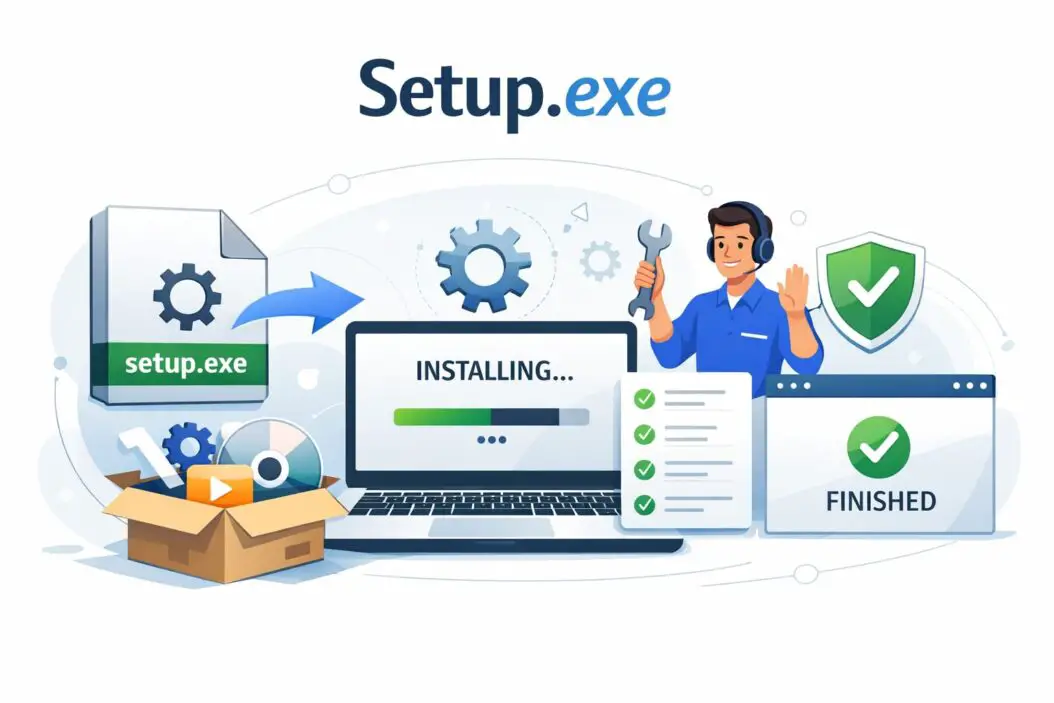
How Setup.exe Files Work
When you run a setup.exe file, several things happen in sequence:
Step 1: Extraction The installer unpacks compressed files stored inside the executable. This is why a small 5MB setup file can install a 50MB program.
Step 2: System Check The installer verifies your computer meets minimum requirements. It checks your Windows version, available disk space, and sometimes your processor type.
Step 3: User Interaction You see installation screens asking where to install the program, whether to create desktop shortcuts, and if you accept the license agreement.
Step 4: File Placement The installer copies files to the correct folders, typically:
- Program Files folder for the main application
- AppData folder for user-specific settings
- System32 folder for shared library files (if needed)
Step 5: Registry Modification Windows Registry gets updated so your operating system knows the program exists and how to run it.
Step 6: Cleanup Temporary files used during installation get deleted automatically.
Common Setup.exe File Locations
Legitimate setup.exe files typically come from these sources:
Downloaded Software Files you download from official websites land in your Downloads folder by default (C:\Users\YourName\Downloads).
CD or DVD Installation Physical media usually has setup.exe in the root directory or an “Install” folder.
USB Drives Portable software or installation media you receive on USB drives.
Temporary Folders Windows sometimes extracts installers to temporary locations like C:\Users\YourName\AppData\Local\Temp before running them.
How to Identify Safe vs. Malicious Setup.exe Files
Not all setup.exe files are legitimate. Malware often disguises itself with this common filename. Here’s how to check if a file is safe:
Check the Digital Signature
Right-click the setup.exe file and select Properties. Go to the Digital Signatures tab.
A legitimate file will show:
- The publisher’s name (like Microsoft Corporation, Adobe Inc.)
- A timestamp showing when it was signed
- A “This digital signature is OK” message
No digital signature is a red flag, though some legitimate small software companies skip this expensive process.
Scan with Antivirus Software
Before running any setup.exe file, scan it with your antivirus program. Right-click the file and select your antivirus scanner from the menu.
Modern antivirus software checks files against databases of known malware and analyzes suspicious behavior patterns.
Verify the Source
Ask yourself these questions:
- Did I download this from the official website?
- Did it come from a trusted source?
- Was it attached to an unexpected email?
- Did it download automatically without my permission?
According to security researchers at CISA (Cybersecurity & Infrastructure Security Agency), downloading software only from official sources reduces malware risk by over 90%.
Check File Size and Properties
Right-click the file, select Properties, and review:
File Size: A setup.exe claiming to install Microsoft Office shouldn’t be 800KB. Large programs need larger installers.
Creation Date: If you downloaded Chrome today but the file shows it was created three years ago, something is wrong.
File Location: Legitimate installers stay in your Downloads folder. If setup.exe appears randomly in your System32 folder, that’s suspicious.
Look for Strange Behavior
Warning signs include:
- The file tries to run immediately after download
- Multiple setup.exe processes appear in Task Manager
- Your antivirus gets disabled suddenly
- The installer asks for permissions unrelated to the software
- The program wants to install browser toolbars or additional software you didn’t request
Common Setup.exe Problems and Solutions
Problem 1: “Windows Cannot Access the Specified Device”
This error means Windows blocked the file for security reasons.
Solution:
- Right-click the setup.exe file
- Select Properties
- At the bottom of the General tab, check “Unblock”
- Click Apply, then OK
- Try running the installer again
Problem 2: “This App Can’t Run on Your PC”
You’re trying to install 64-bit software on a 32-bit system, or vice versa.
Solution: Check your Windows version:
- Press Windows key + Pause/Break
- Look for “System type”
- Download the correct installer version (32-bit or 64-bit)
Problem 3: Setup.exe Won’t Start
The file might be corrupted or blocked by antivirus software.
Solution:
- Temporarily disable antivirus (be careful with this)
- Re-download the file from the official source
- Right-click and select “Run as administrator”
- Check if your hard drive has enough free space
Problem 4: “Setup.exe Has Stopped Working”
The installer crashed during the process.
Solution:
- Restart your computer
- Close unnecessary programs
- Run Windows Update to ensure your system is current
- Try installing in Safe Mode if problems persist
Problem 5: Installation Freezes
The installer appears stuck at a certain percentage.
Solution:
- Wait 10-15 minutes (some installers pause during file verification)
- Check Task Manager to see if setup.exe is using CPU or disk resources
- If completely frozen, end the task and restart your computer before trying again
- Disable your internet connection if the installer seems stuck downloading components
Running Setup.exe Safely: Best Practices
Always Download from Official Sources
Visit the software company’s official website directly. Don’t trust download links from:
- Search engine ads
- Third-party download sites
- Email attachments
- Pop-up advertisements
The National Cyber Security Centre recommends typing website addresses directly into your browser rather than clicking links.
Create a System Restore Point
Before installing new software:
- Type “Create a restore point” in Windows search
- Click “Create” at the bottom
- Name it something like “Before installing [program name]”
- Wait for Windows to create the restore point
If installation causes problems, you can roll back your system.
Read Installation Prompts Carefully
Installers often bundle extra software you don’t want. During installation:
- Select “Custom” or “Advanced” installation instead of “Express”
- Uncheck boxes for toolbars, browser extensions, or additional programs
- Watch for pre-checked boxes that install extra software
- Don’t rush through clicking “Next”
Run as Administrator When Needed
Some programs need administrator rights to install properly. Right-click setup.exe and select “Run as administrator” if the installation fails with permission errors.
Keep Installation Files
Don’t delete the setup.exe file immediately after installation. Store it in a safe location in case you need to:
- Reinstall the program
- Install on another computer
- Repair a corrupted installation
Alternative Installation Methods
Setup.exe isn’t the only way to install software on Windows.
MSI Files
Windows Installer packages (.msi files) work similarly to setup.exe but use Microsoft’s standardized installation system. They’re easier for IT departments to deploy across multiple computers.
Windows Store Apps
Microsoft Store apps install through a controlled environment with automatic updates and easy removal. They’re generally safer than executable files from the internet.
Portable Programs
Some software runs without installation. These portable apps stay in a single folder and don’t modify your registry. You can run them from a USB drive.
Package Managers
Advanced users can use package managers like Chocolatey or Windows Package Manager (winget) to install software through command line tools.
Setup.exe and Windows Security Features
User Account Control (UAC)
When you run setup.exe, Windows often shows a UAC prompt asking permission. This popup asks “Do you want to allow this app to make changes to your device?”
This security feature prevents unauthorized software from installing without your knowledge. Always read the publisher name before clicking Yes.
Windows Defender SmartScreen
SmartScreen checks downloaded files against a database of known malicious software. If you see a “Windows protected your PC” message:
- “Don’t run” means SmartScreen found a threat
- “Run anyway” option appears only if the file is uncommon but not definitively malicious
Don’t click “Run anyway” unless you’re absolutely certain the file is safe.
Windows Sandbox
Windows 10 Pro and Enterprise include Windows Sandbox, a temporary isolated environment. You can test suspicious setup.exe files here without risking your main system. Any changes disappear when you close the sandbox.
Technical Details About Setup.exe
File Structure
Setup.exe files are typically packaged with installation frameworks like:
NSIS (Nullsoft Scriptable Install System): Popular for free and open-source software Inno Setup: Another free installer creation tool InstallShield: Commercial solution used by large software companies WiX Toolset: Creates MSI installers
Command Line Options
Many setup.exe files accept command line parameters for silent or automated installation:
/Sor/silentruns installation without user interaction/D=C:\CustomPathspecifies installation directory/NCRCskips integrity checks/?or/helpshows available options
IT professionals use these options to deploy software across many computers automatically.
Installation Logs
Setup programs often create log files tracking the installation process. These logs help troubleshoot failed installations and typically appear in:
- The Temp folder (C:\Users\YourName\AppData\Local\Temp)
- The program’s installation directory
- The Windows\Logs folder
What Happens After Installation
Once setup.exe completes its job:
Registry Entries
The Windows Registry contains new entries that tell Windows:
- Where program files are located
- What file types the program can open
- Startup behavior (if the program runs at Windows startup)
- Uninstall information
Startup Programs
Some installers add programs to your startup list. Press Ctrl+Shift+Esc to open Task Manager, then check the Startup tab to see what runs when Windows starts.
Scheduled Tasks
Programs might create scheduled tasks for automatic updates or maintenance. Check Task Scheduler (search for it in Windows) to see what’s scheduled.
File Associations
Installers often register file types. Double-clicking a .pdf file might now open your newly installed PDF reader instead of your previous default.
Uninstalling Programs Installed by Setup.exe
Standard Uninstallation
- Open Settings (Windows + I)
- Go to Apps > Installed apps
- Find the program
- Click the three dots and select Uninstall
Using the Original Installer
Some programs include an uninstall.exe file in their installation folder, typically found in C:\Program Files or C:\Program Files (x86).
Third-Party Uninstallers
Programs like Revo Uninstaller or IObit Uninstaller remove software more thoroughly by:
- Deleting leftover files
- Removing registry entries
- Cleaning up shortcuts
Installation File Types
| File Type | Security Level | Installation Control | Requires Admin | Typical Use |
|---|---|---|---|---|
| Setup.exe | Medium | Full customization | Usually | Desktop software |
| MSI | High | Standardized | Usually | Enterprise deployment |
| Microsoft Store | High | Limited | No | Consumer apps |
| Portable exe | Medium | None needed | No | USB/portable apps |
| ZIP/RAR archive | Varies | Manual extraction | Sometimes | Software packages |
Summary
Setup.exe files are essential tools for installing Windows software, but they require careful handling. Always download from official sources, verify digital signatures, and scan files with antivirus software before running them.
The installation process involves extracting files, checking system requirements, modifying the Windows registry, and placing program files in appropriate directories. Understanding this process helps you troubleshoot problems and make informed decisions about software installation.
When in doubt about a setup.exe file’s legitimacy, don’t run it. The risks of malware infection far outweigh the benefits of any single program. Your computer’s security depends on your vigilance during the installation process.
Frequently Asked Questions
Is every setup.exe file a virus?
No, setup.exe is simply a common filename for Windows installers. Legitimate software companies use this name, but so do malware creators. The filename alone doesn’t indicate whether a file is safe. Check the digital signature, scan with antivirus software, and verify you downloaded from an official source.
Can I rename a setup.exe file?
Yes, you can rename setup.exe to anything you want, and it will still work. The .exe extension is what matters, not the filename. However, renaming installation files isn’t recommended because it makes them harder to identify later.
Why does setup.exe need administrator permission?
Installing software requires making changes to protected areas of Windows, including the Program Files folder and the Windows Registry. Administrator permission ensures you authorize these system-level changes and prevents malware from silently installing without your knowledge.
What if I accidentally deleted setup.exe?
If you deleted the installer file, simply re-download it from the official source. The installed program itself remains unaffected because setup.exe only runs during installation. However, keep installation files stored safely if you might need to reinstall or repair the program later.
How can I tell if a setup.exe process in Task Manager is legitimate?
Right-click the process in Task Manager and select “Open file location.” This shows where the file is running from. Legitimate installers run from your Downloads folder or a temporary folder. If setup.exe runs from strange locations like System32 or randomly named folders, investigate further. Also check the “Publisher” column in Task Manager for verified company names.

- How to Uninstall Apps from the Start Menu in Windows 11/10 (2026 Guide) - April 2, 2026
- How to Fix Overscan on Windows 11/10: Stop Your Screen Getting Cut Off (2026) - April 1, 2026
- How to Disable Lock Screen on Windows 11/10 in 2026 - April 1, 2026