
Microsoft Planner is a task management tool built into Microsoft 365 that helps teams organize work, track progress, and stay aligned on priorities. If you struggle with keeping track of who’s doing what, when deadlines are approaching, or where a project stands, Planner solves this directly. Unlike scattered email threads or messy spreadsheets, Planner gives you one clear place to see all tasks, assign them, and monitor completion.
This guide shows you exactly how to manage tasks in Microsoft Planner so your team stays coordinated and deadlines get met.
What Is Microsoft Planner and Why Use It
Microsoft Planner is a simple, visual task management system included with Microsoft 365. It connects to your Teams, Outlook, and web browser, so you access it wherever you work.
Here’s what it does:
Planner lets you create plans (which are like projects), add tasks, assign them to people, set due dates, and track progress. You see tasks on a board view, list view, or calendar view. Multiple people can work in the same plan simultaneously. Tasks update in real time, and everyone sees the current status.
It’s designed for teams that need straightforward task tracking without complex project management software. Small teams, departments, or anyone using Microsoft 365 benefits from it.
The main reason to use Planner: it eliminates confusion about what needs to happen, who’s responsible, and when it’s due. Everyone checks one place instead of hunting through emails.
Getting Started: Creating Your First Plan
Step 1: Access Microsoft Planner
Open Microsoft Planner by going to https://tasks.microsoft.com in your web browser. If you’re using Microsoft Teams, click the Planner app in the left sidebar. You can also access it from the Office 365 app launcher (the grid icon) and select Planner.
Step 2: Create a New Plan
On the home page, click the “New Plan” button. Give your plan a name that describes the project or work area: “Website Redesign,” “Q1 Marketing Campaign,” “Product Launch,” or “Team Onboarding.”
Next, choose who can access this plan. If you want only your immediate team to see it, select a Microsoft 365 group. If the group doesn’t exist yet, Planner creates one automatically. This group becomes the container for your plan.
Click Create, and your plan is ready.
Step 3: Invite Team Members
Once your plan exists, add the people who need to work on it. Click the Share button in the top right corner. Enter email addresses or names of team members. Select their permission level (Member or Guest). Members can create and edit tasks. Guests can only view and comment.
Send invitations, and team members receive access immediately.
Understanding the Board View
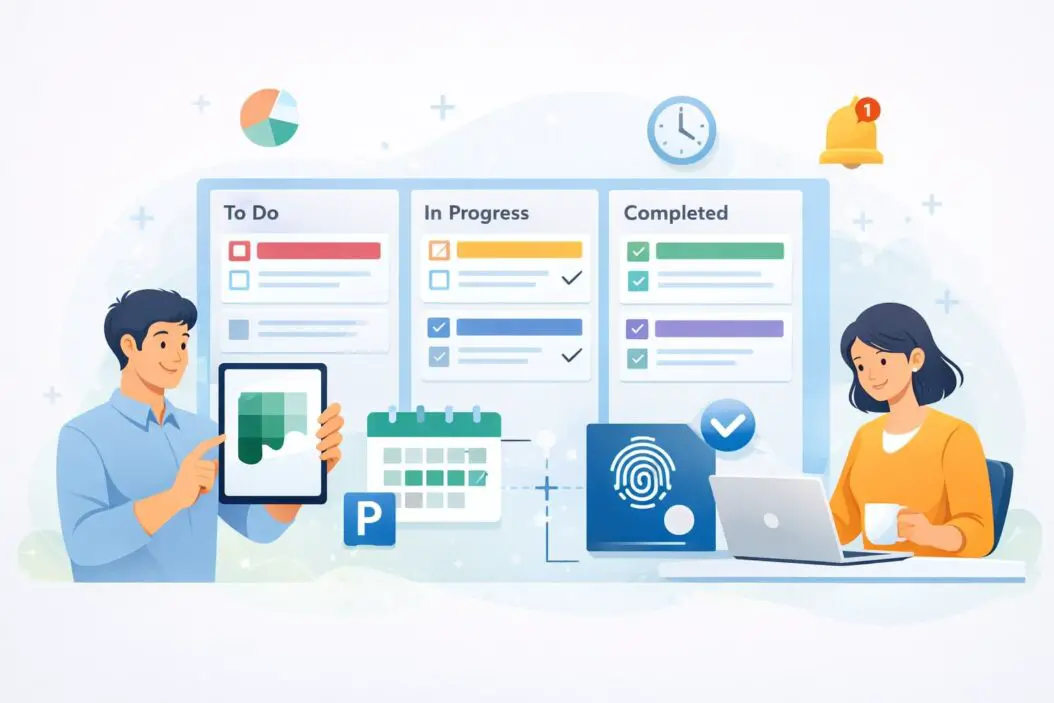
The board view is where most people spend their time in Planner. It shows tasks organized in columns, usually representing different stages of work: “Not Started,” “In Progress,” “Review,” and “Done.”
Each task appears as a card on the board. You drag cards between columns to change their status. This visual approach makes it obvious what work is at each stage.
The board view helps you see the big picture. You immediately spot bottlenecks (lots of tasks in Review) or stalled work (tasks stuck in one column for weeks).
To open the board view, click the plan name and select the Board tab.
Creating and Assigning Tasks
How to Add a Task
Click the plus icon in any column on the board view, or click “Add Task” at the top. Give the task a clear, specific name: “Write homepage copy,” not “Work on website.” Specific task names help people understand exactly what they need to do.
Choose which column the task starts in (usually “Not Started”). Then click Create.
Setting Task Details
After creating a task, click it to open the task details panel. Here’s what you can set:
Assign the task to one or more team members. The person assigned receives a notification. If a task needs input from multiple people, you can assign it to all of them, but one person is the primary owner responsible for completion.
Set a due date. Choose a specific date when the task must be finished. Tasks with approaching due dates show up highlighted in red on the board.
Add a description. Explain what the task involves, any context, or specific requirements. If someone needs to understand the task, write it here.
Create a checklist within the task. Break complex work into smaller steps. For example, “Approve homepage design” might have checkboxes for “Review mobile layout,” “Check typography,” “Test links.”
Add attachments. Link files from OneDrive, SharePoint, or upload documents. This keeps relevant files connected to the work.
Add labels. Create labels like “Design,” “Content,” “Testing,” or “Urgent.” Labels help categorize tasks and filter the board later.
Set priority. Mark tasks as High, Normal, or Low. High priority tasks stand out visually.
Leave comments. Team members can comment on the task to ask questions, provide feedback, or share updates. Comments keep conversations tied to the work instead of scattered in email.
Making Task Descriptions Useful
A good task description prevents confusion and back-and-forth messages. Include what needs to be done, any constraints, who to ask for questions, and links to relevant documents.
Example: “Update customer dashboard with December data. Pull numbers from the Finance folder on SharePoint (link: [your-sharepoint-link]). Format as last month but add comparison column. Ask Sarah if you need access to raw data files. Due for review by 2 PM Friday.”
This tells the person exactly what to do, where to find resources, and who to contact if stuck.
Organizing Your Plan
Using Buckets to Group Related Tasks
Buckets group tasks by category or phase without changing the board columns. For example, you might have buckets for “Phase 1,” “Phase 2,” “Team A responsibilities,” and “Team B responsibilities.”
Click “Add Bucket” on the board view and name it. Drag tasks into buckets to organize them. Unlike columns, buckets don’t represent workflow status; they’re just organizational containers.
Buckets help when you have many tasks and need to keep related work grouped together.
Organizing by View
The board view (columns representing workflow stages) works best for seeing overall progress. The list view shows all tasks in a simple list with filters. Use list view when you need to sort by due date, assigned person, or status.
The calendar view displays tasks by due date. This is helpful for spotting bunching (too many tasks due on the same day) and managing deadlines.
Switch between views by clicking the view icon at the top of your plan.
Filtering and Sorting
In list view, filter tasks to show only those assigned to specific people, with certain labels, or due within a date range. Click the filter icon and set your criteria.
Sorting by due date helps you focus on urgent work. Sorting by assigned person helps you see what each team member has on their plate.
Use filters when your plan grows large and you need to focus on a specific subset of work.
Tracking Progress and Staying on Schedule
Monitoring Task Completion
The board view shows status at a glance. Count cards in each column to see how much work is in each stage. Many cards in “Not Started” suggests work isn’t moving fast enough. Many cards in “Review” suggests review is a bottleneck.
The progress bar at the top of the plan shows overall completion percentage.
Check in on the plan regularly, ideally daily. Three minutes reviewing the board prevents missed deadlines and confused team members.
Managing Due Dates
Set realistic due dates. If a task is complex, give enough time. Padding deadlines by a day or two creates buffer for unexpected issues.
Color coding helps: tasks due today appear in one color, tasks due this week in another. This makes urgent work obvious.
When deadlines approach, notify the assignee. Planner sends automatic notifications, but a quick message reinforces urgency.
If a task will miss its deadline, update it immediately. Change the due date, reassign if needed, or break it into smaller tasks. Don’t let missed deadlines surprise people.
Using Milestones (If Available in Your Plan)
Some organizations use a separate task to mark major milestones: “Design complete,” “Client approval received,” “Launch day.” Mark these with high priority and set them as checkpoints.
This helps the team see progress toward big goals, not just individual task completion.
Collaborating and Communicating
Commenting on Tasks
Click a task and scroll to the comments section. Type a comment to ask questions, provide feedback, or share information. The assignee gets notified immediately.
Comments keep work-related conversation tied to the task instead of scattered in Slack or email. Anyone joining the project later can read comments to understand decisions and context.
Mentioning Specific People
Use the @ symbol in comments to mention someone directly: “@Sarah, can you review this?” The mentioned person gets a notification, so they see the message even if they don’t check Planner regularly.
Attaching Files and References
Use the attachment feature to connect files to tasks. If a task needs a template, design file, or document, attach it. Team members don’t need to hunt for files; they’re right there.
You can also link to external resources. Paste a URL to a SharePoint folder, external tool, or documentation. Include the link in the task description so it’s visible immediately when someone opens the task.
Real-World Example: Managing a Product Launch
Imagine you’re launching a new product. Here’s how you’d use Planner:
Create a plan called “Product Launch Q1 2026.” Invite the product manager, marketing lead, developer, and designer.
Create buckets for “Pre-Launch,” “Launch Week,” and “Post-Launch.”
In Pre-Launch, create tasks: “Finalize product specifications,” “Design marketing materials,” “Build product page,” “Write documentation,” “Test functionality.” Assign each to the responsible person and set due dates two weeks before launch.
As the launch date approaches, move tasks to “Done” as they complete. On launch week, tasks move to “Launch Week.” The team sees which work is complete and which still needs attention.
During launch week, add urgent tasks as needed: “Deploy to production,” “Send announcement email,” “Monitor feedback.” Assign immediately and track completion hourly if necessary.
After launch, move to “Post-Launch” tasks: “Monitor bug reports,” “Gather user feedback,” “Plan next improvements.” These keep momentum going after the launch spike.
This structure lets everyone see the plan evolve, understand their role, and celebrate as tasks get completed.
Common Settings and Customization
Changing Board Column Names
Default columns are “Not Started,” “In Progress,” and “Done,” but you can customize them. Click the three dots on a column and rename it. For example: “Backlog,” “Active,” “Testing,” “Ready to Deploy.”
Customize columns to match your workflow. This makes the board more meaningful to your team.
Setting Task Defaults
In plan settings, you can set default categories (labels) or require certain fields. If most tasks need a budget label, you can make it standard.
Consistent task structure helps people fill in information the same way, making the plan easier to scan and filter.
Notifications and Reminders
Planner sends notifications when someone assigns you a task, comments on your task, or mentions you. You can adjust notification frequency in your user settings so you’re not overwhelmed.
Set reminders in Outlook to check Planner at specific times. Many people review their plan first thing in the morning and at the end of the day.
Troubleshooting Common Issues
Tasks Not Updating in Real Time
If a task seems to be stuck or not reflecting changes, refresh your browser. Sometimes the display lags slightly, but refreshing ensures you see the latest version.
If multiple people edit simultaneously, the last person to save wins. Avoid having multiple people edit the same task at the exact same time.
Members Can’t See the Plan
Check that they’re invited to the plan. Go to Share and verify their email is listed. If they received the invite but can’t access it, ask them to check their email for a Microsoft 365 group invitation and accept it.
Plan Has Too Many Tasks
If your plan grows to hundreds of tasks, it becomes slow and confusing. Archive completed tasks or create a separate plan for a new phase of work. Use filters liberally to show only relevant tasks.
Large teams sometimes create sub-plans for specific work areas and a master plan that summarizes status across all sub-plans.
Integration with Other Microsoft Tools
Connecting to Teams
If you create a plan in Microsoft Teams, it’s automatically available to the team. Team members see the Planner tab alongside chat, files, and calls.
This is ideal for team-based work where all collaboration happens in Teams.
Syncing with Outlook
Tasks you create or are assigned in Planner can appear in Outlook. When you view your task list in Outlook, you see Planner tasks mixed with your personal to-do items.
This is useful if you live in Outlook and want one unified task view.
Using with SharePoint
Store project documents, templates, or resources in a SharePoint site. Link to that site from your plan so team members find files easily.
For larger projects, SharePoint stores the detailed documents, and Planner tracks the work.
Best Practices for Using Planner Long-Term
Regular Maintenance
Review your plan weekly. Archive tasks that are genuinely complete. Remove tasks that are no longer needed. Keep the plan lean so it stays focused.
If your plan hasn’t been reviewed in a month and tasks are outdated, it becomes ignored. Regular upkeep keeps it useful.
Establish Team Norms
Decide with your team how often due dates are set (daily, weekly, monthly). Agree on what “done” means (submitted for review, fully completed, approved, deployed). Clarify who can change task assignments (just the assignee, or anyone).
Team norms prevent confusion and make Planner easier to use consistently.
Naming Conventions
Create a simple naming style for task names so people write them consistently. For example: “Design [feature name]” or “Write [section] copy.” Consistent naming makes tasks scannable.
Review Meetings
Some teams dedicate five minutes in their weekly standup to reviewing Planner. This keeps everyone aware of progress and surfaces blockers immediately.
Even brief reviews prevent surprises and keep work moving.
Summary
Microsoft Planner is a straightforward task management tool that works well for teams of any size using Microsoft 365. Start by creating a plan, inviting your team, and adding tasks with clear names and due dates. Use the board view to visualize workflow progress, assign work clearly, and comment to collaborate.
The tool’s real power comes from consistency. Use it regularly, keep tasks updated, and encourage your team to check it daily. When everyone uses Planner, work becomes visible, deadlines stay on track, and confusion drops dramatically.
Planner won’t solve every project management challenge, but it eliminates the confusion of scattered tasks and unknown responsibilities. For most teams, that’s exactly what they need.
Frequently Asked Questions
How many tasks can I add to one plan?
Planner handles hundreds or even thousands of tasks, but practical limits kick in around 500 tasks in a single plan. At that point, the interface slows and becomes unwieldy. For large volumes of work, create separate plans by project phase or team area.
Can I set recurring tasks in Planner?
Planner doesn’t have built-in recurring tasks. However, you can duplicate a task by copying it and creating multiple versions with different due dates. For truly recurring work, some teams use Power Automate to automatically create tasks on a schedule.
What happens if I delete a plan by accident?
Deleted plans go to a deleted items area where you can recover them for a limited time. Go to your plans list, find the deleted items section, and restore the plan. After 93 days, deleted plans are permanently removed.
Can I export my plan or back it up?
You can export task data by copying and pasting into Excel from the list view, but there’s no one-click export feature. For critical projects, periodically save a list view copy to a document for backup purposes.
Can external contractors or clients access my plan?
Yes. When sharing a plan, you can invite anyone with an email address, including external contacts. Add them as Guests, and they can view and comment on tasks. You control what they see through the Microsoft 365 group permissions.
