
Email overload is real. Every day, hundreds of messages pile up in your inbox. Without organization, finding important emails becomes impossible. Creating rules in Outlook solves this problem by automatically organizing, filtering, and managing your emails.
A rule in Outlook is an automated action that applies to incoming emails based on conditions you set. You define the condition (like “emails from your boss”) and the action (like “move to a specific folder”). Outlook then performs that action automatically on matching emails.
This guide shows you exactly how to create a rule in Outlook, step by step. Whether you use Outlook desktop, web, or Outlook on your phone, you’ll find clear instructions here.
What Exactly Is an Outlook Rule and Why You Need One
An Outlook rule is a set of instructions that tells Outlook what to do with specific emails. Think of it like a postal worker sorting mail before it reaches your mailbox.
Here’s why rules matter:
Your inbox stays clean without manual work. Instead of moving dozens of emails daily, Outlook does it automatically. Rules handle repetitive tasks instantly. You never miss important emails because they go to designated folders. Spam and newsletters get filtered away. You can prioritize which emails matter most.
Most people waste 28 minutes daily sorting through email clutter. Rules eliminate that waste.
How to Create a Rule in Outlook Desktop (Windows and Mac)
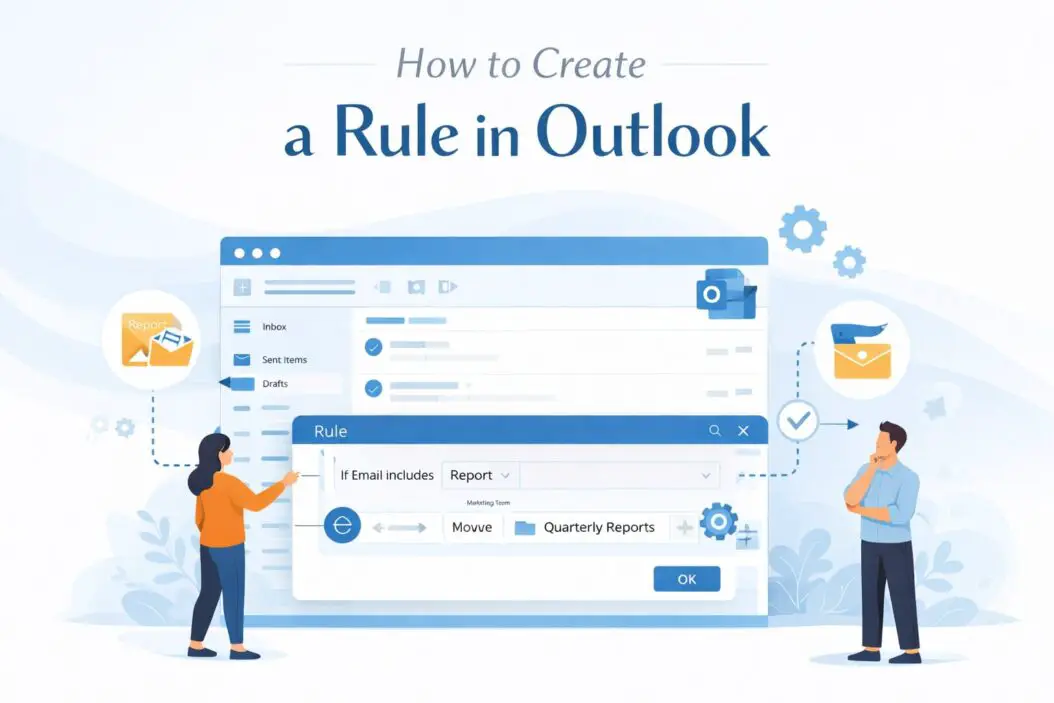
Step 1: Open the Rules Settings
Open your Outlook application on your computer. At the top menu, find the “Home” tab. Look for the “Rules” button in the toolbar. The exact location depends on your Outlook version, but it’s always in the top navigation area.
Click “Rules” and select “Manage Rules and Alerts” or simply “New Rule.” A dialog box opens.
Step 2: Choose How to Create Your Rule
You have two starting options:
- Start with a blank rule
- Start from an existing email template
For beginners, starting with a template is easier. Right-click any email and select “Rules” then “Create Rule.” Outlook automatically fills in the sender’s information. You only need to add the action.
For custom rules, click “New Rule” and start completely from scratch.
Step 3: Define the Condition
This is the most important part. The condition determines which emails get the rule applied.
Common conditions include:
From a specific person or domain. To all emails sent only to you. Containing specific words in the subject line. Containing specific words in the body. Marked with a specific importance level. Sent to a specific group or distribution list.
Example: If you want all emails from your project manager automatically filed, select “From [specific person].”
You can combine multiple conditions. Use “AND” if all conditions must be true. Use “OR” if any condition can be true.
Step 4: Choose the Action
Once the condition is set, choose what happens to matching emails.
Common actions include:
Move message to a specific folder. Delete the message. Flag the message for follow up. Mark as read. Add a category or color. Play a notification sound. Forward to another email address. Send an automatic reply.
Most people use the “Move to folder” action. Select the destination folder from your folder list.
Step 5: Set Exceptions (Optional)
Exceptions prevent rules from applying in specific situations. For example, your rule moves all newsletters to a folder, but you want to keep important ones in your inbox.
Add exceptions like:
Except if the message is marked important. Except if it’s from a VIP contact. Except if it contains specific words.
Step 6: Name and Apply Your Rule
Give your rule a descriptive name. Use clear language like “Work emails from Janet” or “Newsletter archive.”
Check the box that says “Apply this rule to messages already in my mailbox” if you want it to affect existing emails. Then click “OK.”
Your rule is now active and working.
Creating Rules in Outlook Web (Online)
If you use Outlook.com or Outlook on the web through Microsoft 365, the process is similar but slightly different.
Steps for Web Version
- Open Outlook in your web browser
- Click the gear icon (Settings) in the top right
- Select “View all Outlook settings”
- Click “Mail” then “Rules”
- Click “Add new rule”
- Enter a rule name
- Set your condition (if the message is from… if the subject contains…)
- Set your action (move to folder, mark as junk, delete)
- Click “Create”
The web version is faster and simpler for basic rules. Use the desktop version for more complex rules with multiple conditions and exceptions.
Practical Examples You Can Use Right Now
Example 1: Auto-Archive Newsletters
Condition: Subject contains “unsubscribe” AND from domains like newsletter.com Action: Move to “Newsletters” folder Result: Marketing emails bypass your main inbox automatically.
Example 2: Priority Work Emails
Condition: From your manager or CEO Action: Mark as important, apply red flag, move to “Priority” folder Result: Critical emails stand out immediately.
Example 3: Auto-Reply Filter
Condition: To specific distribution list Action: Add category “Team Messages” Result: Team emails stay grouped and easy to find.
Example 4: Delete Automated Alerts
Condition: From noreply@company.com AND subject contains “automated alert” Action: Move to Deleted Items Result: Automated system messages don’t clutter your inbox.
Example 5: Client Organization
Condition: From multiple email addresses (add each one) Action: Apply “Client” category with blue color Result: All client emails are visually marked and easy to spot.
Conditions and Operators
Rules work best when you understand how to build conditions correctly.
| Condition Type | What It Matches | Example |
|---|---|---|
| From | Sender’s email address | Emails from john@company.com |
| To | Recipient email address | Emails sent directly to you (not CC) |
| Subject | Words in the subject line | Subject contains “Invoice” |
| Body | Words in the message content | Message contains “please review” |
| Importance | Email importance level | Messages marked as high priority |
| Size | Email file size | Large attachments over 5MB |
| Received | Date the email arrived | Messages received in last 30 days |
| With attachment | Files included in email | Any message with attachments |
Operators determine how conditions work together:
AND means all conditions must be true. A message must meet every single condition to trigger the rule.
OR means any condition can be true. A message triggers the rule if it matches any condition.
NOT means exclude specific conditions. Rules won’t apply if this condition is present.
Advanced Rule Techniques
Creating Rule Groups
You can create multiple related rules to handle complex sorting. For example, create separate rules for different clients, each moving to its own folder.
Name related rules similarly: “Client ABC Priority,” “Client ABC Archive,” etc. This organization makes management easier.
Using Folder Hierarchies
Create subfolders within main folders to create detailed organization systems. Rules can move emails to subfolders at any depth.
Example structure: Clients > ABC Company > 2024 > Invoices
Combining Rules with Categories
Instead of only moving emails, also apply color categories. This provides visual organization in your inbox while also filing the emails away.
Running Rules Manually
Need to apply a new rule to thousands of old emails? Go to the Rules menu and select “Run Rules Now.” Choose which rules to apply and which folder to process. Outlook processes the entire folder using your rules.
Common Issues and How to Fix Them
Rule Not Working
First, check if the rule is actually enabled. Open Manage Rules and look for a checkbox next to your rule. If unchecked, the rule is disabled.
Second, verify your condition is correct. Test with one email manually to see if it matches your condition criteria.
Third, check for rule conflicts. Two rules might contradict each other. Review your complete rule list.
Emails Going to Wrong Folder
This usually happens when multiple rules apply to the same email. Outlook processes rules in order. Adjust the rule order by moving rules up or down in the list.
Outlook Freezing When Running Rules
Large rule operations can slow Outlook. Close other programs. Run rules during off hours. Break large rule operations into smaller batches.
Rule Deletes Messages Unintentionally
Never use “Delete” as your first action. Always use “Move to folder” instead. This gives you a safety net to recover messages if needed.
How to Edit or Delete Rules
Click “Rules” and “Manage Rules and Alerts.” The dialog shows all your current rules.
To edit: Click a rule and select “Change Rule.” Modify the condition or action, then click OK.
To delete: Click a rule and select “Delete.” Confirm the deletion.
To disable temporarily: Uncheck the box next to the rule name.
To reorder: Click a rule and use the arrow buttons to move it up or down in the processing order.
Managing Rule Organization and Performance
Outlook processes rules in the order they appear in your list. Rules at the top run first.
Place your most important rules at the top. For example, put priority client rules above newsletter filtering rules.
Having too many rules slows Outlook. Delete unused rules. Combine similar rules when possible.
Review your rules quarterly. Email habits change, and old rules might become unnecessary.
For detailed information on setting up advanced filters, visit Microsoft’s official rules documentation.
Mobile Outlook Rules
Outlook on smartphones and tablets has limited rule functionality. You cannot create new rules on mobile devices. However, existing rules you created on desktop still apply to mobile emails.
To manage rules on mobile, use the desktop application or web version. Both sync to your phone automatically.
Rule Safety Best Practices
Never delete emails with rules. Always move them to a folder first as backup. Test new rules on a small email sample before applying to all emails. Create backup rules for critical emails. Check your rule settings monthly to ensure they still match your workflow. Document why each rule exists, especially for complex rules.
These practices prevent accidental data loss and maintain system performance.
Conclusion
Creating rules in Outlook transforms how you manage email. Instead of spending hours sorting messages, Outlook does the work automatically. Rules organize by sender, subject, content, or any combination. They move emails, flag messages, delete spam, and organize by priority.
Start with simple rules for your most frequent email categories. Once comfortable, build more complex rules combining multiple conditions. Review and adjust rules regularly as your email patterns change.
The time you invest setting up rules today saves hours every month. A well-organized inbox means faster email processing and nothing important gets lost.
Frequently Asked Questions
Can I create a rule that applies to existing emails?
Yes. When creating a rule in desktop Outlook, check “Apply this rule to messages already in my mailbox.” The rule immediately processes all existing emails matching the condition. In Outlook web, this happens automatically for new rules.
How many rules can I create?
Outlook supports up to 32 KB of rules data. In practical terms, most users can create 100 to 200+ rules before hitting limits. However, too many rules slow performance. Keep your rule count reasonable, typically under 50.
Can rules automatically forward emails?
Yes. Set the action to “Forward” and enter the recipient email address. This is useful for delegating specific emails to team members. However, forwarding creates extra emails, so use sparingly.
Will rules work if Outlook is closed?
For desktop Outlook, rules only work when Outlook is running. For Outlook web and Microsoft 365, rules work continuously regardless of whether you’re logged in.
How do I prevent important emails from being filtered?
Use exceptions. When creating a rule, add an exception like “Except if marked as important” or “Except if from [specific contact].” This prevents the rule from applying to certain emails even if they match the main condition.

- How to Fix Overscan on Windows 11/10: Stop Your Screen Getting Cut Off (2026) - April 1, 2026
- How to Disable Lock Screen on Windows 11/10 in 2026 - April 1, 2026
- Top 7 NFT Integration Ideas for Brands in 2026 - March 31, 2026