
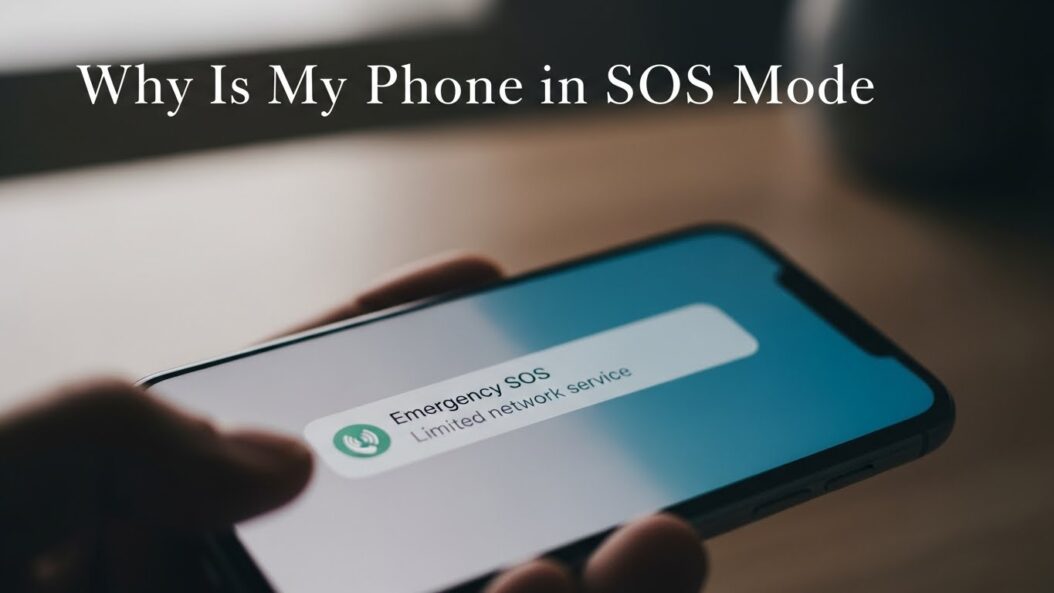
Your phone is in SOS mode when it’s operating in Emergency mode, a built-in feature designed to help you contact emergency services or trusted contacts when you need help most. This mode activates either accidentally or intentionally, and it changes how your phone behaves. When active, your phone prioritizes calls to emergency numbers and alerts your emergency contacts.
SOS mode exists on iPhones (called Emergency SOS) and Android phones (called Emergency Mode). Both work similarly but have different names and slightly different features. Understanding why your phone entered this mode is the first step to getting back to normal operation.
Most people activate SOS mode by accident. It’s easy to do. Your phone might enter this mode without you realizing it happened. The good news is that getting out of SOS mode takes just minutes once you know what to do.
How Your Phone Enters SOS Mode
Accidental Activation on iPhone
iPhones activate Emergency SOS when you hold down the side button and either volume button for three seconds. During an emergency, this is brilliant. During normal daily life, it’s frustrating. Your phone might enter SOS mode if you sit on it wrong, if it’s in your pocket during physical activity, or if you accidentally press buttons while handling your phone.
If you have an older iPhone model, Emergency SOS activates by pressing the side button five times quickly. This is even easier to trigger accidentally. If you’re left-handed or hold your phone differently than most people, you might activate this feature more often than right-handed users.
Accidental Activation on Android
Android phones activate Emergency Mode differently depending on the manufacturer. Samsung phones usually enter Emergency Mode when you press the power button three times. Other Android devices might have different button combinations. Some phones activate this mode through software settings rather than physical buttons.
The specific method depends on your phone model and manufacturer. Check your phone’s manual or search for your exact model to learn the precise activation method.
Intentional Activation
Sometimes people activate SOS mode on purpose without remembering they did. You might have tested the feature and forgot about it. You might have been curious and tried it out. Emergency features can also activate through accessibility settings if you’ve customized those features.
Some people activate SOS mode to find out what happens. If you’re reading this after experimenting, you’re not alone. Thousands of people do this every month.
How to Exit SOS Mode on iPhone
Immediate Steps
When Emergency SOS is active on your iPhone, you’ll see a countdown screen showing emergency services being called. If you activated it accidentally, the easiest solution is to stop the countdown. Tap the red button or swipe up to cancel the emergency call before it connects.
If the call already went through to emergency services, you might want to explain the accidental activation to the dispatcher. They won’t be upset. They handle these calls regularly. Simply tell them you activated SOS accidentally and don’t need emergency assistance.
After you cancel Emergency SOS, your phone returns to normal operation immediately. You don’t need to restart it or change any settings.
If You Can’t Cancel the Call
Sometimes people panic and don’t cancel in time. If emergency services have already been contacted, don’t hang up the phone. Let the dispatcher know it was an accidental activation. Hanging up might cause them to send emergency responders to check on you, which wastes resources and might result in complications or embarrassment.
After you explain the situation, the dispatcher will close the case. You’re done. Your phone will return to normal.
Disabling Emergency SOS Features
If you keep activating SOS mode accidentally, you can adjust your settings to prevent this. Go to Settings > Emergency SOS and toggle off “Call with Side Button.” This prevents you from triggering Emergency SOS by accident while still allowing you to access emergency features through other methods.
You can also enable “Hold to Speak” instead of “Hold and Release.” This requires you to actively hold the button throughout the call rather than releasing it, making accidental calls less likely.
How to Exit SOS Mode on Android
Samsung Devices
If you triggered Emergency Mode on a Samsung phone, a popup window appears asking if you want to enter Emergency Mode. If you see this, simply tap “Cancel” or the X button to exit. Don’t tap “OK” or “Yes.”
If you’re already in Emergency Mode, swipe up from the bottom of the screen to access the quick settings. Look for an Emergency Mode toggle or button. Tap it to turn off Emergency Mode.
On some Samsung models, you can go to Settings > Advanced Features > Emergency Mode and toggle it off. The exact path depends on your specific phone model.
Other Android Devices
For non-Samsung Android phones, the process varies. Most devices show Emergency Mode in the quick settings panel. Pull down from the top of your screen twice to open quick settings. Find Emergency Mode and tap it to toggle off.
If this doesn’t work, go to Settings > About Phone or Settings > System > About Phone. Look for a button or menu option related to Emergency Mode. Many Android manufacturers hide this option in different places.
Some Android phones require you to restart the device to properly exit Emergency Mode. If simple toggles don’t work, turn your phone off completely and turn it back on. This usually resolves the issue.
Why Your Phone Might Be Stuck in SOS Mode
Software Glitches
Sometimes your phone enters SOS mode and won’t exit due to a software error. This is rare but happens occasionally. Restarting your phone almost always fixes this problem. Turn your phone completely off. Wait ten seconds. Turn it back on.
If restarting doesn’t work, try force restarting. For iPhones, press and release Volume Up, then press and release Volume Down, then press and hold the side button until you see the Apple logo. For Android, the process varies by manufacturer, but usually involves holding down the power button for 30 seconds.
Button Damage or Sensitivity Issues
If your phone’s buttons are physically damaged or overly sensitive, they might trigger SOS mode repeatedly or keep it activated. Check if your buttons are sticking or require less pressure than normal to activate.
If buttons are damaged, you can adjust button sensitivity in Accessibility settings. Go to Settings > Accessibility > Touch. On older phones, look for Touch Accommodations or similar options. This sometimes helps with overly sensitive buttons.
Physical button damage requires professional repair. A damaged button rarely improves on its own and might get worse over time.
Accessibility Settings Interference
Sometimes accessibility features interact with emergency mode in unexpected ways. If you use Voice Control, AssistiveTouch, or similar features, these might interfere with normal operation.
Try temporarily disabling all accessibility features you’ve enabled. Go to Settings > Accessibility and toggle off features one by one. Restart your phone after each change. This helps identify which feature is causing the problem.
Carrier or Network Issues
Occasionally, network problems trigger emergency mode on your phone. This happens rarely but is possible. Toggle Airplane Mode on for 10 seconds, then toggle it off. This resets your network connection without restarting your phone entirely.
If the problem persists, try connecting to a different network. If you’re on cellular, try WiFi instead. If you’re on WiFi, try cellular. Different network connections sometimes resolve unexpected mode activation.
Preventing Accidental SOS Activation
Adjust Button Hold Times
Most phones let you increase the time required to hold buttons for emergency mode. This reduces accidental activation significantly. Your phone requires longer pressure before anything happens, giving you time to notice and release before activation occurs.
Go to Settings and search for “Emergency SOS” or “Emergency Mode.” Look for options to adjust hold times or disable quick activation. Longer hold times mean fewer accidents.
Use Phone Cases and Screen Protectors
A good phone case can prevent buttons from being pressed accidentally. Cases often provide raised edges around buttons, making them harder to press accidentally in your pocket or during normal handling.
Make sure your case doesn’t press on buttons by itself. A poorly designed case might press buttons constantly and cause repeated activation.
Disable Quick Activation
The fastest way to prevent accidents is to disable the feature entirely, then use alternative methods to access emergency services. You can completely disable Emergency SOS while keeping your ability to dial 911 or your local emergency number.
Go to Settings > Emergency SOS and uncheck “Call with Side Button” on iPhones. On Android, find Emergency Mode settings and disable the button activation method.
Enable Confirmation Steps
Both iPhone and Android let you add confirmation steps before emergency mode activates. This creates extra protection. Your phone makes you confirm your intention before actually activating emergency mode.
Set your phone to “Hold and Release” mode rather than just “Hold.” This requires you to keep holding through the entire countdown, making accidental activation extremely unlikely.
When SOS Mode Is Genuinely Useful
SOS mode isn’t a nuisance. It saves lives. Understanding when and how to use this feature properly means you’ll have it available if you ever truly need emergency help.
Real Emergency Situations
If you’re in genuine danger, Emergency SOS lets you contact help with just a few button presses. You don’t need to unlock your phone, open the phone app, or dial a number. Just hold buttons and your phone contacts emergency services.
This is especially useful if you’re injured, scared, or in a situation where you can’t safely perform normal phone operations.
Creating Emergency Contacts
SOS mode can alert your emergency contacts automatically. After you call emergency services, your phone can send messages to people you’ve designated as emergency contacts, letting them know what happened and where you are.
Set up emergency contacts in your phone’s health or medical app. Go to Settings > Health or Settings > Medical ID. Add the people you want contacted in emergencies.
Medical Information Sharing
When you call emergency services through SOS mode, your medical information can be displayed to the dispatcher. This helps paramedics understand your medical history immediately upon arrival.
Add your medical information through the Health app on iPhone or the SOS settings on Android. Include allergies, medications, blood type, and any important health conditions.
iPhone vs Android Emergency Features
| Feature | iPhone Emergency SOS | Android Emergency Mode |
|---|---|---|
| Activation Method | Hold side button and volume button | Press power button multiple times (varies by brand) |
| Call Duration | Automatic 5-second countdown | Immediate or quick activation |
| Emergency Contacts | Yes, sends notifications | Varies by manufacturer |
| Medical Information | Health app integration | SOS app integration |
| Disable Feature | Settings > Emergency SOS | Settings > Emergency Mode |
| Recovery Method | Tap cancel or wait | Tap cancel or exit menu |
| Accessibility Features | Multiple adjustment options | Device-specific options |
Troubleshooting Flowchart for SOS Mode Issues
- Are you currently in emergency mode? Yes > Tap Cancel or toggle off > Problem solved
- Is emergency mode repeating or stuck? Yes > Restart phone > Does it fix? Yes > Done. No > Continue
- Are your buttons physically damaged? Yes > Seek professional repair > Done. No > Continue
- Have you tried all accessibility adjustments? Yes > Contact phone manufacturer > Done. No > Try adjustments now
- Is the problem resolved? Yes > Prevent future issues with settings adjustments > Done. No > Seek technical support
Real Life Examples
Maria’s Accidental Call
Maria sat down at her desk and her iPhone immediately triggered Emergency SOS. The side button got pressed during her commute. She immediately tapped Cancel before any call connected. She then went to Settings > Emergency SOS and disabled side button activation. Now she uses 911 like a normal person when she actually needs help.
James’s Android Problem
James’s Samsung kept entering Emergency Mode randomly throughout the day. He discovered his phone case was pressing the power button slightly while the phone sat in his pocket. He changed to a different case with better button protection. The problem stopped completely.
Carlos’s Confusion
Carlos found his phone in SOS mode and panicked. He didn’t know how to exit. His emergency call connected to a dispatcher. He explained he hit the buttons accidentally. The dispatcher closed the case professionally and kindly. Carlos wasn’t charged or penalized. He learned where his Emergency SOS button was and now avoids it.
Summary and Next Steps
Your phone enters SOS mode through accidental or intentional button pressing. Getting out is simple: cancel the call or toggle off the emergency mode setting. Preventing future activation means adjusting your settings or using protective cases.
Emergency SOS is a valuable safety feature. Learn how it works on your specific phone. Test it in a safe environment so you know exactly what happens. Then adjust settings to prevent accidental activation while keeping the feature available when you truly need it.
If you keep accidentally activating SOS mode, the problem is almost certainly a physical button issue, accessibility setting issue, or simple operator error. None of these require professional repair or expensive troubleshooting.
Take action today by checking your emergency settings. Spend 30 seconds adjusting them. Your phone will work better, and you’ll know exactly how to contact emergency services when needed.
Frequently Asked Questions
Will I get in trouble if I accidentally call emergency services through SOS mode?
No. Emergency dispatchers receive accidental SOS calls constantly. They understand phones have emergency features that activate accidentally. Simply explain what happened. There are no penalties or charges for accidental emergency calls.
Can I completely disable SOS mode on my phone?
You can disable button activation of SOS mode, but you cannot disable 911 calling entirely. Your phone will always let you dial 911 directly. This is required by law in most countries.
Why does my Android phone keep entering Emergency Mode even though I didn’t press anything?
This usually indicates either a button sensitivity issue, a software glitch, or an accessibility setting interfering with normal operation. Try restarting your phone first. If the problem persists, check your accessibility settings or visit a service center.
How long does the countdown last before emergency services are called?
Most phones give you 5 seconds to stop the call after activation. A countdown appears on your screen. Tap Cancel or slide to Stop before the timer reaches zero.
What information do emergency services see when I call through SOS mode?
Emergency dispatchers see your phone number, location (if available), and any medical information you’ve added to your phone’s emergency settings. They see nothing else. They cannot access your photos, messages, or personal data.
Additional Resources
For more detailed information about emergency features, visit the official Apple support page on Emergency SOS: https://support.apple.com/en-us/HT208076
For Android users needing detailed Emergency Mode guidance, check your phone manufacturer’s support site or visit https://www.android.com/emergency-sms/
Understanding your phone’s safety features means better preparedness for genuine emergencies and fewer accidental activations during normal daily use.

- How to Uninstall Apps from the Start Menu in Windows 11/10 (2026 Guide) - April 2, 2026
- How to Fix Overscan on Windows 11/10: Stop Your Screen Getting Cut Off (2026) - April 1, 2026
- How to Disable Lock Screen on Windows 11/10 in 2026 - April 1, 2026