
Your internet is crawling. Pages take forever to load. Videos buffer endlessly. You’re frustrated because you’re paying for a connection that doesn’t work properly. The good news: most slow internet problems are fixable without calling your provider.
This guide walks you through real solutions that actually work. You’ll diagnose the problem and fix it yourself in most cases.
Start Here: Identify Your Real Connection Speed
Before you do anything else, you need to know your actual speed versus what you’re paying for.
Run a speed test right now. Visit Speedtest.net or Fast.com and click the big button. Wait for results. Write down these three numbers: download speed, upload speed, and ping.
Now check your internet bill or provider’s website. What speed tier did you pay for? Compare it to your test results.
Are you getting 80 percent or more of what you’re paying for? If yes, your connection is normal. If you’re getting 50 percent or less, you have a real problem to fix.
The gap between promised speed and actual speed is the first clue to what’s broken.
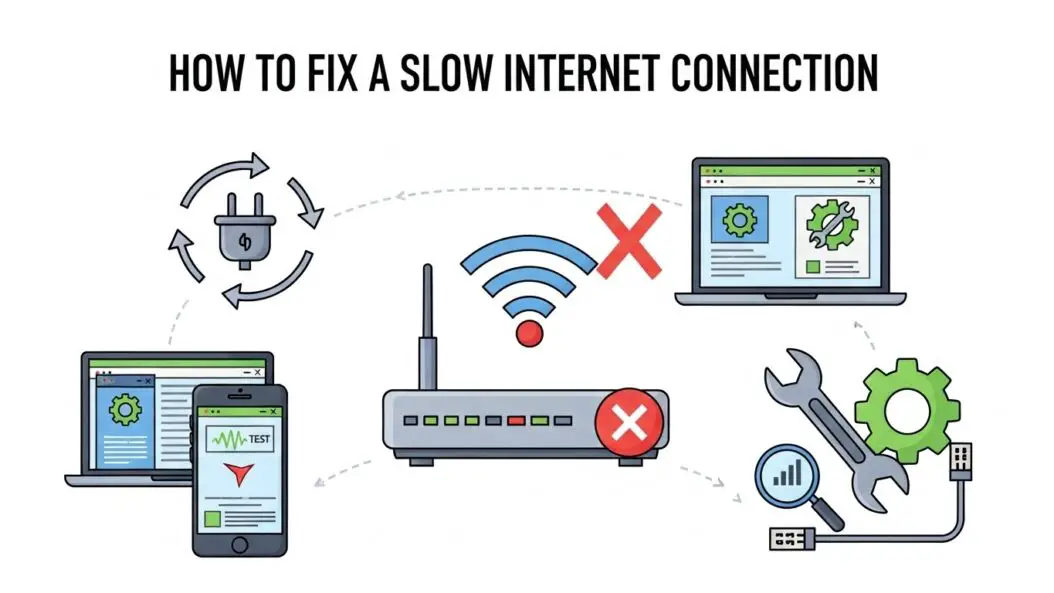
Most Common Cause: Your Router Placement and Settings
This fixes the problem about 40 percent of the time.
Your router broadcasts a wireless signal. Walls, metal, and distance weaken this signal. Many people put their router in a closet or behind the TV. Then they wonder why their phone gets weak signal two rooms away.
Move your router to the center of your home if possible. Elevated placement works better than on the floor. A shelf or wall mount beats sitting on a table next to a window.
Avoid placing it near:
- Microwaves (they interfere with 2.4GHz signals)
- Cordless phones
- Baby monitors
- Large metal objects or water tanks
Change your WiFi channel. Your neighbors’ routers might be using the same channel, causing interference.
Log into your router at 192.168.1.1 (check your manual for the exact address). Look for WiFi settings. For 2.4GHz networks, try channels 1, 6, or 11 (they don’t overlap with each other). For 5GHz networks, many channels are available.
Use a WiFi analyzer app like WiFi Analyzer (free on Android) or iStumbler (Mac) to see which channels other nearby networks use. Pick a quieter channel.
Restart your router. Unplug it completely for 30 seconds. Plug it back in. Wait two minutes for it to fully restart. This fixes temporary glitches and should be your automatic response whenever you notice slowness.
Second: Check What’s Using Your Bandwidth
Your slow connection might not be your internet. It might be something on your network hogging all the data.
On Windows: Open Task Manager (Ctrl+Shift+Esc), click the Performance tab, then click “Open Resource Monitor” at the bottom. Go to the Network tab. You’ll see which programs are sending and receiving data.
On Mac: Open Activity Monitor (Applications > Utilities), click the Network tab. Sort by “Sent Bytes” or “Recv Bytes” to see what’s using your connection.
Look for unexpected programs. Updates, cloud backups, streaming services in the background, and downloads run without you realizing. One device downloading a large file can slow everything else down.
Close bandwidth hogs. Pause cloud backups. Stop downloads. Close extra browser tabs.
Check for malware. Malicious software sometimes uses your connection to send data to servers. Run a full scan with Malwarebytes (free version works) or Windows Defender (built into Windows).
Third: Optimize Your Device Connection
Sometimes the problem is your device, not your internet.
Use a wired connection to test. Get an ethernet cable. Connect your computer directly to the router. Run another speed test. Is it faster? Much faster means WiFi is your problem. Slightly faster or the same means your internet provider is the issue.
For WiFi users, move closer to the router. Or temporarily use WiFi on your phone next to the router. This tells you if distance matters.
Forget and rejoin your WiFi network. On your phone or computer, go to WiFi settings. Find your network. Select “Forget” or “Remove.” Then rejoin it and re-enter the password. This forces your device to reconnect fresh, which often helps.
Update your WiFi drivers. On Windows, right-click the Start menu, select Device Manager. Find Network adapters, right-click your WiFi adapter, and select “Update driver.” Choose “Search automatically for updated driver software.”
Fourth: Contact Your Provider (The Right Way)
If you’ve done all the above and speeds are still low, your provider might have a network problem or you might need a plan change.
Before you call, have ready:
- Your speed test results showing exact numbers
- The speeds you’re supposed to get according to your plan
- What you’ve already tried to fix it
Say something like: “I’m getting 25 Mbps when I pay for 100 Mbps. I’ve restarted my router and run multiple speed tests. Can you check if there’s an issue on your end?”
Ask them to check for line issues or congestion in your area. They can run diagnostics from their side.
If they confirm your speeds are too low, ask about switching plans or replacing your modem. Some providers give you a modem for free. If yours is older than five years, ask for a replacement.
Modem Replacement: When It Matters
Your modem is the box that connects you to your internet provider. Older modems can’t handle modern speeds.
If your modem is more than five years old and you have fast internet speeds in your area, it’s probably the bottleneck.
Standard modems support about 100 Mbps. Modern modems support 300+ Mbps or higher. Check your modem model on your provider’s supported equipment list.
You can usually buy a compatible modem for $50 to $150 instead of renting from your provider for $10 a month. Rental usually costs more over time.
Call your provider with your modem’s model number. They’ll tell you if it’s the problem and what modems they support.
DNS Server Changes: A Quick Fix
Sometimes your internet provider’s DNS servers are slow. DNS is what translates domain names like Google.com into the actual server address.
Try using faster public DNS servers.
On Windows: Go to Settings > Network & Internet > WiFi > Manage Known Networks > your network > Properties. Scroll down to IP settings, click Edit under DNS server assignment. Choose “Manual” and toggle IPv4 on. Enter these addresses:
Primary: 8.8.8.8 Secondary: 8.8.4.4
(These are Google’s free DNS servers, which are very reliable)
On Mac: Go to System Preferences > Network > WiFi > Advanced > DNS. Click the plus sign and add 8.8.8.8 and 8.8.4.4.
Clear your browser cache and DNS cache after changing. Restart your device. Run another speed test.
This won’t make your connection faster if the problem is with your provider, but it can eliminate slowness caused by slow DNS lookups.
Browser and Device Optimization
A slow internet can feel like a device problem when your browser or apps are actually the issue.
Clear your browser cache. Old files clog up your browser. In Chrome: Settings > Privacy and Security > Delete Browsing Data. Select “All time” and check Cookies and Cached Images. Click Delete.
Disable browser extensions. Too many extensions drain performance. Go to Settings > Extensions. Disable everything except what you absolutely need. Re-enable them one at a time to find any culprits.
Close background applications. Apps updating or syncing in the background use bandwidth. Close what you’re not using.
Restart your device. This is simple but effective. It clears temporary files and resets connections.
Problems That Need Professional Help
Some slowness issues require an expert.
If you’ve tried everything above and speeds are still low, you might have:
Faulty wiring in your home. Old or damaged cables inside your walls can cause slowness even with a strong signal outside.
Hardware failure. Your router or modem might be dying. Test with a borrowed router from a friend to check.
Service area congestion. During peak hours (6pm to 10pm), many providers slow down all users in an area if network capacity is exceeded. This is usually a provider problem, not yours.
Line damage. Weather or construction can damage the line running to your home. Only your provider can fix this.
Call a professional (either your provider or a local tech service) if you suspect any of these.
Speeds You Should Expect
| Activity | Speed Needed | Notes |
|---|---|---|
| Basic browsing and email | 5 Mbps | Works fine at this speed |
| Video streaming in HD | 15 Mbps | Netflix recommends at least this |
| 4K video streaming | 25 Mbps | UltraHD on most services |
| Best Practices for Teams Video Conferencing (2026): Ultimate GuideVideo conferencing | 2.5 Mbps upload | Zoom works with at least this |
| Gaming | 3-10 Mbps | Online gaming needs low ping more than high speed |
| Multiple people streaming | 50+ Mbps | Several users on the network simultaneously |
| Working from home | 10 Mbps | Video meetings plus regular work |
If your internet speed is above the “Speed Needed” for what you’re doing, the slowness is not your connection.
Summary
Here’s what to do in order:
Run a speed test and compare to your plan. Restart your router. Move it to a central location. Change your WiFi channel. Check for programs using bandwidth. Test with a wired connection if possible. Update drivers. Call your provider with test results if nothing works.
Most slow internet problems come from router placement or interference. Moving your router and changing channels fixes about 50 percent of cases. Restarting it alone fixes another 20 percent.
Only about 30 percent of slow internet problems are actually the provider’s fault. But when they are, you need documentation (speed tests, comparison to your plan) to get them to help.
The fastest internet speed won’t matter if your WiFi signal doesn’t reach your devices. The best modem won’t help if your provider has network issues. Start with the cheap fixes first. Move your router. Restart it. Check for interference. These take 15 minutes and work more often than not.
Frequently Asked Questions
Why is my internet fast when I test it but slow when I use it?
Background programs, browser extensions, or apps updating can cause slowness even if your raw connection speed is good. A slow DNS server also causes delays that don’t show up in speed tests. Update your DNS servers and check what’s running in the background.
Can weather affect my internet speed?
Heavy rain and storms can damage the line running to your home or cause signal issues. Temporary slowness during storms is usually not your fault. If slowness persists after weather clears, call your provider.
Is 5GHz or 2.4GHz WiFi better?
5GHz is faster and has less interference. 2.4GHz has better range and penetrates walls better. Most modern routers use both. Use 5GHz when close to the router and 2.4GHz when far away.
Should I get a WiFi extender?
WiFi extenders usually slow your connection because they retransmit the same signal. A second router set up as an access point works better. But the best solution is moving your main router to a more central location first.
How often should I restart my router?
Restart it whenever you notice slowness. Some people restart monthly as routine maintenance. You can also set some routers to restart automatically on a schedule through their settings panel.
