
Losing important data from your smartphone feels terrible. Photos of your kids, work documents, chat histories, gone in a second. The good news? You can often recover lost smartphone data, even if you think it’s permanently deleted.
This guide shows you exactly how to recover lost smartphone data using methods that actually work. You’ll learn what to do immediately after data loss, which recovery tools deliver results, and how to prevent future disasters.
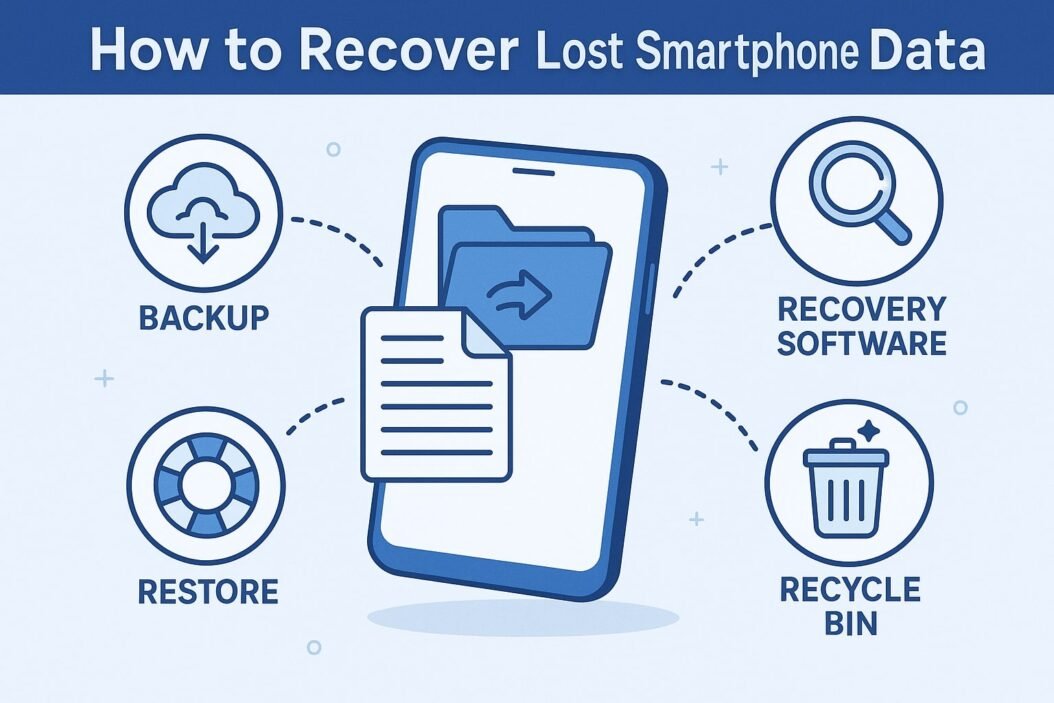
What Happens When You Delete Data From Your Phone
Before you panic, understand this: deleted doesn’t always mean gone forever.
When you delete a file from your smartphone, the operating system doesn’t immediately erase it. Instead, it marks that storage space as “available” for new data. The original file sits there until something overwrites it.
This means:
- Recently deleted files have high recovery chances
- The longer you wait, the lower your success rate
- Using your phone after data loss reduces recovery odds
Stop using your phone immediately if you’ve lost critical data. Every new photo, app download, or system update can overwrite the files you’re trying to save.
Immediate Steps After Losing Smartphone Data
Time matters. Take these actions within the first hour:
1. Enable airplane mode This stops new data from syncing and potentially overwriting deleted files.
2. Don’t install recovery apps on the affected device Installing software on your phone writes new data to storage. Use a computer instead.
3. Check your cloud backups Many services automatically backup your data:
- iPhone users: iCloud (Settings > Your Name > iCloud)
- Android users: Google Drive (drive.google.com)
- Samsung phones: Samsung Cloud
- Third-party apps: Dropbox, OneDrive, Amazon Photos
4. Look in recently deleted folders Both iOS and Android have built-in recovery options:
- Photos app: “Recently Deleted” album (30-day retention)
- Google Photos: Trash folder (60-day retention)
- Files app: “Trash” or “Recycle Bin” sections
How to Recover Deleted Photos and Videos
Photos are the most commonly lost smartphone data. Here’s your recovery path:
iPhone Photo Recovery
Method 1: Recently Deleted Album
- Open the Photos app
- Tap “Albums” at the bottom
- Scroll down to “Recently Deleted”
- Select photos you want to recover
- Tap “Recover” in the bottom right
Files stay here for 30 days before permanent deletion.
Method 2: iCloud Photo Recovery
- Go to iCloud.com on a computer
- Sign in with your Apple ID
- Click “Photos”
- Select “Recently Deleted”
- Choose photos and click “Recover”
Method 3: iTunes/Finder Backup Restoration
If you backed up your iPhone to your computer:
- Connect your iPhone to your computer
- Open iTunes (Windows) or Finder (Mac)
- Select your device
- Click “Restore Backup”
- Choose the most recent backup before data loss
Warning: This overwrites your current phone data with the backup.
Android Photo Recovery
Method 1: Google Photos Trash
- Open Google Photos app
- Tap “Library” at the bottom
- Select “Trash”
- Long-press photos to select them
- Tap “Restore”
Items remain in trash for 60 days.
Method 2: Gallery App Recycle Bin
Many Android manufacturers include a recycle bin:
- Samsung Gallery: “Recycle Bin” in menu
- OnePlus Gallery: “Recently Deleted”
- Xiaomi Gallery: “Trash”
Retention periods vary from 15 to 30 days.
Method 3: Google Account Recovery
Check if Google backed up your photos:
- Visit photos.google.com on a computer
- Sign in with your Google account
- Look for your missing photos
- Download them back to your device
For detailed guidance on Android recovery options, the Android Help Center provides official documentation.
Recovering Contacts and Text Messages
iPhone Contact Recovery
From iCloud:
- Go to iCloud.com
- Click “Account Settings”
- Scroll to “Advanced”
- Click “Restore Contacts”
- Select a date before the loss
- Click “Restore”
From iTunes/Finder Backup: Use the same restore process mentioned in photo recovery.
Third-party tools: Dr.Fone, iMobie PhoneRescue, and Tenorshare UltData offer selective contact recovery without full restoration.
Android Contact Recovery
From Google Contacts:
- Visit contacts.google.com
- Click the gear icon
- Select “Undo changes”
- Choose a time period (up to 30 days)
- Click “Confirm”
From phone backup:
- Open Settings
- Go to “Accounts” or “Cloud and accounts”
- Select your Google account
- Enable “Contacts” sync
- Wait for automatic restoration
Text Message Recovery
iPhone Messages: Messages sync through iCloud if you enabled “Messages in iCloud.” Check Settings > Your Name > iCloud > Messages.
If not synced, you’ll need to restore from an iTunes/Finder backup.
Android Messages:
SMS backup apps like SMS Backup & Restore create scheduled backups. If you used one:
- Install the app you previously used
- Grant necessary permissions
- Select “Restore” from the menu
- Choose your backup file
Google Messages (the default app on many Androids) doesn’t automatically backup SMS unless you use Samsung Cloud or a manufacturer-specific service.
Using Data Recovery Software
When built-in methods fail, recovery software becomes your next option.
Computer-Based Recovery Tools
These tools connect to your phone via USB and scan for deleted files:
For iPhone:
| Tool | Price | Recovery Types | Success Rate |
|---|---|---|---|
| Dr.Fone | $69.95/year | Photos, messages, contacts, videos | High |
| iMobie PhoneRescue | $49.99 | All file types | High |
| Tenorshare UltData | $45.95 | Comprehensive recovery | Medium-High |
| Disk Drill | $89 | Photos, videos, documents | Medium |
For Android:
| Tool | Price | Recovery Types | Success Rate |
|---|---|---|---|
| Dr.Fone for Android | $49.95 | Photos, messages, contacts, WhatsApp | High |
| DiskDigger | Free-$14.99 | Photos, videos | Medium |
| Wondershare Recoverit | $59.95 | All file types | High |
| EaseUS MobiSaver | $39.95 | Photos, videos, messages | Medium |
How to Use Recovery Software
General process:
- Download software to your computer
- Connect your phone via USB cable
- Enable USB debugging (Android) or trust computer (iPhone)
- Launch the recovery software
- Select file types to recover
- Scan your device (takes 15-60 minutes)
- Preview recoverable files
- Select and save files to your computer
Android USB Debugging:
- Open Settings
- Go to “About Phone”
- Tap “Build Number” 7 times to enable Developer Options
- Go back to Settings > Developer Options
- Enable “USB Debugging”
Important limitations:
- Recovery software can’t access encrypted iPhones without a backup
- Android devices with encrypted storage have lower recovery rates
- Success depends on how much time passed since deletion
- Not all advertised tools deliver promised results
The National Institute of Standards and Technology has published research on mobile device forensics that explains the technical limitations of data recovery.
Recovering Data From a Broken or Dead Phone
Physical damage complicates recovery but doesn’t eliminate options.
Screen Broken But Phone Powers On
If touchscreen works partially:
- Connect to a computer
- Use manufacturer software (iTunes, Samsung Smart Switch)
- Backup all accessible data immediately
If touchscreen doesn’t respond:
- Connect a USB mouse using an OTG adapter (Android)
- Use AssistiveTouch virtual mouse (iPhone: Settings > Accessibility > Touch > AssistiveTouch)
- Navigate and backup data
Water Damaged Phone
Immediate actions:
- Power off immediately
- Don’t charge the device
- Remove SIM and SD card (if applicable)
- Place in uncooked rice or silica gel packets for 48 hours
- Don’t attempt to power on for at least 2 days
If the phone won’t turn on:
- Take it to a professional data recovery service
- Companies like DriveSavers and Secure Data Recovery specialize in physically damaged devices
- Expect costs between $300-$1,500 depending on damage severity
Phone Won’t Turn On
Try these steps:
- Charge for at least 2 hours with original charger
- Force restart:
- iPhone 8+: Volume up, volume down, hold side button
- Android: Hold power + volume down for 10 seconds
- Connect to computer while holding home button (older iPhones)
Professional recovery: If DIY methods fail, professional services can extract data directly from storage chips. This requires technical expertise and specialized equipment.
Recovering WhatsApp and Social Media Data
WhatsApp Recovery
iPhone WhatsApp:
- Uninstall and reinstall WhatsApp
- Verify your phone number
- Select “Restore Chat History” when prompted
- Wait for iCloud backup restoration
Backups occur daily at 2 AM if you enabled iCloud backup in WhatsApp Settings > Chats > Chat Backup.
Android WhatsApp:
- Uninstall and reinstall WhatsApp
- Verify your phone number
- Tap “Restore” when prompted
- Wait for Google Drive backup restoration
Local backups save to your phone storage daily. Find them at: Phone Storage > WhatsApp > Databases
Facebook and Instagram
Facebook data:
- Go to facebook.com/datalibrary
- Request a download of your information
- Select date range and data categories
- Download the archive (may take hours to prepare)
Instagram data:
- Go to Instagram Settings > Security > Download Data
- Enter your email address
- Wait for download link (usually 48 hours)
Twitter/X
- Visit twitter.com on desktop
- Go to Settings > Your Account
- Select “Download an archive of your data”
- Confirm and wait for email notification
Social media companies typically retain your data even after deletion from your phone.
Preventing Future Data Loss
Recovery is stressful. Prevention is easier.
Automatic Cloud Backup Setup
iPhone automatic backup:
- Settings > Your Name > iCloud
- Enable “iCloud Backup”
- Connect to Wi-Fi and power
- Backup occurs automatically overnight
Android automatic backup:
- Settings > System > Backup
- Enable “Back up to Google Drive”
- Select “Back up now”
- Ensure you have sufficient Google Drive storage
Storage requirements:
- Free iCloud: 5GB
- Free Google Drive: 15GB
- Consider paid plans for complete device backup
Additional Backup Strategies
The 3-2-1 backup rule:
- 3 copies of important data
- 2 different storage types
- 1 copy offsite
Practical implementation:
- Original on your phone
- Cloud backup (iCloud or Google Drive)
- Computer backup via USB or Wi-Fi sync
Recommended backup frequency:
| Data Type | Backup Frequency |
|---|---|
| Photos | Daily (automatic) |
| Contacts | Weekly |
| Documents | Daily |
| Messages | Weekly |
| App data | Weekly |
Third-party backup solutions:
- Google Photos: Unlimited compressed photo storage
- Dropbox: 2GB free, excellent file sync
- Microsoft OneDrive: 5GB free, Office integration
- Amazon Photos: Unlimited for Prime members
Consumer Reports regularly tests and reviews backup solutions for reliability and security.
What Data Can’t Be Recovered
Set realistic expectations. Some data is genuinely unrecoverable:
Permanently lost data scenarios:
- Files deleted months ago with heavy phone usage since
- Data on factory reset phones (with encryption enabled)
- Physically destroyed storage chips
- Overwritten storage sectors
- Corrupted backup files
Encrypted device limitations:
Modern smartphones use encryption by default. Android 10+ and iOS 8+ encrypt all data automatically. When you delete files and write new data, encryption makes recovery nearly impossible for:
- End-to-end encrypted messages (Signal, Telegram secret chats)
- Banking app data
- Password manager vaults
- Files in secure folders
Factory reset recovery:
Can you recover data after factory reset? Usually no. Factory resets on encrypted devices are designed for permanent deletion. Unless you have a recent backup, consider the data gone.
When to Use Professional Data Recovery Services
DIY methods work for most situations. Professional services handle complex cases:
Situations requiring professional help:
- Physical damage (water, crushing, fire)
- Failed DIY recovery attempts made things worse
- Critical business or legal data
- Storage chip needs direct access
- You’re uncomfortable with technical procedures
Reputable professional services:
- DriveSavers Data Recovery
- Secure Data Recovery Services
- Ontrack Data Recovery
- Gillware Digital Forensics
What to expect:
- Free initial diagnosis
- Costs from $300 to $3,000+
- No-data, no-charge guarantees
- 3-10 business days typical turnaround
- Success rates around 80-90% for physically damaged devices
Questions to ask:
- What’s your success rate for this damage type?
- Do you charge if recovery fails?
- How long will the process take?
- Is my data kept confidential?
- What’s included in the quoted price?
Common Data Loss Mistakes to Avoid
Don’t do these things:
Continuing to use your phone: Every action after data loss reduces recovery chances.
Installing multiple recovery apps: These apps write data to storage, overwriting deleted files.
Attempting DIY repair on water damage: Opening the device can cause additional damage. Let professionals handle physical repairs.
Skipping the “Recently Deleted” check: Many people forget about built-in recovery features.
Waiting too long: Act within the first 24 hours for best results.
Using unreliable recovery software: Some apps contain malware or charge without delivering results. Research before downloading.
Factory resetting hoping to “trigger” recovery: Factory reset permanently erases data on encrypted devices.
Understanding Smartphone Storage Types
Your recovery approach depends on storage technology:
Modern smartphones use:
- eMMC (embedded MultiMediaCard)
- UFS (Universal Flash Storage)
- NVMe (Non-Volatile Memory Express)
All are flash-based storage that works differently from old hard drives.
Flash storage characteristics:
- Data sits in NAND cells
- Wear leveling moves data around
- TRIM commands permanently delete data
- Encryption is hardware-level
Recovery implications:
- No spinning disk to scan
- Deleted data location is unpredictable
- TRIM support makes recovery harder
- Encryption prevents direct chip reading
The technical details matter because they explain why smartphone data recovery is more difficult than computer hard drive recovery.
Recovering Data From SD Cards
If your Android phone uses an SD card, recovery is often easier:
SD card advantages:
- Removable storage
- Direct computer connection
- Standard file systems
- Better recovery tool compatibility
SD card recovery process:
- Remove card from phone
- Insert into computer’s SD card reader
- Don’t format if prompted
- Run recovery software (Recuva, PhotoRec, TestDisk)
- Scan card thoroughly
- Save recovered files to computer
Free SD card recovery tools:
- Recuva (Windows)
- PhotoRec (Windows, Mac, Linux)
- TestDisk (Windows, Mac, Linux)
These tools work better on SD cards than internal phone storage because SD cards use standard file systems without extensive encryption.
Legal and Privacy Considerations
Before selling or recycling your phone:
Don’t rely on factory reset alone for privacy protection. Forensic tools can sometimes recover data from reset phones.
Proper data sanitization:
- Encrypt your device (usually default)
- Factory reset through settings
- Reset again for extra security
- Remove SIM and SD cards
When recovering data from used phones:
Check local laws. In some jurisdictions, accessing data on a device you purchased doesn’t automatically grant you legal rights to that data.
Work devices:
If you lost data on a company phone, inform IT immediately. They may have enterprise backups. Attempting recovery yourself might violate company policy.
Conclusion
Recovering lost smartphone data is possible if you act quickly and follow the right steps. Start with built-in recovery features like Recently Deleted folders and cloud backups. These free options solve most data loss situations.
When simple methods fail, use reputable recovery software from your computer. Avoid installing recovery apps directly on your phone—they can overwrite the data you’re trying to save.
For serious physical damage, professional data recovery services offer the best chance of success, though at a higher cost.
Prevention beats recovery every time. Enable automatic cloud backup today. Most people don’t backup their phones until after disaster strikes. Don’t be one of them.
Your photos, contacts, and messages are too valuable to lose. Take ten minutes right now to check your backup settings. Your future self will thank you.
Frequently Asked Questions
Can I recover data from a factory reset phone?
Usually no. Modern smartphones with encryption make data recovery after factory reset nearly impossible. If you had cloud backup enabled before the reset, you can restore data from there. Otherwise, consider the data permanently lost.
How long do deleted photos stay recoverable on phones?
Photos in “Recently Deleted” folders remain for 30 days (iPhone Photos) or 60 days (Google Photos). After that, they’re permanently removed. If you deleted photos directly without them going to Recently Deleted, recovery depends on how quickly you act—usually a few days maximum before new data overwrites them.
Is free data recovery software safe?
Some free tools are legitimate (Recuva, PhotoRec), while others contain malware or charge hidden fees. Download only from official websites. Read reviews from trusted technology sites before installing. Never install recovery apps directly on your smartphone—use computer-based tools instead.
Can I recover data from a phone with a broken screen?
Yes, if the phone still powers on. Connect it to a computer using USB and use manufacturer software (iTunes for iPhone, Smart Switch for Samsung) to backup accessible data. For completely unresponsive phones, professional data recovery services can extract data directly from storage chips.
Do I need to root or jailbreak my phone for data recovery?
No, and you shouldn’t. Rooting (Android) or jailbreaking (iPhone) can overwrite deleted data and void your warranty. Most reputable recovery software works on unmodified phones. If a tool requires rooting or jailbreaking, it’s not worth the risk for most users.

- How to Improve Wi-Fi Signal on My Phone (2026 Guide) - March 17, 2026
- How to Enable MMS Messaging on iPhone (2026 Guide) - March 15, 2026
- 9 Best Software for Web Development in 2026 - March 15, 2026