
You need three things: an external drive, cloud storage, and a schedule. That’s the short answer. The rest of this guide shows you exactly how to set it up.
Losing your data hurts. Photos from ten years ago, tax documents, work files, gone in a hard drive failure or ransomware attack. Backing up your computer isn’t optional anymore. It’s the difference between a bad day and a disaster.
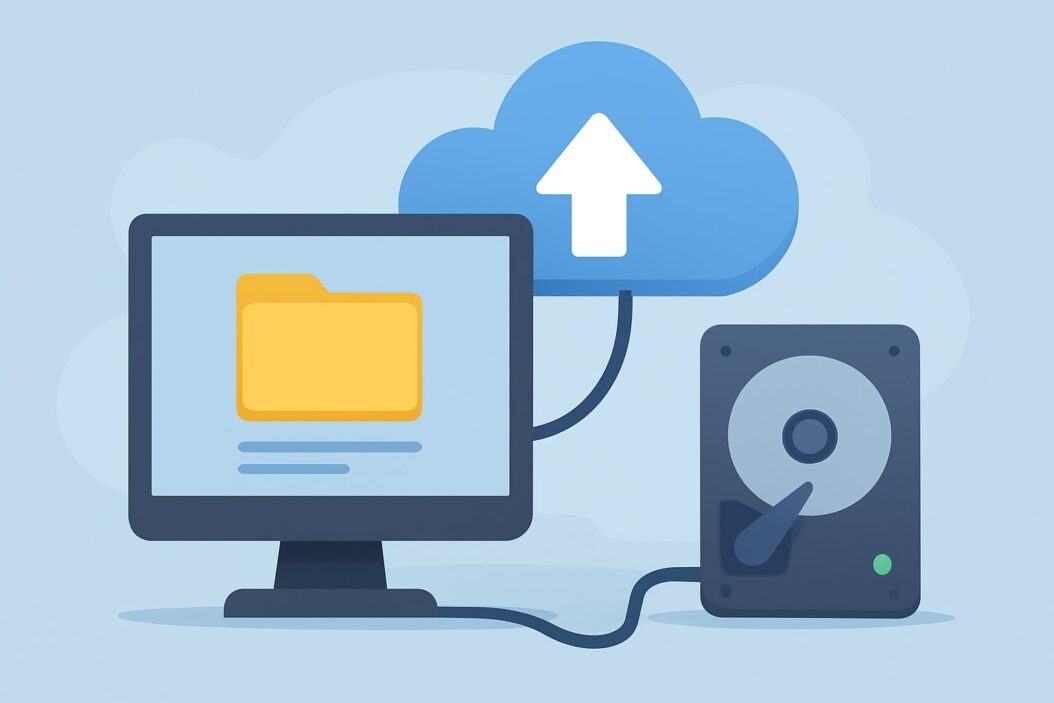
Why You Need to Backup Computer Data
Your computer will fail eventually. All hard drives do.
Here’s what can destroy your data:
- Hardware failure – Drives die without warning
- Ransomware – Locks your files until you pay
- Theft or loss – Laptops get stolen or damaged
- Accidental deletion – Everyone deletes the wrong file sometimes
- Software corruption – Updates and bugs can wreck files
One backup isn’t enough. You need at least two copies in different places.
The 3-2-1 Backup Rule
Professional IT teams use this rule. You should too.
3 – Keep three copies of your data (original + 2 backups)
2 – Store backups on two different types of media
1 – Keep one backup offsite (cloud or separate location)
This protects you from every common disaster. Fire destroys your computer and external drive? Your cloud backup survives. Ransomware encrypts your computer? Your offline drive is clean.
Types of Backup Methods
| Backup Type | Speed | Cost | Best For |
|---|---|---|---|
| External Hard Drive | Fast | $50-150 | Large files, full backups |
| Cloud Storage | Slow first time, then automatic | $2-20/month | Documents, photos, continuous protection |
| Network Attached Storage (NAS) | Fast on home network | $200-600 | Families, multiple computers |
| USB Flash Drive | Fast | $10-50 | Small important files only |
External Hard Drive Backups
This is where most people start. Buy a drive with at least twice your computer’s storage capacity.
Windows users: Use built-in File History or Backup and Restore.
Mac users: Use Time Machine (it’s already on your computer).
External drives give you complete control. No monthly fees. No internet required. Fast restores.
The downside? If your house floods or burns down, this backup dies with your computer.
Cloud Backup Services
Cloud backup runs automatically in the background. You don’t think about it.
Good options include Backblaze (unlimited backup for $9/month), IDrive (5TB for multiple devices), or Carbonite.
For documents and photos specifically, consider:
- Google Drive – 15GB free, $2/month for 100GB
- Microsoft OneDrive – 5GB free, comes with Office 365
- Dropbox – 2GB free, syncs across devices
Cloud backup protects against physical disasters. Your house burns down? Your files are safe on someone else’s servers.
The catch: First backup takes days or weeks depending on your internet speed. Monthly costs add up over years.
Network Attached Storage (NAS)
A NAS is a small computer that holds hard drives and connects to your home network. Every computer and phone in your house can backup to it automatically.
Brands like Synology and QNAP make reliable systems. You’ll spend $300-600 total.
This works best for families or people with multiple devices. Set it up once, forget about it.
How to Backup Your Computer: Step-by-Step
For Windows 10/11 Users
Method 1: File History (Recommended)
- Plug in an external hard drive
- Open Settings > Update & Security > Backup
- Click “Add a drive” and select your external drive
- Turn on “Automatically back up my files”
- Click “More options” to choose which folders to backup
Windows now backs up your files every hour automatically.
Method 2: Backup and Restore (Full System Image)
- Search for “Backup and Restore” in the Start menu
- Click “Set up backup”
- Choose your external drive
- Select “Let me choose” and pick what to backup
- Set a schedule and click “Save settings and run backup”
This creates a complete image of your system. If your hard drive dies, you can restore everything exactly as it was.
For Mac Users
Time Machine Setup
- Connect an external hard drive to your Mac
- Click “Use as Backup Disk” when prompted (or open System Settings > General > Time Machine)
- Click the toggle to turn on Time Machine
- Mac backs up automatically every hour
Time Machine keeps:
- Hourly backups for the past 24 hours
- Daily backups for the past month
- Weekly backups until your drive fills up
You can browse backups like folders and restore individual files or your entire system.
For Cloud Backup
Example: Setting Up Backblaze
- Sign up at backblaze.com
- Download and install the Backblaze app
- Choose what to backup (usually everything except system files)
- Let it run—first backup takes days, but it happens in the background
- After that, it backs up new files automatically
The National Institute of Standards and Technology recommends testing your backups regularly. Don’t wait until disaster strikes to find out your backup doesn’t work.
What Files You Must Backup
Essential Files
- Documents – Taxes, contracts, medical records
- Photos and videos – Irreplaceable memories
- Financial data – Bank statements, investment records
- Work files – Projects, client data, presentations
- Email (if stored locally)
- Browser bookmarks and saved passwords
Don’t Bother Backing Up
- Operating system files (you can reinstall)
- Installed programs (download them again)
- Temporary files
- Cache folders
Your backup will finish faster and take less space when you skip the unnecessary stuff.
Backup Schedule That Actually Works
Daily: Documents you’re actively working on (automatic cloud sync)
Weekly: Full computer backup to external drive
Monthly: Verify your backups still work by restoring a test file
Quarterly: Clean up old files you don’t need anymore
Automate everything possible. Manual backups fail because you forget.
How to Encrypt Your Backups
Your backup contains everything. Bank logins, private photos, tax returns. If someone steals your external drive, they own your identity.
Windows: BitLocker (included in Pro versions) encrypts your backup drive
Mac: FileVault encrypts your entire Mac, Time Machine backups are automatically encrypted
Cloud: Most services like Backblaze encrypt automatically, but check your settings
Use a strong password you’ll remember. Write it down and store it somewhere safe. If you forget your encryption password, your backup becomes worthless.
Common Backup Mistakes to Avoid
Mistake 1: Keeping your backup next to your computer
Solution: Store one backup offsite or use cloud storage
Mistake 2: Never testing restores
Solution: Try restoring a file every month to verify it works
Mistake 3: Using only one backup method
Solution: Combine local (fast) and cloud (disaster-proof) backups
Mistake 4: Backing up to the same type of device
Solution: Use different media types (external HDD + cloud, not two external HDDs)
Mistake 5: Ignoring your phone and tablet
Solution: Enable iCloud (iPhone) or Google Photos (Android) automatic backup
How to Restore Your Data
From External Drive (Windows)
- Open File History or Backup and Restore
- Click “Restore my files” or “Restore files from a current backup”
- Browse to find what you need
- Click “Restore”
From Time Machine (Mac)
- Click the Time Machine icon in your menu bar
- Select “Enter Time Machine”
- Use the timeline to find when your file existed
- Select the file and click “Restore”
From Cloud Backup
Log into your backup service’s website. Browse your files and download what you need. Most services also have apps that let you restore directly to your computer.
Free vs Paid Backup Solutions
Free Options
- Windows File History – Already on your computer, needs external drive
- Mac Time Machine – Already on your computer, needs external drive
- Google Drive – 15GB free cloud storage
- OneDrive – 5GB free with Windows
Free works fine if you have a small amount of data and an external drive you already own.
When to Pay for Backup
- You have more than 100GB of data
- You want true “set and forget” automation
- You need backup for multiple computers
- You want guaranteed offsite protection
$10/month for Backblaze is cheap compared to losing years of photos or business files.
Backup for Special Situations
For Small Businesses
Follow the 3-2-1 rule religiously. Your business depends on it.
Consider:
- NAS for local quick access
- Cloud backup for disaster recovery
- Weekly backup rotation taken offsite
- Written backup procedures so employees can help
The Small Business Administration recommends businesses test disaster recovery procedures at least annually.
For Creative Professionals (Photo/Video)
You work with huge files. Cloud backup alone won’t cut it.
Strategy:
- Multiple external drives for current projects
- NAS for archived projects
- Cloud backup for everything (running 24/7)
- Consider LTO tape backup for long-term archives
For Families
One NAS can backup every computer, phone, and tablet in your house automatically.
Setup Synology or QNAG NAS with Backup apps for each device. Everyone’s protected without thinking about it.
How Much Storage You Need
Check your current usage first:
- Windows: Settings > System > Storage
- Mac: Apple menu > About This Mac > Storage
Buy backup storage at least 2-3 times your current usage. You’ll fill it faster than you think.
| Current Data | Recommended Backup Size |
|---|---|
| 250GB | 1TB |
| 500GB | 2TB |
| 1TB | 3-4TB |
| 2TB+ | Multiple drives or NAS |
External drives cost about $20 per terabyte. Cloud storage costs $2-10 per 100GB per month.
Conclusion
Backup your computer data today, not tomorrow. Start simple:
- Right now: Enable cloud backup for your most important folders (Google Drive, OneDrive, or iCloud)
- This week: Buy an external hard drive and set up Time Machine or File History
- This month: Test your backup by restoring a file
The best backup system is the one you’ll actually use. Start with one method and add another layer when you’re ready. Two automated backups beat ten backups you have to remember to run.
Your data is worth protecting. One hardware failure could erase years of memories and work. Thirty minutes of setup now prevents months of regret later.
Frequently Asked Questions
How often should I backup my computer?
Daily for active files (use automatic cloud sync), weekly for full computer backups to an external drive. The more important your data, the more frequently you should backup.
Is cloud backup safe?
Yes, when you use reputable services like Backblaze, Google Drive, or OneDrive. They encrypt your data in transit and at rest. Choose services that offer end-to-end encryption for maximum security.
What’s the difference between backup and sync?
Sync keeps the same files on multiple devices (like Dropbox). Backup creates copies of your files at different points in time. You need both. Sync is convenient, but backup protects you from accidental deletions or file corruption.
How long do external hard drives last?
3-5 years with regular use. They can fail sooner or last longer. This is why you need multiple backups in different locations. Replace external backup drives every 3-4 years to prevent age-related failures.
Can I backup to a USB flash drive?
Technically yes, but don’t rely on it. Flash drives are for small sets of critical files only (under 64GB). They fail without warning and wear out with repeated writes. Use external hard drives or SSDs for real backups.
