
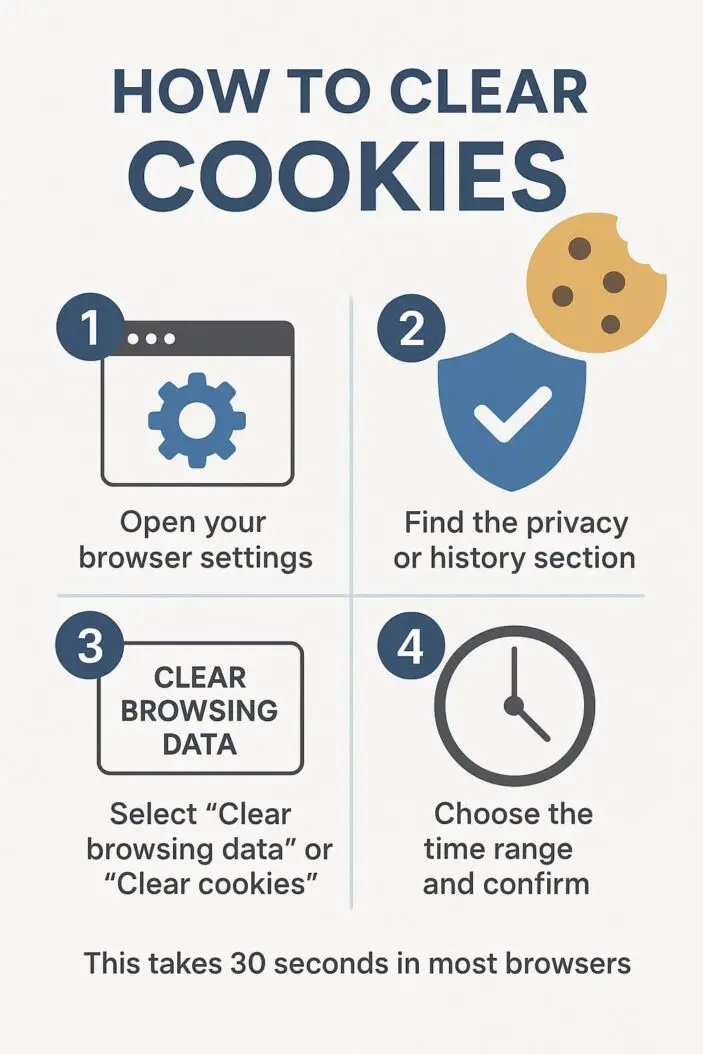
Quick Answer: To clear cookies, open your browser settings, find the privacy or history section, and select “Clear browsing data” or “Clear cookies.” Choose the time range and confirm. This takes 30 seconds in most browsers.
Cookies are small files websites store on your computer to remember your preferences, login status, and browsing habits. Clearing them fixes login problems, removes tracking data, and speeds up your browser.
This guide shows you exactly how to do it in every major browser.
Why Clear Cookies?
You should clear cookies when:
- Websites won’t load correctly – Old cookies cause display errors
- You can’t log in – Corrupted session cookies block access
- Your browser runs slow – Too many cookies eat memory
- You want privacy – Tracking cookies follow you across sites
- You share a computer – Removes your personal data
Note: Clearing cookies logs you out of websites. You’ll need to sign back in to your accounts.
How to Clear Cookies in Chrome
Desktop (Windows, Mac, Linux)
- Click the three dots in the top-right corner
- Go to Settings
- Click Privacy and security in the left sidebar
- Select Clear browsing data
- Choose Cookies and other site data
- Pick your time range (Last hour, 24 hours, All time)
- Click Clear data
Keyboard shortcut: Press Ctrl + Shift + Delete (Windows/Linux) or Cmd + Shift + Delete (Mac) to open the clear data menu instantly.
Mobile (Android, iPhone)
- Open Chrome and tap the three dots
- Tap Settings
- Tap Privacy and security
- Tap Clear browsing data
- Select Cookies and site data
- Tap Clear data and confirm
How to Clear Cookies in Firefox
Desktop
- Click the three horizontal lines (menu button)
- Select Settings
- Click Privacy & Security on the left
- Scroll to Cookies and Site Data
- Click Clear Data
- Check Cookies and Site Data
- Click Clear
Keyboard shortcut: Press Ctrl + Shift + Delete (Windows/Linux) or Cmd + Shift + Delete (Mac).
Mobile
- Tap the three dots menu
- Tap Settings
- Tap Delete browsing data
- Select Cookies
- Tap Delete browsing data
How to Clear Cookies in Safari
Mac
- Click Safari in the menu bar
- Select Settings (or Preferences)
- Go to the Privacy tab
- Click Manage Website Data
- Click Remove All
- Confirm by clicking Remove Now
Quick method: Go to Safari > Clear History, then choose your time range and click Clear History. This removes cookies and browsing history together.
iPhone and iPad
- Open the Settings app (not Safari app)
- Scroll down and tap Safari
- Scroll down and tap Clear History and Website Data
- Tap Clear History and Data to confirm
How to Clear Cookies in Microsoft Edge
Desktop and Mobile
- Click the three dots in the top-right
- Select Settings
- Click Privacy, search, and services
- Under Clear browsing data, click Choose what to clear
- Select Cookies and other site data
- Choose your time range
- Click Clear now
Keyboard shortcut: Ctrl + Shift + Delete (Windows) or Cmd + Shift + Delete (Mac).
How to Clear Cookies in Specific Websites Only
You don’t always need to delete all cookies. Here’s how to remove them from specific sites:
Chrome
- Go to Settings > Privacy and security > Cookies and other site data
- Click See all site data and permissions
- Search for the website
- Click the trash icon next to it
Firefox
- Go to Settings > Privacy & Security
- Click Manage Data under Cookies and Site Data
- Search for the website
- Select it and click Remove Selected
Safari (Mac)
- Go to Safari > Settings > Privacy
- Click Manage Website Data
- Search for the site and click Remove
Understanding Cookie Types
| Cookie Type | What It Does | Should You Clear It? |
|---|---|---|
| Session Cookies | Keep you logged in while browsing | Yes, if having login issues |
| Persistent Cookies | Remember your preferences long-term | Yes, if you want a fresh start |
| First-Party Cookies | Set by the website you’re visiting | Sometimes – they improve your experience |
| Third-Party Cookies | Set by advertisers to track you | Yes – these are tracking cookies |
Most browsers now block third-party cookies by default to protect your privacy.
Automatic Cookie Management
Instead of manually clearing cookies, set your browser to do it automatically:
Chrome Auto-Delete
- Go to Settings > Privacy and security
- Click Cookies and other site data
- Enable Clear cookies and site data when you close all windows
Firefox Auto-Clear
- Go to Settings > Privacy & Security
- Under History, select Use custom settings for history
- Check Clear history when Firefox closes
- Click Settings next to it and select Cookies
Safari Auto-Clear
- Safari doesn’t have built-in auto-clear
- But you can block all cookies: Safari > Settings > Privacy
- Enable Block all cookies (warning: breaks some websites)
What Happens After You Clear Cookies?
Here’s what changes:
- You’re logged out of all websites
- Shopping carts empty
- Website preferences reset (language, theme, layout)
- Some sites load faster without old data
- Advertisers lose some tracking data
Your browser history, bookmarks, and saved passwords stay intact unless you specifically delete them.
Privacy Focused Alternatives
If you clear cookies often for privacy, consider these options:
- Use private/incognito mode – No cookies saved after you close the window
- Try privacy-focused browsers – Brave and DuckDuckGo block trackers automatically
- Install browser extensions – Tools like Privacy Badger block tracking cookies
- Use containers – Firefox’s Multi-Account Containers isolate cookies per website
Frequently Asked Questions
Does clearing cookies delete passwords?
No. Saved passwords are stored separately. Clearing cookies only logs you out of websites – your passwords remain in your browser’s password manager.
How often should I clear cookies?
Clear them monthly for general maintenance, or immediately when experiencing login problems or privacy concerns. If you share a computer, clear cookies after each session.
Will clearing cookies speed up my browser?
Sometimes. Browsers with thousands of cookies can slow down, especially on older computers. Clearing them frees up memory and can improve loading speeds on heavily-visited sites.
Can websites track me after I clear cookies?
Yes. Websites use other methods like browser fingerprinting, IP addresses, and tracking pixels. Clearing cookies helps but isn’t complete protection. Use private browsing or a VPN for stronger privacy.
What’s the difference between cache and cookies?
Cache stores website files (images, scripts) to load pages faster. Cookies store your personal data and preferences. Clear cache when pages display incorrectly. Clear cookies when you have login issues or want privacy.
Conclusion
Clearing cookies is simple and takes less than a minute. It fixes common browsing problems, protects your privacy, and keeps your browser running smoothly.
The fastest method: Use the keyboard shortcut Ctrl + Shift + Delete (or Cmd + Shift + Delete on Mac), select cookies, choose your time range, and clear.
For regular maintenance, set your browser to auto-delete cookies when you close it. For maximum privacy, combine cookie clearing with private browsing mode and tracking blockers.
Remember: you’ll need to log back into your accounts after clearing cookies. Save important passwords first if you’re not using a password manager.

- How to Uninstall Apps from the Start Menu in Windows 11/10 (2026 Guide) - April 2, 2026
- How to Fix Overscan on Windows 11/10: Stop Your Screen Getting Cut Off (2026) - April 1, 2026
- How to Disable Lock Screen on Windows 11/10 in 2026 - April 1, 2026