
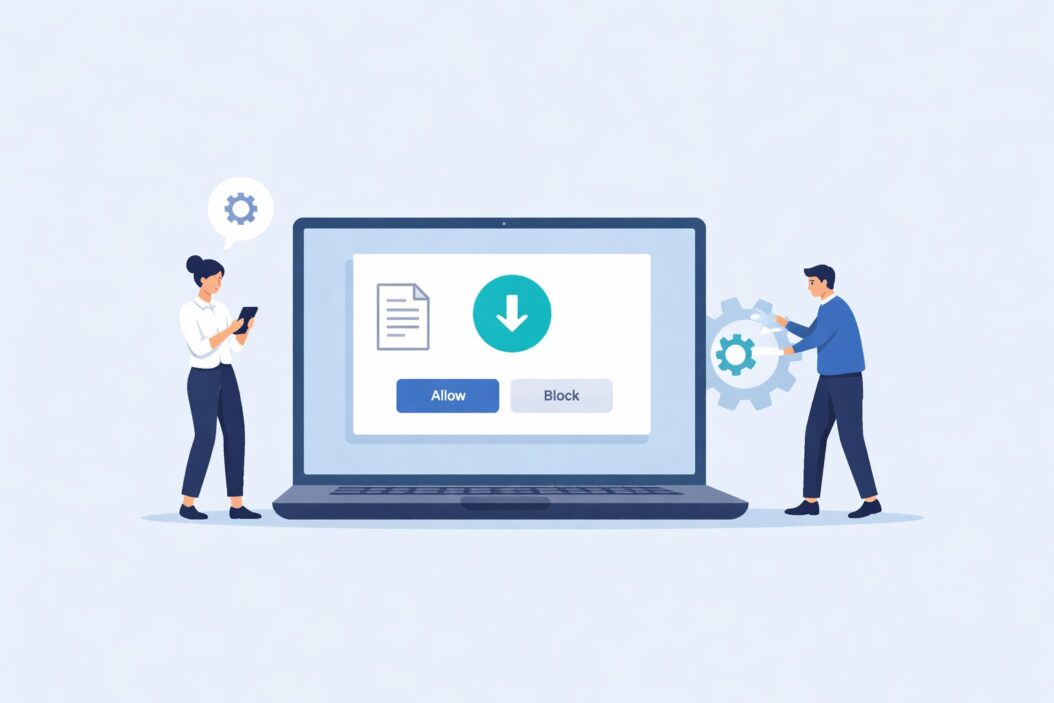
Windows automatically shows notifications when files download from the internet. These pop-ups appear in the bottom-right corner of your screen, telling you a download has started or completed. Some users find these helpful. Others find them annoying.
Quick answer: Go to Settings > System > Notifications, find your browser or download app in the list, and toggle download notifications on or off. For complete control, you can also adjust notification settings through Group Policy Editor or Registry Editor.
File Download Notifications in Windows
Download notifications serve a practical purpose. They confirm when a file starts downloading and when it finishes. This helps you track multiple downloads or know when large files complete.
Windows treats these as system notifications. Your browser or download manager sends the alert, but Windows controls how and when you see it.
Common notification types include:
- Download started alerts
- Download completed pop-ups
- Download failed warnings
- Security scan results after download
Different browsers handle notifications differently. Chrome, Edge, Firefox, and other programs each have their own notification settings that work alongside Windows settings.
Method 1: Control Download Notifications Through Windows Settings
This is the easiest method for most users. Windows 11 and Windows 10 have similar steps.
Windows 11 Steps
- Click the Start button
- Select Settings (gear icon)
- Click System in the left sidebar
- Select Notifications
- Scroll down to find your browser (Microsoft Edge, Chrome, Firefox, etc.)
- Click the three dots next to the app name
- Toggle the switch to Off to block all notifications from that app
For more precise control:
- Click on the app name instead of toggling it off
- You’ll see specific notification types
- Find “Downloads” or similar options
- Turn off only download-related notifications
- Leave other notification types active if needed
Windows 10 Steps
- Open Settings from the Start menu
- Click System
- Select Notifications & actions from the left panel
- Scroll to “Get notifications from these senders”
- Find your browser in the list
- Toggle it off to block all notifications
- Or click the app name for detailed settings
Pro tip: Some browsers like Chrome have their own internal notification settings. Turning off Windows notifications doesn’t always disable in-browser alerts.
Method 2: Configure Browser-Specific Download Notifications
Each browser manages download notifications independently. Here’s how to control them directly.
Microsoft Edge
- Open Edge and click the three dots (top-right)
- Select Settings
- Click Cookies and site permissions
- Scroll down and click Notifications
- Find the toggle for “Show notification including download progress”
- Turn it off to stop download notifications
Edge also has a separate Downloads panel. To adjust this:
- Go to Settings > Downloads
- Toggle “Ask me what to do with each download” if you want prompts
- Uncheck “Show downloads when they’re done” to hide completion alerts
Google Chrome
- Click the three dots in Chrome
- Go to Settings
- Select Privacy and security
- Click Site Settings
- Scroll to Notifications
- Block specific sites or turn off “Sites can ask to send notifications”
Chrome stores downloaded files in a designated folder. The browser shows a small bar at the bottom when downloads occur. This is separate from Windows notifications.
Mozilla Firefox
- Click the menu button (three lines)
- Select Settings
- Go to Privacy & Security
- Scroll to Permissions
- Find Notifications and click Settings
- Block sites or change notification permissions
Firefox also shows downloads in a toolbar icon. You can’t disable this icon, but you can auto-hide the download panel after files complete.
According to Mozilla’s support documentation, notification permissions can be reset anytime without affecting your browsing data.
Method 3: Use Focus Assist to Temporarily Block All Notifications
Focus Assist is a Windows feature that silences notifications during specific times or activities. This is perfect when you need temporary quiet.
Setting Up Focus Assist
Windows 11:
- Open Settings > System > Notifications
- Click Focus assist at the top
- Choose your preferred mode:
- Off: See all notifications
- Priority only: Only see selected notifications
- Alarms only: Silence everything except alarms
Windows 10:
- Settings > System > Focus assist
- Pick your mode
- Customize priority lists if needed
Automatic Rules
Focus Assist can activate automatically:
- During certain hours (like 10 PM to 7 AM)
- When duplicating your display (presentations)
- When playing games
- When using specific apps
To set automatic rules:
- Open Focus assist settings
- Click “Automatic rules”
- Toggle rules on or off
- Customize times and conditions
- Downloads will be silent during these periods
This doesn’t permanently block download notifications. It just pauses them temporarily.
Method 4: Advanced Control Using Group Policy Editor
Group Policy Editor provides enterprise-level control over notifications. This method works only on Windows 10 Pro, Enterprise, and Education editions. Windows 11 Pro also supports it.
Warning: This method affects all users on the computer. Don’t use it on shared computers unless you have permission.
Steps to Access Group Policy
- Press Windows + R
- Type
gpedit.mscand press Enter - Navigate to: User Configuration > Administrative Templates > Start Menu and Taskbar
- Find “Remove Notifications and Action Center”
- Double-click to open it
- Select Enabled
- Click Apply, then OK
- Restart your computer
This disables the entire notification system. You won’t see any notifications from any app.
For Partial Control
Instead of disabling everything:
- Go to User Configuration > Administrative Templates > Windows Components > Push Notifications
- Find “Turn off toast notifications on the lock screen”
- Enable this to block lock screen notifications only
- Downloads won’t interrupt you when locked
Group Policy changes take effect after restart or when Group Policy updates.
Method 5: Edit Registry to Block Download Notifications
Registry Editor gives you the deepest control. This works on all Windows editions, including Home versions that lack Group Policy Editor.
Important: Editing the registry can cause system problems if done incorrectly. Back up your registry before making changes.
How to Back Up Registry
- Press Windows + R
- Type
regeditand press Enter - Click File > Export
- Save the backup file somewhere safe
- Name it clearly (like “Registry Backup 2026”)
Disable Notifications via Registry
- Open Registry Editor (regedit)
- Navigate to:
HKEY_CURRENT_USER\Software\Microsoft\Windows\CurrentVersion\PushNotifications - Right-click in the right pane
- Select New > DWORD (32-bit) Value
- Name it
ToastEnabled - Double-click it and set value to 0
- Click OK
- Close Registry Editor
- Restart your computer
Setting ToastEnabled to 0 disables toast notifications system-wide. To re-enable later, change the value to 1 or delete the entry.
Disable for Specific Apps Only
- Navigate to:
HKEY_CURRENT_USER\Software\Microsoft\Windows\CurrentVersion\Notifications\Settings - Find the folder matching your browser or download app
- Look for the
EnabledDWORD value - Set it to 0 to block notifications from that app only
Each app has a unique identifier. You may need to check several folders to find the right one.
Managing Download Notifications for Third-Party Download Managers
Download managers like Internet Download Manager, Free Download Manager, or JDownloader have their own notification systems.
Internet Download Manager (IDM)
- Open IDM
- Click Downloads > Options
- Go to the General tab
- Uncheck “Display notification when downloads complete”
- Click OK
IDM can also play sounds when downloads finish. Disable this in the same Options window under Sounds.
Free Download Manager
- Open Free Download Manager
- Click Tools > Settings
- Select Notifications from the left menu
- Uncheck boxes for download events
- Apply changes
JDownloader
- Open JDownloader
- Go to Settings > Advanced Settings
- Search for “notification”
- Disable notification-related options
- Restart JDownloader
Most download managers respect Windows notification settings. If you block an app in Windows Settings, its notifications won’t appear regardless of its internal settings.
Notification Control Methods
| Method | Difficulty | Scope | Reversible | Best For |
|---|---|---|---|---|
| Windows Settings | Easy | Per-app or all | Yes, instantly | Most users |
| Browser Settings | Easy | Browser only | Yes | Browser-specific control |
| Focus Assist | Easy | Temporary | Yes, automatic | Temporary quiet |
| Group Policy | Medium | System-wide | Yes, requires restart | IT professionals |
| Registry Edit | Hard | System or per-app | Yes, but risky | Advanced users |
| Download Manager | Easy | That app only | Yes | Heavy downloaders |
Troubleshooting Common Issues
Notifications Still Appear After Disabling
Possible causes:
- Changes haven’t taken effect yet (restart your computer)
- Multiple notification sources are active (check both Windows and browser settings)
- A different app is sending the notifications (check all download apps)
- Registry or Group Policy settings conflict with user settings
Solution: Check each location where notifications can be controlled. Disable them in all relevant places.
Can’t Find Notification Settings for My Browser
Some browsers hide notification settings in non-obvious places.
Try this:
- Open your browser
- Press Ctrl + Shift + Delete
- This usually opens settings or clear data options
- Look for notification links nearby
- Or type “notifications” in the browser’s settings search
Download Completes But No Notification Appears
If you actually want notifications but aren’t seeing them:
- Check Windows Settings > Notifications
- Make sure the app toggle is On
- Verify “Do Not Disturb” or Focus Assist is off
- Check browser notification permissions
- Restart the browser
Changes Don’t Stick After Restart
This suggests Group Policy or registry settings are overriding your choices.
Fix it:
- Check if you’re on a work computer with managed policies
- Contact your IT administrator if applicable
- Verify no third-party software manages notifications
- Check for malware that might modify settings
Security Considerations for Download Notifications
Download notifications serve a security purpose. They alert you to unexpected downloads that might be malware.
When You Should Keep Notifications On
Keep download notifications enabled if:
- You browse unfamiliar websites regularly
- You share your computer with others
- You want immediate alerts about file downloads
- You run a business from your computer
- You handle sensitive data
Safe Ways to Minimize Notifications
Instead of blocking all download notifications:
- Use Focus Assist during work hours
- Keep notifications for your primary browser only
- Disable notifications for trusted download managers
- Set up quiet hours for non-critical times
- Use browser extensions to auto-download trusted file types
Windows Defender scans downloads automatically. Even without notifications, your antivirus still works.
Best Practices for Managing Download Notifications in 2026
Create a balanced approach:
- Disable notifications for apps you trust completely
- Keep notifications on for your main browser
- Use Focus Assist during meetings or focused work
- Set custom notification sounds for important downloads
- Review notification settings monthly
Optimize your download experience:
- Organize downloads into specific folders automatically
- Use browser settings to auto-open certain file types
- Create download profiles for different tasks
- Enable bandwidth throttling for large downloads
- Schedule heavy downloads for off-hours
Privacy considerations:
Windows collects diagnostic data about notifications. To limit this:
- Settings > Privacy > Diagnostics & feedback
- Choose “Required diagnostic data” only
- Turn off optional diagnostic data
- This reduces tracking while maintaining functionality
Alternative Solutions to Notification Overload
If notifications bother you but you still want download awareness:
Use Visual Indicators Instead
Most browsers show a download icon in the toolbar. This gives you download status without pop-ups.
Enable browser download bars:
- Chrome: Automatically shows downloads at bottom
- Edge: Downloads button in toolbar
- Firefox: Arrow icon shows active downloads
Set Up Download Completion Sounds
Replace visual notifications with audio cues:
- Settings > System > Sound
- Click Sound Control Panel
- Go to Sounds tab
- Find notification events
- Assign different sounds to different events
You’ll hear when downloads complete without seeing pop-ups.
Create a Download Dashboard
Use a download manager with a dashboard view:
- See all active and completed downloads in one place
- No individual notifications needed
- Check status whenever you want
- More organized than scattered notifications
Summary
Windows 11 and Windows 10 give you complete control over download notifications. The easiest method is through Windows Settings, where you can toggle notifications for each app individually. For temporary quiet, use Focus Assist. Advanced users can use Group Policy Editor or Registry Editor for system-wide changes.
Most people should start with Windows Settings and browser-specific controls. These methods are safe, reversible, and don’t require technical knowledge. Only use Registry Editor if you’re comfortable with advanced system changes.
Frequently Asked Questions
How do I completely turn off all download notifications in Windows 11?
Open Settings > System > Notifications. Scroll down to find your browser or download app. Toggle the switch next to the app name to Off. Repeat for all apps that send download notifications. For system-wide silence, enable Focus Assist and set it to “Alarms only” mode. This blocks all notifications including downloads.
Why do I still get download notifications after disabling them in Windows Settings?
Your browser has separate notification settings that work independently. Open your browser settings and disable notifications there too. Chrome, Edge, and Firefox each have internal notification controls. You must disable notifications in both Windows Settings and your browser settings for complete silence.
Can I set different notification rules for different types of downloads?
Not directly through Windows Settings. However, you can use different browsers for different download types. For example, use Chrome with notifications off for regular downloads, and use Edge with notifications on for important work files. Download managers also let you set notification rules based on file size or type.
Will disabling download notifications affect my antivirus protection?
No. Windows Defender and other antivirus programs scan downloads automatically regardless of notification settings. Security scans happen in the background. You just won’t see the pop-up alerts. Your computer remains protected even with notifications disabled.
How do I restore download notifications after disabling them?
Go back to Settings > System > Notifications. Find your browser or download app in the list. Toggle the switch back to On. If you used Registry Editor or Group Policy, reverse the changes by deleting the values you created or setting policies back to Not Configured. Restart your computer to ensure changes take effect.

- How to Disable Pop-Up Blockers on Windows 11/10 (Step-by-Step Guide) - April 10, 2026
- How to Keep Up with Social Media Algorithm Changes in 2026 - April 10, 2026
- How to Keep Screen ON in Windows 11/10: Your Guide to Prevent Display Sleep in 2026 - April 10, 2026