
Clicking a suspicious link can install malware, steal your passwords, or drain your bank account. You need to know how to check if a link is safe before you click it. This guide shows you exactly how to identify dangerous links and protect yourself online.
What Is a Malicious Link?
A malicious link is a URL that leads to harmful content. When you click it, the link can download viruses, redirect you to phishing sites, or run scripts that attack your device.
These links appear in emails, text messages, social media posts, and even legitimate-looking websites. Attackers disguise them to look trustworthy. They might appear as:
- Shortened URLs that hide the real destination
- Links claiming you won a prize
- Urgent messages from fake banks or services
- Buttons saying “Download Now” or “Verify Account”
- Messages from friends whose accounts got hacked
How to Check If a Link Is Safe Before Clicking
You can identify most dangerous links without clicking them. Here’s how.
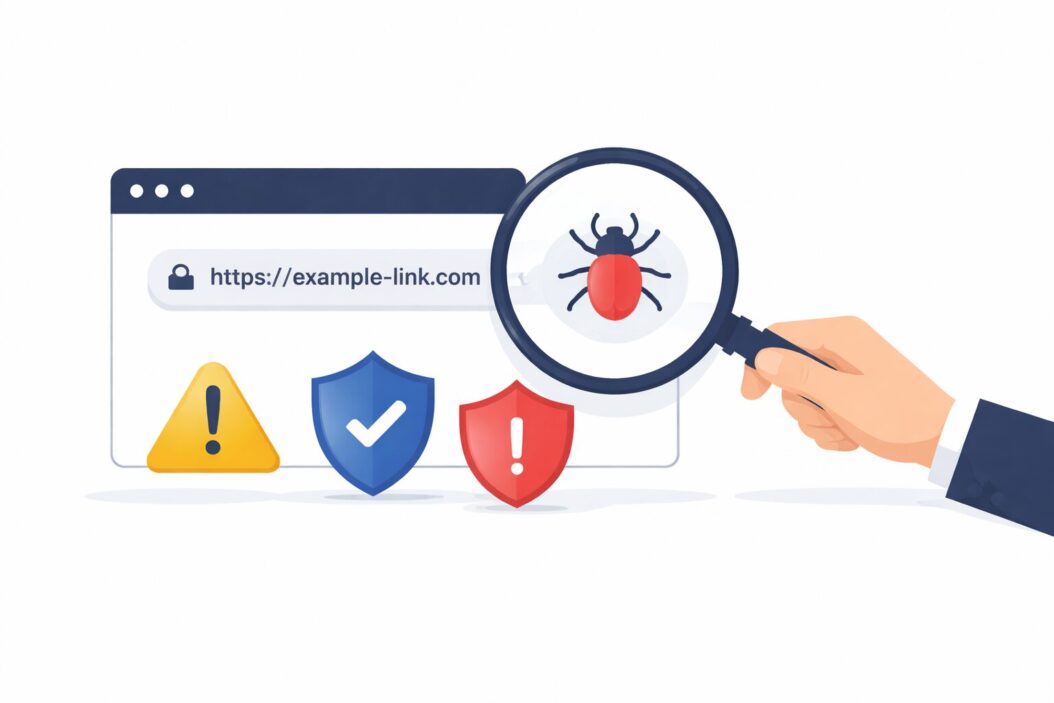
Look at the URL Carefully
Hover your mouse over any link before clicking. Your browser shows the actual destination in the bottom left corner. Check for these warning signs:
Misspelled domains: Attackers register domains that look almost identical to real ones. Instead of paypal.com, you might see paypa1.com or paypal-secure.com.
Strange characters: Look for unusual symbols, extra hyphens, or random numbers. Real companies use clean, simple URLs.
Wrong domain extensions: A legitimate bank won’t use .tk, .xyz, or other uncommon extensions. Be suspicious of anything that’s not .com, .org, or .gov for official organizations.
Extra subdomains: The URL microsoft.login.sketchy-site.com isn’t owned by Microsoft. The actual domain is sketchy-site.com. Everything before that is a subdomain they control.
Check for HTTPS
Look at the beginning of the URL. Legitimate sites use HTTPS, which encrypts your connection. You’ll see a padlock icon in your browser’s address bar.
But here’s the catch: HTTPS doesn’t guarantee safety. Phishing sites now use HTTPS too. It only means the connection is encrypted, not that the site is trustworthy.
Use a Link Checker Tool
Free online tools scan links for threats before you visit them. These services check the destination against databases of known malicious sites.
Recommended link checkers:
- VirusTotal (virustotal.com) – Scans URLs with 70+ antivirus engines
- Google Transparency Report (transparencyreport.google.com/safe-browsing/search) – Shows if Google flagged the site
- URLVoid (urlvoid.com) – Checks reputation across multiple sources
- Norton Safe Web (safeweb.norton.com) – Rates site safety and shows reviews
Copy the suspicious link and paste it into these tools. They’ll tell you if the site is known for malware, phishing, or other threats.
Expand Shortened URLs First
Links from bit.ly, tinyurl.com, and similar services hide the real destination. Don’t click them until you see where they lead.
Use these services to reveal the actual URL:
- CheckShortURL (checkshorturl.com)
- Unshorten.It (unshorten.it)
- ExpandURL (expandurl.com)
These sites show you the full destination without visiting it. Once you see the real URL, apply all the other checks from this guide.
Red Flags That Indicate a Dangerous Link
Learn to spot these warning signs instantly.
The Message Creates Urgency
Scammers want you to click without thinking. They use fear and pressure:
- “Your account will be closed in 24 hours”
- “Suspicious activity detected, verify now”
- “You’ve won! Claim within 1 hour”
- “Package undeliverable, update address immediately”
Legitimate companies don’t operate this way. They give you time and multiple contact options.
The Sender Seems Off
Check who sent the link:
- Email addresses don’t match the company name
- Social media accounts look new or have few followers
- Phone numbers come from unusual area codes
- The writing has grammar mistakes or odd phrasing
You Weren’t Expecting It
Random messages offering prizes, refunds, or urgent warnings are usually scams. If you didn’t sign up for something, don’t click links about it.
The Link Asks for Personal Information
Real companies never ask for passwords, credit card numbers, or Social Security numbers through email links. They have secure account portals where you log in directly.
Step-by-Step: How to Verify a Suspicious Link
Follow this process when you’re unsure about a link:
Step 1: Don’t click anything. Keep the message open but don’t interact with it.
Step 2: Hover over the link to see the actual URL. Write it down or screenshot it.
Step 3: Copy the URL and paste it into VirusTotal or another link checker. Wait for results.
Step 4: If the link claims to be from a company, visit their official website directly. Type the address yourself in a new browser tab. Don’t use the link.
Step 5: Contact the supposed sender through a different method. Call their official number or use their verified social media account. Ask if they sent the message.
Step 6: If everything checks out and you still need to visit the site, use a device that doesn’t have sensitive information saved. Consider a virtual machine or sandbox environment for high-risk links.
Browser Security Features That Help
Modern browsers include built-in protection against malicious links.
Google Chrome Safe Browsing
Chrome warns you before visiting dangerous sites. It checks URLs against Google’s list of unsafe sites. The feature is enabled by default.
To verify it’s on: Settings > Privacy and Security > Security > Safe Browsing should be set to “Enhanced protection” or “Standard protection.”
Microsoft Edge SmartScreen
Edge uses Microsoft Defender SmartScreen to block phishing sites and malware downloads. It works similarly to Chrome’s protection.
Check it at: Settings > Privacy, Search, and Services > Security section.
Firefox Phishing and Malware Protection
Firefox blocks known attack sites and suspicious downloads. Find it under Settings > Privacy & Security > Security section.
Safari Fraudulent Website Warning
Safari warns you about suspected phishing websites. It’s in Preferences > Security > Warn when visiting a fraudulent website.
These tools catch many threats, but they’re not perfect. New scam sites appear constantly, before security databases can flag them. Never rely solely on browser warnings.
Mobile Link Safety
Checking links on phones is harder because you can’t hover to preview URLs.
iPhone Link Inspection
Long-press any link. A preview window appears showing the full URL. Check it before tapping “Open.”
In Messages, tap and hold a link to see options. Choose “Copy” instead of opening it, then paste it into a notes app to examine the full address.
Android Link Checking
Long-press links to see the URL. Some apps show a preview automatically.
Install a mobile browser with strong security features. Firefox Focus or DuckDuckGo browser offer better protection than default browsers on some phones.
Mobile-Specific Risks
Phone screens are small, making it hard to spot fake URLs. Attackers know this and target mobile users aggressively.
SMS phishing (smishing) is growing fast. Messages claiming to be from delivery services or banks are common. Always verify by calling the company or checking your account directly.
What Happens If You Click a Malicious Link
Understanding the risks helps you act quickly if you make a mistake.
Immediate Threats
Automatic downloads: Malware starts downloading to your device. Your antivirus might catch it, but sophisticated attacks can slip through.
Credential theft: Fake login pages capture your username and password when you type them in.
Browser exploits: Some sites attack your browser to install spyware or ransomware without any additional clicks.
Mobile attacks: Phone links can trigger calls to premium numbers, install apps through fake app stores, or exploit device vulnerabilities.
What to Do If You Clicked
Act fast to minimize damage:
- Disconnect from the internet immediately. This stops malware from communicating with attackers or spreading.
- Don’t enter any information on the site. Close the browser tab or app.
- Run a full antivirus scan. Use Windows Defender, Malwarebytes, or another trusted security tool.
- Change your passwords if you entered any credentials. Start with email and banking, then other important accounts.
- Check your accounts for unauthorized activity. Look at bank transactions, email sent items, and social media posts.
- Enable two-factor authentication on all accounts that support it. This adds protection even if passwords were stolen.
- Report the incident to your IT department if this happened on a work device.
Advanced Link Verification Techniques
For higher-risk situations, use these professional methods.
Analyze the Domain Registration
Check who owns a website using WHOIS lookup tools. New domains (registered in the last few weeks) are often used for scams.
Visit lookup.icann.org and enter the domain. Look at:
- Registration date (very recent is suspicious)
- Registrant information (hidden details suggest something to hide)
- Country of registration (scammers often use certain jurisdictions)
Check Website Reputation
Use these tools to see what others say about a site:
| Tool | What It Shows |
|---|---|
| Scamadviser.com | Trust score based on multiple factors |
| Web of Trust (WOT) | User ratings and reviews |
| Sitejabber | Customer reviews and scam reports |
| Trustpilot | Business reviews and ratings |
Examine SSL Certificates
Click the padlock icon in your browser’s address bar. View the certificate details. Check:
- Issued to: Does it match the website name?
- Issuer: Legitimate certificates come from known authorities like DigiCert or Let’s Encrypt
- Valid dates: Recent issuance for an established company is suspicious
Use a Virtual Machine or Sandbox
For links you absolutely must check but don’t trust, use isolated environments:
- Windows Sandbox (built into Windows 10/11 Pro)
- Virtual machines through VirtualBox or VMware
- Online sandboxes like Any.Run or Hybrid Analysis
These create temporary, disposable environments. If the link installs malware, it can’t affect your real computer.
Email-Specific Link Safety
Email is the most common way attackers distribute malicious links.
Identify Phishing Emails
Look for these signs:
Generic greetings: “Dear customer” instead of your name suggests a mass email campaign.
Mismatched sender addresses: The display name says “PayPal” but the actual email is randomletters@suspicious-domain.com.
Poor formatting: Legitimate companies use professional templates. Weird spacing, broken images, or inconsistent fonts indicate scams.
Unexpected attachments: Don’t open files you weren’t expecting, especially .exe, .zip, or Office documents with macros.
Verify the Sender
Legitimate emails come from official domains. A real Microsoft email comes from @microsoft.com, not @microsoft-support.net or @microsoftonline.xyz.
Check the full email header for routing information. Most email clients let you view this. Look for mismatches between the sender’s claimed identity and the actual sending server.
Use Email Security Features
Enable these protections:
- Spam filters in Gmail, Outlook, or other providers
- Warning banners for external emails
- Link protection that rewrites URLs for safety checking
- Attachment scanning for malware
According to the Cybersecurity & Infrastructure Security Agency, 90% of successful cyberattacks start with a phishing email. Taking email link security seriously matters.
Social Media Link Dangers
Platforms like Facebook, Instagram, Twitter, and LinkedIn are full of malicious links.
Common Social Media Scams
Fake giveaways: “Tag 3 friends and click this link to win an iPhone.” These collect data or spread malware.
Compromised accounts: Friends share links because their accounts were hacked. The message sounds urgent or unusual.
Clickbait scams: “You won’t believe what this celebrity did!” leads to malware or ad fraud sites.
Job scams: Fake recruiters send links to “application forms” that steal personal information.
Social Platform Protection
Check these settings:
Facebook: Settings > Security > Get alerts about unrecognized logins
Twitter/X: Settings > Security and Account Access > Security > Review login activity
Instagram: Settings > Security > Login Activity
LinkedIn: Settings > Sign in & Security > Where you’re signed in
Enable two-factor authentication on all platforms. If an account gets compromised, attackers can’t send malicious links to your contacts.
Link Safety for Different Types of Websites
Different contexts require different caution levels.
Shopping Links
Online shopping is a target for scammers. Before entering payment information:
- Verify the store exists outside this one link
- Check for contact information and physical address
- Read reviews on independent sites
- Look for legitimate payment processors (PayPal, Stripe, major credit cards)
- Avoid deals that seem impossibly good
Download Links
Software downloads are high-risk. Only download from:
- Official developer websites
- Verified app stores (Microsoft Store, Apple App Store, Google Play)
- Trusted repositories like GitHub (check the actual account)
Never download software from pop-up ads, email links, or random download sites. These often bundle legitimate programs with malware.
Banking and Financial Links
Never click financial links in emails or texts. Always:
- Type your bank’s URL directly into your browser
- Use the official mobile app
- Call the number on your card to verify any suspicious messages
Banks know customers are cautious. They won’t penalize you for verifying through official channels.
Teaching Others About Link Safety
Protect your family and coworkers by sharing what you know.
For Older Adults
Seniors are frequent targets because they’re often less tech-savvy. Teach them:
- Never click links in unexpected emails
- Call companies directly using numbers from official websites
- Ask a trusted person before clicking anything suspicious
- Understand that legitimate companies won’t threaten or pressure them
For Children
Kids need age-appropriate guidance:
- Only click links from people you know in real life
- Tell a parent before entering information on any website
- Understand that free game/prize offers are usually fake
- Use kid-safe browsers with restricted access
For Coworkers
Business email compromise is expensive. Create a culture where:
- Verifying unusual requests is praised, not criticized
- IT reports suspicious emails so others can learn
- Two-factor authentication is mandatory
- Regular training covers the latest threats
The Federal Trade Commission reports that phishing scams cost Americans over $10 billion in 2023. Education is the best defense.
Link Safety Tools and Resources
Build a toolkit for ongoing protection.
Browser Extensions
uBlock Origin: Blocks malicious ads and trackers that serve dangerous links.
HTTPS Everywhere: Forces encrypted connections when available.
Privacy Badger: Stops trackers that profile you for targeted scams.
Netcraft Extension: Provides real-time phishing protection and site reputation info.
Antivirus Software
Paid options offer better link protection:
- Bitdefender: Excellent web filtering
- Kaspersky: Strong anti-phishing
- Norton: Comprehensive protection with link safety ratings
- ESET: Low system impact with good detection
Free alternatives:
- Windows Defender (built into Windows)
- Malwarebytes Free (good for scanning after incidents)
- Avast Free (includes link checking)
Password Managers
These tools detect when you’re entering credentials on fake sites:
- Bitwarden (free and open-source)
- 1Password (paid, very secure)
- LastPass (free tier available)
- Dashlane (user-friendly interface)
Password managers only auto-fill on legitimate sites. If your password manager doesn’t recognize a login page that looks like your bank, it’s probably fake.
Creating a Personal Link Safety Strategy
Develop habits that keep you safe automatically.
Daily Practices
- Think before you click any link
- Verify unexpected messages through alternative channels
- Keep software and security tools updated
- Use unique passwords for every account
- Enable two-factor authentication everywhere possible
Monthly Security Checks
- Review account activity for unusual logins
- Update your most important passwords
- Check your credit report for unauthorized accounts
- Scan your devices with antivirus software
- Review and remove browser extensions you don’t use
Emergency Preparedness
Know what to do if you fall victim to a scam:
- Contact your bank immediately for financial fraud
- Change passwords for affected accounts
- Run complete system scans
- File reports with the FTC and local police
- Monitor credit for new accounts opened in your name
| Response Speed | Actions to Take |
|---|---|
| Immediately (0-5 minutes) | Disconnect internet, close suspicious sites, don’t enter information |
| Within 1 hour | Scan for malware, change passwords, check account activity |
| Within 24 hours | Enable 2FA, report to authorities, monitor credit |
| Ongoing | Regular security checks, maintain vigilance, update protection tools |
Conclusion
Checking if a link is a virus doesn’t require technical expertise. You just need to slow down and verify before clicking.
The core principles are simple: examine URLs carefully, use link checking tools, verify through official channels, and trust your instincts when something feels wrong. Modern browsers and security software provide good protection, but they work best when combined with careful human judgment.
Make link verification a habit. Hover before clicking, check shortened URLs, use VirusTotal for suspicious links, and contact senders directly when messages seem unusual. These small actions prevent most malware infections, data theft, and financial fraud.
Frequently Asked Questions
Can clicking a link give you a virus without downloading anything?
Yes, drive-by downloads can install malware just by visiting a malicious website. These attacks exploit vulnerabilities in your browser or plugins. Keeping your software updated and using strong security tools protects against most drive-by attacks. Modern browsers block many of these threats automatically, but zero-day exploits occasionally slip through.
How do I know if a shortened link is safe?
Never click a shortened link without expanding it first. Use services like CheckShortURL or Unshorten.It to reveal the full destination. Copy the shortened URL, paste it into these tools, and examine the actual destination. Then apply all standard link safety checks to the expanded URL before deciding whether to visit it.
What should I do if I accidentally clicked a suspicious link?
Disconnect your device from the internet immediately to prevent malware from communicating or spreading. Don’t enter any information on the site. Close your browser completely. Run a full antivirus scan. Change passwords for important accounts, especially if you entered credentials. Monitor your bank and email for suspicious activity. Enable two-factor authentication on all critical accounts.
Are links from friends always safe?
No, compromised accounts are common. Hackers access someone’s account and send malicious links to all their contacts. If a friend sends you an unusual message with a link, especially one that doesn’t sound like their normal communication style, verify through a different method. Call them, text separately, or message on another platform before clicking.
Does HTTPS mean a link is safe?
No, HTTPS only means the connection between you and the website is encrypted. Scammers now use HTTPS on phishing sites to appear legitimate. The padlock icon shows encryption, not trustworthiness. You still need to verify the domain name, check for typos, use link scanning tools, and apply all other safety measures even when a site uses HTTPS.

- How to Manage Privacy Settings for Your Microsoft Account in 2026 - April 10, 2026
- How to Check If a Link Is a Virus Before Clicking: Free Tools and Methods - April 10, 2026
- How to See Copy and Paste History: Complete Guide for Windows Users - April 9, 2026