
Your laptop tracks how long you spend staring at the screen. Finding this information helps you understand your digital habits, set boundaries, and improve productivity.
Windows laptops don’t show screen time the way phones do, but you can check it through built-in tools and third-party apps. This guide shows you every method that actually works.
Why Check Your Laptop Screen Time?
Screen time data reveals patterns you might miss. You discover which apps consume your hours, when you’re most active, and whether you’re hitting your work-life balance goals.
Parents use it to monitor children’s computer usage. Employers track productivity. Individuals identify time-wasting habits. The data becomes actionable once you know where to find it.
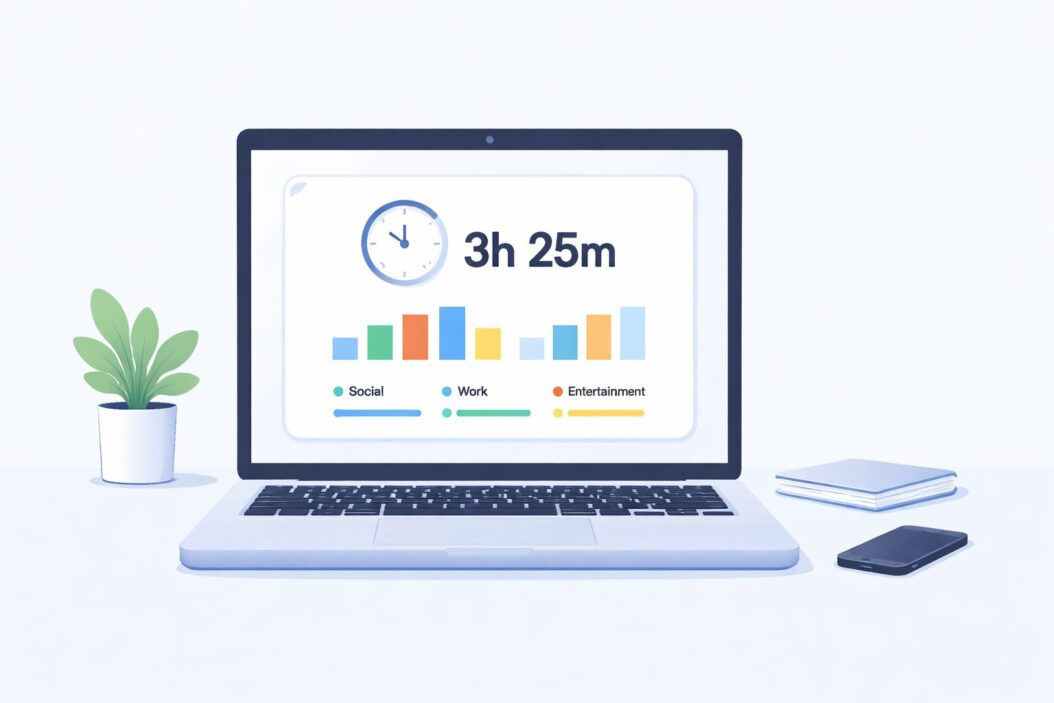
Built-In Methods for Windows 11
Windows 11 includes Activity History features that track your app usage and screen time. Here’s how to access them.
Using Windows Settings Activity History
Windows records what you do if Activity History is enabled. Follow these steps:
- Press Windows key + I to open Settings
- Click on Privacy & Security in the left sidebar
- Scroll down and select Activity History
- Make sure “Store my activity history on this device” is turned on
- Go back to Settings main page
- Click on Accounts
- Select Family under Accounts
- If you have family features enabled, you’ll see screen time reports
This method works best if you set up Windows with a Microsoft account and enabled family features beforehand.
Checking Microsoft Family Safety Reports
Microsoft Family Safety gives detailed screen time breakdowns. This requires setup:
- Visit the Microsoft Family Safety website
- Sign in with your Microsoft account
- Add family members (or add yourself as a monitored user)
- Install the Family Safety app on your laptop
- Wait 24-48 hours for data collection
- View reports showing daily screen time, app usage, and website visits
The reports display graphs showing hourly activity, total screen time per day, and most-used applications. You can set limits and receive weekly email summaries.
Limitations: You need a Microsoft account. The monitored user must be added as a family member. Real-time tracking isn’t available, reports update with delays.
Built-In Methods for Windows 10
Windows 10 offers similar tracking but with different menu locations.
Activity History in Windows 10
- Open Settings (Windows key + I)
- Click on Privacy
- Select Activity History from the left menu
- Enable “Let Windows collect my activities from this PC”
- Click “Manage my Microsoft account activity data” to view online
Your activity syncs to Microsoft’s cloud if you’re signed in. The Timeline feature (removed in Windows 11) showed recent activities directly in Task View.
Screen Time Through Task Manager
Task Manager doesn’t show total screen time, but it reveals how long apps have been running:
- Press Ctrl + Shift + Esc
- Click the Performance tab
- Check the Up Time in the CPU section
This shows how long since the last restart. Not perfect for tracking daily screen time, but useful for understanding current session length.
Third-Party Screen Time Apps for Windows
When Windows built-in tools aren’t enough, these apps provide detailed tracking.
ManicTime
ManicTime automatically tracks everything you do on your computer. It records which applications you use, which websites you visit, and how long you spend on each task.
Setup process:
- Download from ManicTime’s official website
- Install and launch the application
- Let it run in the background
- Access the dashboard to view statistics
What it tracks:
- Application usage by hour, day, or week
- Website visits with duration
- Document names you worked on
- Idle time vs. active time
- Auto-tagged activities (meetings, breaks, work sessions)
The free version includes local tracking. Paid versions add cloud sync, detailed reports, and team features.
RescueTime
RescueTime categorizes your activities as productive or distracting. It runs silently and builds detailed reports.
How to use:
- Create an account at RescueTime.com
- Download the desktop application
- Install and allow background tracking
- Check your dashboard for insights
Key features:
- Productivity scores
- Categorized time breakdowns (work, communication, entertainment)
- Goal setting with alerts
- Daily email summaries
- Focus time sessions
RescueTime labels activities automatically. Email and coding tools count as productive. Social media and video streaming count as distracting. You can customize these categories.
ActivityWatch
ActivityWatch is open-source and privacy-focused. Your data stays on your computer.
Installation steps:
- Visit ActivityWatch GitHub or official site
- Download the installer for Windows
- Run the installer
- Access the web interface at localhost:5600
Benefits:
- Completely free
- No data sent to external servers
- Tracks active window, browser tabs, and AFK time
- Customizable tracking rules
- Export data for analysis
Technical users appreciate the transparency. The interface is simpler than commercial alternatives but captures the essential metrics.
Cold Turkey
Cold Turkey focuses on blocking distractions, but it also tracks your computer usage.
Setup:
- Download Cold Turkey Blocker
- Install the application
- Enable statistics tracking in settings
- View usage reports in the Stats tab
The app shows which applications consumed your time and helps you set blocking schedules to reduce overuse.
Comparing Screen Time Tracking Methods
| Method | Cost | Detail Level | Setup Difficulty | Privacy |
|---|---|---|---|---|
| Windows Family Safety | Free | High | Medium | Microsoft stores data |
| Activity History | Free | Low | Easy | Local + Microsoft cloud |
| ManicTime | Free/Paid | Very High | Easy | Local or cloud option |
| RescueTime | Free/Paid | High | Easy | Cloud-based |
| ActivityWatch | Free | High | Medium | Completely local |
| Cold Turkey | Free/Paid | Medium | Easy | Local |
Choose based on your priorities. Privacy-conscious users pick ActivityWatch. People wanting automatic categorization prefer RescueTime. Families use Microsoft Family Safety.
How to Set Up Screen Time Limits
Tracking is step one. Setting boundaries is step two.
Windows Built-In Limits
Through Microsoft Family Safety:
- Log into family.microsoft.com
- Select the family member
- Click Screen Time
- Set daily time limits for each day of the week
- Choose app and game limits
- Set bedtime hours when the device locks
The computer warns users when time is running low. When the limit hits, Windows locks the account until the next allowed period.
Third-Party App Limits
RescueTime FocusTime:
- Block distracting websites for set periods
- Schedule focus sessions
- Set daily goals for productive time
Cold Turkey Scheduler:
- Create blocking schedules
- Block apps, websites, or the entire computer
- Set up recurring blocks for consistent habits
ManicTime Client:
- Set alerts when spending too much time on specific apps
- Review daily reports to manually adjust behavior
- Tag time blocks to understand context
Understanding Screen Time Data
Raw numbers mean nothing without context. Here’s how to interpret what you find.
What Counts as Screen Time?
Different tools measure differently:
- Active screen time: When you’re actively using the computer (typing, clicking, moving the mouse)
- Passive screen time: When the computer is on but you’re not interacting
- Locked screen time: Some apps stop counting when you lock the screen, others don’t
- Background app time: Apps running in the background may or may not count
Check your tracking tool’s documentation to understand its methodology. Most apps measure active screen time only, excluding idle periods.
Average Laptop Screen Time Statistics
According to digital wellness research, adults average 6-8 hours of daily screen time across all devices in 2026. Laptop-specific usage typically runs 3-5 hours for remote workers.
Knowledge workers hit 8-10 hours daily. Students average 4-6 hours between classes, homework, and entertainment. Casual users clock 1-3 hours.
Your numbers are personal. Compare yourself to your goals, not others.
Reducing Screen Time Based on Your Data
Data collection serves a purpose: behavior change.
Identify Time Sinks
Review your screen time reports weekly. Look for:
- Apps you didn’t realize you used so much
- Productive time vs. distracting time ratios
- Peak usage hours
- Patterns before bed or first thing in the morning
Circle the top three time-consuming activities. Ask yourself if they align with your priorities.
Create Realistic Goals
Don’t slash screen time by half overnight. Start small:
Week 1: Reduce by 15 minutes daily
Week 2: Add another 15 minutes reduction
Week 3: Evaluate and adjust
Set app-specific limits. If social media consumes two hours daily, aim for 90 minutes first.
Replace Screen Activities
Cutting screen time creates gaps. Fill them intentionally:
- Reading physical books
- Exercise or walks
- Face-to-face conversations
- Hobbies that use your hands (cooking, crafts, gardening)
- Sleep
Troubleshooting Common Issues
Activity History Not Working
Solution checklist:
- Verify you’re signed into a Microsoft account
- Check if Activity History is enabled in Settings
- Ensure your account isn’t a local account (convert to Microsoft account)
- Wait 24 hours for initial data collection
- Restart your computer
Third-Party Apps Not Tracking
Common fixes:
- Grant necessary permissions (accessibility, screen recording)
- Add the app to startup programs
- Check if antivirus is blocking background processes
- Reinstall the application
- Verify the app is running (check system tray)
Inaccurate Time Reports
Apps sometimes overcount or undercount. Causes include:
- Computer left on while you’re away (counts idle time)
- Multiple monitors (some apps track per screen)
- Virtual machines or remote desktop sessions
- Browser extensions interfering with web tracking
Adjust sensitivity settings in your tracking app. Most offer idle timeout settings that stop counting after 5-10 minutes of inactivity.
Privacy Considerations
Screen time tracking means monitoring. Understand the implications.
What Gets Tracked
Most apps record:
- Application names and window titles
- Website URLs
- Time stamps
- Document names
- Screenshots (optional in some tools)
This creates detailed logs of your computer activity. Consider who has access.
Data Storage and Security
Local storage: ActivityWatch and ManicTime free version keep data on your device. You control access.
Cloud storage: RescueTime, Microsoft Family Safety, and ManicTime paid versions upload data to their servers. Read privacy policies.
Employer monitoring: Company-owned laptops may have pre-installed tracking. This data goes to your employer. Check your organization’s policies.
Disabling Tracking
To stop tracking:
Windows Activity History:
- Settings > Privacy & Security > Activity History
- Uncheck “Store my activity history on this device”
- Click “Clear activity history”
Third-party apps:
- Open the application
- Find Settings or Preferences
- Pause tracking or disable auto-start
- Uninstall if you’re done completely
Screen Time for Productivity vs. Wellness
Different goals need different approaches.
For Productivity Tracking
Focus on:
- Time spent in work-related apps
- Context switching frequency (how often you change tasks)
- Peak productivity hours
- Time lost to distractions
Use this data to:
- Schedule deep work during peak hours
- Batch similar tasks
- Identify and eliminate productivity drains
For Digital Wellness
Focus on:
- Total daily screen time
- Evening screen time (affects sleep)
- Weekend vs. weekday patterns
- Passive consumption vs. active creation
Use this data to:
- Set bedtime reminders
- Create screen-free zones or times
- Balance passive and active activities
Summary
Checking screen time on your Windows laptop requires either built-in Microsoft tools or third-party applications. Windows 11 and 10 offer Activity History and Family Safety features for basic tracking. These work well for families and Microsoft account users.
For detailed insights, third-party apps like ManicTime, RescueTime, and ActivityWatch provide comprehensive tracking with categorization, reports, and productivity analysis. Choose based on your privacy preferences, feature needs, and budget.
The real value isn’t in the numbers themselves. It’s in understanding your patterns and making intentional changes. Track consistently for at least a week before drawing conclusions. Set realistic reduction goals. Replace screen time with meaningful offline activities.
Frequently Asked Questions
Does Windows Have Built-In Screen Time Tracking?
Yes, Windows 11 and Windows 10 include Activity History tracking and Microsoft Family Safety features. Activity History records app usage locally, while Family Safety provides detailed web-based reports for family accounts. However, these features require a Microsoft account and specific privacy settings enabled. They offer basic tracking compared to dedicated third-party applications.
What Is the Best Free Screen Time App for Windows?
ActivityWatch is the best free option for privacy-focused users because it stores all data locally and is completely open-source. ManicTime’s free version offers more polished interface and detailed automatic tracking but stores data on your device only. RescueTime has a free tier with cloud-based tracking and automatic productivity categorization, though advanced features require payment.
Can My Employer See My Personal Laptop Screen Time?
No, unless you installed employer-provided monitoring software on your personal device. Company-owned laptops often have pre-installed tracking tools that monitor all activity. Personal devices remain private unless you explicitly installed workplace monitoring software or connected to a company VPN that includes tracking. Always check your employment agreement for monitoring policies.
How Do I Turn Off Screen Time Tracking in Windows?
Open Settings, navigate to Privacy & Security, select Activity History, and uncheck “Store my activity history on this device.” Then click “Clear” under Clear activity history to delete existing data. For Microsoft Family Safety, log into family.microsoft.com and disable tracking for your account. For third-party apps, open the application, access settings, and disable tracking or uninstall completely.
Is Tracking Screen Time Worth the Effort?
Yes, if you want to change your digital habits or improve productivity. Tracking reveals patterns you can’t see otherwise, like time spent on distracting websites or peak productivity hours. The effort is minimal with automatic tracking apps running in the background. However, if you’re satisfied with your current computer usage and don’t have specific goals, tracking may be unnecessary overhead.
