
Fast Startup is causing your computer to act weird. Maybe your USB drives aren’t recognized. Maybe Windows updates won’t install properly. Maybe you’re dual-booting Linux and can’t access your files. Whatever the reason, you need to turn it off.
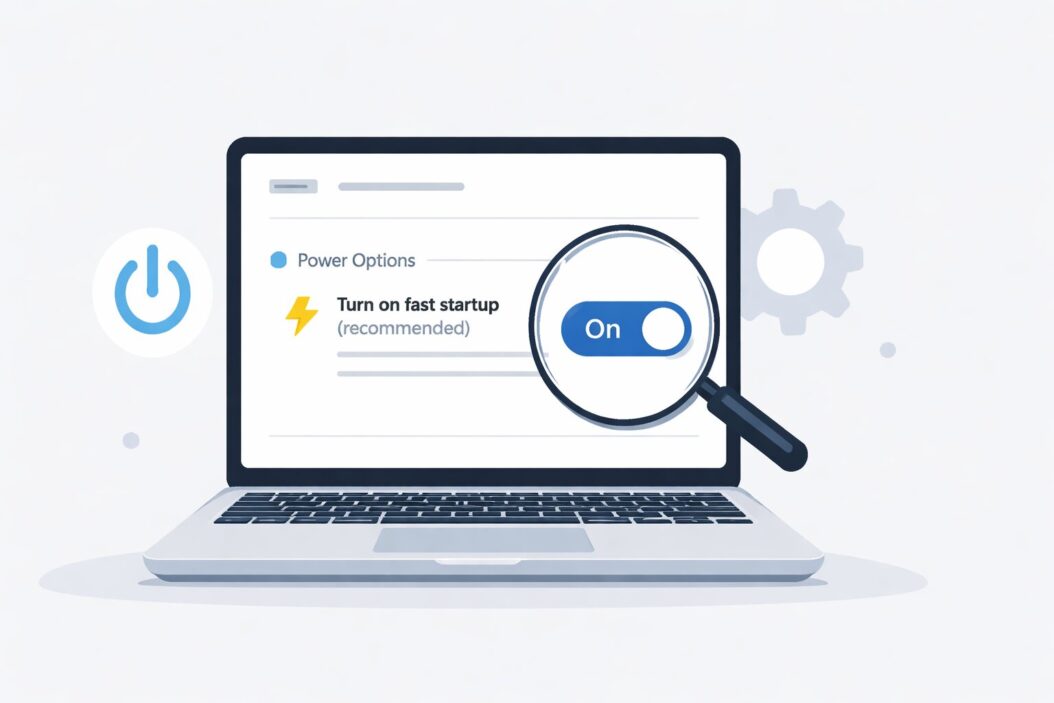
Here’s the quick answer: Open Control Panel, go to Power Options, click “Choose what the power buttons do,” click “Change settings that are currently unavailable,” uncheck “Turn on fast startup,” and click Save changes.
That’s it. But let me show you exactly how to do this, why you might need to, and what happens when you disable it.
What Fast Startup Actually Does
Fast Startup is a Windows feature that makes your computer boot faster. It’s been around since Windows 8 and continues in Windows 10 and Windows 11.
When you shut down your PC with Fast Startup enabled, Windows doesn’t actually shut down completely. Instead, it:
- Logs you out of your user account
- Closes all your programs
- Puts the Windows kernel into hibernation
- Saves the system state to your hard drive
- Turns off your computer
When you turn your PC back on, Windows loads that saved state instead of starting fresh. This makes booting faster, sometimes by several seconds.
Sounds good, right? But it causes real problems for many users.
Why You Might Need to Disable Fast Startup
Fast Startup breaks things. Here are the most common issues:
Dual-boot problems: If you run Windows alongside Linux, Fast Startup can lock your shared partitions. Linux can’t access Windows drives properly because they’re still “in use” even when Windows appears shut down.
Hardware recognition failures: External drives, printers, or USB devices might not work after a “shutdown” because Windows didn’t fully release them.
Windows Update errors: Some updates require a complete shutdown. Fast Startup’s partial shutdown causes update failures and error messages.
BIOS access difficulties: You can’t access BIOS settings reliably because your computer doesn’t go through a full POST cycle.
Wake-on-LAN doesn’t work: Network cards stay in a weird state that prevents remote wake commands from working.
System restore problems: Creating or restoring system images becomes unreliable because the system is never truly off.
If you’re experiencing any of these issues, turning off Fast Startup usually fixes them immediately.
How to Turn Off Fast Startup: Step-by-Step Method
Here’s the standard way to disable Fast Startup in Windows 10 and Windows 11.
Method 1: Through Control Panel
Step 1: Open Control Panel. Press Windows key, type “control panel,” and press Enter.
Step 2: Click “Hardware and Sound.”
Step 3: Click “Power Options.”
Step 4: In the left sidebar, click “Choose what the power buttons do.”
Step 5: You’ll see a window with power button settings. At the top, click “Change settings that are currently unavailable.” You need administrator access for this. If Windows asks for permission, click Yes.
Step 6: Scroll down to “Shutdown settings.” You’ll see a checkbox that says “Turn on fast startup (recommended).”
Step 7: Uncheck that box.
Step 8: Click “Save changes” at the bottom of the window.
Done. Fast Startup is now disabled.
Method 2: Using PowerShell or Command Prompt
If you prefer command-line methods or Control Panel isn’t working, try this.
Step 1: Right-click the Start button and select “Windows Terminal (Admin)” or “Command Prompt (Admin).”
Step 2: Type this command exactly:
powercfg /hibernate offStep 3: Press Enter.
This command disables hibernation completely, which also disables Fast Startup. Hibernation and Fast Startup use the same system file (hiberfil.sys), so turning off hibernation removes Fast Startup too.
Important note: This also disables regular hibernation. If you use hibernation mode (not just Fast Startup), you’ll lose that feature. If you want hibernation but not Fast Startup, use Method 1 instead.
Method 3: Registry Editor (Advanced Users)
This method works when other options are grayed out or unavailable.
Step 1: Press Windows key + R to open the Run dialog.
Step 2: Type “regedit” and press Enter. Click Yes if Windows asks for permission.
Step 3: Navigate to this location:
HKEY_LOCAL_MACHINE\SYSTEM\CurrentControlSet\Control\Session Manager\PowerStep 4: In the right panel, find “HiberbootEnabled.”
Step 5: Double-click it and change the value from 1 to 0.
Step 6: Click OK and close Registry Editor.
Step 7: Restart your computer for changes to take effect.
Verifying Fast Startup Is Actually Disabled
After disabling Fast Startup, you should verify it worked.
Check 1: Open Task Manager (Ctrl + Shift + Esc), go to the Performance tab, and click CPU. Look at the “Up time.” After your next restart, this should show time since you turned on your computer. With Fast Startup enabled, it often shows days of uptime even after multiple “shutdowns.”
Check 2: Go back to Power Options and “Choose what the power buttons do.” If the Fast Startup checkbox is unchecked, you’re good.
Check 3: Your computer should take slightly longer to boot now. That’s normal and expected.
What Changes When You Disable Fast Startup
Let’s be honest about what happens.
Boot time increases: Your computer will take 5-15 seconds longer to start. For most modern PCs with SSDs, this means 15-20 seconds instead of 5-10 seconds. That’s the trade-off.
More reliable shutdowns: Your PC actually shuts down completely now. This fixes most of the problems listed earlier.
Hard drive space: If you used the PowerShell method, you’ll free up several gigabytes. The hiberfil.sys file gets deleted. On a system with 16GB of RAM, that’s about 12GB of free space.
Power consumption: True zero power consumption when shut down. With Fast Startup, your PC still uses tiny amounts of power to maintain the hibernation state.
When You Should Keep Fast Startup Enabled
Not everyone needs to disable this feature. Keep Fast Startup on if:
- You only use Windows (no dual-boot setup)
- You don’t have hardware recognition problems
- You value faster boot times over complete shutdowns
- You don’t need to access BIOS frequently
- Your Windows Updates install without errors
Many users never experience Fast Startup problems. If your system works fine, there’s no reason to change it.
Common Problems and Solutions
Problem: The Fast Startup option is missing entirely
This happens on some laptops and custom builds. Your motherboard or laptop manufacturer may have disabled this feature in BIOS. Check your BIOS settings for hibernate or Fast Boot options.
Problem: The setting is grayed out
Hibernation is probably disabled. Open Command Prompt as administrator and run:
powercfg /hibernate onThen the Fast Startup option should appear and you can uncheck it.
Problem: Fast Startup re-enables itself
Windows Updates sometimes reset this setting. Some driver updates also turn it back on. After major Windows updates, check the setting again and disable it if needed.
Problem: Computer still boots too fast
Your motherboard might have its own Fast Boot feature in BIOS. This is separate from Windows Fast Startup. You need to disable both for a complete cold boot.
Fast Startup vs Hibernate vs Sleep: Understanding the Difference
People confuse these three features constantly. Here’s the breakdown:
| Feature | What It Does | Power Use | Wake Time |
|---|---|---|---|
| Sleep | Keeps RAM powered, saves work to memory | Low power | 1-3 seconds |
| Hibernate | Saves RAM contents to disk, powers off completely | Zero power | 10-30 seconds |
| Fast Startup | Hibernates kernel only during shutdown | Zero power | 5-15 seconds |
Sleep is for short breaks. Hibernate is for long periods. Fast Startup is an automatic hybrid that happens during shutdown.
Disabling Fast Startup doesn’t affect Sleep or Hibernate modes. You can still use those features normally.
Impact on Different Windows Versions
Windows 11: Fast Startup is enabled by default. The process to disable it is identical to Windows 10.
Windows 10: Fast Startup has been standard since version 1507. Same process for all versions.
Windows 8/8.1: This is where Fast Startup originated. Same process applies.
Windows 7 and older: These versions don’t have Fast Startup. If you’re on Windows 7, this feature doesn’t exist on your system.
How This Affects Laptops vs Desktops
Laptops and desktops handle Fast Startup differently.
Laptops: Battery life is a concern. Fast Startup helps preserve battery because booting uses less power than a cold start. However, if you’re dual-booting or using external drives, disable it anyway. The problems outweigh the small battery savings.
Desktops: No battery concerns. The only advantage is boot speed. If you have any compatibility issues, turn it off without hesitation.
Alternative Solutions Instead of Disabling
Before completely disabling Fast Startup, try these options:
Use Restart instead of Shutdown: The Restart option always does a complete cold boot, even with Fast Startup enabled. If you need a true shutdown occasionally, restart instead.
Enable hibernate manually: Keep Fast Startup on but add a hibernate button to your Start menu. This gives you both options.
Update drivers: Outdated chipset or motherboard drivers cause many Fast Startup problems. Visit your PC manufacturer’s website and install the latest drivers.
Check BIOS updates: A BIOS update might fix hardware recognition issues without disabling Fast Startup.
The Technical Side: What Happens Under the Hood
For those who want to understand the mechanism:
Fast Startup creates a file called hiberfil.sys in your C: drive root. This file stores the compressed system state.
During shutdown with Fast Startup:
- Windows closes all user sessions
- Kernel-level processes remain running
- System writes kernel session to hiberfil.sys
- Power cuts to all components except minimal motherboard power
During startup with Fast Startup:
- BIOS/UEFI completes POST
- Windows loader reads hiberfil.sys
- Kernel state restores from disk
- Drivers initialize
- Login screen appears
This is faster than a cold boot because the kernel doesn’t reinitialize from scratch.
According to Intel’s boot optimization guide, hybrid boot methods like Fast Startup can reduce boot times by 30-70% depending on hardware configuration.
Privacy and Security Considerations
Fast Startup has minor security implications.
BitLocker behavior: If you use BitLocker drive encryption, Fast Startup bypasses some security checks. A complete cold boot requires full authentication. For maximum security, disable Fast Startup on encrypted drives.
Memory analysis: The hiberfil.sys file contains a snapshot of system memory. Forensic tools can analyze this file. If you’re concerned about data security, a true shutdown is more secure.
Driver vulnerabilities: Some drivers stay loaded across Fast Startup “shutdowns.” If a driver has a vulnerability, Fast Startup keeps it in memory longer.
For most home users, these aren’t major concerns. For business environments or high-security systems, disable Fast Startup as a best practice.
Re-enabling Fast Startup Later
Changed your mind? Want Fast Startup back? Easy.
Go back to Control Panel > Power Options > Choose what the power buttons do > Change settings that are currently unavailable > Check “Turn on fast startup” > Save changes.
If you disabled hibernation through PowerShell, re-enable it first:
powercfg /hibernate onThen the Fast Startup option will reappear in Power Options.
Troubleshooting After Disabling Fast Startup
Problem: Boot time is significantly longer
This is normal. If boot time increases by more than 30 seconds, you might have other issues. Check for:
- Startup programs (disable unnecessary ones in Task Manager > Startup tab)
- Disk errors (run chkdsk /f)
- Outdated BIOS
Problem: Dual-boot still doesn’t work properly
You might need to disable Fast Boot in BIOS too. Restart, enter BIOS setup (usually F2, F10, or Delete key), find Fast Boot, and disable it.
Problem: Lost significant hard drive space after re-enabling
The hiberfil.sys file recreates itself. This is expected. It’s typically 75% of your RAM size.
Conclusion
Fast Startup is a convenience feature that sometimes causes more problems than it solves. If you’re experiencing USB drive issues, dual-boot problems, or Windows Update failures, disabling it usually helps immediately.
The process is simple: Control Panel > Power Options > Choose what the power buttons do > Uncheck Fast Startup > Save.
Your boot time will increase by a few seconds. That’s the only downside. In return, you get more reliable shutdowns, better hardware compatibility, and fewer weird Windows behaviors.
Frequently Asked Questions
Does disabling Fast Startup harm my computer?
No. Disabling Fast Startup doesn’t damage your hardware or Windows installation. It simply changes how your PC shuts down and starts up. The only change you’ll notice is slightly longer boot times. All your files, programs, and settings remain exactly the same.
Will I lose my saved work if I disable Fast Startup?
No. Fast Startup has nothing to do with saving your work. It only affects how Windows handles shutdown and startup. Your documents, programs, and personal files stay safe. Just remember to save your work before shutting down, like you normally would.
Can I disable Fast Startup on a laptop without affecting battery life?
Yes, but your battery will drain slightly faster during boot-up. The actual impact on overall battery life is minimal, usually less than 1% per day. If you frequently shut down and start up your laptop multiple times daily, you might notice a small difference. For most users, it’s not significant enough to worry about.
Does disabling Fast Startup affect Windows Update?
Actually, disabling Fast Startup often helps Windows Update work better. Some updates fail to install properly with Fast Startup enabled because they need a complete shutdown. After disabling it, many users find their updates install more reliably without errors.
How do I know if my boot issues are caused by Fast Startup?
Try this test: Click Restart instead of Shutdown. If your problem disappears after a restart but returns after shutdown, Fast Startup is likely the cause. Restart always does a complete cold boot, while Shutdown uses Fast Startup. If the issue persists after both restart and shutdown, something else is wrong.

- How to Turn Off Fast Startup on Windows 10/11 in 2026 - April 6, 2026
- How to Turn Off Virus Protection in Windows 11/10 in 2026 - April 6, 2026
- How to Set Up Automatic Reply in Outlook: Step-by-Step Guide in 2026 - April 6, 2026