
You need to temporarily disable your antivirus software. Maybe you’re installing trusted software that keeps getting blocked, running a legitimate program that your security flags as suspicious, or troubleshooting a system issue. Whatever your reason, this guide shows you exactly how to turn off virus protection safely.
Important first: Disabling virus protection leaves your computer vulnerable. Only do this temporarily, and turn protection back on immediately after you finish your task.
Why You Might Need to Disable Antivirus Software
Real situations where turning off virus protection makes sense:
- Installing specialized software that antivirus programs incorrectly flag as threats
- Running legacy programs that conflict with modern security tools
- Troubleshooting whether your antivirus is causing system slowdowns
- Testing software you’re developing
- Installing hardware drivers that security software blocks
These are legitimate reasons. You’re not doing anything wrong by temporarily disabling protection for specific tasks.
Windows Built-in Protection
Windows comes with Windows Security (formerly Windows Defender). It runs automatically and protects against viruses, malware, ransomware, and other threats.
Windows Security has several protection layers:
- Real-time protection (scans files as you open them)
- Cloud-delivered protection (checks threats against Microsoft’s database)
- Automatic sample submission (sends suspicious files to Microsoft)
- Tamper protection (prevents malware from disabling your security)
You can disable these features temporarily. Windows automatically re-enables real-time protection after a short period or when you restart your computer.
How to Turn Off Windows Security (Windows 10 and 11)
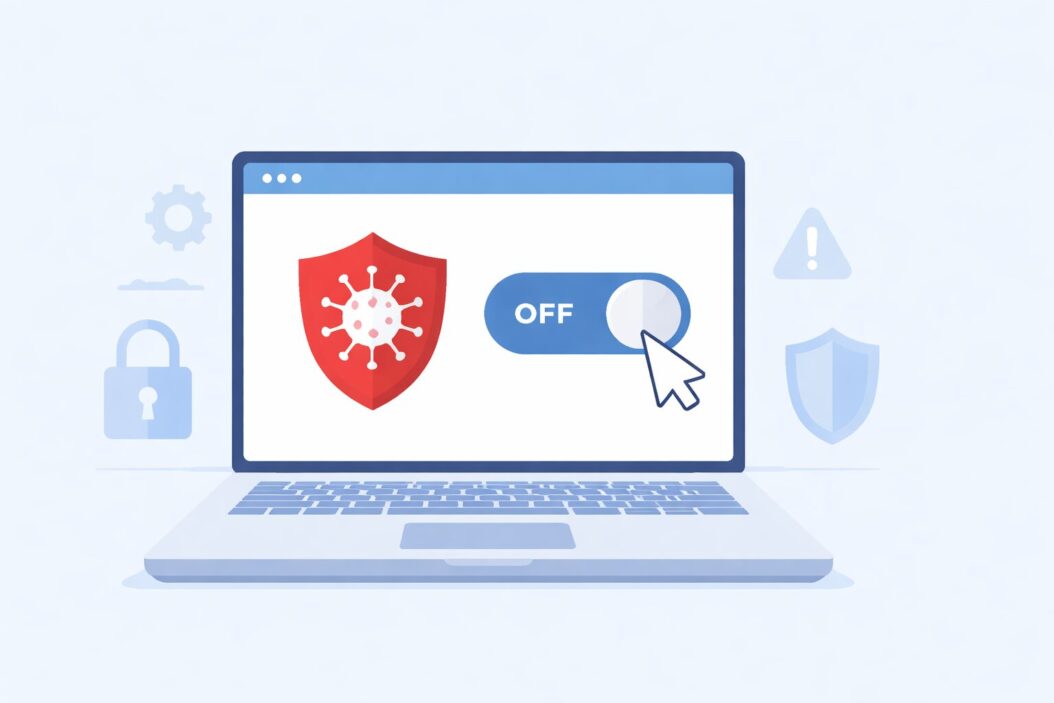
Method 1: Disable Real-Time Protection Temporarily
This is the quickest method for most situations.
Step 1: Click the Start button and type “Windows Security”
Step 2: Open the Windows Security app
Step 3: Click “Virus & threat protection”
Step 4: Under “Virus & threat protection settings,” click “Manage settings”
Step 5: Toggle “Real-time protection” to Off
You’ll see a warning message. Click “Yes” to confirm.
What happens now: Real-time scanning stops immediately. Windows Security shows a warning notification. Protection automatically turns back on after a few hours or when you restart.
Method 2: Disable All Windows Security Features
For situations requiring complete protection shutdown:
Step 1: Open Windows Security (same as above)
Step 2: Go to “Virus & threat protection” then “Manage settings”
Step 3: Turn off these toggles:
- Real-time protection
- Cloud-delivered protection
- Automatic sample submission
Step 4: Click “Virus & threat protection” again
Step 5: Under “Ransomware protection,” click “Manage ransomware protection”
Step 6: Toggle “Controlled folder access” to Off
Step 7: Return to Windows Security main page
Step 8: Click “Firewall & network protection”
Step 9: Click your active network (Domain, Private, or Public)
Step 10: Toggle “Microsoft Defender Firewall” to Off
Warning notifications will appear. This is normal.
Method 3: Disable Tamper Protection First
If you cannot toggle protection off, tamper protection is blocking you.
Step 1: Open Windows Security
Step 2: Click “Virus & threat protection”
Step 3: Click “Manage settings”
Step 4: Scroll down to “Tamper Protection”
Step 5: Toggle it to Off
Step 6: Confirm the User Account Control prompt
Now you can disable other protection features using Method 1 or Method 2.
Turning Off Third-Party Antivirus Software
Popular antivirus programs include Norton, McAfee, Avast, AVG, Bitdefender, Kaspersky, and Trend Micro. Each has different steps.
General Method for Most Antivirus Programs
Option 1: System Tray Method
Step 1: Look for your antivirus icon in the system tray (bottom-right corner of your screen, near the clock)
Step 2: Right-click the icon
Step 3: Look for options like:
- Disable protection
- Turn off
- Pause protection
- Snooze protection
- Shield control
Step 4: Select how long to disable (options typically include 10 minutes, 1 hour, until restart, or permanently)
Step 5: Confirm your choice
Option 2: Main Program Interface
Step 1: Open your antivirus program from the Start menu
Step 2: Find Settings, Options, or Preferences
Step 3: Look for Protection, Shield, or Real-time Scanning sections
Step 4: Disable the protection feature
Step 5: Save changes
Norton Antivirus
Step 1: Open Norton
Step 2: Click “Settings”
Step 3: Click “Firewall” or “Antivirus”
Step 4: On the “General Settings” tab, move the “Auto-Protect” or “Firewall” switch to Off
Step 5: In the security request window, select duration
Step 6: Click “OK”
McAfee
Step 1: Right-click the McAfee icon in the system tray
Step 2: Select “Change settings” then “Real-time Scanning”
Step 3: Click “Turn off”
Step 4: Choose when to resume protection
Step 5: Click “Turn off”
Avast or AVG
Step 1: Right-click the Avast/AVG icon in the system tray
Step 2: Go to “Avast shields control” or “AVG protection”
Step 3: Choose:
- Disable for 10 minutes
- Disable for 1 hour
- Disable until computer restart
- Disable permanently
Step 4: Confirm
Bitdefender
Step 1: Open Bitdefender
Step 2: Click “Protection” in the left sidebar
Step 3: Click the settings icon next to “Antivirus”
Step 4: Toggle “Bitdefender Shield” to Off
Step 5: Confirm the action
Kaspersky
Step 1: Open Kaspersky
Step 2: Click the settings gear icon
Step 3: Go to “Protection”
Step 4: Toggle “File Anti-Virus” to Off
Step 5: Set the time period
Step 6: Click “Continue”
Using Group Policy to Disable Windows Defender (Advanced)
This method works for Windows Pro, Enterprise, and Education editions. Not available in Windows Home.
Step 1: Press Windows key + R
Step 2: Type gpedit.msc and press Enter
Step 3: Navigate to: Computer Configuration > Administrative Templates > Windows Components > Microsoft Defender Antivirus
Step 4: Double-click “Turn off Microsoft Defender Antivirus”
Step 5: Select “Enabled”
Step 6: Click “Apply” then “OK”
Step 7: Restart your computer
This completely disables Windows Defender until you reverse these steps.
Using Registry Editor (Advanced, All Windows Versions)
Warning: Editing the registry incorrectly can damage your system. Follow these steps exactly.
Step 1: Press Windows key + R
Step 2: Type regedit and press Enter
Step 3: Navigate to: HKEY_LOCAL_MACHINE\SOFTWARE\Policies\Microsoft\Windows Defender
Step 4: Right-click in the right pane, select New > DWORD (32-bit) Value
Step 5: Name it DisableAntiSpyware
Step 6: Double-click it and set Value data to 1
Step 7: Click “OK”
Step 8: Restart your computer
To re-enable, delete this registry entry or set its value to 0.
Safety Guidelines When Protection Is Disabled
Follow these rules strictly:
Do not browse the internet: Avoid websites, especially unknown or suspicious ones. Malware spreads primarily through web browsers.
Do not open emails: Email attachments are common malware carriers. Wait until protection is back on.
Do not download files: Any downloaded file could be infected.
Disconnect from the internet: If possible, unplug your Ethernet cable or disable Wi-Fi. This eliminates most infection risks.
Work quickly: Complete your task as fast as possible. Every minute without protection increases risk.
Keep installation files ready: Have the software or driver you need to install already downloaded before disabling protection.
Use a secondary scan: After re-enabling protection, run a full system scan immediately.
When You Should Never Disable Antivirus
Some situations are too risky:
Downloading files from unknown sources: If you need to disable protection to install something you just downloaded from a sketchy website, don’t install it. It’s probably malware.
Because software “requires” it: Legitimate software never requires you to disable antivirus. If installation instructions say to turn off protection, the software is likely malicious.
For permanent convenience: Some people disable protection permanently because they find warnings annoying. This is extremely dangerous in 2026, with ransomware and sophisticated malware everywhere.
On public or shared networks: Disabling protection while connected to coffee shop Wi-Fi, hotel networks, or other public connections is asking for trouble.
To “speed up” your computer: If antivirus is slowing your computer significantly, upgrade your hardware or switch to lighter security software. Don’t go unprotected.
How to Turn Protection Back On
Always re-enable protection immediately after completing your task.
For Windows Security
Method 1: Open Windows Security > Virus & threat protection > Manage settings > Toggle “Real-time protection” to On
Method 2: Restart your computer (Windows automatically re-enables protection)
Method 3: Click the notification that says “Virus & threat protection is turned off” and click “Turn on”
For Third-Party Antivirus
Step 1: Right-click the antivirus icon in the system tray
Step 2: Select “Enable protection” or “Turn on shields”
Or open the main program and reverse the steps you took to disable it.
Verify Protection Is Active
Step 1: Open Windows Security
Step 2: Check for a green checkmark and “No actions needed” message
Step 3: If you see warnings, click them and follow instructions to fix
Comparison of Disabling Methods
| Method | Speed | Risk Level | When to Use | Reversibility |
|---|---|---|---|---|
| Toggle Real-time Protection Off | 30 seconds | Low | Quick software install | Automatic after hours |
| Disable All Protection Features | 2 minutes | Medium | Complete system access needed | Manual or restart |
| Group Policy Editor | 5 minutes | Medium | Long-term development work | Manual reversal required |
| Registry Editor | 5 minutes | High | Technical troubleshooting | Manual deletion required |
| Third-party Disable | 1 minute | Low | Program-specific conflicts | Manual or timed |
Alternatives to Disabling Protection
Before turning off virus protection completely, try these safer options:
Add an Exclusion
Tell your antivirus to ignore specific files, folders, or programs.
Step 1: Open Windows Security
Step 2: Go to “Virus & threat protection”
Step 3: Click “Manage settings”
Step 4: Scroll to “Exclusions”
Step 5: Click “Add or remove exclusions”
Step 6: Click “Add an exclusion”
Step 7: Choose File, Folder, File type, or Process
Step 8: Navigate to the item you want to exclude
Step 9: Click “Select Folder” or “Open”
Your antivirus now ignores this item. This is much safer than disabling protection entirely.
Whitelist the Program
Most antivirus software lets you mark specific programs as safe.
Step 1: Open your antivirus program
Step 2: Find Quarantine, Threats, or Blocked items
Step 3: Locate the program your antivirus blocked
Step 4: Click “Restore” or “Allow”
Step 5: Add to whitelist or trusted applications
The program can now run without disabling overall protection.
Use Sandbox Mode
Some antivirus programs (like Avast) offer sandbox environments where you can run suspicious programs safely.
Step 1: Right-click the executable file
Step 2: Select “Run in Sandbox” or similar option
Step 3: The program runs isolated from your main system
This lets you test software without risking infection.
Troubleshooting Common Issues
Cannot Find the Toggle Switch
Problem: The Real-time protection toggle is grayed out or missing.
Solution 1: Disable Tamper Protection first (see Method 3 above)
Solution 2: Check if your computer is managed by an organization (school, workplace). Administrators may have locked security settings.
Solution 3: Another antivirus program might be installed. Windows Security disables itself when third-party antivirus is active.
Protection Turns Back On Immediately
Problem: You toggle protection off, but it turns back on within seconds.
Cause: This is often malware trying to prevent you from disabling protection to remove it.
Solution: Run a scan with a different security tool. Download Malwarebytes on another computer, transfer it via USB, and scan your system.
User Account Control Blocks Changes
Problem: You don’t have administrator rights.
Solution: Log in with an administrator account, or right-click the program and select “Run as administrator.”
Group Policy Doesn’t Work
Problem: You don’t see gpedit.msc or it won’t open.
Cause: You have Windows Home edition, which doesn’t include Group Policy Editor.
Solution: Use the Registry Editor method instead, or upgrade to Windows Pro.
Special Considerations for Different Windows Versions
Windows 11 (2026)
Windows 11 has enhanced security features. Tamper Protection is more aggressive. You must disable it first in almost all cases.
Some Windows 11 Enterprise versions use Smart App Control, which is separate from Windows Security. To disable:
Step 1: Open Windows Security
Step 2: Click “App & browser control”
Step 3: Under “Smart App Control,” click settings
Step 4: Select “Off”
Note: You cannot turn Smart App Control back on without reinstalling Windows. Only disable if absolutely necessary.
Windows 10
Windows 10 version 1909 and earlier had simpler protection controls. Newer builds (20H2 and later) require Tamper Protection to be disabled first.
Windows Server
Windows Server editions use Windows Defender Antivirus with similar controls, but often managed through PowerShell or Group Policy in enterprise environments.
Administrators typically use PowerShell commands:
Set-MpPreference -DisableRealtimeMonitoring $trueTo re-enable:
Set-MpPreference -DisableRealtimeMonitoring $falseUnderstanding the Risks: Real Statistics from 2026
Disabling antivirus protection exposes you to:
Ransomware: Encrypts your files and demands payment. Average ransom demand in 2026 is $570 for individuals, with only 45% successfully recovering their files after paying.
Trojans: Disguised as legitimate software, these create backdoors for hackers. Over 60% of malware detected in 2026 is trojan-based.
Cryptominers: Use your computer’s resources to mine cryptocurrency without permission. These can damage hardware through overheating and dramatically increase electricity bills.
Spyware: Steals passwords, banking information, and personal data. Identity theft costs victims an average of 200 hours and $1,500 to resolve.
Adware: Floods your system with advertisements and tracks browsing habits. While less dangerous, it severely impacts performance.
Even a few minutes without protection creates risk. One study found computers connected to the internet without antivirus protection got infected within an average of 4 minutes.
Best Practices Summary
Before disabling protection:
- Know exactly why you need to disable it
- Have the specific file or program ready
- Disconnect from the internet if possible
- Close all other programs
- Save your work
While protection is disabled:
- Work quickly and stay focused
- Don’t browse, download, or open emails
- Don’t insert USB drives
- Keep the Task Manager open to watch for suspicious processes
After re-enabling protection:
- Run a full system scan immediately
- Check that all protection features are active
- Review recent activity in Windows Security
- Monitor system performance for a day
Conclusion
Turning off virus protection in Windows requires just a few clicks, but it should never be a casual decision. Whether you’re using Windows Security or third-party antivirus software, disable protection only when absolutely necessary, work quickly, and re-enable it immediately.
The safest approach is to add exclusions rather than disabling protection entirely. This gives you the access you need while maintaining overall system security.
Frequently Asked Questions
How long can I safely keep virus protection turned off?
Keep protection disabled for the minimum time possible, ideally under 30 minutes. Windows Security automatically re-enables real-time protection after a few hours. If you need longer, disconnect from the internet entirely. Never leave protection off overnight or when you’re away from your computer.
Will disabling antivirus speed up my computer?
Temporarily, yes. Antivirus software uses system resources for scanning. However, the speed gain is small on modern computers (usually 5-10% at most). The security risk far outweighs the performance benefit. If your computer is slow, upgrade your RAM or switch to lighter antivirus software rather than going unprotected.
Can viruses prevent me from turning protection back on?
Yes. Some malware specifically targets antivirus software to disable protection and prevent you from re-enabling it. If you cannot turn protection back on, disconnect from the internet immediately and run a scan using a bootable antivirus USB drive or another clean computer. This is a sign of active infection.
Is Windows Security good enough or do I need third-party antivirus?
Windows Security provides solid protection for most users in 2026. Independent tests show it catches 95-99% of threats. You might want third-party antivirus if you need extra features like VPN, password manager, parental controls, or handle sensitive business data. Running both Windows Security and third-party antivirus simultaneously usually causes conflicts, so choose one.
What should I do if I accidentally downloaded malware while protection was off?
Immediately disconnect from the internet, turn protection back on, and run a full system scan. If Windows Security finds threats, follow the removal recommendations. For stubborn infections, use specialized removal tools like Malwarebytes or Microsoft Safety Scanner. If you stored any passwords while infected, change them from a clean device. Consider restoring from a backup if the infection is severe.

- How to Turn Off Fast Startup on Windows 10/11 in 2026 - April 6, 2026
- How to Turn Off Virus Protection in Windows 11/10 in 2026 - April 6, 2026
- How to Set Up Automatic Reply in Outlook: Step-by-Step Guide in 2026 - April 6, 2026