
Contrast mode makes everything on your screen easier to see by using bold colors and clear edges. But sometimes you need to turn it off. Maybe the colors look too harsh, or your screen doesn’t look normal anymore. This guide shows you exactly how to turn off contrast mode in Windows, step by step.
What Is Contrast Mode and Why Would You Turn It Off
Contrast mode (also called High Contrast mode) changes your screen’s appearance to make text and images stand out more clearly. Windows uses bright backgrounds, bold text, and simplified colors.
You might want to turn it off because:
- The colors hurt your eyes after extended use
- Screenshots look weird with high contrast colors
- You’re recording your screen and need normal appearance
- Websites don’t display correctly
- You accidentally turned it on
- You share your computer with someone who doesn’t need it
The mode helps people with vision problems, but it’s not for everyone all the time.
Quick Answer: Fastest Way to Turn Off High Contrast Mode
Press Left Alt + Left Shift + Print Screen together. A dialog box appears asking if you want to turn on or off High Contrast. Click Yes to toggle it off.
This keyboard shortcut works in Windows 10, Windows 11, and older versions. It’s the fastest method when you need immediate results.
How to Turn Off Contrast Mode in Windows 11
Windows 11 changed where settings live. Here’s the complete process.
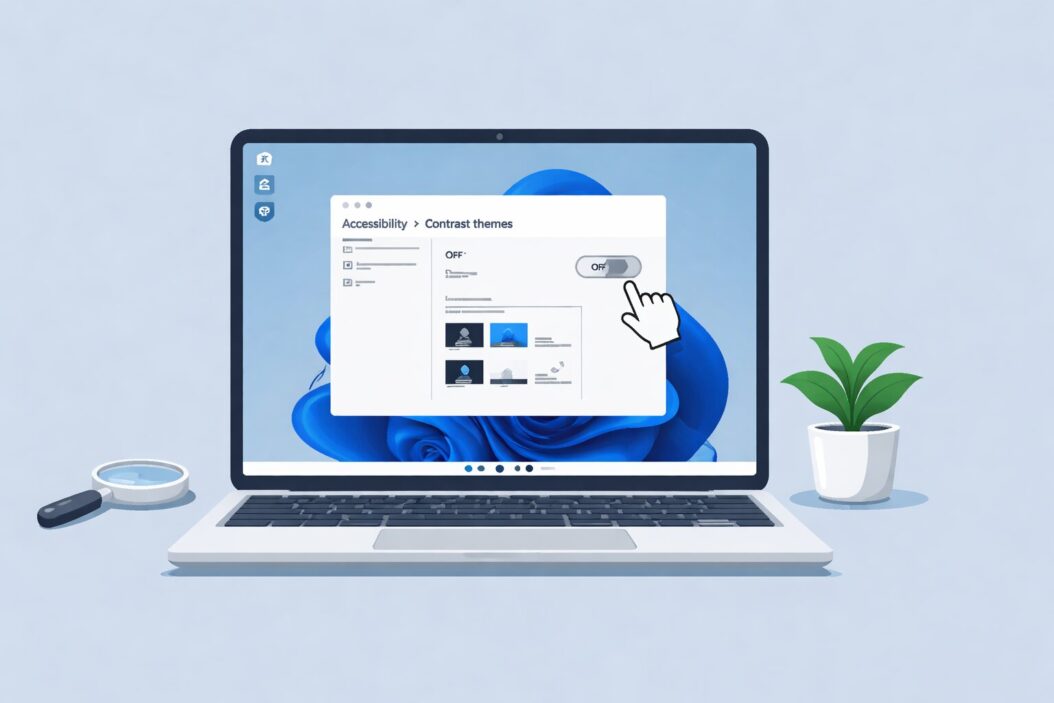
Using Windows 11 Settings App
- Press Windows key + I to open Settings
- Click Accessibility in the left sidebar
- Scroll down and click Contrast themes
- Under “Contrast themes,” open the dropdown menu
- Select None
- Click Apply
Your screen returns to normal colors immediately.
Alternative Method Through Quick Settings
- Press Windows key + A to open Quick Settings
- Look for the Accessibility icon (person symbol)
- Click it to expand accessibility options
- Toggle Contrast themes to Off
This method works faster if you use contrast mode occasionally and need quick access.
Using Keyboard Shortcuts in Windows 11
The Left Alt + Left Shift + Print Screen shortcut still works perfectly in Windows 11. Hold all three keys for one second. A confirmation box appears. Click Yes to disable high contrast.
If your keyboard lacks a Print Screen key (some laptops use Fn combinations), check your keyboard manual for the equivalent.
How to Turn Off Contrast Mode in Windows 10
Windows 10 has a different settings layout but offers the same basic options.
Through Windows 10 Settings
- Click the Start button
- Click the gear icon to open Settings
- Select Ease of Access
- Click High contrast in the left menu
- Under “Choose a theme,” select None from the dropdown
- The change applies automatically
No restart needed. Your desktop returns to standard colors right away.
Using Control Panel (Windows 10)
Some users prefer the traditional Control Panel:
- Press Windows key + R
- Type control and press Enter
- Click Ease of Access Center
- Click Make the computer easier to see
- Uncheck Turn on High Contrast
- Click Apply then OK
This method works on older Windows versions too, including Windows 7 and 8.
Keyboard Method for Windows 10
The same shortcut works: Left Alt + Left Shift + Print Screen. Microsoft kept this consistent across Windows versions for accessibility reasons.
Troubleshooting: High Contrast Won’t Turn Off
Sometimes contrast mode sticks even after you disable it. Here are solutions.
Restart Windows Explorer
- Press Ctrl + Shift + Esc to open Task Manager
- Find Windows Explorer in the process list
- Right-click it and select Restart
- Your taskbar and desktop reload with correct colors
This fixes display glitches that prevent settings from applying.
Check for Stuck Registry Settings
Advanced users can check the registry:
- Press Windows key + R
- Type regedit and press Enter
- Navigate to:
HKEY_CURRENT_USER\Control Panel\Accessibility\HighContrast - Look for Flags entry
- Double-click it and change the value to 0
- Click OK and restart your computer
Warning: only modify the registry if you’re comfortable with technical changes. Incorrect edits can cause system problems.
Update Graphics Drivers
Outdated display drivers sometimes interfere with contrast settings:
- Right-click the Start button
- Select Device Manager
- Expand Display adapters
- Right-click your graphics card
- Choose Update driver
- Select Search automatically for drivers
Let Windows find and install updates. Restart your computer afterward.
Create a New User Profile
If contrast mode won’t disable, your user profile might be corrupted:
- Open Settings
- Go to Accounts
- Click Family & other users
- Click Add someone else to this PC
- Create a new local account
- Log into the new account
The new profile starts with default settings. You can transfer your files later.
Differences Between Contrast Modes and Color Filters
Windows offers two similar features that people often confuse.
| Feature | Purpose | Location | Effect |
|---|---|---|---|
| High Contrast Mode | Makes everything bold and simplified | Settings > Accessibility > Contrast themes | Changes entire system appearance with preset color schemes |
| Color Filters | Adjusts colors for color blindness | Settings > Accessibility > Color filters | Modifies color display without changing layout |
| Dark Mode | Reduces eye strain in low light | Settings > Personalization > Colors | Changes app backgrounds to dark colors |
| Night Light | Reduces blue light at night | Settings > System > Display | Adds warm tint to screen |
If you turned on Color Filters instead of High Contrast, the fix is different:
- Open Settings
- Go to Accessibility
- Click Color filters
- Toggle the switch to Off
Color filters don’t change your interface as dramatically as high contrast mode.
How Applications Handle High Contrast Settings
When you enable high contrast, Windows tells every program to use simplified colors. Most programs comply, but some handle it differently.
Web Browsers and High Contrast
Browsers like Chrome, Firefox, and Edge detect high contrast mode and modify websites. After you disable contrast mode:
- Close all browser windows completely
- Reopen your browser
- Press Ctrl + F5 on websites to force refresh
This clears cached high-contrast styling.
Graphics Programs and Design Software
Programs like Photoshop, GIMP, or video editors might not show the correct colors during high contrast mode. After disabling:
- Close the program fully
- Check your program’s preferences for custom theme settings
- Reset the interface to default if it looks wrong
- Restart the application
Some professional software has its own high-contrast options separate from Windows settings.
Preventing Accidental High Contrast Activation
The keyboard shortcut activates easily by accident. Here’s how to disable it.
Turn Off the Keyboard Shortcut
Windows 11:
- Open Settings
- Go to Accessibility > Contrast themes
- Scroll to Keyboard shortcut for contrast themes
- Toggle it Off
Windows 10:
- Open Settings
- Go to Ease of Access > High contrast
- Find Turn on High Contrast section
- Uncheck Allow the shortcut key to turn High Contrast on or off
Now the Alt + Shift + Print Screen combination won’t trigger contrast mode.
Educating Other Users
If you share your computer, other users might activate contrast mode without knowing:
- Show them how to recognize high contrast mode (bold colors, simplified interface)
- Teach them the toggle shortcut
- Put a note near your computer with the quick-disable steps
- Consider setting up separate user accounts with individual preferences
High Contrast vs Accessibility Features You Might Actually Need
Before completely abandoning high contrast, consider whether other accessibility features serve you better.
Magnifier Tool
If you turned on high contrast because text is too small:
- Press Windows key + Plus sign to open Magnifier
- Adjust the zoom level with Windows key + Plus/Minus
- Close with Windows key + Esc
Magnifier enlarges your screen without changing colors.
Text Scaling
Windows can make text bigger without affecting the rest of your interface:
- Open Settings
- Go to Accessibility > Text size
- Drag the slider to increase text
- Click Apply
This keeps your normal colors while making text readable.
Dark Mode for Eye Strain
If bright screens hurt your eyes, try dark mode instead:
- Open Settings
- Go to Personalization > Colors
- Under “Choose your mode,” select Dark
Dark mode reduces bright white backgrounds without the harsh contrast mode colors.
WebAIM’s contrast checker tool helps you understand what contrast levels work for different vision needs.
System-Wide Impact of High Contrast Mode
Understanding what changes when you enable or disable high contrast helps you troubleshoot problems.
What Changes with High Contrast On
- Desktop wallpaper disappears, replaced with solid color
- Window borders become thick and bold
- Button colors change to preset scheme
- Websites override their own colors
- Icons may appear simplified
- Transparency effects disappear
- Shadows and gradients are removed
What Stays the Same
- File organization and locations
- Program functionality
- Saved documents and their content
- Desktop shortcuts (though they may look different)
- Network connections
- System performance
When you turn off contrast mode, all visual changes revert but none of your work or settings are lost.
Mobile Device Contrast Settings
If you also want to manage contrast on phones and tablets:
Android Devices
- Open Settings
- Go to Accessibility
- Tap Color and motion
- Toggle High contrast text off
Some Android phones have additional options under Vision or Display.
iPhone and iPad
- Open Settings
- Tap Accessibility
- Tap Display & Text Size
- Toggle Increase Contrast off
iOS has several contrast options you can adjust independently.
These mobile settings don’t sync with your Windows PC. You manage them separately.
Conclusion
Turning off contrast mode takes just a few seconds once you know where to look. Press Left Alt + Left Shift + Print Screen for the fastest solution, or use Settings > Accessibility > Contrast themes to disable it manually. Windows 10 and 11 both offer multiple ways to control this feature.
If high contrast won’t turn off, restart Windows Explorer through Task Manager, update your graphics drivers, or check for stuck registry settings. Remember that high contrast mode is different from color filters, dark mode, and text scaling, each of which solves different problems.
The keyboard shortcut can activate accidentally, so consider disabling it in your accessibility settings if you don’t need high contrast at all. For better visibility without harsh colors, try text scaling, magnifier, or dark mode instead.
Frequently Asked Questions
Why does high contrast keep turning on by itself?
Your keyboard shortcut is likely activating accidentally. Disable it in Settings > Accessibility > Contrast themes. Check if keyboard keys are sticking, especially Left Alt, Left Shift, or Print Screen. Some gaming keyboards with macro functions might trigger it. Update your keyboard drivers if the problem continues.
Does turning off high contrast delete any files or settings?
No. High contrast only changes visual appearance. All your documents, programs, saved passwords, and preferences remain exactly as they were. The change is purely cosmetic and instantly reversible.
Can I customize high contrast colors instead of turning it off completely?
Yes. In Settings > Accessibility > Contrast themes, choose a different theme from the dropdown instead of None. Windows offers Aquatic, Desert, Dusk, and Night Sky themes. Click “Edit” next to any theme to customize individual colors for backgrounds, text, links, and buttons.
Will disabling high contrast affect my monitor’s physical settings?
No. Windows high contrast is software-based. Your monitor’s brightness, contrast dial, or built-in color profiles remain unchanged. High contrast mode only tells Windows how to display colors. Monitor hardware settings are completely separate.
Does high contrast mode slow down my computer?
High contrast actually uses fewer resources than standard mode. It disables transparency effects, animations, and complex rendering. If anything, it makes Windows slightly faster. Turning it off won’t slow down your computer but will restore visual effects that use minimal additional processing power.

- How to Set Up Automatic Reply in Outlook: Step-by-Step Guide in 2026 - April 6, 2026
- How to Turn Off Contrast Mode in Windows 11/10: (Quick Fix) - April 6, 2026
- How to Set Up a VPN on a Router: Step-by-Step Guide in 2026 - April 6, 2026