
BCC stands for Blind Carbon Copy. When you add someone to the BCC field in Outlook, they receive your email without other recipients knowing. This feature protects privacy and keeps email lists clean.
Let me show you exactly how to use BCC in every version of Outlook.
What Is BCC and Why It Matters
BCC hides recipient email addresses from each other. This matters for three main reasons:
Privacy protection: When you email multiple people who don’t know each other, BCC keeps their addresses private. Without it, everyone sees everyone else’s email.
Professional communication: Mass emails look cleaner when recipients only see their own address. Nobody wants to scroll through 50 email addresses to read your message.
Security: Email addresses are personal data. Exposing them without permission can violate privacy laws in many countries, including GDPR regulations in Europe.
The difference between CC and BCC is simple. CC (Carbon Copy) shows everyone who received the email. BCC keeps that list hidden.
How to Add BCC in Outlook Desktop (Windows)
Outlook for Windows makes BCC available in every new email. Here’s the exact process.
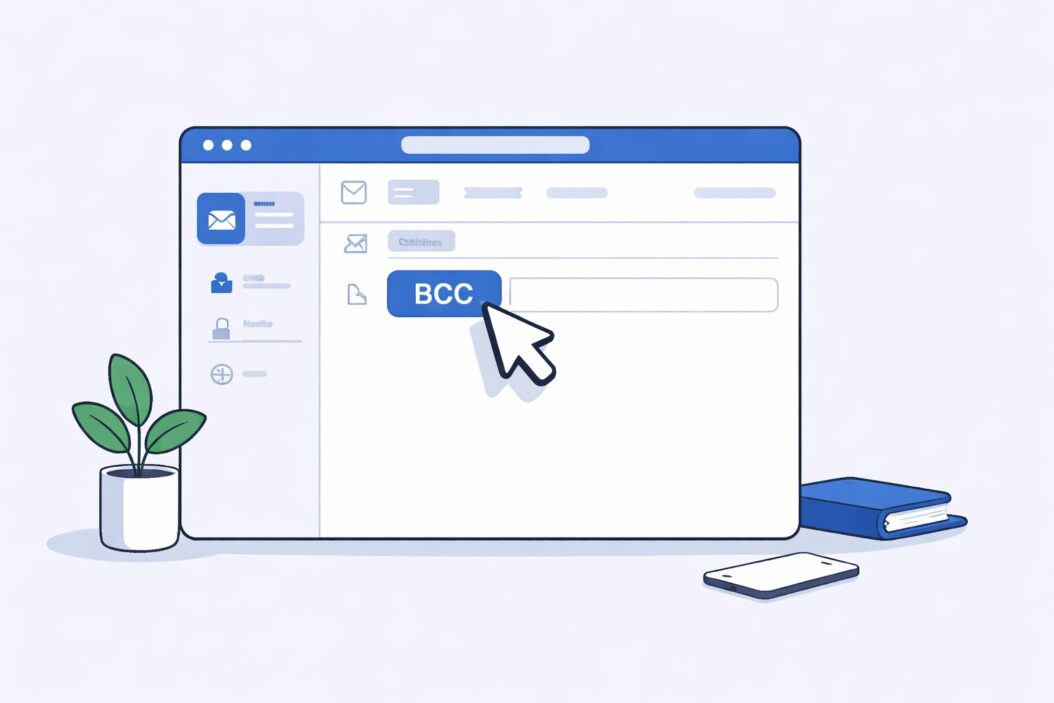
Step 1: Open a New Email
Click New Email in the top left corner. A blank message window opens.
Step 2: Show the BCC Field
The BCC field doesn’t always appear by default. Here’s how to display it:
- Look for the To button in your new message
- Click Options in the ribbon menu at the top
- Find the Show Fields group
- Click BCC
The BCC field now appears below the CC field.
Alternative method: Click the Cc text next to the To field. This opens both CC and BCC fields at once.
Step 3: Add Recipients to BCC
Click inside the BCC field and type an email address. Press Enter or add a semicolon to add multiple addresses.
You can also click the BCC button to open your contacts. Select recipients from your address book and click BCC at the bottom before clicking OK.
Step 4: Send Your Email
Write your message normally. Add a subject line. The BCC recipients receive the email without appearing in the header.
How to Add BCC in Outlook Web (Outlook.com)
The web version of Outlook works slightly differently.
Access BCC in a Browser
- Go to outlook.com and sign in
- Click New message in the top left
- Look at the To field in your new message
- Click the Cc text on the right side of the To field
- Both CC and BCC fields appear
Type email addresses directly into the BCC field. Separate multiple addresses with semicolons.
Mobile Browser Differences
On phones, the interface condenses. After clicking New message:
- Tap the To field
- Look for three dots or a menu icon
- Select Show BCC or Add BCC
- The field expands below the subject line
How to Add BCC in Outlook Mobile App
The Outlook mobile app works on both iPhone and Android.
iPhone Instructions
- Open the Outlook app
- Tap the compose icon (looks like a pen or new message)
- Tap the To field
- You’ll see Cc/Bcc appear below
- Tap Cc/Bcc to expand both fields
- Enter addresses in the BCC field
Android Instructions
The process mirrors iPhone:
- Tap the new message icon
- Tap in the To field
- Cc and Bcc fields appear automatically
- Tap the BCC field to add addresses
Both versions hide the BCC field until you need it. This keeps the interface clean.
How to Always Show BCC Field in Outlook
If you use BCC frequently, showing it permanently saves time.
Make BCC Permanent in Desktop Outlook
- Click File in the top menu
- Select Options from the left sidebar
- Click Mail in the Options window
- Scroll to the Send messages section
- Check the box for Always show BCC
- Click OK
Every new email now displays the BCC field automatically.
Web Version Default Settings
Outlook.com doesn’t offer a permanent BCC setting. You must click to show it each time. This is a limitation of the web interface that Microsoft hasn’t changed as of 2026.
Common BCC Mistakes to Avoid
Using BCC incorrectly creates problems. Watch out for these issues.
Mistake 1: Putting Everyone in BCC
Some people put all recipients in BCC and none in To. This makes emails look suspicious. Spam filters may block them.
Better approach: Put your own email in the To field, or use a generic address like team@yourcompany.com. Then add everyone else to BCC.
Mistake 2: Replying to BCC Emails
When someone receives a BCC email and hits Reply All, their response doesn’t go to other BCC recipients. It only goes to addresses in To and CC.
This confuses people who expect everyone to see responses. BCC works for one-way announcements, not conversations.
Mistake 3: Using BCC to Hide Communication
Some people use BCC to secretly copy their boss or others. This damages trust when discovered. Use BCC for privacy, not deception.
Mistake 4: Forgetting You Used BCC
You might follow up asking “did everyone get this?” forgetting that recipients can’t see who else received it. Keep track of when you use BCC.
When to Use BCC vs CC vs To
Each field serves a different purpose.
| Field | Use When | Recipients See |
|---|---|---|
| To | Primary recipients who need to act | Everyone’s addresses |
| CC | People who should know but don’t need to act | Everyone’s addresses |
| BCC | Large groups, privacy needed, or newsletters | Only their own address |
Use To for: Direct questions, tasks requiring action, primary audience.
Use CC for: Keeping managers informed, including teammates for transparency, documenting who knows about something.
Use BCC for: Mass announcements, newsletter sends, introducing people who don’t know each other, complying with privacy requirements.
BCC for Business Newsletters and Announcements
Many businesses use BCC wrong when sending newsletters. Here’s the right way.
Newsletter Best Practices
Don’t use regular Outlook for newsletters: Once you have more than 50 recipients, use proper email marketing tools like Mailchimp or Constant Contact. These handle unsubscribes legally and track results.
For small announcements under 50 people: BCC works fine. Put your business email in To, everyone else in BCC.
Subject lines matter: Make them clear. “March Newsletter” works better than “You won’t believe this.”
Unsubscribe option: Even in BCC emails, tell people how to opt out. Add a line like “Reply with UNSUBSCRIBE to stop receiving these emails.”
Legal Requirements
According to the CAN-SPAM Act guidelines, commercial emails must include your physical address and an unsubscribe method. BCC doesn’t exempt you from these rules.
Troubleshooting BCC Problems
Sometimes BCC doesn’t work as expected. Here are solutions.
BCC Field Won’t Show
Problem: You click Options but don’t see BCC anywhere.
Solution: Your Outlook version might be too old. Update to the latest version. Go to File > Office Account > Update Options > Update Now.
BCC Recipients Not Receiving Emails
Problem: People in BCC say they never got your message.
Possible causes:
- Their spam filter blocked it
- You typed their address wrong
- Your email server has a recipient limit
Fix: Check sent items to verify the BCC addresses were correct. Ask recipients to check spam folders. If you sent to more than 100 people, break the list into smaller groups.
Reply All Doesn’t Include BCC
Problem: Someone hit Reply All and BCC recipients didn’t get it.
Explanation: This is normal BCC behavior, not a bug. BCC recipients are invisible to everyone, including to each other. Replies can’t go to addresses the replier can’t see.
Solution: If everyone needs to stay in the conversation, use CC instead.
BCC in Different Outlook Versions
Microsoft changes Outlook frequently. Here’s what works in 2026.
Outlook 2021 and Microsoft 365
Both versions work identically. The BCC button lives in the Options tab of new messages. The permanent BCC setting is in File > Options > Mail.
Outlook 2019 and Earlier
Older versions put BCC in the same place. If you’re on Outlook 2016 or 2013, the steps above still work. Microsoft keeps this feature consistent.
Outlook Express and Old Versions
Outlook Express ended in 2006. If you somehow still use it, upgrade immediately. It has major security holes. Modern Outlook works completely differently.
Advanced BCC Techniques
Once you master basics, these techniques help with complex scenarios.
Using BCC with Mail Merge
Mail merge sends personalized emails to many people. You can combine this with BCC concepts.
- Create a Word document with your contacts
- Use the Mailings tab to connect to Outlook
- Each person gets a personalized email
- They arrive individually, not as a group BCC
This works better than BCC for large professional mailings because each email looks personal.
BCC and Email Tracking
Email tracking tools show when recipients open messages. Many don’t work with BCC because they can’t identify which BCC recipient opened the email.
If you need to track opens, send individual emails instead of using BCC.
Automating BCC with Rules
Outlook rules can’t automatically add BCC recipients to outgoing mail. This is a security feature. You must manually add BCC addresses each time.
Third-party add-ins claim to automate this, but they pose security risks. Avoid them.
Privacy and Security Considerations
BCC involves privacy, which means you need to think about security.
Protecting Email Addresses
Email addresses are personal information. Many privacy laws treat them as sensitive data. When you collect emails for a mailing list:
- Get explicit permission
- Explain what you’ll send
- Provide easy unsubscribe
- Store addresses securely
Using BCC protects recipients from each other, but you still need their consent to email them.
BCC Is Not Encryption
BCC hides recipients from each other. It does not encrypt your message content. Anyone with access to email servers can still read it.
For truly sensitive information, use encryption tools. Outlook supports S/MIME and Office 365 Message Encryption for this purpose.
Corporate Policies
Many companies have policies about BCC use. Some ban it for internal emails to ensure transparency. Others require it for customer communications.
Check your organization’s email policy before using BCC at work.
Alternatives to BCC
Sometimes other tools work better than BCC.
Email Marketing Platforms
For newsletters and announcements to large groups, use dedicated platforms:
- Mailchimp
- Constant Contact
- SendGrid
- Mailgun
These handle unsubscribes automatically, track results, and look more professional.
Distribution Lists
Outlook supports distribution lists (also called contact groups). Create a list once, then email it like a single recipient. Everyone gets the email.
Distribution lists differ from BCC because recipients can see the list name, but not individual addresses.
Shared Mailboxes
For team communications, shared mailboxes work better than constant BCCing. Multiple people access the same inbox and can see all messages.
Summary
Adding BCC in Outlook takes three steps: open a new email, show the BCC field through Options or by clicking Cc, and type recipient addresses. The exact button locations vary between Outlook desktop, web, and mobile versions, but the concept stays the same.
Use BCC to protect recipient privacy, especially when emailing people who don’t know each other. Avoid using it to hide communication or for email conversations where people need to reply to everyone.
For regular Outlook desktop users, turn on “Always show BCC” in settings to save time. Web and mobile users must manually show it each time.
Remember that BCC works for one-way announcements, not back-and-forth conversations. When someone replies, their response won’t reach other BCC recipients.
For business newsletters with more than 50 people, professional email marketing tools work better than BCC. They handle legal requirements and provide better tracking.
Frequently Asked Questions
Can BCC recipients see each other?
No. BCC recipients cannot see other BCC recipients. They only see addresses in the To and CC fields. This is the entire purpose of BCC. Each BCC recipient thinks they’re the only one receiving the email, unless they’re also listed in To or CC.
What happens if a BCC recipient replies to all?
When a BCC recipient clicks Reply All, their response goes to everyone in To and CC, but not to other BCC recipients. The reply also goes back to the sender. Other BCC recipients won’t see this reply unless the sender was in To or CC.
Is there a limit to how many BCC recipients I can add?
Yes. Outlook limits vary by account type. Microsoft 365 accounts typically allow 500 recipients per message (combined To, CC, and BCC). Outlook.com free accounts often limit to 100 recipients. Your email server may have lower limits. If you hit the limit, break your list into multiple sends or use an email marketing platform.
Can I send an email with only BCC recipients?
Technically yes, but it’s bad practice. Spam filters often block emails with no To recipient. If you must do this, put your own email address in the To field, then add everyone else to BCC. This makes the email appear legitimate to spam filters.
Does BCC work the same in Gmail and Outlook?
The concept works identically. Both hide BCC recipients from each other. The interface differs slightly. Gmail shows BCC by default in some views, while Outlook requires clicking to reveal it. But the functionality is the same across all modern email clients.

- How to Delete Cookies from My Computer Windows 10/11 (2026) - April 5, 2026
- How to Add BCC in Outlook: Complete Step-by-Step Guide (2026) - April 5, 2026
- How to Check Samsung Warranty in 2026: Complete Step-by-Step Guide - April 3, 2026