
If you want to add new fonts from Microsoft Store on Windows, here is the short answer: open the Microsoft Store, search for a font, click Get, and it installs automatically. No restart needed. Your new font shows up in Word, Photoshop, Canva desktop, and any other app right away.
But there is more to know. This guide walks you through every method, explains what can go wrong, and helps you manage fonts like a pro.
Why Add Fonts Through the Microsoft Store
The Microsoft Store is the safest and most convenient way to install fonts on Windows 10 and Windows 11. Microsoft curates what goes in, so you are not downloading random files from sketchy websites.
Here is why it matters:
- No manual file handling
- Fonts are verified and clean
- Updates happen automatically
- Easy to remove later
- Works without admin rights in most cases
If you have ever installed a bad font file that broke an app or caused display glitches, you will appreciate this method.
What You Need Before You Start
Nothing complicated. Just make sure:
- You are running Windows 10 (version 1809 or later) or Windows 11
- You have a Microsoft account signed into the Store
- Your internet connection is working
- The Microsoft Store app is not blocked by your organization
That is it. No extra software needed.
Step-by-Step: Add New Fonts from Microsoft Store on Windows
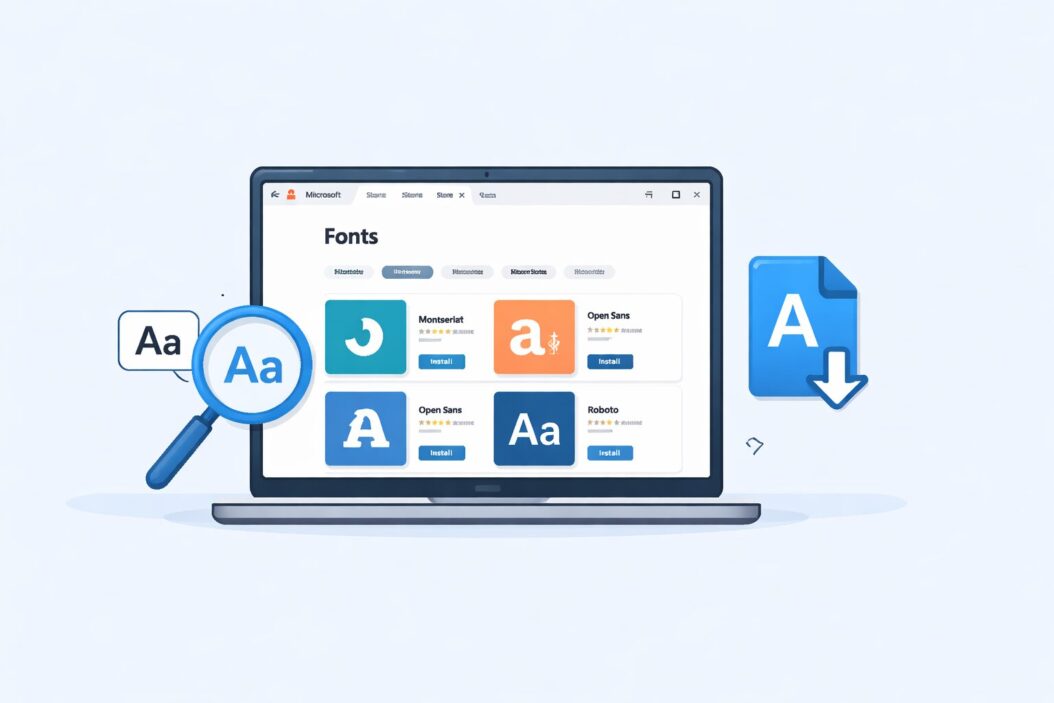
Step 1: Open the Microsoft Store
Press the Windows key, type Microsoft Store, and hit Enter. Or click the shopping bag icon in your taskbar.
Step 2: Search for Fonts
In the search bar at the top, type the font name you want. Try something like:
- Montserrat
- Roboto
- Open Sans
- Playfair Display
- Lato
You can also just type fonts in the search bar to browse what is available.
Step 3: Choose Your Font
Click on the font you want. You will see a detail page with a preview. Take a moment to read what styles are included. Some font packages include Regular, Bold, Italic, and Light. Others only include one style.
Step 4: Click Get or Install
Hit the Get button. If it says Install, click that. The download is usually small, under 5 MB for most fonts.
Step 5: Wait for Installation
The progress bar moves fast. Once it finishes, the font is ready to use. No reboot. No confirmation pop-up. It is just there.
Step 6: Verify the Font Is Installed
Open Settings, go to Personalization, then click Fonts. Type the font name in the search box. If it shows up, you are good to go.
You can also open Microsoft Word or Notepad, click the font dropdown, and search for your new font there.
How to Find More Fonts in the Microsoft Store
The Store does not have thousands of fonts. But it has a solid selection of free and paid options. Here is how to explore better:
Browse the Font Category
In the Microsoft Store, use the search term font and filter results by Apps. Font packages show up as apps. Each one is a bundle of one or more typefaces.
Use Font Name Search
If you already know what you want, search the exact name. Google Fonts has a massive library and you can cross-reference names there before searching in the Store. Visit Google Fonts to browse thousands of free typefaces and find names worth searching in the Store.
Look for Font Bundles
Some listings include entire font families. For example, one listing might give you 10 weights of a single typeface. That is better value than installing one by one.
Installing Fonts the Other Way: Settings App
Windows also lets you install fonts directly through the Settings app, which connects to the Microsoft Store.
- Press Windows + I to open Settings
- Go to Personalization
- Click Fonts
- Scroll down to Get more fonts in Microsoft Store
- Click that link
This opens the Store’s font section directly. Same result, different path. Useful if the Store icon is missing from your taskbar.
How to Install Fonts Without the Microsoft Store
Sometimes the font you want is not in the Store. Here are two clean alternatives.
Method 1: Download and Install Manually
- Download the font file (.ttf or .otf) from a trusted source
- Right-click the file
- Click Install or Install for all users
“Install for all users” requires admin rights but makes the font available to every account on the machine.
For high-quality free fonts outside the Store, Font Squirrel is one of the most trusted sources. All fonts there are free for commercial use.
Method 2: Drag and Drop into the Fonts Folder
- Press Windows + R
- Type C:\Windows\Fonts and press Enter
- Drag your font file into that folder
Windows installs it automatically.
Font File Types Explained
Not all font files work the same way. Here is a quick breakdown:
| File Type | Full Name | Best For |
|---|---|---|
| .ttf | TrueType Font | General use, widest compatibility |
| .otf | OpenType Font | More features, great for design work |
| .woff | Web Open Font Format | Web use only, not for desktop apps |
| .fon | Raster Font | Old system fonts, mostly obsolete |
For desktop use on Windows, .ttf and .otf are the ones you want.
Managing Fonts After Installation
Installing fonts is easy. Managing them well saves headaches later.
View All Installed Fonts
Go to Settings, then Personalization, then Fonts. You will see everything installed on your system, with previews.
Uninstall a Font
Click any font in the Settings Fonts page. Then click Uninstall. It removes all styles in that family at once. Fonts installed through the Microsoft Store can also be managed through the Store’s library.
Preview a Font Before Using It
The Settings Fonts page lets you type custom text and see it rendered in any installed font. This saves you from testing fonts inside Word or design tools.
Hide Fonts You Never Use
Windows does not have a built-in hide feature, but you can use free font managers like NexusFont or FontBase to organize and activate only what you need. Too many fonts installed at once can slow down some older apps.
Common Problems and Fixes
Font Does Not Appear After Installing
Close and reopen the app. Most apps load font lists at startup. If the font still does not show after reopening, restart your PC.
Microsoft Store Shows an Error During Font Install
Try these steps:
- Sign out of the Store and sign back in
- Run the Windows Store troubleshooter (Settings, System, Troubleshoot, Other Troubleshooters)
- Reset the Store cache by pressing Windows + R, typing wsreset.exe, and hitting Enter
Font Looks Blurry or Pixelated
This usually means font smoothing is off. Go to Control Panel, search for Adjust ClearType text, and run the ClearType wizard. Follow the steps and pick the sharpest option.
Cannot Install Fonts Without Admin Rights
If your Windows account does not have admin privileges, you can still install fonts for your user only. Right-click the font file and choose Install (not “Install for all users”). This puts the font in your user profile instead of the system folder.
Fonts and App Compatibility
Not every app picks up newly installed fonts the same way.
| Application | Needs Restart After Font Install? |
|---|---|
| Microsoft Word | Usually no, but sometimes yes |
| Adobe Photoshop | Yes, restart required |
| Adobe Illustrator | Yes, restart required |
| Canva Desktop | Usually no |
| Notepad | No |
| LibreOffice | Sometimes |
If a font is not showing up in a specific app, restart that app first before troubleshooting further.
Best Free Fonts Available in the Microsoft Store (2026)
Here are some popular ones worth trying:
- Cascadia Code – A monospace font made by Microsoft, great for coding
- Segoe UI Variable – The default Windows 11 font, useful for UI design
- Noto Sans – Covers many languages, excellent for multilingual documents
- Bahnschrift – A clean sans-serif with multiple weights built into Windows
- Ink Free – A handwriting-style font, good for casual designs
Search each of these by name in the Store.
Tips for Choosing the Right Font
Picking fonts feels overwhelming when you are staring at hundreds of options. These simple rules help:
- Use serif fonts (like Times New Roman) for long-form reading
- Use sans-serif fonts (like Arial or Roboto) for screens and short text
- Limit yourself to two fonts in one document: one for headings, one for body
- Match font mood to your content: formal, playful, technical, elegant
- Test readability at small sizes before committing
Conclusion
Adding new fonts from the Microsoft Store on Windows is one of the easiest things you can do to improve how your documents, designs, and projects look. The process takes under two minutes. Open the Store, search, click Get, done.
For fonts not in the Store, download from trusted sources like Font Squirrel and install with a right-click. Manage your font library through Settings so things stay organized.
Frequently Asked Questions
Are fonts from the Microsoft Store free?
Most of them are free. Some premium font packs have a one-time price. The listing page always shows the cost before you download anything. There are no subscriptions for individual fonts in the Store.
Do I need admin rights to install fonts from the Microsoft Store?
In most cases, no. The Store installs fonts at the user level. However, if you are on a managed work computer, your IT policy might block Store installs. In that case, ask your IT team or install manually for your user account only.
Will my fonts stay after a Windows update?
Yes. Fonts installed through the Store or manually in the Fonts folder survive Windows updates. You should not lose them unless you do a clean install of Windows or reset your PC.
Why can I not find a specific font in the Microsoft Store?
The Store has a limited selection compared to what exists online. Not every font is listed there. If you cannot find it, check Google Fonts or Font Squirrel and install it manually. The right-click install method works just as well.
How many fonts can I install on Windows?
There is no hard limit, but installing too many fonts can slow down apps that load font lists at startup. Keeping your active fonts under 500 is a reasonable guideline for most users. Use a font manager to hide fonts you rarely need.
