
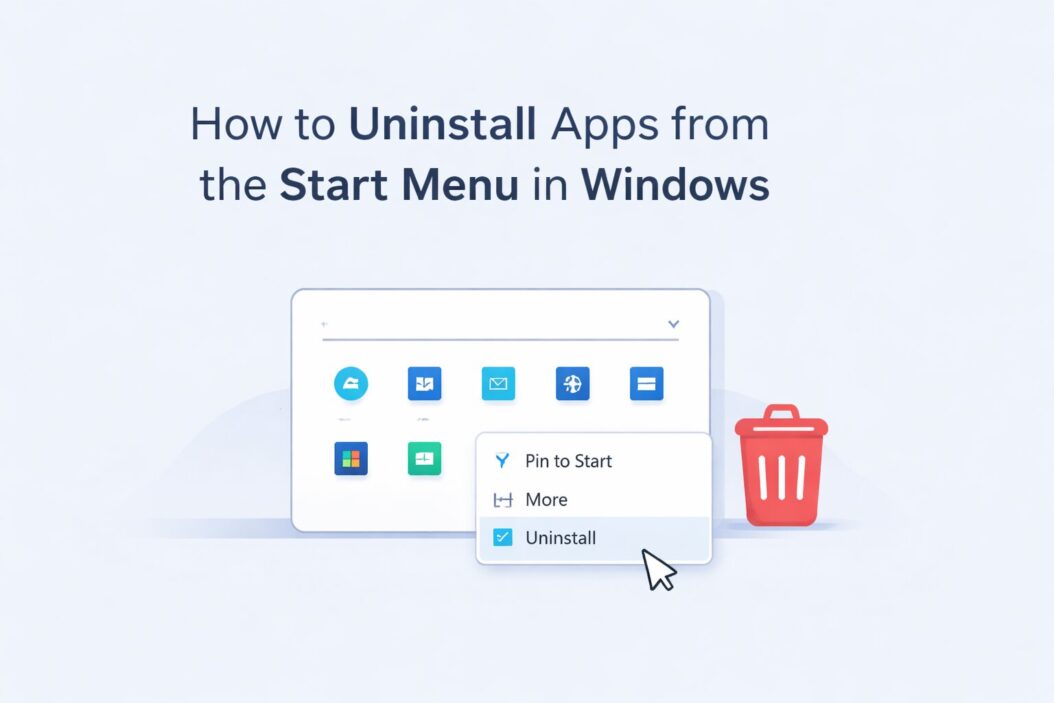
You can uninstall apps directly from the Start Menu in Windows by right-clicking any app and selecting Uninstall. That is the fastest way. No settings, no control panel, just two clicks.
This guide covers everything around that simple action, including what works, what does not, why some apps behave differently, and how to fully clean up after removal.
Why Uninstall from the Start Menu?
Most people open Settings or Control Panel to remove software. But the Start Menu method is faster and works for most apps installed on Windows 10 and Windows 11.
It saves time. It requires no navigation. And it works for both Microsoft Store apps and many traditional desktop programs.
How to Uninstall Apps from the Start Menu in Windows
Here is the step-by-step process:
On Windows 11:
- Click the Start button (Windows icon on the taskbar)
- Browse the pinned apps or click All apps at the top right
- Find the app you want to remove
- Right-click on the app
- Select Uninstall from the context menu
- Confirm if prompted
On Windows 10:
- Click the Start button
- Scroll through the app list on the left side
- Right-click the app you want to remove
- Click Uninstall
- Follow any on-screen instructions
That is it. For Microsoft Store apps, they uninstall immediately. For traditional desktop programs, Windows opens the Programs and Features panel or the app’s own uninstaller.
What Happens After You Click Uninstall
The behavior depends on the type of app:
| App Type | What Happens After Clicking Uninstall |
|---|---|
| Microsoft Store App | Removed silently and immediately |
| Desktop Program (Win32) | Opens Control Panel or custom uninstaller |
| Built-in Windows App | May show Uninstall or it may be greyed out |
| System App | Uninstall option is missing entirely |
Why Some Apps Do Not Show an Uninstall Option
This is a common frustration. You right-click an app and Uninstall is missing or greyed out. Here is why:
Built-in system apps like Microsoft Edge, Cortana, or the Windows Security app are protected by Microsoft. They are tied to the operating system. Windows does not allow easy removal through the UI.
Apps pinned from shortcuts sometimes do not show the right-click Uninstall option because the shortcut itself has no uninstall metadata attached.
Corrupted app entries sometimes appear in the Start Menu but the actual program is already gone. The entry is just a ghost.
How to Uninstall Apps That Are Greyed Out or Stuck
If the normal right-click method does not work, here are your options:
Option 1: Use Windows Settings
- Press Windows + I to open Settings
- Go to Apps then Installed apps (Windows 11) or Apps and features (Windows 10)
- Find the app in the list
- Click the three-dot menu next to it
- Select Uninstall
Option 2: Use Control Panel
- Press Windows + R, type
appwiz.cpl, press Enter - Find the program in the list
- Click on it, then click Uninstall at the top
Option 3: Use PowerShell for Store Apps
For stubborn Microsoft Store apps, PowerShell gives you more control.
- Right-click the Start button
- Select Windows Terminal (Admin) or PowerShell (Admin)
- Type this command to see all installed Store apps:
Get-AppxPackage | Select Name, PackageFullName
- To remove a specific app, type:
Get-AppxPackage -Name "AppNameHere" | Remove-AppxPackage
Replace AppNameHere with the exact name from the list.
This works for apps that the Settings menu refuses to remove.
How to Uninstall Multiple Apps Quickly
If you want to remove several apps at once, the Start Menu method requires doing them one by one. That gets slow.
Better approach for bulk removal:
Use a free tool like Bulk Crap Uninstaller (BCUninstaller), which is open source and widely trusted. It lets you select multiple programs and remove them in one go. It also cleans up leftover registry entries and files that standard uninstallers miss.
For Store apps, PowerShell lets you run removal commands in sequence, which is faster than clicking through the UI repeatedly.
Cleaning Up After Uninstalling
Uninstalling an app does not always remove everything. Programs often leave behind:
- Registry entries
- Temporary files in AppData folders
- Leftover folders in Program Files
- Scheduled tasks
- Startup entries
To clean up properly:
- After uninstalling, press Windows + R and type
%appdata% - Look for any folder named after the app you removed
- Delete it if it exists
- Do the same for
%localappdata%and%programdata%
For registry cleanup, use built-in tools carefully or a trusted cleaner. The registry is sensitive. Deleting the wrong key causes real problems. When in doubt, skip the registry cleanup unless you know what you are doing.
Uninstalling Built-in Windows Apps
Windows ships with apps you may never use: Xbox Game Bar, Maps, 3D Viewer, Mixed Reality Portal, and others. Microsoft does not make these easy to remove through the Start Menu.
You have two realistic options:
Option 1: Settings Method
Some built-in apps can be removed through Settings even if the right-click menu does not offer it.
- Open Settings
- Go to Apps then Installed apps
- Search for the app
- If the Uninstall button is active (not greyed out), click it
Option 2: PowerShell Removal
For apps where Uninstall is greyed out everywhere, PowerShell is your main option.
Here are a few examples:
Remove Xbox Game Bar:
Get-AppxPackage *xboxapp* | Remove-AppxPackage
Remove 3D Viewer:
Get-AppxPackage *3dviewer* | Remove-AppxPackage
Remove Maps:
Get-AppxPackage *windowsmaps* | Remove-AppxPackage
Run these in PowerShell as Administrator. Some apps will resist even this method if they are deeply tied to Windows core functions.
Important note: Removing built-in apps with PowerShell can sometimes cause issues with Windows updates. A future update may reinstall them. This is expected behavior with Windows 10 and 11.
How to Stop Apps from Coming Back After Uninstall
Windows updates sometimes reinstall apps you removed. This is especially common with bloatware that came pre-installed.
To prevent reinstallation:
- Open Group Policy Editor by pressing Windows + R and typing
gpedit.msc(not available on Windows Home) - Navigate to: Computer Configuration, Administrative Templates, Windows Components, Cloud Content
- Enable Turn off Microsoft consumer experiences
This setting stops Windows from suggesting and silently reinstalling apps.
On Windows Home, this policy editor is not available. The PowerShell removal is your best option, though it does not guarantee prevention after major updates.
Removing Shortcuts vs. Uninstalling Apps
There is a difference between removing an app from the Start Menu and actually uninstalling it.
| Action | What It Does |
|---|---|
| Unpin from Start | Removes the tile or pin, app stays installed |
| Remove from Start Menu | Removes the shortcut, app stays installed |
| Uninstall | Removes the program from your system |
If you only want to clean up your Start Menu without removing software, right-click the app and choose Unpin from Start. The app remains installed and usable, it just does not appear in the pinned section anymore.
Start Menu Uninstall Not Working: Troubleshooting
If clicking Uninstall does nothing or throws an error, try these steps:
Step 1: Restart your computer and try again. Some uninstallers fail if system processes are busy.
Step 2: Run the uninstall as Administrator. Hold Shift, right-click the desktop, open Terminal as Admin, and run the uninstall command manually.
Step 3: Use the Windows Troubleshooter. Search for Add or remove programs troubleshooter in Settings. Microsoft offers this for apps that fail to uninstall cleanly.
Step 4: Boot into Safe Mode. Some apps resist uninstallation because background services are running. Safe Mode stops those services.
- Hold Shift while clicking Restart
- Go to Troubleshoot, Advanced options, Startup Settings
- Press F4 for Safe Mode
- Try uninstalling from Settings or Control Panel in Safe Mode
Summary
Uninstalling apps from the Start Menu in Windows is genuinely easy for most apps. Right-click, Uninstall, done.
The complications come with built-in apps, system-tied software, or programs that leave behind registry junk. For those, you need Settings, PowerShell, or a third-party tool like Revo Uninstaller or Bulk Crap Uninstaller.
Here is a quick recap of what matters:
- Right-click any app in the Start Menu and click Uninstall for the fastest removal
- Store apps disappear immediately; desktop programs open their own uninstallers
- Missing Uninstall option means the app is protected or system-level
- PowerShell handles most stubborn cases
- Always check for leftover files in AppData after uninstalling
- Use Revo Uninstaller or BCUninstaller for complete, clean removal
Frequently Asked Questions
Does uninstalling from the Start Menu fully remove the app?
For Microsoft Store apps, yes. The removal is complete. For traditional desktop programs, it depends on the uninstaller the developer built. Some leave behind files and registry entries. Using a tool like Revo Uninstaller after the standard removal catches what gets left behind.
Why is Uninstall greyed out for some apps in Windows 11?
Greyed out means Windows considers that app part of its core system. Microsoft Edge, Windows Security, and certain other apps fall into this category. You can try PowerShell for some of them, but a few are genuinely locked and cannot be removed without advanced workarounds that risk system stability.
Can I reinstall an app I removed from the Start Menu?
Yes. Apps removed from the Microsoft Store can be reinstalled from the Store any time. Desktop programs need their installer file or setup download from the developer’s website. Windows built-in apps can often be reinstalled through PowerShell using the Add-AppxPackage command.
Will uninstalling an app delete my saved data?
Not always. Many apps store user data separately in folders like Documents or AppData. Uninstalling removes the program files but may leave that personal data behind. Check the app’s folder in AppData after removal if you want to delete everything completely.
What is the difference between unpin from Start and Uninstall?
Unpinning removes the app’s shortcut from your pinned tiles or Start Menu list. The program stays fully installed on your computer. Uninstalling actually removes the software from your system. If you just want a cleaner Start Menu without losing the app, unpin it. If you want it gone completely, uninstall it.
