
If you are left-handed, recovering from a wrist injury, or just prefer a different setup, changing the primary mouse button in Windows is one of the quickest comfort fixes you can make. This guide shows you exactly how to do it, on every version of Windows that matters today, plus what to expect after the change.
What “Primary Mouse Button” Actually Means
By default, your left mouse button is the primary button. It selects, clicks, opens, and drags. The right button opens context menus.
When you switch the primary mouse button, those roles reverse. Your right button becomes the one that selects and clicks. Your left button opens context menus. Windows handles this swap at the system level, so it works across every app.
How to Change the Primary Mouse Button in Windows 11
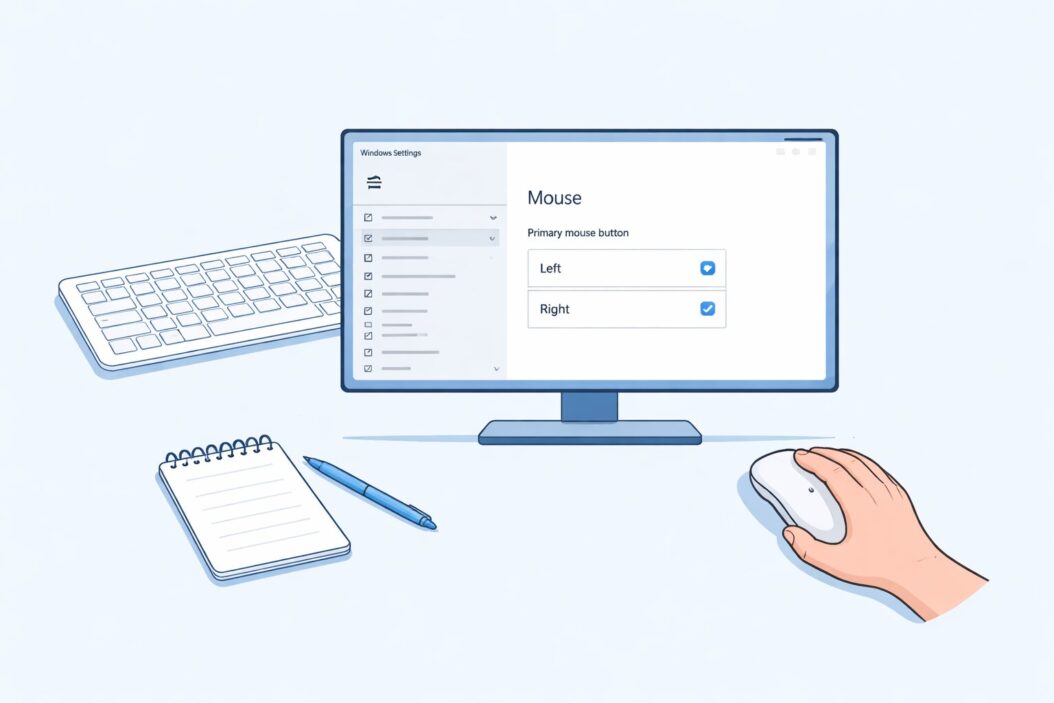
This is the fastest method for Windows 11 users.
Using Settings:
- Press Windows + I to open Settings.
- Go to Bluetooth and devices.
- Click Mouse.
- Find the option labeled Primary mouse button.
- Click the dropdown and select Right.
That is it. The change takes effect immediately. No restart needed.
Using the Quick Search:
- Press Windows key and type Mouse settings.
- Open the result.
- Change the Primary mouse button dropdown to Right.
How to Change the Primary Mouse Button in Windows 10
The steps are slightly different but just as simple.
Method 1: Through Settings
- Click the Start button.
- Open Settings (gear icon).
- Go to Devices.
- Click Mouse in the left panel.
- Under Select your primary button, choose Right from the dropdown.
Method 2: Through Control Panel
- Press Windows + R, type
control panel, and hit Enter. - Go to Hardware and Sound.
- Click Mouse.
- In the Mouse Properties window, check the box that says Switch primary and secondary buttons.
- Click Apply, then OK.
The Control Panel method works on Windows 7, 8, and 10. It is the classic approach and still fully functional.
How to Change It Using a Keyboard Shortcut or Command Line
Some users prefer not to navigate menus. Here is a command-line way to do it.
Using PowerShell or Command Prompt:
Open PowerShell as administrator and run:
$signature = @"
[DllImport("user32.dll")]
public static extern bool SwapMouseButton(bool fSwap);
"@
$type = Add-Type -MemberDefinition $signature -Name "User32" -Namespace "Win32" -PassThru
$type::SwapMouseButton($true)
Set $true to swap buttons. Use $false to switch back to default.
This is useful for IT administrators pushing settings across multiple machines.
Switching Back to Default
To restore the left button as primary, follow the same steps and choose Left from the dropdown, or uncheck the box in Mouse Properties.
If you ran the PowerShell command, run it again with $false.
What Changes and What Does Not
| Feature | Before Swap | After Swap |
|---|---|---|
| Single click (select) | Left button | Right button |
| Context menu | Right button | Left button |
| Drag and drop | Left button hold | Right button hold |
| Double-click to open | Left button | Right button |
| Text selection | Left button | Right button |
| Mouse pointer icon | Unchanged | Unchanged |
| App-specific shortcuts | May vary | May vary |
One important note: some games and apps handle mouse input independently. If a game detects raw input from your mouse hardware, the swap may not apply inside that game. Check the game’s own settings if this happens.
Tips for Left-Handed Mouse Users
Switching the primary button is step one. Here are a few more things worth knowing:
- Physical mouse shape matters. A symmetrical mouse works equally well in both hands. Ergonomic right-handed mice can be uncomfortable for left-hand use even after the button swap.
- Consider a left-handed mouse. Brands like Logitech and Razer make mice designed for left-hand use. The button positions and shape are mirrored. See Logitech’s accessibility mouse lineup for options.
- Scroll wheel direction can also be adjusted. Windows 11 lets you customize scroll direction separately in Mouse Settings.
- Pointer speed is independent. Your pointer speed setting stays the same after the button swap.
Accessibility Use Cases
Changing the primary mouse button is not only for left-handed users. Common reasons include:
- Repetitive strain injury (RSI). Using the right button as primary allows the hand to rest in a different position, reducing strain on the index finger.
- Post-surgery recovery. If your dominant hand is healing, swapping buttons lets you use your other hand more naturally.
- Shared computers. Multiple users with different preferences can each adjust settings when they log in, since Windows applies this setting per user account.
- Motor disabilities. Some users with limited finger mobility find the button layout easier to work with after swapping.
Per-User Setting: What This Means on Shared PCs
Windows saves mouse button settings per user account. If you share a computer with someone:
- Your swap setting only applies when you are logged in.
- Other users see their own settings when they log into their accounts.
- The setting does not carry over to other users.
This means you do not need to worry about disrupting anyone else’s setup.
Common Problems and Fixes
The setting reverts after restart. This is rare but can happen if a third-party mouse driver overrides Windows settings. Open your mouse manufacturer’s software (Logitech Options, Razer Synapse, etc.) and check if there is a button configuration panel there too. Set it in both places.
The swap does not work inside a specific app. Some applications, especially games, use raw hardware input. They may ignore the Windows-level swap. Go into that app’s own settings and look for mouse button remapping options.
I cannot find Mouse Settings on Windows 11. Make sure Windows is updated. Press Windows + I, use the search bar inside Settings, and type “mouse.” The option should appear immediately.
The context menu now opens on every single click. This is expected after the swap. Your right button (which is now primary) opens what used to be on the left, and the left button opens the context menu. You will adjust within a day or two.
All Methods at a Glance
| Method | Works On | Speed | Best For |
|---|---|---|---|
| Settings > Mouse (Win 11) | Windows 11 | Fastest | Most users |
| Settings > Devices > Mouse (Win 10) | Windows 10 | Fast | Most users |
| Control Panel > Mouse Properties | Win 7, 8, 10 | Moderate | Classic users |
| PowerShell command | All versions | Requires admin | IT/advanced users |
| Mouse manufacturer software | Varies | Varies | Gaming mice, special hardware |
Conclusion
Changing the primary mouse button in Windows takes under a minute. Go to Settings, find Mouse, and flip the dropdown. That is the core answer.
Whether you are left-handed, dealing with an injury, or just curious about the setting, Windows handles the switch cleanly at the system level. The change is instant, reversible, and applies only to your user account. If you run into issues with specific apps or games not respecting the change, check that app’s own mouse settings.
Frequently Asked Questions
Does changing the primary mouse button affect all users on the same PC?
No. Windows saves this setting per user account. When you switch buttons, it only applies when you are logged in under your account. Other users on the same computer keep their own settings untouched.
Will this setting reset after a Windows update?
Generally no. Windows updates do not reset mouse button preferences. However, if you reinstall Windows or create a new user account, you will need to set it again. It is worth noting if your mouse software updates automatically, check its settings too.
Does swapping mouse buttons work with a wireless or Bluetooth mouse?
Yes. The swap happens at the Windows software level, not the hardware level. It works with any mouse connected to your PC, whether wired, wireless, USB dongle, or Bluetooth.
Can I set different primary buttons for different mouse devices?
Windows applies the setting globally to whichever mouse is connected. There is no built-in way to assign different settings per mouse. However, some advanced third-party tools like AutoHotkey allow you to create device-specific scripts if you need that level of control.
I switched back but my mouse still feels off. Is something wrong?
After switching back to the default (left as primary), the change is immediate. If things still feel wrong, check your mouse manufacturer’s software. Programs like Logitech Options or Razer Synapse can override Windows settings and may still have a custom button mapping active.

- How to Uninstall Apps from the Start Menu in Windows 11/10 (2026 Guide) - April 2, 2026
- How to Fix Overscan on Windows 11/10: Stop Your Screen Getting Cut Off (2026) - April 1, 2026
- How to Disable Lock Screen on Windows 11/10 in 2026 - April 1, 2026