
Your laptop’s serial number is a unique identifier assigned by the manufacturer. No two laptops share the same serial number. You need it for warranty claims, tech support, insurance, theft reporting, and driver downloads.
Here is how to find it fast, no matter what laptop you have.
Why You Need Your Laptop Serial Number
Before diving into methods, let us be clear about what this number actually does for you.
You will need it when:
- Calling manufacturer support
- Checking warranty status online
- Registering your device
- Reporting theft to police or insurance
- Downloading the correct BIOS or drivers
- Selling your laptop and proving authenticity
The serial number is different from your model number. The model number identifies the product line. The serial number identifies your specific unit.
How to Check Serial Number for Laptop: Quickest Methods First
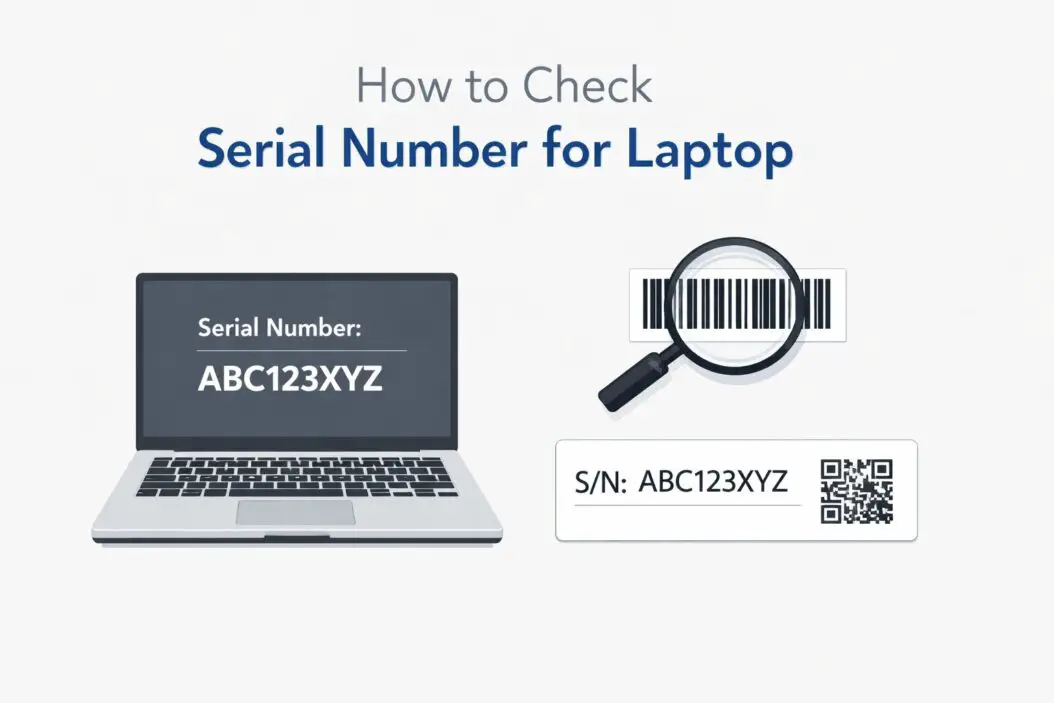
Method 1: Check the Physical Label on the Laptop
Turn your laptop over. Look at the bottom panel. You will see a sticker with multiple numbers. The serial number is usually labeled “S/N” or “Serial No.”
On some laptops it is printed directly on the chassis without a sticker. Look near the battery compartment or around the edges.
Where to look by brand:
| Brand | Location |
|---|---|
| Dell | Bottom panel sticker or near hinge |
| HP | Bottom panel or inside battery bay |
| Lenovo | Bottom panel, sometimes under battery |
| Apple MacBook | Bottom panel near the feet |
| Asus | Bottom panel sticker |
| Acer | Bottom panel or battery bay |
| Samsung | Bottom panel sticker |
| MSI | Bottom panel near vents |
If the sticker is worn out or the ink has faded, do not worry. All the software methods below will still work.
Method 2: Use Command Prompt on Windows (Fastest Software Method)
This works on Windows 7, 8, 10, and 11.
Steps:
- Press Windows + R on your keyboard
- Type cmd and press Enter
- In the black window that opens, type this command exactly:
wmic bios get serialnumber
- Press Enter
- Your serial number appears on the next line
This reads the serial number directly from the BIOS chip. It is the most reliable software method on Windows.
Alternative command using PowerShell:
- Right-click the Start button
- Select Windows PowerShell or Terminal
- Type:
Get-WmiObject -Class Win32_BIOS | Select-Object SerialNumber
- Press Enter
Both commands pull data from the same source so the result will be identical.
Method 3: Use System Information Tool on Windows
- Press Windows + R
- Type msinfo32 and press Enter
- The System Information window opens
- Look at the right panel for System Serial Number
This method does not require typing any commands. Good if you are not comfortable with Command Prompt.
Method 4: Check BIOS or UEFI Settings
This method works even if Windows is not installed or not booting properly.
- Restart your laptop
- During startup, press the BIOS key repeatedly (usually F2, F10, Del, or Esc depending on brand)
- Once inside BIOS, look for a System Information or Main tab
- The serial number is listed there
BIOS access keys by brand:
| Brand | BIOS Key |
|---|---|
| Dell | F2 or F12 |
| HP | F10 or Esc |
| Lenovo | F1 or F2 |
| Asus | F2 or Del |
| Acer | F2 or Del |
| MSI | Del |
| Apple | Not applicable (use Terminal) |
Method 5: Find Serial Number on Mac
Apple makes this straightforward.
Option 1: About This Mac
- Click the Apple menu in the top left
- Select About This Mac
- The serial number is listed directly in that window
Option 2: Terminal on Mac
- Open Spotlight with Command + Space
- Type Terminal and open it
- Type this command:
system_profiler SPHardwareDataType | grep Serial
- Press Enter
Option 3: Check the bottom of the MacBook
Apple prints the serial number in small text near the regulatory text on the bottom panel. You may need good lighting or a magnifying glass.
Method 6: Check the Original Box or Documentation
If you still have the original packaging, the serial number is on a barcode sticker on the outside of the box. It is also printed in the invoice or receipt you received when purchasing.
This is the only method that works if your laptop is completely dead and you cannot access it.
Method 7: Check Through Manufacturer Account
If you registered your laptop when you bought it, the serial number is saved in your account.
- Dell: Sign in at dell.com and check My Products
- HP: Sign in at hp.com and check your registered devices
- Lenovo: Sign in at lenovo.com and check your product list
- Apple: Sign in at appleid.apple.com and check your devices
This is useful if the physical sticker is gone and the laptop will not turn on.
Method 8: Check in Windows Settings
- Open Settings (Windows + I)
- Go to System
- Click About
- Scroll down to Device specifications
Note: Some manufacturers display the serial number here, but others only show the model number. It depends on how the manufacturer configured it. If you do not see a serial number there, use the Command Prompt method instead.
How to Find Serial Number on Linux Laptop
Linux users have a clean command for this.
Open the terminal and type:
sudo dmidecode -t system | grep Serial
Press Enter. Enter your password if asked. The serial number will display immediately.
This works on Ubuntu, Fedora, Debian, and most other distributions.
What If the Serial Number Shows “To Be Filled By O.E.M.”?
Sometimes when you run the WMIC command, you see this message instead of a real serial number. This means the manufacturer did not program the serial number into the BIOS properly. It happens mostly on budget or white-label laptops.
What to do:
- Check the physical sticker on the bottom panel
- Check the original box
- Contact the store where you bought it
- If it is a custom-built machine, contact the chassis manufacturer directly
How to Read the Serial Number Format
Serial numbers look different across brands but follow patterns.
| Brand | Example Format | Length |
|---|---|---|
| Dell | 7XYZABC | 7 characters |
| HP | 5CD12345XY | 10 characters |
| Lenovo | PF-XXXXXXXX | 8 to 10 characters |
| Apple | C02XXXXXXXX | 11 to 12 characters |
| Asus | Alphanumeric mix | 12 to 15 characters |
Apple serial numbers are especially useful. The first three characters identify the manufacturing location, the next two the year and week of manufacture, and the final characters identify the specific configuration. You can decode Apple serial numbers on Apple’s official coverage check page.
How to Verify Warranty Using Serial Number
Once you have your serial number, checking warranty status takes under two minutes.
Dell: Go to dell.com/support, enter your serial number, and it shows remaining warranty and service options.
HP: Go to support.hp.com/check-warranty, enter the serial number, and the page shows warranty end date.
Lenovo: Go to pcsupport.lenovo.com, enter your serial number, and it returns full product details and warranty info.
Apple: Go to checkcoverage.apple.com, enter serial number, and Apple shows warranty status and AppleCare eligibility.
Asus: Go to asus.com/support/warranty-status-inquiry, enter serial number for full details.
Protecting Your Serial Number
Your serial number is sensitive. Treat it carefully.
Do:
- Write it down and store it somewhere safe offline
- Keep a photo of the bottom sticker
- Save it in a secure notes app with a password
Do not:
- Post it publicly on social media
- Share it in public forums unless reporting theft to authorities
- Give it to random third parties claiming to offer support
Someone with your serial number can make false warranty claims or access manufacturer support on your behalf.
Summary
Here is everything condensed into one place.
| Situation | Best Method |
|---|---|
| Windows laptop is working | WMIC command in Command Prompt |
| Mac is working | About This Mac or Terminal |
| Linux laptop | dmidecode command in terminal |
| Laptop is off or broken | Physical sticker on bottom |
| No sticker visible | BIOS settings |
| Laptop completely dead | Original box or manufacturer account |
| Need warranty info | Manufacturer’s website with serial number |
The WMIC command is the fastest for Windows. The physical sticker is the universal fallback. If both fail, the BIOS always has the answer as long as the laptop powers on.
Keep your serial number saved somewhere secure. You will need it at some point, and having it ready saves time when something goes wrong.
Frequently Asked Questions
Can I find the serial number without turning on the laptop?
Yes. Check the physical sticker on the bottom panel. If it is not there or unreadable, check the original box. If you registered the laptop online, log in to your manufacturer account and find it there.
Is the serial number the same as the model number?
No. The model number identifies the product line, for example HP Pavilion 15. The serial number identifies your specific unit. They are both printed on the bottom sticker but are different values.
What if my laptop serial number sticker is missing or damaged?
Use the WMIC command on Windows, the Terminal command on Mac, or check BIOS settings. Manufacturers embed the serial number in firmware, so software methods still work even without a physical sticker.
Can someone misuse my laptop serial number?
Yes, in limited ways. Someone could use it to make fake warranty claims or impersonate your device in manufacturer support calls. Do not share it publicly. When selling your laptop, only share it with the verified buyer directly.
Why does my serial number show “To Be Filled By O.E.M.” in Command Prompt?
This means the manufacturer did not write the serial number into BIOS firmware. It is common on budget laptops and generic builds. In this case, check the physical sticker on the bottom panel or the original packaging for the actual serial number.
