
You deleted a file and now you need it back. Or maybe you just want to empty the trash. Either way, you are looking for the Recycle Bin on your Windows computer and you cannot find it. This guide will show you exactly where it is, how to get it back if it disappeared, and how to use it properly.
The Short Answer
On Windows, the trash bin is called the Recycle Bin. It lives on your Desktop by default. Look at your desktop screen and find the icon that looks like a small wastebasket. That is it. Double-click it to open.
If you do not see it on your desktop, it may be hidden. That is one of the most common problems Windows users run into in 2026, and it is easy to fix.
What Is the Recycle Bin and Why Does It Exist
When you delete a file on Windows, it does not disappear immediately. Windows moves it to the Recycle Bin first. Think of it as a holding area. The file sits there until you decide to permanently delete it or restore it.
This gives you a second chance. If you deleted something by accident, you can open the Recycle Bin, find the file, and restore it to its original location.
Every drive on your computer has its own hidden Recycle Bin folder. Windows manages all of them and shows you one unified Recycle Bin icon on your desktop.
How to Find the Recycle Bin on Windows
Option 1: Check Your Desktop First
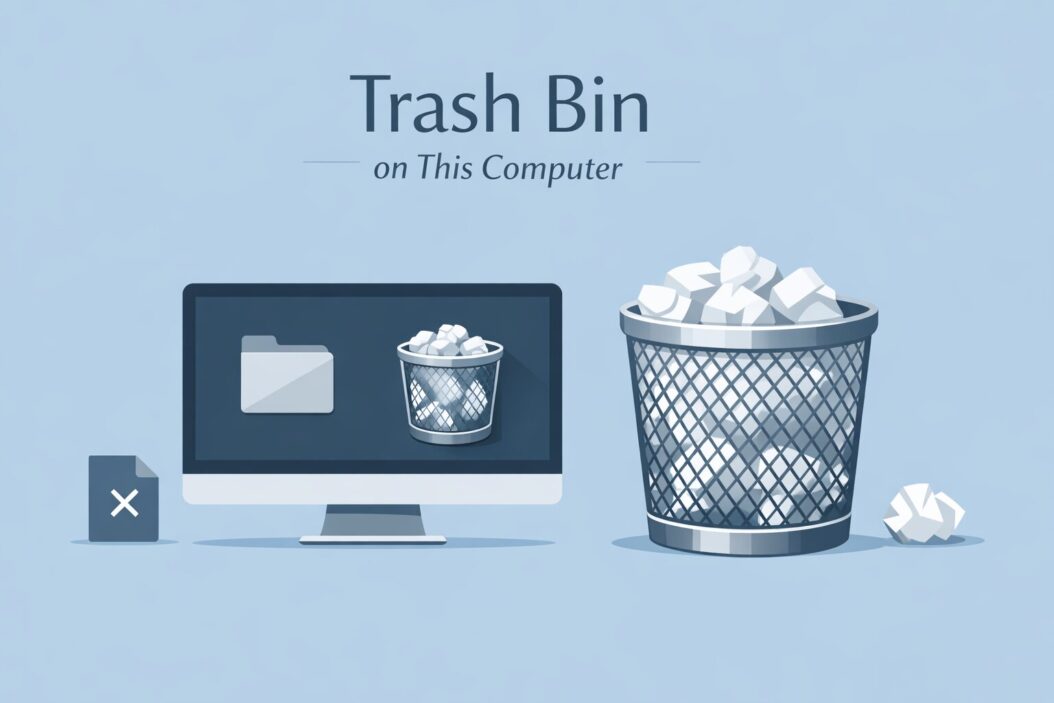
The Recycle Bin icon is pinned to the desktop by default in all versions of Windows including Windows 10 and Windows 11. It looks like a trash can or wastebasket.
If it is empty, the icon shows an empty bin. If it has files inside, the icon shows crumpled paper inside the bin.
Just double-click the icon and it opens like a folder. You will see all deleted files listed there.
Option 2: Search for It Using the Start Menu
If you cannot spot it on the desktop, use the search bar.
Click the search icon on your taskbar (the magnifying glass near the Start button). Type Recycle Bin and press Enter. It will appear in the results. Click it to open.
Option 3: Access It Through File Explorer
Open File Explorer by pressing Windows key + E. Look at the left sidebar. Scroll down and you should see Recycle Bin listed there near the bottom of the navigation panel.
Click it once and you will see all the deleted files inside.
Option 4: Type the Path Directly
Press Windows key + R to open the Run box. Type this exactly:
shell:RecycleBinFolder
Press Enter. The Recycle Bin opens immediately.
The Recycle Bin Icon Is Missing From Desktop
This happens a lot. Someone accidentally hides the icon, or a system update removes it from view. Here is how to bring it back.
Restore the Recycle Bin Icon on Windows 11
Right-click on an empty area of your desktop. Select Personalize. Click Themes on the left side. Scroll down and click Desktop icon settings. A small window opens. Check the box next to Recycle Bin. Click Apply and then OK.
The icon will appear on your desktop immediately.
Restore the Recycle Bin Icon on Windows 10
Right-click the desktop. Click Personalize. Click Themes on the left. On the right side, click Desktop icon settings. Check the Recycle Bin box. Click Apply and OK.
Done. The icon is back.
How to Use the Recycle Bin Properly
Restoring a Deleted File
Open the Recycle Bin. Find the file you want to restore. Right-click on it and select Restore. The file goes back to its original location automatically.
You can also select multiple files. Hold Ctrl and click each file you want to restore. Then right-click and choose Restore the selected items.
Emptying the Recycle Bin
When you are ready to permanently delete everything inside, right-click the Recycle Bin icon on your desktop. Select Empty Recycle Bin. Confirm when asked. All files inside are permanently deleted and cannot be recovered easily.
You can also open the Recycle Bin, click Manage in the top menu, and then click Empty Recycle Bin.
Deleting Only Specific Files Permanently
Open the Recycle Bin. Select the file or files you want to permanently remove. Press the Delete key on your keyboard. Confirm. Only those files are deleted. Everything else stays in the bin.
Bypassing the Recycle Bin Completely
If you want to delete a file permanently without sending it to the Recycle Bin first, select the file and press Shift + Delete. A warning box will ask you to confirm. Click Yes. The file skips the Recycle Bin and is deleted directly.
Use this carefully. You cannot easily undo it.
Recycle Bin Settings You Should Know
Right-click the Recycle Bin icon and select Properties. This opens the settings panel.
| Setting | What It Does |
|---|---|
| Custom size | Sets the maximum storage the Recycle Bin can use |
| Don’t move files to the Recycle Bin | Files delete permanently without going to bin |
| Display delete confirmation | Shows a warning every time you delete something |
By default, the Recycle Bin uses a percentage of your drive space. On a 500GB drive, it might reserve around 5GB. Once the bin fills up, Windows automatically removes the oldest files to make room.
You can increase this limit if you frequently need to recover deleted files. Just drag the slider or type a new value in the settings.
Where Files Actually Go When Deleted
When you send a file to the Recycle Bin, Windows moves it to a hidden folder on the same drive. The folder is called $Recycle.Bin and it is hidden by default.
You can see it if you enable hidden files in File Explorer. Go to View and check Hidden items. Then look at the root of your C drive. You will see a folder called $Recycle.Bin. Do not delete or modify this folder manually. Let Windows manage it.
Each drive on your computer has its own $Recycle.Bin folder. If you delete a file from an external hard drive, it goes into that drive’s own recycle bin, not the one on your C drive.
This matters because if you disconnect the external drive and then look in your Recycle Bin, those files from the external drive will not appear. They are stored on the external drive itself.
Files That Do Not Go to the Recycle Bin
Not every deleted file lands in the Recycle Bin. Here are exceptions:
Files deleted using Shift + Delete skip the bin entirely and are gone immediately.
Files deleted from network locations do not go to your local Recycle Bin. They are usually deleted permanently.
Files deleted from USB drives or memory cards do not go to the Recycle Bin on Windows by default.
Files deleted through the Command Prompt or PowerShell also skip the Recycle Bin.
If you used any of these methods by accident, your best option is a file recovery tool. Microsoft recommends Windows File Recovery for this situation. You can find it in the Microsoft Store. For more detailed recovery guidance, the Microsoft support page on restoring deleted files is a reliable starting point.
Recycle Bin vs Permanent Delete: Quick Comparison
| Action | Goes to Recycle Bin | Recoverable |
|---|---|---|
| Press Delete key | Yes | Yes, until emptied |
| Shift + Delete | No | Difficult |
| Empty Recycle Bin | Removed from bin | Difficult |
| Command Prompt delete | No | Difficult |
| File from USB drive | No | Difficult |
Recovering Files After the Recycle Bin Is Emptied
If you emptied the Recycle Bin and need a file back, it is harder but not always impossible. The file data often stays on the drive until Windows writes new data over it.
Tools like Recuva (free) can scan your drive and find deleted files. The sooner you run a recovery tool after deletion, the better your chances. For a full overview of how file deletion and recovery works at the technical level, this guide from How-To Geek on recovering deleted files in Windows gives practical, up to date advice.
Stop using the computer heavily after deleting important files. Every new file you save reduces the chance of recovery.
Recycle Bin Problems and Fixes
Recycle Bin Is Corrupted
Sometimes the Recycle Bin shows errors or behaves strangely. You can reset it using the Command Prompt.
Open Command Prompt as Administrator. Type this command and press Enter:
rd /s /q C:$Recycle.bin
Windows will automatically recreate a fresh Recycle Bin folder. This fixes most corruption issues without affecting your files.
Cannot Empty the Recycle Bin
If you get an error when trying to empty the bin, a file inside might be locked or in use. Try restarting your computer first, then empty it again. If that does not work, use the Command Prompt method above to reset the bin.
Recycle Bin Shows Wrong File Count
This can happen when files from disconnected external drives are counted. Plug in the external drive and try emptying the bin again.
Summary
The Recycle Bin on your Windows computer is your safety net for deleted files. Here is what you need to remember:
The Recycle Bin icon lives on your desktop. If it is gone, restore it through Personalize and Desktop icon settings. You can also access it through File Explorer, the search bar, or the Run box. Files inside can be restored to their original location. Once you empty the bin, recovery becomes difficult. Some files skip the bin entirely, like those deleted with Shift + Delete or from USB drives. Right-click the Recycle Bin to access its settings and adjust the storage limit.
The Recycle Bin is simple once you know how it works. The main thing to remember is to check it before panicking about a lost file. Most of the time, your file is sitting right there waiting for you.
Frequently Asked Questions
Where is the Recycle Bin if it is not on my desktop?
Open File Explorer with Windows key + E and look in the left sidebar near the bottom. You can also press Windows key + R, type shell:RecycleBinFolder, and press Enter to open it directly.
How do I get the Recycle Bin icon back on my desktop in Windows 11?
Right-click the desktop, choose Personalize, then Themes, then Desktop icon settings. Check the Recycle Bin box and click Apply. The icon returns to your desktop instantly.
Can I recover files after emptying the Recycle Bin?
It is possible but not guaranteed. Use a recovery tool like Recuva as soon as possible. The sooner you act, the better your chances. Avoid saving new files to the drive until you complete the recovery attempt.
Why are some deleted files not in the Recycle Bin?
Files deleted using Shift + Delete, files removed from USB drives, files deleted through Command Prompt, and files from network locations do not go to the Recycle Bin. They are removed directly without a holding stage.
How much space does the Recycle Bin use on my computer?
By default it uses around 5 percent of your drive space. You can change this by right-clicking the Recycle Bin icon, choosing Properties, and adjusting the maximum size setting for each drive.
