
You typed something into Excel, hit Enter, and the cell shows a number. But you want to see the actual formula behind it. Maybe you inherited a spreadsheet from a colleague. Maybe you want to audit your own work. Either way, you need to show formulas in Excel, and this guide will walk you through every way to do it.
The fastest answer: press Ctrl + ` (that is the backtick key, top-left of your keyboard, next to the number 1). This toggles all formulas visible across the entire sheet instantly. Press it again to go back to normal.
Now let us cover everything properly.
Why You Would Need to Show Formulas in Excel
Before diving into methods, it helps to understand why this matters. Spreadsheets can hide errors for years if no one checks the logic underneath. When you see only results, you have no idea whether a cell is pulling from the right range, referencing a deleted column, or using hardcoded values instead of actual formulas.
Showing formulas lets you:
- Audit a spreadsheet for errors or outdated logic
- Understand how someone else built their model
- Debug a formula that is returning the wrong result
- Print a sheet with formulas visible for documentation
- Teach someone how a spreadsheet works
This is not just a beginner task. Financial analysts, data teams, and Excel power users check formulas regularly.
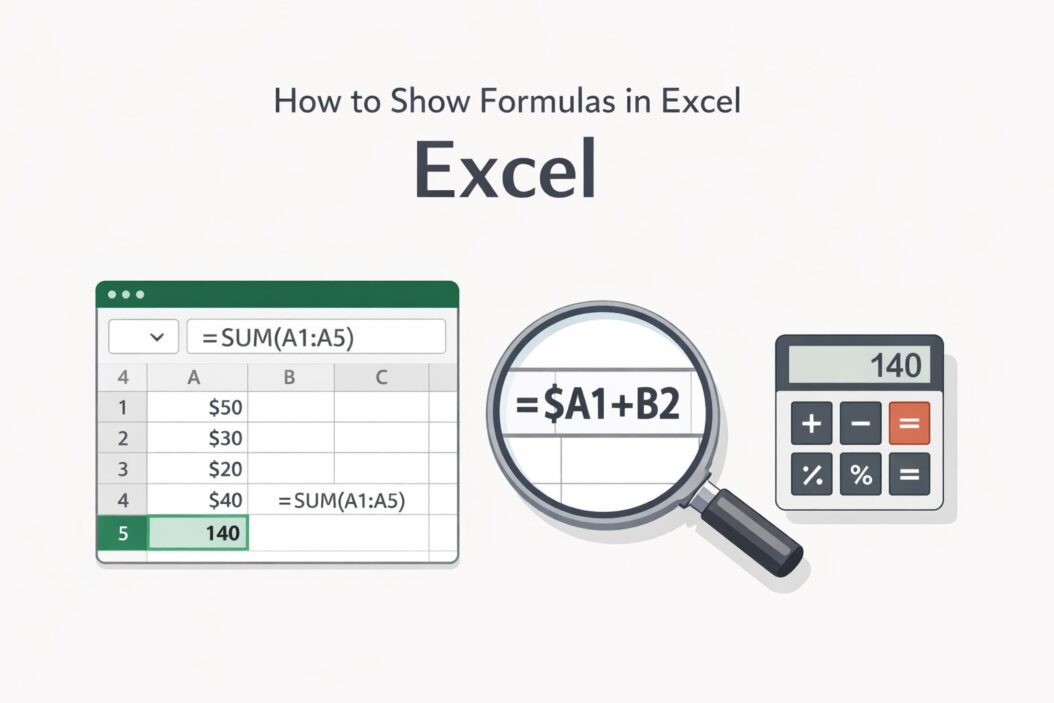
Method 1: The Keyboard Shortcut (Fastest Way)
Ctrl + ** is the keyboard shortcut to show all formulas in Excel on Windows. On Mac, use **Control + or Cmd + ` depending on your version.
When you press this shortcut:
- Every cell with a formula shows the formula text instead of the calculated result
- Cells with plain text or numbers stay unchanged
- Column widths may expand automatically to show full formula text
Press the same shortcut again to toggle back to result view.
This shortcut works on the entire active worksheet. You cannot use it to show formulas in just one cell this way. For a single cell, see Method 3 below.
Quick tip: If the backtick key is not responding, check your keyboard layout. On some international keyboards, the backtick sits in a different location.
Method 2: Show Formulas from the Ribbon
If you prefer using menus over shortcuts, Excel has a dedicated button for this.
- Click the Formulas tab in the Excel ribbon
- Look at the Formula Auditing group on the right side
- Click Show Formulas
The button acts as a toggle. Click it once to show all formulas on the sheet. Click it again to hide them and return to normal view.
This method does exactly the same thing as Ctrl + `. Both control the same worksheet setting. The ribbon button just makes it easier to find if you forget the shortcut.
Method 3: Show a Formula in Just One Cell
Sometimes you do not want to flip the entire sheet. You just want to see what is in one specific cell without switching the whole view.
Option A: Click the cell and look at the formula bar. The formula bar sits just above the column headers. When you click any cell that contains a formula, the formula bar always shows the full formula. The cell itself shows the result, but the bar shows the logic. This is the cleanest way to inspect one formula without affecting anything else.
Option B: Double-click the cell. Double-clicking puts the cell into edit mode. The formula becomes visible inside the cell, and Excel highlights the cells it references with colored borders. This is especially useful when you want to see exactly which cells a formula is pulling from. Press Escape to exit without making changes.
Option C: Press F2. Same as double-clicking. F2 enters edit mode for the selected cell and shows the formula in place. Again, press Escape to exit without changing anything.
Method 4: Use Excel Options (Worksheet-Level Setting)
There is also a setting buried in Excel Options that controls formula display per worksheet.
- Click File in the top-left
- Choose Options at the bottom of the left menu
- Go to Advanced
- Scroll down to the section labeled Display options for this worksheet
- Check the box that says Show formulas in cells instead of their calculated results
- Click OK
Note that this setting is worksheet-specific. The dropdown above the checkbox lets you choose which sheet you are changing. If you have multiple sheets, you need to set this for each one separately.
This method is useful when you want to save the file in formula-view mode so that it opens that way next time. The shortcut and ribbon button also do this, but going through Options makes it more deliberate.
Method 5: Use the FORMULATEXT Function
This is a different approach. Instead of switching the view, you can use a formula to display another formula as text in a separate cell.
The function looks like this:
=FORMULATEXT(A1)
This formula, placed in any empty cell, returns the formula from cell A1 as a text string. The original cell A1 stays in result view. The new cell shows the formula text.
When this is useful:
- You want to display formulas next to their results as documentation
- You are building a guide or explainer spreadsheet
- You want to use formulas in a printable reference table
If A1 contains a plain number or text (not a formula), FORMULATEXT returns a #N/A error. You can wrap it to handle that: =IFERROR(FORMULATEXT(A1), "No formula")
This function has been available since Excel 2013. It works in Excel for Microsoft 365, Excel 2019, Excel 2016, and Excel 2013. If you are on an older version, it will not be available.
Learn more about Excel functions at Microsoft’s official Excel function reference.
Method 6: Print Formulas Instead of Results
If you need a paper or PDF copy of your spreadsheet showing formulas, here is how to do it.
- Enable formula view using Ctrl + ` or the Formulas tab method
- Go to File > Print (or press Ctrl + P)
- Adjust print settings as needed (landscape mode often works better for wide formulas)
- Print or export to PDF
Excel prints whatever is currently displayed on the sheet. So if formulas are visible, they will print. Remember to press Ctrl + ` again after printing if you want to return to result view.
A practical note: Formulas make columns much wider, so landscape orientation usually gives better results. You may also want to scale the print to fit on fewer pages.
Common Problems and How to Fix Them
Formulas Are Showing as Text but You Did Not Turn on Formula View
This usually happens when a cell is formatted as Text before you type a formula into it. Excel treats the formula as plain text and does not calculate it.
To fix this:
- Select the affected cells
- Go to Home > Number Format dropdown and change from Text to General
- Click into each cell, press F2, then press Enter to force Excel to re-evaluate
Alternatively, you can select all affected cells, go to Data > Text to Columns, click Finish without changing anything, and Excel will reprocess the cells.
Ctrl + ` Is Not Working
Try these fixes:
- Make sure your cursor is inside a cell, not in the formula bar
- Check if another program has captured that keyboard shortcut
- Try using the ribbon button instead (Formulas tab > Show Formulas)
- On a laptop, check if Fn key is required for backtick
Formula View Affects All Sheets or None
Remember: formula view is worksheet-specific. Turning it on for Sheet1 does not change Sheet2. If you want all sheets in formula view, you need to activate each one and press Ctrl + ` separately.
Showing Formulas in Excel Online and Mobile
Excel Online (browser version): The keyboard shortcut Ctrl + ` works in Excel Online too. The Formulas tab is also available in the ribbon with the Show Formulas button.
Excel for iPad or Android: The mobile versions have limited formula auditing tools. You can tap a cell to see its formula in the formula bar above, but the full-sheet formula toggle is not available in all mobile versions. If you need to audit formulas extensively, use the desktop version.
Quick Reference Table
| Method | What It Does | Works On |
|---|---|---|
| Ctrl + ` | Toggle all formulas on sheet | Windows and Mac |
| Formulas > Show Formulas | Same as shortcut, via ribbon | All desktop versions |
| Click cell, check formula bar | See one formula without changing view | All versions |
| Double-click or F2 | See formula in cell with color references | All versions |
| File > Options > Advanced | Persistent setting per worksheet | Desktop versions |
| FORMULATEXT() | Display formula as text in another cell | Excel 2013 and later |
Best Practices for Formula Auditing
Once you can see your formulas, here is how to use that visibility effectively.
Trace precedents and dependents. With the Formulas tab open, use Trace Precedents and Trace Dependents buttons to draw arrows showing which cells feed into a formula and which cells depend on it. This gives you a visual map of your spreadsheet logic.
Check for hardcoded values. When formulas are visible, look for numbers typed directly inside them. For example, =A1*0.15 has a hardcoded 15% tax rate. A better practice is to put that value in a named cell and reference it: =A1*B2. Hardcoded values are easy to miss and hard to update.
Look for inconsistent formulas. If cells B2 through B20 all have formulas but B11 shows a plain number, something may have been manually overwritten. Formula view makes this obvious at a glance.
For deeper spreadsheet auditing techniques, the ExcelJet formula auditing guide is a practical resource worth bookmarking.
Use consistent formula structure. When reviewing formulas, flag any that look significantly different from their neighbors. Inconsistency often signals an error.
How to Hide Formulas to Protect Them
This is the reverse situation. If you share a spreadsheet and do not want others seeing your formulas, you can protect them.
- Select the cells with formulas you want to hide
- Press Ctrl + 1 to open Format Cells
- Go to the Protection tab
- Check Hidden
- Click OK
- Go to Review > Protect Sheet
- Set a password if needed and click OK
After protection is active, clicking those cells will show nothing in the formula bar. The Hidden setting only takes effect when the sheet is protected.
This does not affect visible results. Formulas still calculate normally. It just prevents others from seeing the formula logic.
Conclusion
Showing formulas in Excel is straightforward once you know where to look. The quickest method is always Ctrl + ` for toggling the entire sheet. For checking one cell, clicking it and reading the formula bar is the cleanest approach. For documentation purposes, FORMULATEXT() lets you display formula text alongside results without changing the view.
The real skill is not just revealing formulas but knowing what to look for once they are visible. Consistent logic, no hardcoded values, and proper cell references are the hallmarks of a well-built spreadsheet.
Use this guide whenever you take over someone else’s file, audit your own work, or prepare a spreadsheet for review. Understanding what is under the results is what separates a confident Excel user from someone who just hopes the numbers are right.
Frequently Asked Questions
How do I show formulas in Excel using a keyboard shortcut?
Press Ctrl + (backtick key) on Windows. This toggles formula view for the entire active worksheet. Press it again to go back to result view. On Mac, use Control + or Cmd + ` depending on your Excel version.
Why is my Excel showing formulas instead of results?
Your sheet is in formula view mode. Press Ctrl + ` to toggle back to result view. If that does not work, the cell may be formatted as Text. Change the format to General under Home > Number Format and re-enter the formula.
Can I show formulas for only one cell without changing the whole sheet?
Yes. Click the cell and look at the formula bar above the columns. It always displays the formula for the selected cell without switching the entire sheet to formula view. You can also double-click the cell or press F2 to enter edit mode and see the formula in place.
What is the FORMULATEXT function and when should I use it?
FORMULATEXT is an Excel function that returns the formula from a referenced cell as a text string. Use it like this: =FORMULATEXT(A1). It is useful for creating documentation spreadsheets where you want to show both the formula and the result side by side. It works in Excel 2013 and later versions.
How do I print formulas in Excel instead of the calculated values?
First enable formula view using Ctrl + ` or the Formulas tab. Then go to File > Print and print as normal. Excel prints what is currently visible on the sheet. Use landscape orientation for better results since formulas make columns wider than usual.

- How to Uninstall Apps from the Start Menu in Windows 11/10 (2026 Guide) - April 2, 2026
- How to Fix Overscan on Windows 11/10: Stop Your Screen Getting Cut Off (2026) - April 1, 2026
- How to Disable Lock Screen on Windows 11/10 in 2026 - April 1, 2026