
Your computer holds several serial numbers tied to its hardware and software. Getting them through CMD takes under a minute. Here is everything you need to know.
The Quick Answer
Open Command Prompt and run this command:
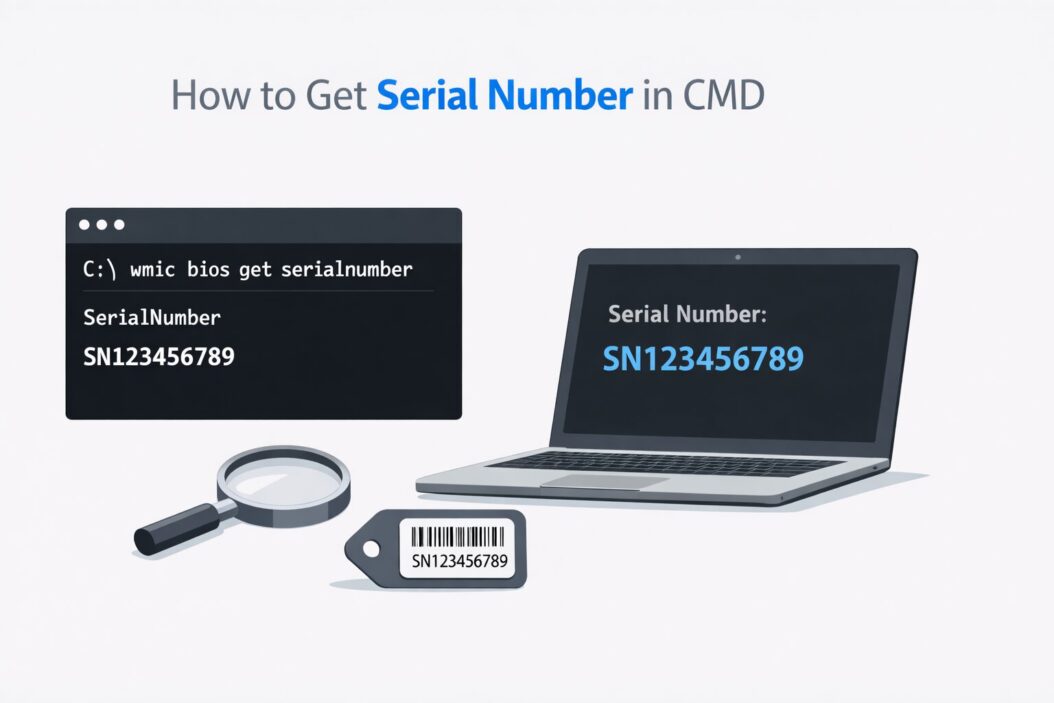
wmic bios get serialnumber
That single line returns your PC’s BIOS serial number, which is also the chassis or manufacturer serial number printed on the sticker underneath your laptop or on the back of a desktop tower. You will see output like:
SerialNumber
PF3N8XYZ
That string is your device serial number. Done. If you need more than that, keep reading.
Why You Might Need the Serial Number
People look this up for real reasons. You might need it to register a warranty, contact support, report a stolen device, activate software, or track hardware in an organization. Knowing exactly which command to use saves time and avoids digging through paperwork or flipping your laptop upside down.
How to Open CMD on Windows
Before running any command you need an open terminal. Three fast ways:
Press Win + R, type cmd, hit Enter.
Press Win + S, search for Command Prompt, click it.
Right-click the Start button and select Terminal or Command Prompt.
For some commands you may need to run CMD as Administrator. To do that, right-click Command Prompt in search results and choose Run as administrator.
How to Get Serial Number in CMD: All Methods
Method 1: WMIC BIOS Command
This is the most used command. It reads the serial number stored in your BIOS firmware.
wmic bios get serialnumber
Works on: Windows 7, 8, 10, 11.
Output example:
SerialNumber
5CG9283KLM
If the output shows To Be Filled By O.E.M. or is blank, the manufacturer did not write a serial number into BIOS. This is common on custom-built desktops.
Method 2: PowerShell Alternative
If you prefer PowerShell or WMIC is deprecated on your system (Windows 11 newer builds are phasing it out), use this:
(Get-WmiObject -Class Win32_BIOS).SerialNumber
Or the newer recommended way:
(Get-CimInstance -ClassName Win32_BIOS).SerialNumber
This pulls the same data from a different interface.
Method 3: Windows Product Serial Number (Windows Key)
The BIOS serial number is different from your Windows license key. To get the Windows product ID from CMD:
wmic os get serialnumber
This gives your Windows installation serial/product ID, not a hardware serial. Useful for OS-level tracking.
To get the embedded Windows product key (OEM key burned into UEFI firmware):
wmic path softwarelicensingservice get OA3xOriginalProductKey
This works only if your PC came with Windows pre-installed from the manufacturer.
Method 4: Motherboard Serial Number
If you need the motherboard serial specifically (common for component-level tracking):
wmic baseboard get serialnumber
Output includes the motherboard’s own serial, product name, and manufacturer. Useful when building or servicing a machine.
Method 5: Hard Drive Serial Number
To find the serial number of your storage drive:
wmic diskdrive get serialnumber, model, name
If you have multiple drives you will see each one listed with its model and serial. This is helpful when filing a warranty claim for a failed drive.
Method 6: CPU Processor ID
The processor ID is not a traditional serial number but it uniquely identifies your CPU model:
wmic cpu get processorid, name
Method 7: System UUID
The UUID (Universally Unique Identifier) is another hardware fingerprint, often used by IT teams and software licensing systems:
wmic csproduct get uuid
This is different from the BIOS serial but just as stable and permanent.
Summary Table: All Commands at a Glance
| What You Want | CMD Command |
|---|---|
| BIOS / Chassis serial | wmic bios get serialnumber |
| Windows product ID | wmic os get serialnumber |
| OEM Windows product key | wmic path softwarelicensingservice get OA3xOriginalProductKey |
| Motherboard serial | wmic baseboard get serialnumber |
| Hard drive serial | wmic diskdrive get serialnumber, model, name |
| CPU Processor ID | wmic cpu get processorid, name |
| System UUID | wmic csproduct get uuid |
| PowerShell BIOS serial | (Get-CimInstance -ClassName Win32_BIOS).SerialNumber |
What to Do If the Serial Number Shows Blank or “Default String”
Some machines, especially home-built PCs, show blank output or placeholder text like:
- To Be Filled By O.E.M.
- Default String
- None
- 0000000000
This is not a fault. It means the motherboard manufacturer shipped the board without writing a serial number into the BIOS. In this case your system UUID from wmic csproduct get uuid is the best unique identifier you have.
For laptops from brands like Dell, HP, Lenovo, or Asus, the BIOS serial almost always matches the sticker on the physical device.
How to Save the Output to a Text File
If you are collecting serial numbers from multiple machines or want a record, pipe the output to a file:
wmic bios get serialnumber > C:\serial.txt
Open that file in Notepad to read it. You can change the path to wherever you want to save it.
For a full hardware report in one file:
wmic bios get serialnumber >> C:\hardware_info.txt
wmic baseboard get serialnumber >> C:\hardware_info.txt
wmic diskdrive get serialnumber, model >> C:\hardware_info.txt
wmic csproduct get uuid >> C:\hardware_info.txt
The >> operator appends each command result to the same file instead of overwriting it.
Batch Script to Get All Serials at Once
If you manage multiple computers and need this regularly, a simple batch file works well. Create a .bat file with this content:
@echo off
echo ===== SYSTEM SERIAL NUMBERS =====
echo.
echo BIOS Serial:
wmic bios get serialnumber
echo.
echo Motherboard Serial:
wmic baseboard get serialnumber
echo.
echo Hard Drive Serial:
wmic diskdrive get serialnumber, model
echo.
echo System UUID:
wmic csproduct get uuid
echo.
echo Windows Product ID:
wmic os get serialnumber
pause
Save it as get_serials.bat and run it on any Windows machine. It prints everything in one go.
Using CMD on Older vs Newer Windows
Windows 7 and 8: All WMIC commands listed above work fully.
Windows 10: Everything works. WMIC is available and reliable.
Windows 11 (2024 and later builds): Microsoft has deprecated WMIC. It still works but may show a deprecation warning. Use the PowerShell Get-CimInstance commands for future-proofing. Microsoft’s own documentation recommends moving to CIM-based commands. You can read more about this at Microsoft’s CIM documentation.
Practical Use Cases
Warranty registration: Most manufacturers ask for your serial number when you register a product or open a support ticket. Running wmic bios get serialnumber and pasting the result is faster than flipping the laptop.
IT asset management: System administrators use serial numbers to track hardware inventory. Scripts that pull serials and write them to a database or spreadsheet are standard in enterprise environments.
Stolen device reporting: Police and insurance companies ask for the serial number when you report theft. Keeping a record of it in advance is a good habit.
Software licensing: Some software products tie licenses to hardware. They often use the UUID or BIOS serial as a machine fingerprint.
Selling a computer: A buyer may ask for the serial number to verify the device matches seller claims or to check for stolen device records.
Finding Serial Numbers Without CMD
CMD is fast but not the only way. Here are alternatives worth knowing.
System Information tool: Press Win + R, type msinfo32, look under System Summary for System SKU and other identifiers.
Settings: On Windows 11, go to Settings > System > About. Some devices show the serial number here.
Physical label: Laptops have a sticker on the bottom. Desktops usually have it on the side panel or back. Phones show it in Settings > About.
BIOS/UEFI screen: Press the BIOS key during startup (usually F2, F10, or Del). The serial number often appears in the main information tab.
Security Note
Your serial number is not a password. Sharing it with a manufacturer for support purposes is fine. That said, be careful about pasting it publicly in forums or screenshots because some serial numbers can be linked to your device history, warranty records, and purchase information.
For deeper reading on Windows hardware identifiers and how they are used, this resource from the Windows Hardware Lab Kit documentation explains the OEM activation system and how product keys and serials connect.
Conclusion
Getting a serial number in CMD is straightforward once you know which command matches what you need. For the device’s physical serial number, wmic bios get serialnumber is your go-to. For software, drives, or the motherboard, separate commands give you each piece. If you are on a newer Windows 11 build, switch to Get-CimInstance in PowerShell to stay current.
Frequently Asked Questions
What is the best CMD command to find a laptop serial number?
Run wmic bios get serialnumber in Command Prompt. This returns the serial number stored in your laptop’s BIOS, which matches the sticker on the bottom of the device. It works on all major Windows versions including Windows 10 and 11.
Why does my serial number show “To Be Filled By O.E.M.” in CMD?
This means the manufacturer did not program a serial number into the BIOS chip. It is common on custom-built desktop PCs and some budget motherboards. In this case use wmic csproduct get uuid to get a unique system identifier instead.
Is the Windows serial number the same as the BIOS serial number?
No. They are different. wmic os get serialnumber returns the Windows installation product ID. wmic bios get serialnumber returns the hardware serial set by the device manufacturer. Both are unique but serve different purposes.
Can I get the serial number from CMD without admin rights?
Yes. Most serial number commands like wmic bios get serialnumber and wmic baseboard get serialnumber work in a standard Command Prompt without administrator privileges. You only need admin rights for certain system-level operations unrelated to reading hardware identifiers.
Does the CMD serial number method work on Windows 11 in 2026?
Yes, WMIC commands still function on Windows 11 in 2026 though Microsoft has marked them as deprecated. If you see a deprecation warning, switch to the PowerShell equivalent: (Get-CimInstance -ClassName Win32_BIOS).SerialNumber. The result is identical and this method is fully supported going forward.
