
You want to connect your phone to your computer. Maybe you need to send texts from your laptop, or you want your photos to sync automatically. Phone Link makes this possible, and I’ll show you exactly how to set it up.
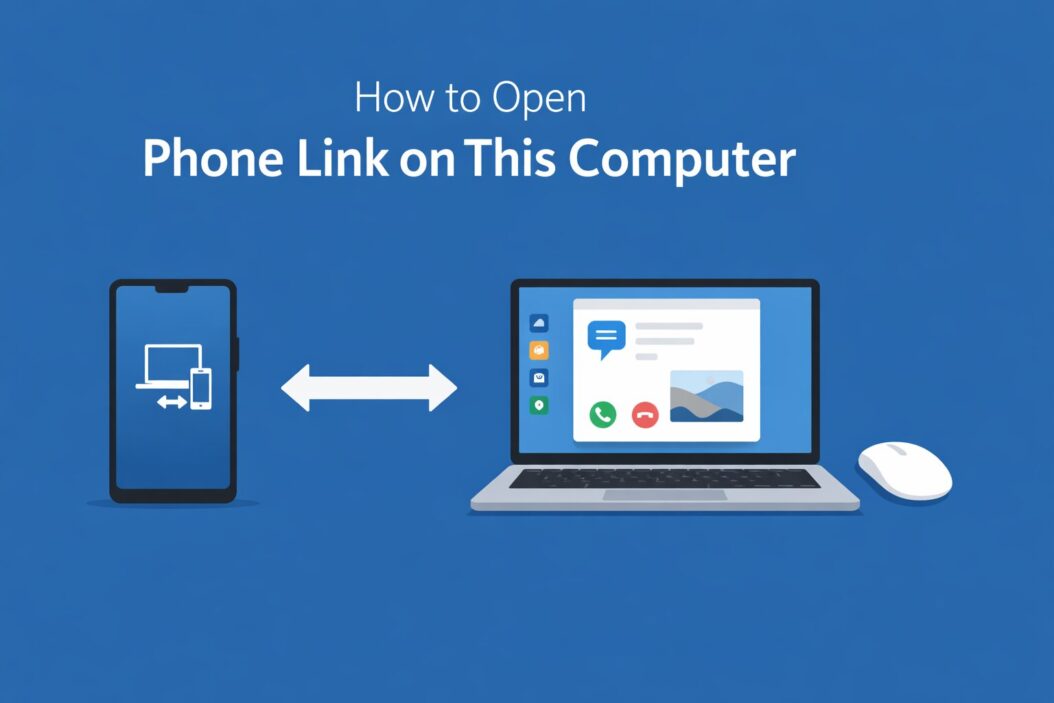
Phone Link is Microsoft’s built-in app that connects your Android phone or iPhone to your Windows computer. It lets you access messages, photos, notifications, and even make calls without picking up your phone.
What Is Phone Link and Why You Need It
Phone Link (formerly called Your Phone) creates a bridge between your smartphone and Windows PC. Think of it as a window into your phone that lives on your desktop.
Here’s what you can do once it’s connected:
- Read and reply to text messages from your computer
- View recent photos without transferring files
- Make and receive phone calls through your PC speakers
- See phone notifications on your desktop
- Access mobile apps directly (Android only)
This matters if you work at a computer all day. Instead of constantly checking your phone, everything appears on your screen.
System Requirements Before You Start
Your computer needs:
- Windows 10 (May 2019 Update or later) or Windows 11
- Active Microsoft account
- Bluetooth capability (built-in or USB adapter)
- Internet connection
Your phone needs:
For Android:
- Android 7.0 or newer
- Link to Windows app (pre-installed on Samsung, Surface Duo)
- Same Microsoft account as your PC
For iPhone:
- iOS 14 or later
- Phone Link app from the App Store
- Limited features compared to Android
Samsung Galaxy phones get the deepest integration. Other Android phones work well too. iPhones have basic features like calls and messages only.
Step-by-Step: Opening Phone Link on Windows 11
Method 1: Using Start Menu
- Click the Start button (Windows icon) in the taskbar
- Type “Phone Link” in the search box
- Click “Phone Link” when it appears
- The app opens on your desktop
Method 2: Using Windows Search
- Press Windows key + S
- Type “Phone Link”
- Hit Enter
Method 3: From Settings
- Press Windows key + I to open Settings
- Click “Bluetooth & devices” in the left sidebar
- Click “Phone Link” near the top
- Click “Open Phone Link”
Method 4: Using Run Command
- Press Windows key + R
- Type
ms-yourphone:and press Enter - Phone Link launches immediately
Step-by-Step: Opening Phone Link on Windows 10
The process is nearly identical on Windows 10:
- Click Start
- Scroll to find “Phone Link” or “Your Phone” (older versions)
- Click to open
Or use the search method:
- Click the search box next to Start
- Type “Phone Link”
- Click the app result
If you don’t see Phone Link, you may need to update Windows. Go to Settings > Update & Security > Windows Update and install available updates.
First-Time Setup: Connecting Your Android Phone
When you open Phone Link for the first time, you’ll see a setup wizard.
On your computer:
- Open Phone Link
- Sign in with your Microsoft account
- Select “Android” when asked about your phone type
- A QR code appears on screen
On your phone:
- Open the Link to Windows app (or download it from Google Play)
- Tap “Link your phone and PC”
- Sign in with the same Microsoft account
- Tap “Continue” when it asks for permissions
- Tap “Scan QR code”
- Point your camera at the QR code on your computer
- Tap “Continue” on each permission screen
Your phone will ask for several permissions:
- Photos and media access
- SMS messages
- Phone calls
- Notifications
- Contacts
- Location (optional)
Grant these for full functionality. You can adjust them later in your phone’s settings.
The pairing process takes 30 to 60 seconds. Once connected, you’ll see your phone’s name in Phone Link.
First-Time Setup: Connecting Your iPhone
iPhone support is newer and more limited.
On your computer:
- Open Phone Link
- Sign in with your Microsoft account
- Select “iPhone” as your device type
- Follow the on-screen instructions
On your iPhone:
- Download “Phone Link” from the App Store
- Open the app
- Sign in with your Microsoft account
- Scan the QR code shown on your PC
- Enable Bluetooth when prompted
- Grant necessary permissions
iPhone features are restricted to:
- Making and receiving calls through your PC
- Viewing and sending messages
- Viewing notifications
You cannot access photos or apps like you can with Android.
Troubleshooting: Phone Link Won’t Open
App doesn’t appear in Start Menu:
- Open Microsoft Store
- Search for “Phone Link”
- Click “Install” or “Update”
- Wait for installation to complete
App crashes when opening:
- Right-click Start
- Select “Windows Terminal (Admin)” or “Command Prompt (Admin)”
- Type:
Get-AppxPackage Microsoft.YourPhone -AllUsers | Foreach {Add-AppxPackage -DisableDevelopmentMode -Register "$($_.InstallLocation)\AppXManifest.xml"} - Press Enter
- Restart your computer
“Something went wrong” error:
- Press Windows key + R
- Type
wsreset.exeand press Enter - Wait for Microsoft Store to open
- Try opening Phone Link again
Cannot find app after Windows update:
Phone Link might have uninstalled during the update. Reinstall from Microsoft Store.
Troubleshooting: Connection Problems
Phone won’t connect to computer:
Check these items in order:
- Both devices use the same Microsoft account
- Bluetooth is enabled on both devices
- Both devices are on the same Wi-Fi network (helps but not required)
- Phone Link has permission to run in the background
On Windows:
- Open Settings > Apps > Phone Link
- Click “Advanced options”
- Ensure “Let this app run in background” is On
On Android:
- Open Settings > Apps > Link to Windows
- Tap “Battery”
- Select “Unrestricted”
Connection keeps dropping:
This usually happens when your phone’s battery saver kills the app.
- Open your phone’s Settings
- Go to Battery or Battery Optimization
- Find “Link to Windows”
- Set to “Don’t optimize” or “Unrestricted”
For Samsung phones:
- Settings > Apps > Link to Windows
- Battery > “Unrestricted”
- Tap “Put app to sleep” and ensure it’s OFF
Bluetooth pairing fails:
- On your PC, go to Settings > Bluetooth & devices
- Remove your phone if it appears in the device list
- On your phone, forget the PC in Bluetooth settings
- Restart both devices
- Start the pairing process again from Phone Link
Using Phone Link Features After Opening
Once connected, Phone Link shows several tabs:
Messages:
- View all text conversations
- Send new messages
- Search message history
- Send photos and emojis
Click any conversation to open it. Type your message in the box at the bottom. Hit Enter to send.
Photos:
- See your 2000 most recent photos
- Save photos to your PC (drag and drop)
- Delete photos remotely
- Share photos to other apps
Photos sync automatically. No cable needed.
Calls:
- Make calls using your PC’s microphone and speakers
- Answer incoming calls on your computer
- Access recent call history
- Dial from your contacts
Audio quality depends on your PC’s hardware. Use a headset for better calls.
Notifications:
- See all phone notifications
- Clear notifications from PC
- Reply to messages directly
- Customize which apps send notifications
To adjust notification settings, click the gear icon in Phone Link and select “Notifications.”
Apps (Android only):
- Open mobile apps in separate windows on your PC
- Use multiple apps simultaneously
- Interact with apps using your mouse and keyboard
This feature requires a compatible Samsung phone or Surface Duo.
Advanced Tips for Power Users
Pin Phone Link to taskbar:
- Open Phone Link
- Right-click the icon in your taskbar
- Select “Pin to taskbar”
Now it’s always one click away.
Set Phone Link to launch at startup:
- Open Phone Link
- Click the gear icon (Settings)
- Toggle “Open Phone Link automatically when I log into my PC”
Use keyboard shortcuts:
- Windows key + K: Open Quick Settings (shows connected devices)
- Alt + Tab: Switch between Phone Link and other windows
- Ctrl + N: Compose new message in Phone Link
Connect multiple phones:
Phone Link supports one active phone at a time, but you can switch between devices:
- Open Phone Link settings
- Click “My Devices”
- Click “Add a device”
- Follow setup steps for the new phone
Switch between phones by selecting them in the “My Devices” section.
Improve connection stability:
Place your phone and PC closer together. Bluetooth range is about 30 feet, but walls and interference reduce this. Thick walls, microwaves, and other wireless devices can interrupt the connection.
Consider these improvements:
- Keep your phone within 10 feet of your PC when possible
- Update Bluetooth drivers on your PC
- Disable battery optimization for Link to Windows on your phone
- Keep both devices plugged in during extended use
Privacy and Security Considerations
Phone Link requires significant permissions. Here’s what Microsoft accesses:
- Message content (to display and send texts)
- Contact information (to show names in conversations)
- Photos (to sync to your PC)
- Notification content (to display on PC)
- Call logs (to show recent calls)
According to Microsoft’s Privacy Statement, this data syncs through their servers. Microsoft states they don’t read your content, but data does pass through their infrastructure.
Your data is encrypted in transit. However, messages and photos temporarily cache on your PC. Anyone with access to your computer can see this information while Phone Link is open.
Security best practices:
- Always lock your PC when stepping away
- Use a strong Microsoft account password
- Enable two-factor authentication on your Microsoft account
- Sign out of Phone Link on shared computers
- Regularly review connected devices in your Microsoft account settings
To disconnect a device:
- Go to account.microsoft.com
- Sign in
- Navigate to Devices
- Remove any unrecognized devices
Comparing Phone Link to Alternative Solutions
Phone Link isn’t your only option for phone-to-PC integration. Here’s how it compares:
| Feature | Phone Link | Intel Unison | KDE Connect | Apple Continuity |
|---|---|---|---|---|
| Cost | Free | Free | Free | Free (Apple only) |
| Windows Support | Yes | Yes | Yes | Limited |
| Android Support | Full | Full | Full | No |
| iPhone Support | Limited | Limited | No | Full |
| Messages | Yes | Yes | Yes | Yes |
| Calls | Yes | Yes | Yes | Yes |
| Photos | Yes | Yes | Yes | Yes |
| Apps | Android only | No | No | No |
| No MS Account Required | No | Yes | Yes | N/A |
Intel Unison works similarly to Phone Link but doesn’t require a Microsoft account. It works with both Android and iPhone. However, it only works on select Intel Evo laptops.
KDE Connect is open-source and works across Windows, Linux, and Android. It requires more technical setup but offers maximum privacy since nothing routes through corporate servers. Learn more about open-source alternatives at KDE Connect’s official site.
Apple Continuity provides the best experience if you’re fully in Apple’s ecosystem. It requires a Mac, not a Windows PC.
Choose Phone Link if you have Windows and Android. It’s built into your system and requires zero additional software purchases.
Common Questions About Opening and Using Phone Link
How do I know if Phone Link is already installed on my computer?
Phone Link comes pre-installed on Windows 10 (version 1903 or later) and all Windows 11 systems. Open the Start menu and type “Phone Link.” If it appears, it’s installed. If not, download it free from the Microsoft Store.
Can I use Phone Link without a Microsoft account?
No. Phone Link requires a Microsoft account to sync data between your devices. You must sign in with the same account on both your PC and phone. Creating a Microsoft account is free at account.microsoft.com.
Why can’t I see my iPhone photos in Phone Link?
iPhone integration is limited. Microsoft and Apple haven’t enabled photo syncing through Phone Link. You can only use calls, messages, and notifications with iPhone. For photo access, use iCloud for Windows or import via cable.
Does Phone Link drain my phone battery?
Phone Link uses Bluetooth and runs in the background, which does consume battery. Most users report 5 to 10% additional battery drain per day. To minimize impact, adjust your phone’s battery settings to allow Link to Windows to run efficiently without constant wake-ups.
Can I use Phone Link with a work computer that has restricted permissions?
This depends on your organization’s IT policies. Phone Link needs permission to install apps, use Bluetooth, and connect to the internet. Many corporate environments block these features for security. Check with your IT department before attempting to use Phone Link on a work computer. Some organizations explicitly prohibit connecting personal devices to work computers.
Conclusion
Opening Phone Link on your computer takes seconds once you know where to look. Use the Start menu, search bar, or keyboard shortcuts to launch the app. After the initial setup connecting your phone, you get seamless access to messages, calls, photos, and notifications.
The setup process requires a few permissions and takes about five minutes. Once connected, Phone Link runs quietly in the background, syncing your phone data automatically. You’ll spend less time picking up your phone and more time focused on your work.
Remember these key points:
- Android phones get full features; iPhones get basic features only
- Both devices need the same Microsoft account
- Bluetooth must stay enabled for connection
- Grant all requested permissions for best results
- Keep the app updated through Microsoft Store
Start by opening Phone Link from your Start menu today. Follow the on-screen setup, scan the QR code with your phone, and you’ll be texting from your PC in minutes.

- How to Fix Overscan on Windows 11/10: Stop Your Screen Getting Cut Off (2026) - April 1, 2026
- How to Disable Lock Screen on Windows 11/10 in 2026 - April 1, 2026
- Top 7 NFT Integration Ideas for Brands in 2026 - March 31, 2026