
Emojis make your messages clearer, friendlier, and more expressive. You can use them on your PC just as easily as on your phone, whether you’re typing an email, writing a social media post, or chatting with friends.
This guide shows you exactly how to access and use emojis on both Windows and Mac computers. You’ll learn keyboard shortcuts, built-in tools, and alternative methods to add emojis to any document or message.
Why Use Emojis on Your Computer
Emojis do more than look cute. They add emotional context to text that might otherwise seem flat or unclear. A simple “okay” feels different from “okay 👍” or “okay 😊”.
On PC, emojis help you:
- Express tone in work emails without seeming too formal
- Make social media posts more engaging
- Clarify meaning in messages that might be misunderstood
- Save time instead of typing out emotions in words
- Connect better with people who expect visual communication
The challenge is knowing how to access these symbols quickly without switching to your phone.
How to Use Emojis on Windows PC
Windows includes a built-in emoji picker that works in almost any application. Here’s how to use it.
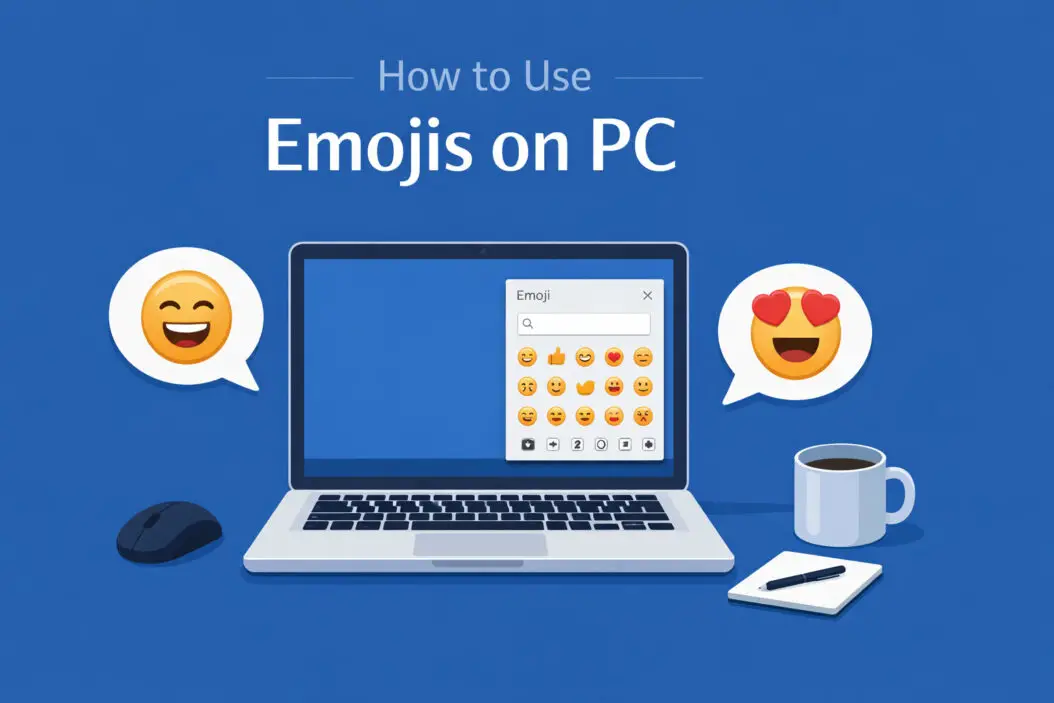
The Windows Emoji Keyboard Shortcut
The fastest way to insert emojis on Windows is using the keyboard shortcut:
Press Windows key + . (period) or Windows key + ; (semicolon)
This opens the emoji panel instantly. The panel appears wherever your cursor is positioned, whether you’re in Word, Chrome, Outlook, or any text field.
Here’s what happens next:
- The emoji panel appears on your screen
- You see categories at the bottom (smileys, people, food, animals, etc.)
- Click any emoji to insert it immediately
- The panel stays open so you can add multiple emojis
- Click outside the panel or press Escape to close it
Searching for Specific Emojis
Instead of scrolling through hundreds of emojis, use the search box:
- Open the emoji panel (Windows + .)
- Look at the search box at the top
- Type what you want, like “heart” or “laugh”
- Matching emojis appear instantly
- Click the one you need
The search understands common words. Type “happy” and you’ll see 😊 😃 😄. Type “sad” for 😢 😞 😔.
Finding Recently Used Emojis
Windows remembers your emoji history. When you open the panel, the first row shows your recently used emojis. This saves time if you use the same emojis often.
Additional Symbols in the Windows Panel
The emoji panel includes more than just emojis:
- Kaomoji: Text-based emoticons like ¯_(ツ)_/¯ and (╯°□°)╯︵ ┻━┻
- Symbols: Mathematical symbols, currency signs, arrows
- Special characters: Accented letters and foreign language characters
Switch between these by clicking the icons at the bottom of the panel.
Windows Emoji Panel by Version
| Windows Version | Emoji Shortcut | Additional Notes |
|---|---|---|
| Windows 11 | Windows + . or ; | Updated design, GIF support, inline search |
| Windows 10 (1809+) | Windows + . or ; | Basic emoji panel |
| Windows 10 (older) | Not available | Use Character Map or web tools |
| Windows 8 or earlier | Not available | Use Character Map or copy/paste |
How to Use Emojis on Mac
Mac computers have their own emoji picker with similar functionality to Windows.
The Mac Emoji Keyboard Shortcut
Press Control + Command + Space
This opens the emoji picker on any Mac running macOS. Like Windows, it appears wherever your text cursor is located.
Using the Mac Emoji Viewer
When the emoji picker opens:
- You see a floating panel with emoji categories
- Categories appear on the left sidebar (Smileys & People, Animals & Nature, etc.)
- Click a category to browse those emojis
- Double-click any emoji to insert it
- The panel stays open for multiple selections
Mac Emoji Search Function
The Mac emoji viewer includes a powerful search:
- Open the emoji picker (Control + Command + Space)
- Notice the search bar at the top
- Type descriptive words like “celebration” or “food”
- Relevant emojis filter in real-time
- Double-click to insert
Skin Tone Modifications on Mac
Many people emojis support different skin tones:
- Find a people emoji like 👋
- Click and hold on it
- A menu appears with skin tone options
- Select the variation you prefer
- Your choice is remembered for next time
Frequently Used Section
Mac tracks your emoji usage. The first section in the picker shows “Frequently Used” emojis based on what you’ve clicked before.
Alternative Methods to Insert Emojis on PC
Sometimes you can’t use keyboard shortcuts or need other options.
Copy and Paste from Emoji Websites
Websites like Emojipedia display every emoji with copy buttons:
- Visit an emoji reference website
- Browse or search for the emoji you need
- Click the emoji or the copy button
- Return to your document
- Paste (Ctrl + V or Command + V)
This method works on any computer, any operating system, and any software version.
Using the Windows Character Map
Character Map is a built-in Windows tool for special characters:
- Search “Character Map” in the Windows search bar
- Open the application
- Check the “Advanced view” box at the bottom
- In “Character set”, select Unicode
- In “Group by”, select “Unicode Subrange”
- Choose “Emoticons” from the list
- Double-click emojis to select them
- Click “Copy” and paste into your document
This takes longer but works when the emoji panel has issues.
Browser Extensions for Emojis
Chrome, Firefox, and Edge support extensions that add emoji buttons:
- Install an emoji extension from your browser’s store
- A small emoji icon appears in your browser toolbar
- Click it to open an emoji picker
- Works only within the browser, not in other apps
Popular options include “Emoji Keyboard” and “Emoji Picker” extensions.
Third-Party Emoji Apps
Some people prefer standalone emoji applications:
- WinMoji (Windows): A lightweight emoji picker
- Rocket (Mac): Types emojis using text shortcuts
- AutoHotkey scripts: Custom keyboard shortcuts for specific emojis
These require installation but offer more customization than built-in tools.
Using Emojis in Specific Applications
Different programs handle emojis differently.
Microsoft Word and Office Apps
Microsoft Office fully supports the Windows and Mac emoji pickers:
- Place your cursor where you want the emoji
- Use Windows + . or Control + Command + Space
- Select your emoji
- It appears in color at your cursor location
Word also has “Insert > Symbols > More Symbols” but this shows emoji as black-and-white outline characters, not the colorful versions.
Google Docs and Web Apps
Web applications in Chrome, Firefox, or Edge accept emojis:
- Use your system emoji picker (Windows + . or Control + Command + Space)
- Emojis appear exactly as they would anywhere else
- Google Docs, Sheets, and Slides all support color emojis
Email Clients
Most modern email clients support emojis:
Outlook: Use the Windows or Mac emoji picker in the message body
Gmail: Click the emoji icon in the compose toolbar, or use system shortcuts
Thunderbird: System emoji picker works in compose windows
Apple Mail: Control + Command + Space opens the emoji viewer
Be aware that some recipients might see emojis differently depending on their device and email client.
Slack, Discord, and Chat Apps
Workplace chat applications have their own emoji systems:
Slack: Type “:” followed by the emoji name (like :smile:) or click the emoji icon in the message box
Discord: Similar to Slack, use “:” shortcuts or click the emoji button
Microsoft Teams: Click the emoji icon under the message box or use Windows + .
These apps often include custom emojis specific to your workspace.
Code Editors and Development Tools
Most code editors (VS Code, Sublime Text, Atom) accept emojis through system pickers. However, be cautious using emojis in actual code, as they can cause encoding issues. Emojis work fine in:
- Code comments
- Commit messages
- Markdown documentation
- README files
Troubleshooting Common Emoji Problems
Sometimes emojis don’t work as expected. Here’s how to fix common issues.
Emoji Shortcut Not Working
If Windows + . or Control + Command + Space doesn’t open the emoji picker:
On Windows:
- Update to Windows 10 version 1809 or later
- Restart your computer
- Check if another program is intercepting the keyboard shortcut
- Try Windows + ; instead
On Mac:
- Open System Preferences > Keyboard
- Click the “Keyboard” tab
- Ensure “Show emoji & symbols in menu bar” is checked
- Try logging out and back in
Emojis Appear as Boxes or Question Marks
This happens when your system or application doesn’t support color emojis:
- Update your operating system to the latest version
- Update your application
- Use a different application that supports modern Unicode
- Copy emojis from newer apps that render them correctly
Emojis Look Different on Different Devices
Each operating system uses its own emoji designs. The same emoji code displays differently:
- Apple devices show Apple emoji designs
- Windows shows Microsoft emoji designs
- Android shows Google emoji designs
- Samsung devices often show Samsung designs
This is normal. The meaning stays the same even if the appearance differs. You can preview how emojis look across platforms at Emojipedia.
Can’t Find a Specific Emoji
If you’re searching but can’t locate an emoji:
- Try different search terms (search “giggle” if “laugh” doesn’t work)
- Browse the category manually
- Check if the emoji exists on your OS version (new emojis are added yearly)
- Update your operating system for the latest emoji set
Tips for Using Emojis Effectively
Using emojis well makes your communication better. Using them poorly can confuse or annoy people.
Know Your Audience
Context matters:
- Casual messages: Use emojis freely with friends and family
- Professional emails: Use sparingly, if at all, depending on your workplace culture
- Formal documents: Generally avoid emojis in contracts, reports, or official correspondence
- International communication: Some emojis have different meanings in different cultures
Don’t Overuse Emojis
Too many emojis make text hard to read:
Bad: “Hey 👋 I 👁️ was 🤔 wondering 💭 if 🤷 you 👆 could 💪 help 🤝 me 👨”
Good: “Hey 👋 I was wondering if you could help me with this project”
One or two emojis per message usually works better than five or ten.
Use Emojis to Replace Words, Not Add to Them
Emojis work best when they substitute for words:
Redundant: “I’m so happy 😊”
Better: “This made my day 😊” or just “😊”
Test How Emojis Display
Before sending important messages with emojis:
- Send a test message to yourself
- Check how it appears on different devices if possible
- Remember that some email clients strip emojis or show them in black and white
Keep Emojis Updated
Operating systems add new emojis regularly. Update your OS to access:
- New facial expressions
- More diverse people emojis
- Additional objects and symbols
- Current cultural references
Understanding Emoji Technical Details
Knowing how emojis work technically helps solve problems.
What Are Emojis?
Emojis are Unicode characters, just like letters and numbers. Unicode is a universal text encoding standard that assigns a unique code to every character across all languages and symbol sets.
When you insert 😊, you’re actually inserting Unicode character U+1F60A. Your device then displays this code using its emoji font.
Why Emojis Look Different Everywhere
Each company designs its own emoji font:
- Apple creates emoji artwork for iOS and macOS
- Microsoft designs emojis for Windows
- Google creates emojis for Android
- Facebook, Twitter, and WhatsApp use custom emojis
They all represent the same Unicode characters but with different visual styles.
Emoji Skin Tones
Unicode includes a system for skin tone modifiers. Base emojis like 👋 can combine with one of five skin tone modifiers to create variations: 👋🏻 👋🏼 👋🏽 👋🏾 👋🏿.
This uses two Unicode characters: the base emoji plus the modifier. Your system combines them into one visual emoji.
Emoji Updates and Compatibility
The Unicode Consortium approves new emojis yearly. When new emojis are added:
- Unicode approves them
- Operating system makers design them
- OS updates include the new emojis
- Older systems show boxes or question marks for emojis they don’t have
Always update your operating system to see the latest emojis.
Accessibility Considerations with Emojis
Emojis affect how people with disabilities experience your content.
Screen Readers and Emojis
Screen readers announce emojis by speaking their Unicode description. For example:
- 😊 reads as “smiling face with smiling eyes”
- 🎉 reads as “party popper”
- ❤️ reads as “red heart”
Multiple emojis in a row create long screen reader announcements. Use emojis thoughtfully when writing content for everyone.
Emoji Clarity
Some emojis have meanings that aren’t obvious:
- 🙏 can mean “praying hands” or “high five” depending on context
- 💀 means “laughing really hard” in internet slang, not actual death
- 👁️👄👁️ is a meme format, not literal eyes and lips
Make sure your emoji meaning is clear from surrounding text.
Summary
Using emojis on PC is simple once you know the shortcuts:
- Windows: Press Windows + . or Windows + ;
- Mac: Press Control + Command + Space
These shortcuts work in almost every application. You can search for emojis, access recently used ones, and insert multiple emojis quickly.
Alternative methods include copying from websites, using the Character Map on Windows, or installing browser extensions. Different applications handle emojis slightly differently, but the system emoji picker works universally.
Frequently Asked Questions
How do I get emojis on Windows 10?
Press Windows key + period (.) or Windows key + semicolon (;) to open the emoji picker. This works on Windows 10 version 1809 and later. If your Windows version is older, update Windows or use the Character Map application to access emojis.
Why can’t I see some emojis on my PC?
Your operating system might be outdated. New emojis are added every year, and older systems don’t include them. Update to the latest version of Windows or macOS to see the newest emojis. Some applications also don’t support color emojis and show boxes instead.
Can I use emojis in professional emails?
It depends on your workplace culture. Some companies use emojis in internal communication but avoid them in client emails. Start conservatively with one or two emojis in casual work messages. Watch how colleagues use them and match that tone. Skip emojis in formal business correspondence.
Do emojis work in all programs on PC?
Most modern applications support emojis, including web browsers, Microsoft Office, email clients, and chat applications. Very old software or command-line programs might show emojis as boxes or question marks. The emoji picker works system-wide, but individual programs control how emojis display.
How do I type emoji shortcuts like 🙂 on PC?
The colon shortcut format works in specific applications like Slack, Discord, and some chat programs, but it’s not a universal PC feature. These apps convert :smile: into 😊 automatically. In other programs, use the Windows or Mac emoji picker instead of typing shortcuts.
