
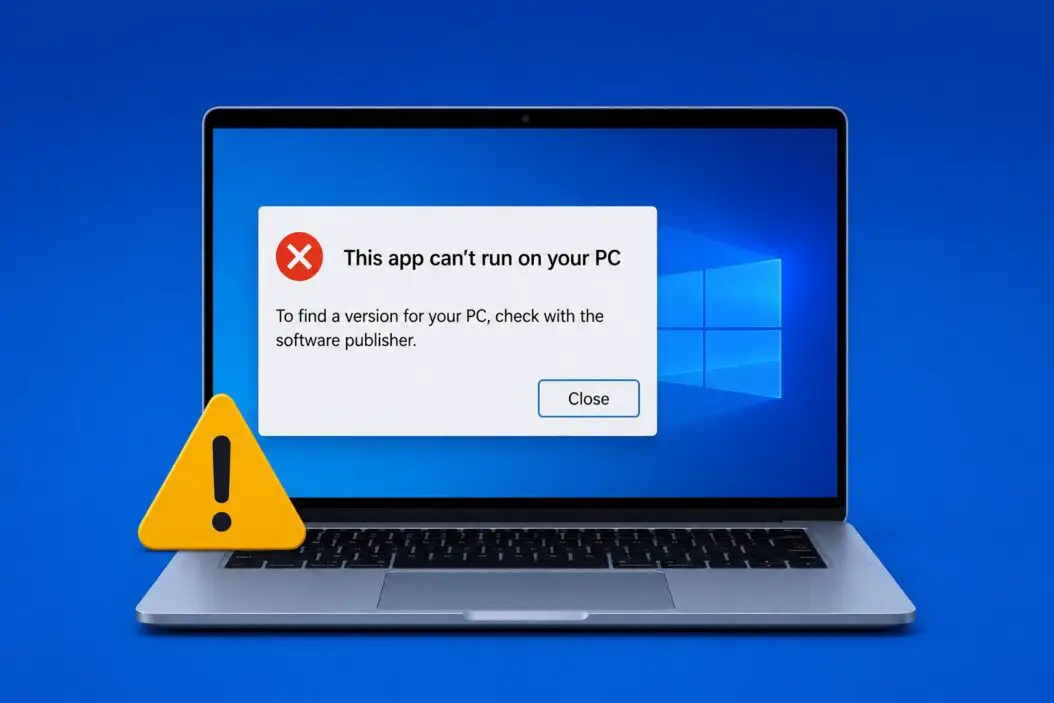
You clicked on an app, and Windows threw back that message, “This app can’t run on your PC.” No details. No real explanation. Just a dead end.
I’ve dealt with this error across dozens of machines running Windows 10 and Windows 11. The good news is, most causes are fixable in under five minutes. This article walks you through every real reason this happens and exactly what to do about it.
Why You’re Seeing This Error Right Now
Windows blocks apps for a few specific reasons. It’s not random. Before touching any settings, it helps to know which bucket your issue falls into.
Here’s a quick breakdown:
| Root Cause | Who It Usually Affects |
|---|---|
| 32-bit app on ARM-based Windows | Surface Pro X, Snapdragon laptops |
| Corrupted download or installer | Anyone who downloaded from a shady mirror |
| SmartScreen blocking unknown publishers | New or unsigned apps |
| Disabled execution of 32-bit apps | Custom or managed Windows builds |
| Wrong Windows edition (Home vs Pro) | Users who upgraded or changed editions |
| Group Policy blocking app installs | Work/school managed PCs |
| Compatibility mode issues | Older legacy software |
Knowing which one applies to you cuts the fix time in half.
The Fix That Works for Most People
Before going deep, try this first. It solves the error in probably 60% of cases.
Right-click the app > Properties > Unblock
When Windows downloads a file from the internet, it tags it with a “Zone Identifier” mark. That tag tells Windows not to trust it. You just need to remove that flag.
Steps:
- Right-click the
.exefile - Click Properties
- At the bottom of the General tab, look for: “This file came from another computer and might be blocked”
- Check the Unblock box
- Click Apply, then OK
- Try running the app again
That’s it. If the Unblock checkbox isn’t there, your file wasn’t blocked this way, and you need one of the fixes below.
Fix for ARM-Based Windows Devices (This One Gets Missed a Lot)
If you’re on a Surface Pro X, Samsung Galaxy Book, or any laptop running a Snapdragon chip, you’re on Windows on ARM. A lot of older 32-bit apps simply don’t run on ARM natively without an emulation layer.
Starting with Windows 11 on ARM, Microsoft added x64 emulation. But x86 (32-bit) emulation has been available for longer. Some apps still fall through the cracks.
Check your architecture:
- Press
Win + I> System > About - Look under System type
- If it says “ARM-based processor,” that’s your answer
What you can do:
- Check if the developer released an ARM64 or ARM64EC version of the app
- For older apps, try running the 32-bit version if an x64 version was giving the error
- Some apps work fine through compatibility settings; right-click the
.exe, go to Properties > Compatibility, and check “Run this program in compatibility mode”
Microsoft’s own documentation on Windows on ARM app compatibility explains what runs natively and what needs emulation.
SmartScreen Is Blocking the App
Windows Defender SmartScreen is aggressive with unsigned or low-reputation apps. You might see a slightly different message: “Windows protected your PC” before you even get to the “can’t run” error. But sometimes it just blocks silently.
To bypass SmartScreen temporarily (for apps you trust):
- Go to Settings > Privacy & Security > Windows Security
- Click App & Browser Control
- Under Check apps and files, select Warn instead of Block
Or, when SmartScreen gives you the blue warning screen:
- Click More info
- Then click Run anyway
Only do this for software from sources you actually trust. Don’t do it for cracked software or files from random sites.
The App Is 32-bit and Your Windows Build Has It Disabled
Some enterprise or customized Windows installations disable 32-bit app support entirely. This is rare on home PCs but common on corporate machines.
Check if 32-bit apps are supported:
Open PowerShell as admin and type:
bcdedit /enum | findstr nxIf you see NX Policy: OptIn, 32-bit apps should work. If your IT policy has it restricted, you may need to contact your admin.
Another way to check: Try running a known 32-bit app (like an old game or legacy utility). If all 32-bit apps fail, it’s a system policy issue.
Group Policy Is Blocking App Execution
On managed PCs (work or school devices), Group Policy can flat-out prevent you from running apps that aren’t on an approved list. This is called Software Restriction Policy or AppLocker.
If this is the cause, you’ll often see the error on multiple apps, not just one.
What to check (if you have admin rights):
- Press
Win + R, typegpedit.msc, press Enter - Navigate to: Computer Configuration > Windows Settings > Security Settings > Software Restriction Policies
- Look for rules blocking your app’s path or publisher
On a work PC, you likely can’t change this yourself. Talk to your IT team.
Corrupted Download
A partial or corrupted download produces a broken .exe that Windows can’t validate. This is more common than people think, especially with large installers.
Fix:
- Delete the downloaded file completely
- Clear your browser’s download cache
- Re-download from the official source only, not a mirror or torrent
- Check the file size matches what the official site lists
If the developer provides an MD5 or SHA-256 checksum, verify it before running. Windows PowerShell makes this easy:
Get-FileHash C:\Users\YourName\Downloads\yourfile.exe -Algorithm SHA256Compare the output to the hash on the developer’s website.
Wrong Windows Edition
Some apps require Windows 10/11 Pro, Enterprise, or Education. They flat-out won’t run on Home. This comes up a lot with virtualization software, certain system utilities, and corporate tools.
Check your edition:
- Right-click This PC > Properties
- Look for Windows Edition
If the app requires Pro and you have Home, you have two options: upgrade your Windows edition, or find an alternative app that works on Home.
App Compatibility Issues With Older Software
Legacy software written for Windows XP, Vista, or 7 sometimes fails on Windows 11 because the underlying APIs have changed or been removed.
Try the Program Compatibility Troubleshooter:
- Right-click the
.exe - Select Troubleshoot compatibility
- Let Windows detect and apply compatibility settings automatically
For stubborn older apps, manually set compatibility mode:
- Right-click the
.exe> Properties > Compatibility tab - Check “Run this program in compatibility mode for:”
- Select Windows 8 or Windows 7 from the dropdown
- Also check “Run as administrator”
- Click Apply
Microsoft maintains a database of known compatible apps through the Windows Compatibility Center, which is worth checking for older software.
Run the App as Administrator
Some apps need elevated privileges and just fail silently without them. The error message doesn’t always tell you this.
- Right-click the app
- Select Run as administrator
- Click Yes on the UAC prompt
If it runs fine this way, you can make it permanent:
- Right-click > Properties > Compatibility
- Check “Run this program as an administrator”
- Click Apply
Check Windows Updates
An outdated Windows version sometimes causes false compatibility errors, especially with apps that were built for newer system libraries.
- Go to Settings > Windows Update
- Click Check for updates
- Install everything, including optional updates
- Restart and try again
This is especially relevant on Windows 11 where some builds had known compatibility bugs that later patches fixed.
Re-register or Repair the Microsoft Store Apps
If the error is showing up for apps installed through the Microsoft Store (not third-party .exe files), the Store itself might be broken.
Re-register the Store:
Open PowerShell as administrator and run:
Get-AppXPackage -AllUsers | Foreach {Add-AppxPackage -DisableDevelopmentMode -Register "$($_.InstallLocation)\AppXManifest.xml"}This re-registers all built-in apps and often fixes Store-related “can’t run” errors.
Reset the Store directly:
- Press
Win + R, typewsreset.exe, press Enter - A black Command Prompt window opens, closes automatically, then the Store launches fresh
Summary: Which Fix to Try First
| Your Situation | Best First Fix |
|---|---|
| Downloaded from the internet | Unblock via Properties |
| ARM device (Surface, Snapdragon) | Check ARM compatibility |
| App installs fine but won’t open | Run as administrator |
| Multiple apps failing | Check Group Policy |
| Old software (pre-Win10) | Compatibility mode |
| Microsoft Store app fails | wsreset.exe or re-register |
| Fresh download still fails | Verify file hash, re-download |
| Work or school PC | Contact IT team |
Conclusion
The “This app can’t run on your PC” error almost always has a specific, solvable cause. Start with the Unblock trick in Properties since it fixes the majority of cases. If that doesn’t work, check your device architecture (especially if you’re on ARM), verify the download wasn’t corrupted, and look at SmartScreen or Group Policy if you’re on a managed machine.
Don’t reinstall Windows over this. Nine times out of ten, one of the steps above gets the app running within minutes.
FAQs
Can I permanently stop Windows from blocking downloaded apps?
You can, but I’d be careful with it. Going to Settings > Privacy & Security > Windows Security > App & Browser Control and setting everything to “Off” removes SmartScreen protection entirely. A safer approach is leaving it on “Warn” so you still get a heads-up but can choose to run trusted apps anyway.
My app ran fine on Windows 10 but fails on Windows 11, why?
Windows 11 dropped support for some older app installers and removed certain legacy components that older software relied on. The compatibility troubleshooter (right-click > Troubleshoot compatibility) often catches this automatically. If that fails, check if the developer released a Windows 11-compatible version.
The error happens only on my account, not on another user account. What does that mean?
This usually points to a corrupted user profile setting or a per-user policy blocking the app. Try creating a new user account and running the app from there. If it works, your profile has a specific restriction or corruption affecting just that account.
Does this error mean my PC has a virus?
Not directly. The error itself is a Windows security or compatibility message, not a malware symptom. That said, if you’re seeing it after installing something unexpected, or if multiple apps started failing suddenly, it’s worth running a full scan with Windows Defender just to rule that out.
I’m a developer and my own app triggers this error during testing. How do I fix it?
You need to sign your app with a code signing certificate. Unsigned apps trigger SmartScreen and sometimes the “can’t run” block because they have no recognized publisher. During local testing, you can bypass this by right-clicking the .exe and selecting Unblock, or by temporarily adjusting SmartScreen settings. For distribution, get a certificate from a trusted Certificate Authority.
