
Microsoft Edge has tracking prevention turned on by default, but most people never touch the settings. If you want to control how websites follow you around the internet, adjusting this feature makes a real difference. Here is exactly how to do it, and what each option actually means for your browsing.
Turn It On in Three Steps
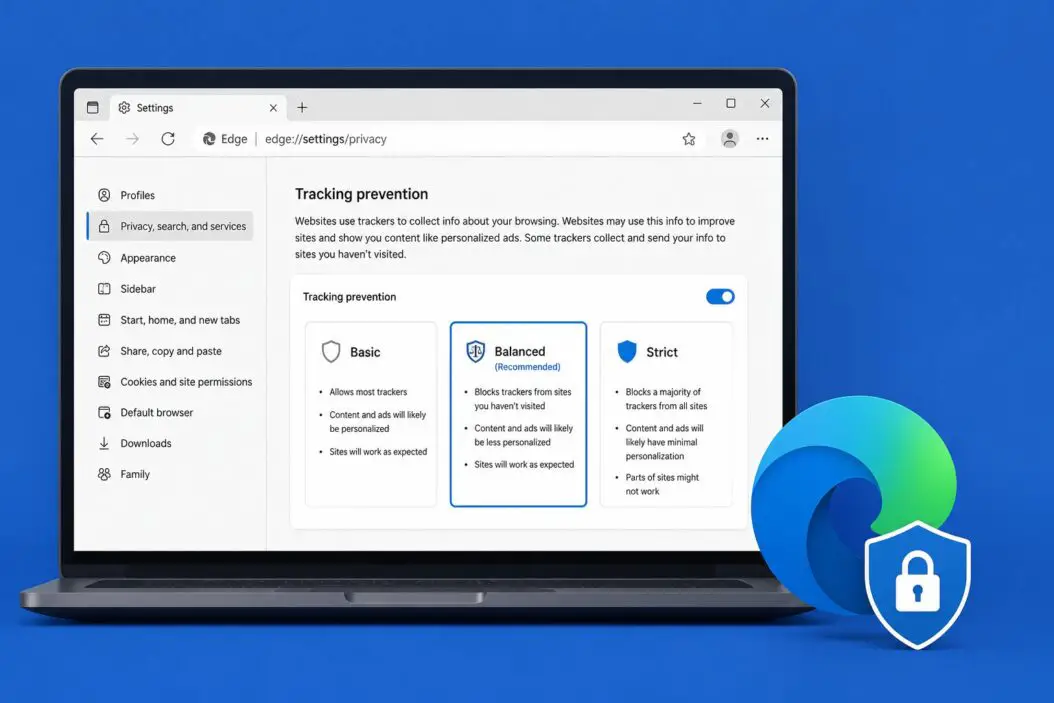
Open Edge and click the three-dot menu in the top right corner. Go to Settings, then click Privacy, search, and services. At the very top, you will see Tracking prevention with a toggle. If it is off, flip it on. That is the core of it.
Once it is on, you pick a level: Basic, Balanced, or Strict. Each one behaves differently depending on how much you want to restrict trackers. More on each level below.
Understanding the Three Levels Before You Pick One
Picking the wrong level can break websites or leave you exposed. Here is what each one actually does:
Basic
This is the lightest setting. It blocks trackers that are already known to be malicious or that fingerprint your device in harmful ways. Most sites will work perfectly fine. You still get tracked quite a bit, but obvious bad actors are blocked.
Use Basic if you visit a lot of older or complex web apps that tend to break with aggressive blocking.
Balanced
This is the default setting and the one I recommend for most people. Edge blocks trackers from sites you have not visited, while allowing trackers from sites you regularly use. It finds a middle ground between privacy and keeping things functional.
In practice, Balanced blocks third-party trackers while allowing first-party ones. A shopping site can remember your cart. But a random ad network following you from site to site gets blocked.
Strict
Strict blocks a much wider range of trackers. It will likely break some websites, especially ones that rely heavily on embedded third-party scripts for things like comment sections, login widgets, or video players.
If a site stops working properly on Strict, you do not have to downgrade your whole browser. You can add that specific site to your exceptions list, which I cover below.
How to Add Exceptions for Specific Sites
Sometimes a site you trust stops working after you turn on Strict tracking prevention. The fix is adding an exception, not lowering your protection across the board.
- Go to Settings > Privacy, search, and services
- Scroll to Tracking prevention
- Click Exceptions
- Click Add a site
- Type the URL of the site you want to allow
- Click Add
That site now gets full access to its tracking scripts while everything else stays blocked at your chosen level. This is the smarter approach instead of rolling everything back to Basic.
The Blocked Trackers List: What Edge Is Actually Stopping
Edge lets you see which trackers it has blocked in real time. Click the lock icon in the address bar on any website. You will see a section that says Trackers blocked on this page with a number. Click it to see the list.
This is useful because it shows you which sites are heavy on trackers and which are clean. News sites and free content platforms tend to have the highest counts. Personal blogs or government sites usually have very few.
You can also view the full tracker database Edge uses by visiting edge://trackers in your address bar. This shows every tracker domain Edge knows about, who owns it, and what category it falls under.
InPrivate Browsing and Tracking Prevention
When you use InPrivate mode in Edge, tracking prevention is automatically set to Strict, regardless of what your normal setting is. This is a good thing. Advertisers cannot build a profile on an InPrivate session in the same way.
However, InPrivate does not make you anonymous. Your internet provider can still see what sites you visit. Your employer can too if you are on a work network. Tracking prevention in InPrivate specifically deals with website-level trackers, not network-level visibility.
SmartScreen and Tracking Prevention: Not the Same Thing
A lot of people confuse these two. SmartScreen protects you from phishing sites and malware downloads. Tracking prevention protects your privacy from advertisers and data brokers.
They work side by side but do completely different jobs. You can have one on without the other, though I would keep both enabled. SmartScreen lives in the same Privacy, search, and services menu under Security.
What Changes After You Enable It
Here is a quick look at what you will actually notice:
| Situation | Before Tracking Prevention | After Tracking Prevention (Balanced) |
|---|---|---|
| Ad retargeting | Ads follow you across every site | Cross-site ad tracking is cut significantly |
| Site login widgets | Work normally | Usually still work |
| Embedded YouTube videos | Work normally | Usually still work |
| Social media share buttons | Load and track | Often blocked silently |
| Analytics scripts | Load on every page | Third-party ones often blocked |
| Page load speed | Normal | Can improve slightly on tracker-heavy sites |
The improvement in page load speed is real on some sites. Fewer scripts loading means faster pages, especially on slower connections.
Syncing Tracking Prevention Settings Across Devices
If you are signed into Edge with a Microsoft account, your privacy settings sync across your devices. So if you set Strict on your laptop, your phone running Edge Mobile will pick up the same setting.
To verify this, go to Settings > Profiles > Sync and make sure Extensions and Settings are toggled on. Edge syncs most things through your profile, so your exceptions list and level preference travel with you.
Using Edge Flags for Advanced Tracker Control
For users who want to go deeper, Edge has experimental flags that give you more granular control. Type edge://flags in the address bar and search for tracking. You will find options related to partitioned cookies, storage access policies, and fingerprinting protections.
These are experimental features. They can break things, and they change between Edge versions. Only use them if you are comfortable with some trial and error.
How Edge Compares to Other Browsers
It is worth knowing where Edge stands:
| Browser | Default Tracking Protection | Strictest Option |
|---|---|---|
| Edge | Balanced | Strict |
| Firefox | Standard (similar to Balanced) | Strict |
| Chrome | Minimal | Limited |
| Safari | Intelligent Tracking Prevention | Enhanced |
| Brave | Aggressive by default | Custom |
Edge and Firefox are the most comparable at the built-in level. Chrome historically has offered the weakest default protection since Google’s revenue depends on advertising. For a deeper breakdown of how browsers handle privacy at the technical level, the Electronic Frontier Foundation’s Cover Your Tracks tool lets you test your actual browser fingerprint and see how exposed you are.
A Few Things That Do Not Get Blocked
Tracking prevention in Edge is not a total privacy shield. Here is what still gets through:
- First-party cookies from sites you visit directly
- Your IP address (visible to every site)
- Browser fingerprinting through legitimate APIs
- Tracking within a single website’s own domain
- Email tracking pixels (these work outside the browser)
If you want broader protection, combining Edge’s tracking prevention with a DNS-level blocker or a reputable browser extension like uBlock Origin adds another layer. Tracking prevention handles the browser level. DNS handles the network level. Together they cover more ground.
Conclusion
Enabling tracking prevention in Edge takes about 30 seconds. Go to Settings, open Privacy, search, and services, and turn on Tracking prevention. Balanced works well for most people. If you want stronger protection and are willing to add a few site exceptions, Strict is worth using.
The real value here is not just about blocking ads. It is about reducing the amount of data third parties collect about your browsing behavior. Over time, that adds up. The settings exist, they work, and they are free. There is no reason not to use them.
FAQs
Does tracking prevention in Edge affect my login sessions on websites?
Balanced mode rarely causes login issues because it allows first-party cookies from sites you visit directly. Strict mode can occasionally disrupt logins on sites that rely on third-party authentication scripts. If you get logged out unexpectedly, adding that site to your exceptions list usually fixes it without touching your overall settings.
Can I see which specific companies are tracking me before I block them?
Yes. Visit edge://trackers in your address bar. You get a categorized list of every tracker domain in Edge’s database, including who owns the tracker and what type it is. This gives you a clear picture of which ad networks, analytics services, and data brokers are active across the web.
Does tracking prevention slow down Edge or use more memory?
It actually tends to do the opposite on heavy sites. By blocking tracker scripts before they load, Edge has fewer scripts to process and fewer network requests to make. On sites that load ten to twenty trackers per page, you can see a noticeable speed improvement. Memory usage stays roughly the same since the blocked scripts never consume resources in the first place.
Is there a way to turn off tracking prevention for a work or school site without disabling it globally?
Yes, that is exactly what the exceptions list is for. Add the specific site URL under Settings > Privacy, search, and services > Tracking prevention > Exceptions. Only that site gets unrestricted access. Your global setting stays at Balanced or Strict for everything else. You can add and remove exceptions any time.
Does tracking prevention work the same way on Edge for Android and iOS?
The core feature exists on mobile Edge, but the interface is slightly different. On Android, tap the three-dot menu, go to Settings, then Privacy and Security. On iOS, the path is similar. The levels available are the same: Basic, Balanced, and Strict. Exceptions can also be added on mobile, though the process takes a few more taps compared to desktop.
