
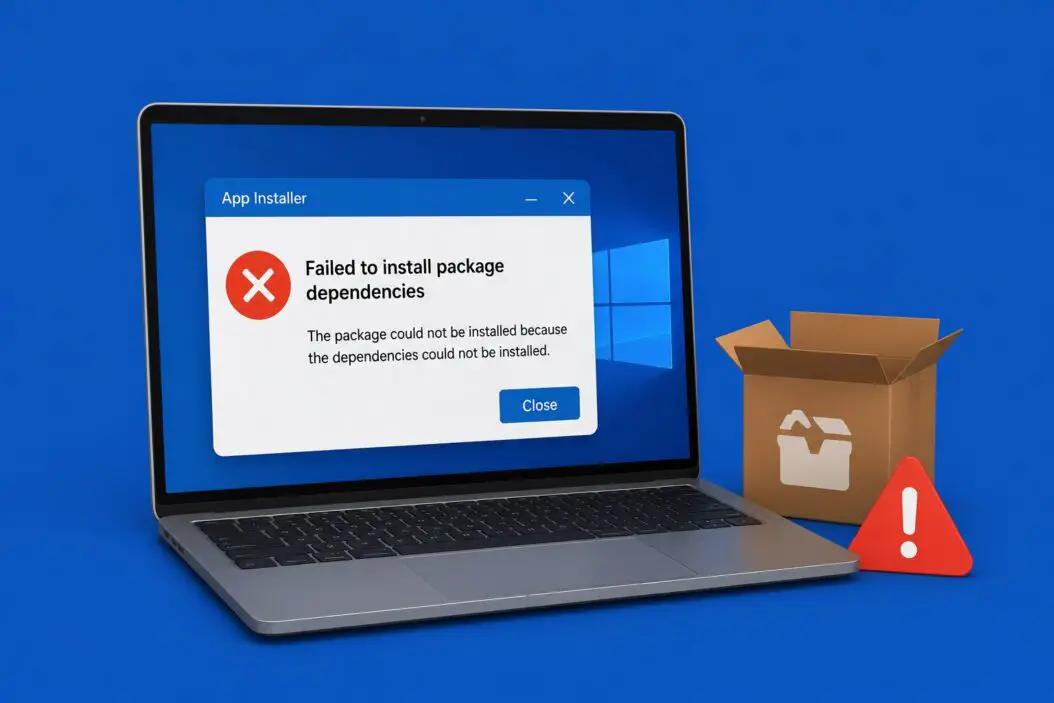
You clicked install, everything looked fine, then boom. “App Installer failed to install package dependencies.” Frustrating. But this error is fixable, and I’ll walk you through every working solution so you can get your app running without tearing your hair out.
This happens more often than Microsoft would like. It affects Windows 10 and Windows 11 users installing apps through the Microsoft Store, WinGet, or the App Installer (also called the MSIX App Installer). The core issue almost always comes down to corrupted system components, blocked updates, or a misconfigured App Installer service.
Why This Error Keeps Showing Up
The “failed to install package dependencies” error typically means Windows tried to fetch or install a required component before installing your app and couldn’t complete that process. That required component is usually the Desktop App Installer package, VCLibs (Visual C++ Runtime Libraries), or a UI XAML library.
Here’s what triggers it most often:
- The App Installer package itself is outdated or corrupted
- Microsoft Store is not synced or is broken
- Windows Update is blocked, preventing dependency downloads
- Your system is missing VCLibs or WinUI packages
- Proxy or firewall settings are blocking Microsoft servers
- The MSIX installer service is not running correctly
The good part is that none of these require reinstalling Windows. You just need to know which fix applies to your situation.
Start Here Before Anything Else
Before jumping into advanced fixes, run through these quick checks. They solve the issue for most people.
Check your internet connection. The installer needs to pull dependencies from Microsoft’s servers. A broken or restricted connection is an easy culprit.
Disable your VPN temporarily. VPNs sometimes block the Microsoft Store and App Installer from reaching the right endpoints. Turn it off, try again.
Make sure Windows Update is not paused. Go to Settings > Windows Update and confirm updates are not paused. Dependencies often come through Windows Update channels.
Run the installer as Administrator. Right-click the MSIX or AppxBundle file and select “Run as administrator.” Permission issues cause this error silently.
If those didn’t work, keep reading.
Fix 1: Update or Reinstall the App Installer
The App Installer (also listed in your apps as “App Installer” by Microsoft Corporation) is the backbone of the MSIX ecosystem. When it gets corrupted or outdated, everything breaks.
Step 1: Open the Microsoft Store.
Step 2: Click on your profile icon at the top right and select “Downloads and updates” or “Library.”
Step 3: Click “Get updates.” Let it update everything listed, especially App Installer.
Step 4: Once updated, restart your PC and try installing the app again.
If the Store is broken and won’t update it, use this PowerShell method instead:
- Open PowerShell as Administrator (search “PowerShell,” right-click, Run as administrator)
- Run this command:
Get-AppxPackage -allusers Microsoft.DesktopAppInstaller | Foreach {Add-AppxPackage -DisableDevelopmentMode -Register "$($_.InstallLocation)\AppXManifest.xml"}This re-registers the App Installer without deleting it.
Fix 2: Manually Install the Missing Dependencies (VCLibs and WinUI)
This is the most reliable fix for apps that fail due to missing runtime libraries. Many third-party apps packaged as MSIX need VCLibs and WinUI 3 to run.
You can download these directly from Microsoft:
VCLibs (Visual C++ Runtime for Desktop): Download the latest version from the Microsoft Visual C++ Redistributable page and install the x64 version for 64-bit systems.
WinUI 3 / Microsoft.UI.Xaml: Go to NuGet and download the latest stable package. Rename the .nupkg file to .zip, extract it, and install the MSIX file inside the tools/AppX/x64/Release/ folder.
After installing both, try your original installation again.
| Dependency | What It Does | Where to Get It |
|---|---|---|
| VCLibs 14.00 | Visual C++ runtime for MSIX apps | Microsoft Docs / NuGet |
| Microsoft.UI.Xaml | WinUI rendering library | NuGet |
| Desktop App Installer | Handles .msix and .appx installs | Microsoft Store |
Fix 3: Re-register All Appx Packages
Sometimes multiple packages get corrupted at once. Re-registering them all can clear the underlying issue.
Open PowerShell as Administrator and run:
Get-AppXPackage -AllUsers | Foreach {Add-AppxPackage -DisableDevelopmentMode -Register "$($_.InstallLocation)\AppXManifest.xml"}This command goes through every installed app package and re-registers them. It takes a few minutes. Some errors in the output are normal since some built-in apps may not re-register on purpose. Wait for it to finish, restart, and test again.
Fix 4: Reset the Microsoft Store
A corrupted Store cache is a sneaky cause of this error. The Store handles dependency resolution in the background, and a broken cache means it can’t fetch what the installer needs.
Method 1 (WSReset):
- Press Windows + R to open Run
- Type
wsreset.exeand press Enter - A blank Command Prompt window opens. Wait for it to close automatically
- The Store will open on its own when done
- Try your installation again
Method 2 (Full Reset through Settings):
- Go to Settings > Apps > Installed Apps
- Search for “Microsoft Store”
- Click the three dots > Advanced options
- Scroll down and click “Reset”
- Confirm and wait for the reset to complete
Fix 5: Enable Sideloading (Developer Mode)
If you’re installing an MSIX or AppxBundle from outside the Store, sideloading needs to be enabled. Windows 11 has this option under developer settings.
- Open Settings
- Go to Privacy & Security > For Developers
- Turn on “Developer Mode”
On Windows 10:
- Open Settings > Update & Security > For Developers
- Select “Developer mode”
Now try running the installer again. Some apps specifically require this, especially open-source apps or enterprise software distributed outside the Store.
Fix 6: Use WinGet From the Command Line
Sometimes the GUI installer fails but WinGet works. WinGet bypasses some of the Store integration and handles dependencies differently.
- Open PowerShell or Command Prompt as Administrator
- Type
winget install [app-name]replacing[app-name]with the actual app name or ID - WinGet will automatically pull and install dependencies
If WinGet itself throws errors, update it first:
winget upgrade wingetOr reinstall it by updating the App Installer through the Microsoft Store.
Fix 7: Run Windows Update and Install All Pending Updates
Dependencies like VCLibs and the App Installer itself sometimes arrive through Windows Update, not the Store. If your updates are behind, the installer can’t find what it needs.
- Open Settings > Windows Update
- Click “Check for updates”
- Install every available update, including optional ones
- Restart your computer
After restarting, check for updates again. Sometimes one restart reveals another batch. Keep going until it says “You’re up to date.”
Fix 8: Check Group Policy Settings (Windows 10/11 Pro and Enterprise)
On Pro and Enterprise editions, Group Policy can block sideloading or restrict App Installer behavior. This is common on work or school managed devices.
- Press Windows + R, type
gpedit.msc, and press Enter - Navigate to: Computer Configuration > Administrative Templates > Windows Components > App Package Deployment
- Look for “Allow all trusted apps to install” and “Allow development of Windows Store apps”
- Set both to “Enabled”
- Close the editor and restart
If you’re on a company device and can’t access these settings, contact your IT department. Group Policy from your organization may be intentionally restricting installations.
Fix 9: Clear the Pending.xml File
Windows keeps a list of pending operations during installs. If a previous install crashed or was interrupted, this file can get stuck and block future installs.
- Open File Explorer
- Navigate to:
C:\Windows\WinSxS\ - Find the file named
pending.xml - Rename it to
pending.xml.bak(do not delete it) - Restart your PC and try installing again
This is a more advanced step. Only do this if earlier fixes didn’t work.
Fix 10: Repair Windows with SFC and DISM
If nothing else works, your Windows system files may be corrupted. These two built-in tools can repair them.
Step 1: Run SFC
Open Command Prompt as Administrator and type:
sfc /scannowWait for it to complete. It may take 10 to 20 minutes. If it finds and fixes issues, restart and try again.
Step 2: Run DISM
If SFC didn’t help or said it couldn’t fix something, run DISM:
DISM /Online /Cleanup-Image /RestoreHealthThis downloads clean Windows files from Microsoft’s servers to replace corrupted ones. It takes time. After it finishes, run SFC again, then restart.
Error Codes You Might See and What They Mean
| Error Code | Meaning | Quick Fix |
|---|---|---|
| 0x80073CF3 | Package failed update or dependency install | Re-register App Installer |
| 0x80073D02 | Resources in use by another process | Restart and retry |
| 0x80073CF0 | Package already exists | Uninstall old version first |
| 0x80070002 | File not found during install | Run DISM + SFC |
| 0x800700B7 | File already exists conflict | Clear Store cache, retry |
| 0x80073CFF | Requires developer mode or sideloading | Enable Developer Mode |
Which Fix Should You Try First?
Not every fix applies to every situation. Here’s a quick map:
- Installed via Microsoft Store: Start with Fix 1, then Fix 4
- Installing a third-party MSIX file: Start with Fix 2, then Fix 5
- Work or school PC: Start with Fix 8, contact IT if blocked
- Store app that suddenly stopped installing: Start with Fix 4, then Fix 3
- Error persists after all fixes: Do Fix 10 last
Conclusion
The “App Installer failed to install package dependencies” error on Windows 10 and 11 almost always comes down to a handful of fixable things: a broken App Installer, missing runtime libraries like VCLibs or WinUI, a corrupted Store cache, or blocked Windows updates.
Start simple. Update the App Installer through the Store, reset the Store cache, and make sure Windows Update is current. If that doesn’t work, manually install VCLibs and WinUI from Microsoft, then re-register your app packages with PowerShell. For stubborn cases, SFC and DISM can rebuild any corrupted system files underneath.
FAQs
Can I install an MSIX file without the Microsoft Store being installed?
Yes. You can install MSIX packages directly without the Store, but you still need the App Installer to be present on your system. If your build of Windows doesn’t have it, you can download App Installer from the Microsoft Store or install it manually via PowerShell using the Add-AppxPackage command with the direct package URL. The Store itself is separate from the App Installer service.
My PC is managed by an organization and I can’t change the Group Policy settings. What do I do?
That’s a restriction your IT team put in place intentionally. You’ll need to contact them and ask them to either push the required app through a managed deployment tool like Microsoft Intune, or whitelist the specific package you’re trying to install. Trying to work around organizational Group Policy on a managed device is not advisable and may violate company policy.
After running the PowerShell re-registration command, I see a bunch of errors. Did something go wrong?
Not necessarily. When you re-register all Appx packages, some will throw errors because certain built-in apps are protected and can’t be re-registered in that way. As long as the App Installer and your target app successfully re-register, those errors are harmless. The command outputs results for every package it touches, and some failures are expected behavior.
Does disabling antivirus help with this error?
Sometimes, yes. Aggressive antivirus software can intercept the MSIX installation process and block dependency downloads before they complete, without giving you a clear warning. If you’ve tried the other fixes without success, temporarily disabling your antivirus (not uninstalling) and retrying the install is worth testing. Re-enable it immediately after.
I fixed it once but the error came back after a Windows update. Why?
Windows updates occasionally reset or overwrite App Installer components, especially after major feature updates. When that happens, the fix is the same: update App Installer through the Store, run WSReset, and re-register packages if needed. Keeping Windows fully updated and avoiding pausing updates for long periods reduces how often this happens.
